Creating Email Groups
From Studio, you can create Email Groups to use as recipient lists for email notifications from rules or from site user feedback.
Prerequisites
To use Email Groups, your vault must have Role by Study enabled and your Study must be using the automated deployments model.
By default, users with the CDMS Study Designer study role can perform the actions described below. If your organization uses user-defined Study Roles, your role must grant the following permissions:
| Type | Permission Label | Controls |
|---|---|---|
| Standard Tab | Studio Tab | Ability to access the Studio tab |
| Functional Permission | Design Study | Ability to create study design definitions and a study schedule from Studio |
If your Study contains restricted data, you must have the Restricted Data Access permission to view it.
Learn more about Study Roles.
Study Language
When Study Language is enabled, the following data in the configured email notification will display in the study language and locale:
- Date & DateTime Items
- Codelist Items
- Visit Method
- Event Date
When Study Language is not enabled, this data will display in the user language and locale.
Creating an Email Group
Before you can fully configure a Send Email rule action, you must first create an Email Group.
- Navigate to Studio > Email Groups.
-
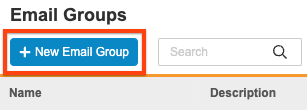
Click + New Email Group.
-
Enter a Name for the Email Group. This is the value that displays in the Email Group dropdown during rule creation and in EDC Tools > Email Group Assignment.
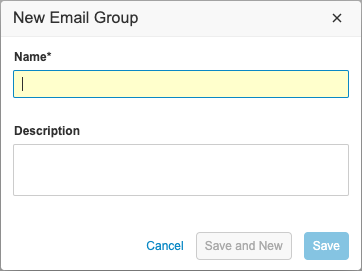
- Optional: Enter a Description of your Email Group.
- Click Save.
- Optional: Click Save and New to save your Email Group and begin creating another one without closing the New Email Group dialog.
A lead data manager can now add users to your Email Group from EDC Tools > Email Group Assignment.
Versioning & Deployments
Email Groups and related records are not subject to casebook versioning. Like rules, review plans, and other versionless objects, you can create and edit Email Groups at any time, whether or not the Casebook Definition is published.
The deployment process will automatically migrate all email group configuration from environment to environment.