New Features in 26R3 Limited Releases
26R3 Planned General Availability: November 20 & December 4, 2026
26R2.4 Release Date: October 16, 2026
26R2.3 Release Date: October 2, 2026
26R2.2 Release Date: August 21, 2026
We are pleased to bring you new functionality with each limited release. These release notes are updated with upcoming new features one week before the limited release date.
Enablement Changes: The enablement of each feature is subject to change from release to release. For limited releases in the same general release, we will update this page. Enablement may also change before the general release. Refer to the Release Impact Assessment for the most up to date enablement for a general release.
Clinical Data
Features in this section are changes that apply to all application areas of Veeva EDC and DQS.
Vault AI Tab for EDC 26R2.3
Use Case
Study teams now have access to AI assistance directly within Veeva EDC. By making the Vault AI tab available in the EDC environment, users can quickly interact with AI chat capabilities to support their daily activities without leaving the application.
Description
The Vault AI tab is now available within Veeva EDC, allowing users to leverage interactive AI tools alongside their regular clinical trial and clinical data management activities. Within the AI tab, users can chat and ask questions directly in EDC. The AI agent searches the vault for study operational data and the Help pages to generate answers within the context of the vault’s data and user’s study access. Please note no site-entered casebook data is referenced by the AI agent.
By default, the AI Tab permission is automatically granted to all standard application roles in EDC, with the exception of DQS roles. If your Vault is enabled for AI, administrators should consider adding this permission to existing user-defined roles under Role Management (System Tools). Should your organization wish to restrict access to the AI tab for specific user groups, administrators can configure user-defined roles that exclude the AI Tab permission.
Enablement & Configuration
This feature is auto-on for Vaults enabled with Veeva AI.
Global Subject to Participant Rename 26R2.3
Use Case
Clinical research protocols increasingly adopt the term “Participant” instead of “Subject” to align with modern, patient-centric trial standards. This feature enables study teams to update the primary terminology used throughout the application from “Subject” to “Participant” to match their protocol and site-facing materials.
Description
Veeva EDC now allows environments to display “Participant” in place of “Subject” across the user interface. When enabled, standard interface labels, page titles, table headers, and system messages are automatically updated.
If enabled, certain areas will retain references to “Subject”:
- Dynamic user-configurable change reasons created or modified in System Tools.
- Standard and custom report names, report descriptions, and system report types.
Enablement & Configuration
This feature is available to early adopters. Contact your Veeva Services representative for details.
Data Entry
Features in this section are changes to the Data Entry tab, a working area for investigators and clinical research coordinators to enter study execution data.
- Required Submission for Safety Case Initiation Event Forms
- Removed the Delete Event Action for Dynamic, Unscheduled Events
- New Tooltip for + New Event Button when Repeat Max is Reached
- Only Show Form Not Submitted Dialog when Form Data Changes
- Seamless Navigation through Non-sequential Repeating Forms
Required Submission for Safety Case Initiation Event Forms 26R2.3
Use Case
The creation of Safety Case Initiation Events can be delayed when site users complete or edit Serious Adverse Event forms without submitting the form. This feature prevents site users from leaving incomplete or unsubmitted safety initiation forms, ensuring critical safety data is submitted immediately to downstream safety systems.
Description
When a site user attempts to navigate away from an in-progress form designated for safety case initiation, EDC prevents the user from leaving without submitting the form.
Previously, when a user attempted to leave a form without submitting, a warning dialog appeared offering options to leave the page, continue editing, or submit. With this enhancement, attempting to navigate away from an in-progress safety initiation form opens an updated dialog titled Required Form Submission. This dialog explicitly informs the user that the form contains critical data needed for a safety case and removes the option to leave the page. The user must select either Continue Editing to remain on the form or Submit to complete the entry and navigate away.
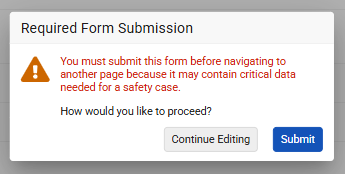
This applies to any in-progress safety case initiation form, regardless of whether changes were made during the current view. Non-safety forms and other standard safety forms are not impacted by this change and continue using the prior navigation prompts.
Enablement & Configuration
This feature must be enabled by contacting Veeva Support.
Removed the Delete Event Action for Dynamic, Unscheduled Events 26R2.2
Use Case
By preventing users from manually deleting dynamically added events in unscheduled event groups, casebooks will now stay aligned with rule results. This prevents accidentally removing events that cause data entry delays, avoiding operational overhead with re-running rules to restore events.
Description
Site users are no longer able to manually delete events that were dynamically added to unscheduled event groups through Studio rules. The Delete Event action is no longer available for dynamically added events in unscheduled event groups, mimicking the current behavior as the scheduled dynamic events. If the rule triggering the dynamic event is re-evaluated to False then the dynamic event will be automatically removed if there is no form data. If there is form data, then Vault will mark it for removal.
Enablement & Configuration
This feature is auto-on.
New Tooltip for + New Event Button when Repeat Max is Reached 26R2.2
Use Case
Data entry users need clarity on why system actions are unavailable when adding new unscheduled event groups. Providing an explicit hover message on the + New Event button informs users that the configured limit has been met. This improves site usability and reduces support requests regarding disabled casebook controls.
Description
When the casebook reaches the max number of repeating unscheduled events, the + New Event button will now show a tooltip message to clarify for data entry users why they cannot add another unscheduled event to the casebook.
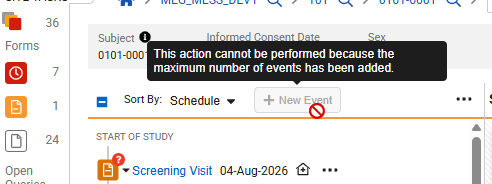
Note, when the subject is locked, the hover over will instead display the existing subject lock message.
Enablement & Configuration
This feature is auto-on in the Data Entry tab.
Only Show Form Not Submitted Dialog when Form Data Changes 26R2.2
Use Case
Previously, navigating away from any in progress form triggered a warning prompt regardless of whether data updates were made. Restricting this prompt to instances with unsaved data changes removes the unnecessary prompt, streamlines data entry, and maintains the warning for uncommitted data.
Description
The criteria for when the Form Not Submitted warning dialog displays is updated during casebook navigation. The Form Not Submitted dialog will now only display when a user updates item data and attempts to navigate away without submitting the form.
Enablement & Configuration
This feature is auto-on in the Data Entry tab.
Seamless Navigation through Non-sequential Repeating Forms 26R2.2
Use Case
In Veeva EDC, repeating forms are presented in the order of their repeat sequence. If middle forms are deleted via dynamic rule logic after reset or not created during study migrations, sequence numbers may contain gaps. Non-sequential sequence numbers previously caused inconsistent navigation and unclear reference counts. The new user experience ensures users can seamlessly navigate non-sequential repeating forms while maintaining clear visibility of current sequence numbers and total form counts.
Description
This feature updates the reference count behavior and navigation controls to seamlessly accommodate non-sequential repeating forms. The new user experience is applied to the Data Entry form view, Review form view, and Review View As Site.
If a repeating form was created (for example, a Concomitant Medication), reset, and thereafter deactivated due to dynamic rule logic (for example, Informed Consent re-drawn), the form is removed from the repeated form grid UI and navigation. Similarly, when migrating studies, not all repeats of a form may be present in the legacy studies, leaving gaps in the form reference number sequence.
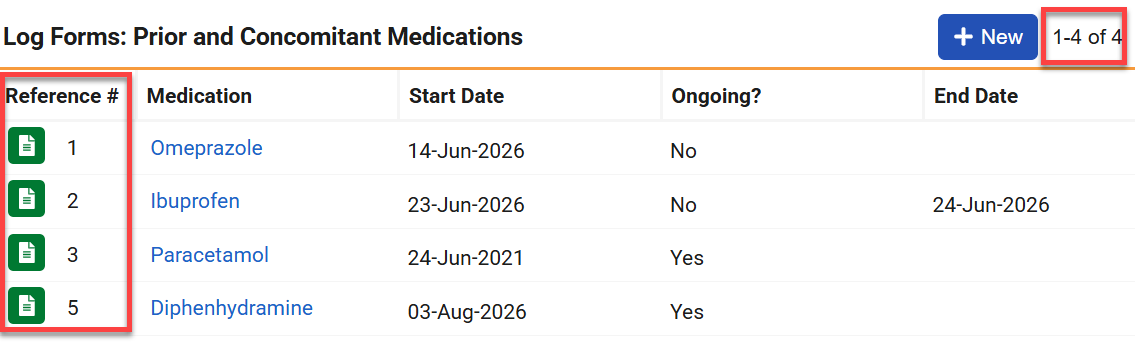
This feature makes the following updates:
The first number in the reference count continues to display the sequence number of the form currently being viewed. The second number now displays the highest sequence number among the repeating forms, representing the total sequence count including all deleted forms.
The navigation buttons (the side arrows in Data Entry views and the up/down arrows in Review view) are disabled when viewing the first or last repeating form, respectively.
Grid pagination continues to display the total count of existing repeating forms rather than sequence numbers.

Enablement & Configuration
This feature is automatically enabled.
Data Review
Features in this section are changes to the Review tab, a working area for clinical research associates and data managers, or to review functionality within the Data Entry tab.
Vault Owner Query Team Selection 26R2.3
Use Case
Previously, for Studies using Query Teams, Vault Owners were not included to specific query teams, which prevented the selection of a query team when managing queries. Vault Owners are now considered part of all query teams. This allows Vault Owners to help manage queries across all functional teams without requiring an additional role.
Description
Vault Owners now act as members of all query teams when team query restrictions are enabled for a study. When opening a new query or submitting a reply with a comment in either the review or data entry interface, Vault Owners can select any query team from the Query Team dropdown menu.
For Studies using Quick Queries, when the Vault Owner selects the Clinical query team while opening a query in the review interface, the quick query actions become available.
When closing a query, Vault Owners can select any query team for the closing comment. Reopening a query preserves existing behavior, defaulting to the query team that originally opened the issue.

In the Query Detail Listing, the Query Team column records the specific team selected by the Vault Owner during their query action, while the Role column remains blank for Vault Owner actions.
Enablement & Configuration
This feature is auto-on for studies with team query restrictions enabled.
SDE - SYS_SAFM Length Change 26R2.3
Use Case
For better tracing of Safety AS2 gateway messages, the field length of the AS2 Message ID was increased. This is also reflected in the SDE and must be considered for impacted downstream analyses.
Description
In the SYS_SAFM dataset of the SDE, the length of the AS2MSGID field has increased from 100 to 256 characters, and the SAS export length consequently increased from 400 to 1024 characters.
Enablement & Configuration
This feature is Auto-On for all SDE versions.
Clinical Coding
The following are new features for Veeva Coder, the clinical coding area for Veeva Coder.
- Code Request Review Workflow
- Include Form Name in the Reconstitute Code Requests Job
- Redirect Users to Dictionary Validation on Dictionary-related Links
Code Request Review Workflow 26R2.3
Use Case
Sponsors often perform quality reviews of coded clinical data. Previously, only an approval workflow was available, which could delay downstream processes, such as Safety Case exports, by keeping terms in a pending approval state. By establishing a standalone Review workflow, organizations can streamline manual coding and automated workflows while maintaining granular data oversight.
Description
The Code Request Review workflow introduces a distinct review process for coding requests. It enhances system-wide functionality and updates the user interface to optimize code evaluation workflows. Specifically, this feature:
- Creates the Enable Review Workflow study setting in Coder Tools (A), which is disabled by default. The feature also updates the existing labels (B), and shifts their position (C).
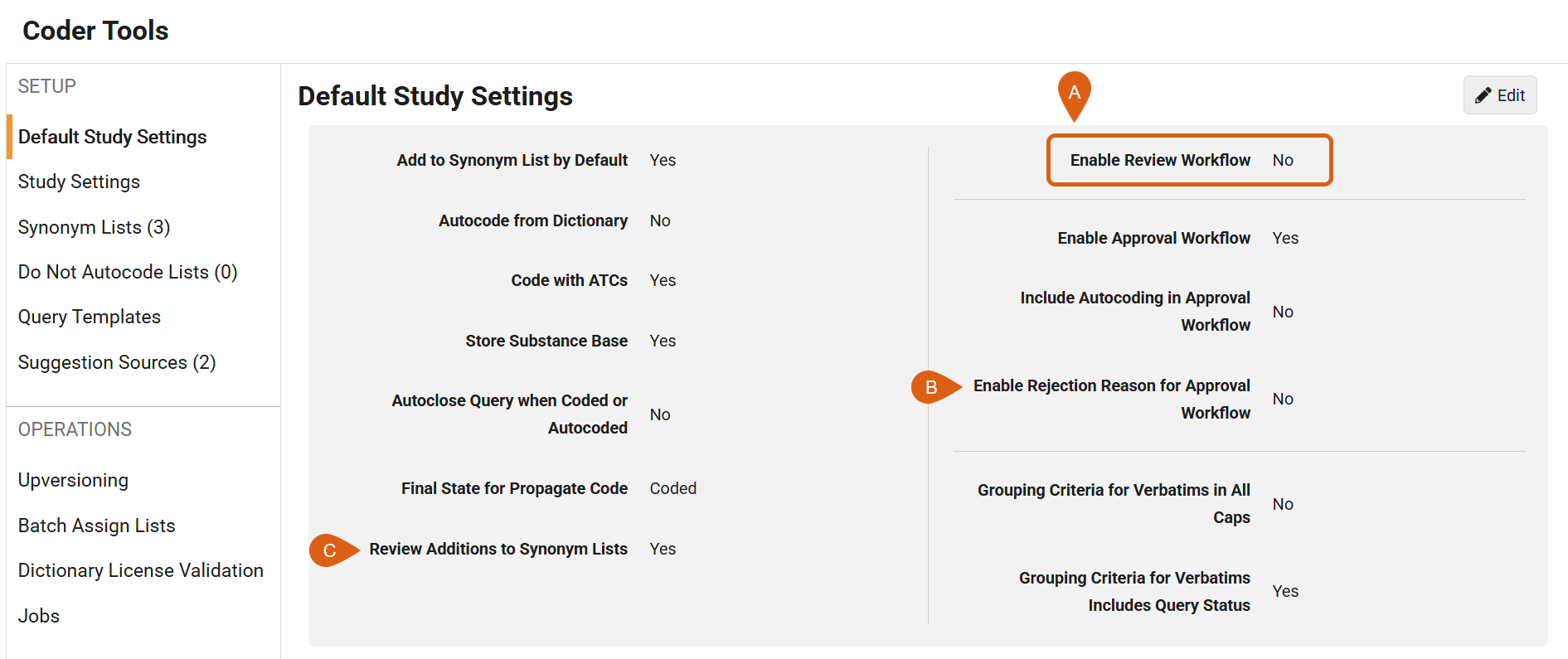
- Removes the strict dependency where Enable Approval Workflow automatically forced Review Addition to Synonym Lists to “Yes”, both at the Default Study Settings, and the Study Setting levels.
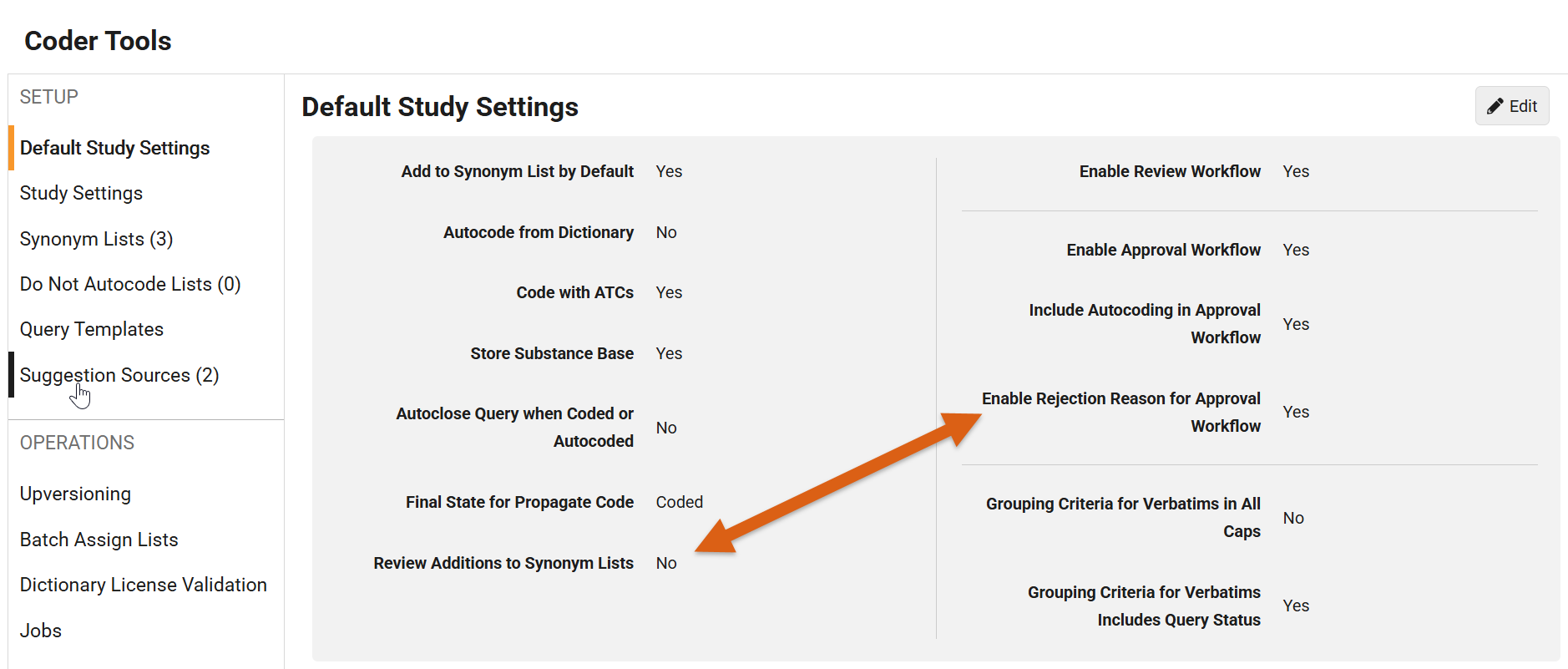
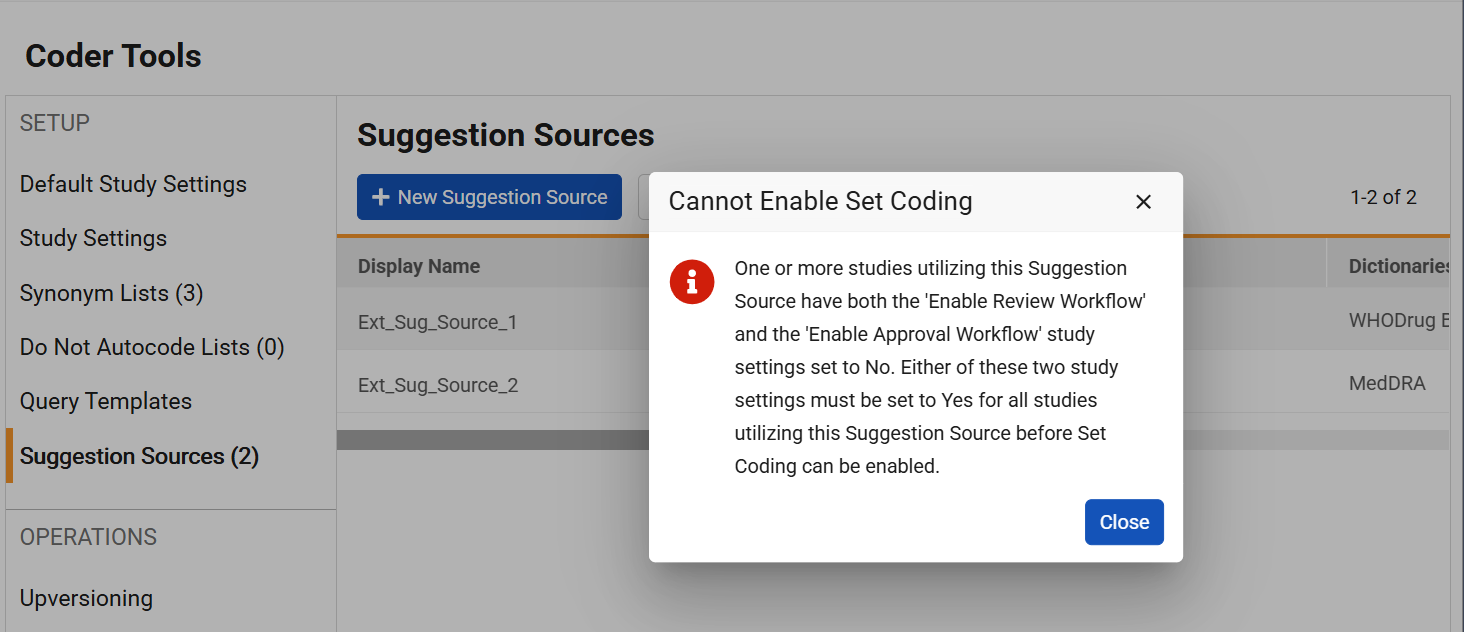
- Enforces validation requiring either the Approval Workflow or Review Workflow to be enabled when using an external suggestion source with set coding enabled. Previously, Approval Workflow was mandated.
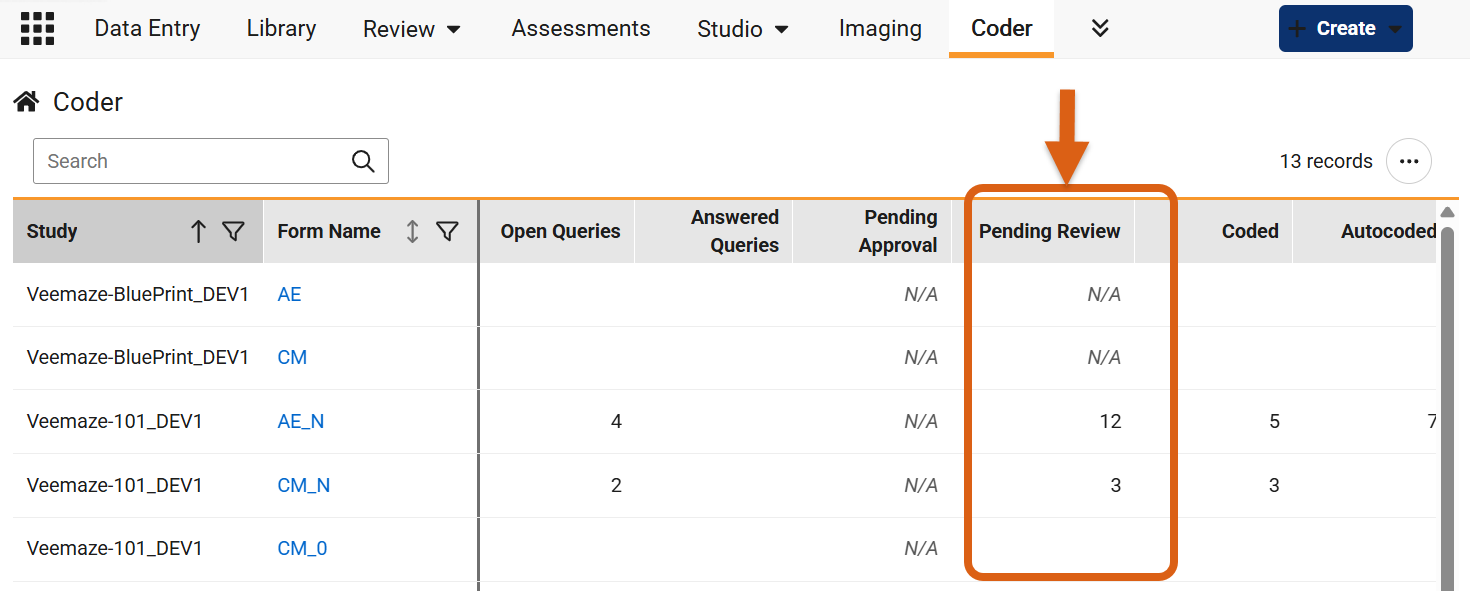
- Adds a Pending Review count column to the Coder Homepage showing counts of terms awaiting review per form. When the review workflow is disabled for a study, this column displays “N/A”.
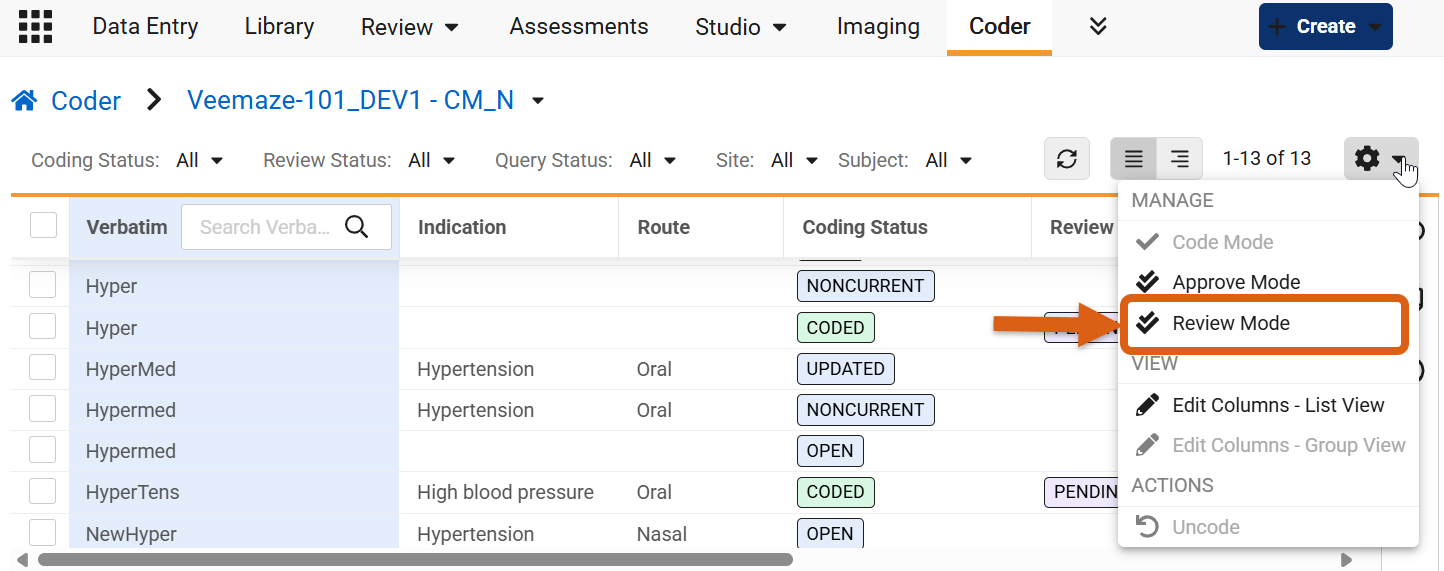
- When the Review Workflow is enabled for a study, adds Review Mode to the verbatim grid gear menu for authorized users.
-
When the Review Workflow is enabled for a study, adds new columns to the verbatim grid: Review Status (visible by default with three possible statuses: Pending Review, Reviewed, or Rejected. ), Last Reviewed By, and Last Reviewed Date (both can be added via Edit Columns action).
-
Adds Mark as Reviewed and Reject action buttons to the grid header in Review Mode.
-
Mandates a rejection note of up to 1,500 characters when rejecting code requests in Review Mode and updates the Notes panel to display the comment.
- Triggers background EDC jobs upon enabling or disabling the setting to set or clear review statuses and update verbatim grouping properties.
- Relabels the Approve Code permission to Approve and Review Code.
- Updates Code Request Export, Study Data Extract (SDE), Core Listings, and Audit Trail to include Review Status information.
- Updates the Retrieve Coding Requests API to accept and return review status parameters.
When the Review workflow is turned on, medical coding requests that reach a Coded or Autocoded coding status are automatically assigned a review status of Pending Review. Authorized reviewers can then evaluate these terms and mark them as Reviewed or Rejected. If a reviewer rejects a term, they are required to enter a rejection note to explain why it needs further attention.
The workflow supports both single and bulk operations, allowing reviewers to select one or multiple verbatims in List View or Group View to perform simultaneous status updates. For bulk ‘Reject’ actions, selecting multiple verbatims or groups and clicking Reject opens a single dialog requiring a rejection comment; submitting the comment updates the status of all eligible selected requests to Rejected and appends the rejection note to each verbatim.
Note that enabling or disabling this workflow initiates an automated background EDC job. Upon enablement, the job assigns a Pending Review status to all existing Coded and Autocoded verbatims across the study. When disabling the workflow, if any code requests in the study currently have a review status of Reviewed, the system prevents disabling the workflow until those terms are updated to Rejected.
Enablement & Configuration
This feature is available for use.
Include Form Name in the Reconstitute Code Requests Job 26R2.3
Use Case
This feature ensures consistent form naming across the system by updating the output files and Job History tooltip for the Reconstitute Code Requests job.
Description
When running a Reconstitute Code Requests job from EDC Tools, the output CSV files (Code_Requests_Created.csv and Code_Requests_Updated.csv) now display the precise Form Name in addition to a generic Form Type category.
Specifically, the Form Name column displays the exact form definition name from the study design. Additionally, the former Other Form Name column has been updated to Form Type. This column displays the standard form type category or, when applicable, the custom other form type label specified in the study design.
In addition to output file updates, the Job History section in EDC Tools features an updated tooltip for Reconstitute Code Requests jobs. Hovering over the information icon displays a comma-separated list of the specific form definition names included in that job instead of the broader form types.
Enablement & Configuration
This feature is automatically enabled.
Redirect Users to Dictionary Validation on Dictionary-related Links 26R2.2
Use Case
When reviewing medical coding reports, users may click on links for dictionary releases or definitions to verify dictionary details. Previously, these links navigated directly to the record page, where users could inadvertently modify core dictionary settings. Redirecting users to the Dictionary License Validation page provides a safe, seamless way to view dictionary information without risking accidental edits to essential system data.
Description
When users click a dictionary hyperlink (in Medical Coding Dictionary Release or Medical Coding Dictionary Definition objects) in a standard or user-defined EDC report, the System now automatically routes them to the Dictionary License Validation page within Coder Tools.
- Permission Controls:
- Users with access to Coder Tools who lack the Manage Coder Study Settings permission will see the validation page in view-only mode, with editing and validation buttons hidden.
- If a user does have the Manage Coder Study Settings permission, they will see the edit and validation buttons as usual.
- Users who do not have permission to access Coder Tools at all will see a standard ‘Page not found’ permission notice upon clicking the link.
- Users with access to Coder Tools who lack the Manage Coder Study Settings permission will see the validation page in view-only mode, with editing and validation buttons hidden.
- Filtering: The link directs users to the generic Dictionary License Validation page view; it does not apply specific record ID filters.
Enablement & Configuration
This feature is automatically enabled.
Assessments
The following are new features for the Assessments area of Veeva EDC.
Form Linking in Assessments 26R2.3
Use Case
This feature supports more efficient assessment review by filtering out unlinked form instances and ensuring automatic reassessments are only triggered when changes occur on relevant linked data.
Description
Study designers can now configure assessments to show only specific form instances that are explicitly linked to a source form, rather than displaying all available instances. When designing an assessment, a new global setting called “Only include linked instances of linked forms” allows designers to restrict visibility. When enabled, only the specific linked form instances appear during review, and updates to unlinked instances will no longer trigger an unnecessary reassessment.
Within the assessment configuration layout, forms with established links are designated with a link icon. Built-in configuration checks ensure that if a linked form is configured for visibility or reassessment triggers, all corresponding linked forms are configured consistently. If an invalid configuration occurs,guidance is provided to resolve the discrepancy before saving or deploying.
In the assessor view, linked form instances clearly display a link icon providing clear context on how the records are associated.
When an assessment is completed, the system captures the specific link details as part of the historical snapshot.
Enablement & Configuration
This feature is available for use in Assessment configurations.
Study Design & Configuration
Features in this area apply to Studio, the study design and configuration area for Veeva EDC.
@Event Bindings & Reciprocal Rules 26R2.3
Use Case
Study designers often needed to write identical logic across multiple visits, to check visit dates with form data entries. Previously, this required creating separate, duplicate rules for each event in the schedule. New @Event bindings with reciprocal evaluations reduce the number of configured rules for Study Designers, allowing them to write a single rule that automatically applies across multiple or all study visits. This reduces study build times and simplifies ongoing rule maintenance. Rule processing is optimized so that event-level changes only evaluate rules against forms that actually exist within the current visit context. This prevents redundant rule executions and improves system performance during data entry.
Description
Study designers can now configure rules to evaluate based on event-level data changes using floating @Event identifiers. When a rule expression includes event-level attributes on a floating event identifier, for example @Event.event_date__v or @Event.visit_method__v, new options become available in the rule editor’s Details panel. Designers can configure the rule to bind to all events in the study schedule or up to 20 selected events. When configured, Rule Bindings are created for each event in the study schedule, and the rule will evaluate on each data change for those events.
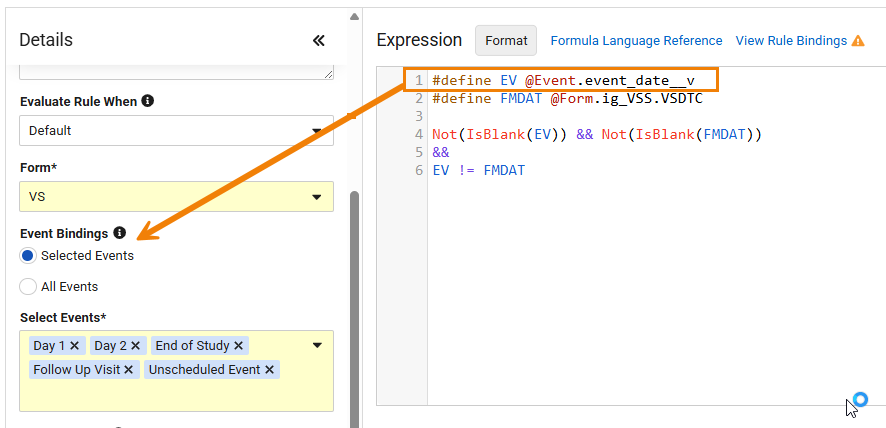
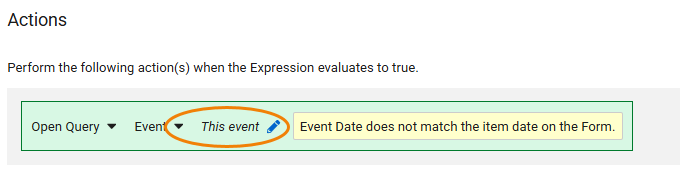
When defining query actions for rules with explicit Event Bindings, designers can target queries to dynamically open event-level queries on “This event”. When triggered, the system automatically opens the query on the specific visit instance where the rule evaluated, eliminating the need for separate rules to open queries on each visit.
Event selections will also be shown in the EDC Tools UI when viewing the rule.
Studio Documentation
New columns, Event Bindings Type and Selected Events have been added to the Rules tab of the Study Design Specifications (SDS). The Studio generated Comparison (Diff) report will indicate rule definition changes for Event Bindings Type, Selected Events, and Default Event between study versions. Casebook validations will show errors if a referenced event definition in Selected Events is deleted from the study.
Copying Rules
Copying rules within a study or across studies preserves all configured event bindings and dynamic query actions. Similar to all rule copies, rule identifiers and actions will first attempt to match on the object key and then the event name before nullifying the reference.
Enablement & Configuration
This feature is available for use in Studio. Existing rules maintain their previous configuration and leave event binding selections blank unless updated.
Job Permissions Update (Read-Only User) 26R2.2
Use Case
Previously, users with the CDMS Study Designer Read Only role or a user-defined role with Studio access but without the Manage Jobs permission could generate the Study Design Specification (SDS). However, this process did not create an entry in EDC Tools > Job History.
Description
With this release, when users with one of these roles generate the SDS, the entry will now appear in EDC Tools > Job History.

Enablement & Configuration
This update is Auto-On.
Study Administration
Features in this section apply to System Tools or EDC Tools, a study-level administration area for Veeva EDC.
- DQS Relabeling for EDC Tools, FTP, and SDE
- Increase Observed Source Value Character Limit in Query Listing Object
- Audit 2.0: New Export Format
- Audit Trail Export Job UI Enhancements
- Site Closeout PDF Naming & Status Updates
- Suppress Site & Country Fields in the Audit Trail for Non-subject Objects
DQS Relabeling for EDC Tools, FTP, and SDE 26R2.3
Use Case
This release includes updates to system labels within EDC to align with the rebranding of CDB to DQS.
Description
This feature updates user-facing labels in EDC Tools and System Tools to reflect the new DQS naming convention.
Updated labels will display in the following places:
- FTP Configurations: The FTP type picklist in both EDC Tools and System Tools will display “DQS” instead of “CDB” (as well as the downloaded FTP Configuration Report).
- SDE Jobs: The job creation dialog, scheduled jobs, and job history tabs will display updated section titles, checkbox options, and tooltips referencing DQS instead of CDB (“Send to CDB” options will reference DQS Workbench).
- Study Settings: In EDC Tools > Study Settings, the setting previously labeled “Enable CDB Incremental” has been relabeled. This setting appears for studies licensed for DQS Workbench or when the corresponding setting display flag is enabled.
Enablement & Configuration
This feature is auto-on for vaults enabled to use DQS.
Increase Observed Source Value Character Limit in Query Listing Object 26R2.3
Use Case
In 26R2, character limits for observed source values length limits were expanded from 25 to 100 characters in the UI. This update is also being applied to the Query Listing reporting object to ensure that reports containing longer source values generate successfully.
Description
This update increases the maximum character length for the Observed Source Value field in the Query Detail Listing reporting object from 25 characters to 100 characters.
This change specifically updates the reporting object behavior and aligns it with the character limits already supported in CSV Query Detail Listings generated from EDC Tools and Review.
Enablement & Configuration
This feature is automatically available.
Audit 2.0: New Export Format 26R2.3
Use Case
Clinical data managers need clear visibility into how and why data changes across clinical studies. The updated Audit Trail Export provides dedicated columns for old values, new values, and change reasons, along with enhanced filtering and output capabilities. This streamlined approach helps clinical teams quickly trace data modifications, simplify audit workflows, and maintain regulatory compliance.
Description
The Audit Trail Export now delivers study audit data in a standardized, easy-to-read format with additional details provided. Exports now explicitly include the user’s role and organization at the time of the change, as well as tracking for automated or system actions performed on behalf of a user. Additionally, the output introduces specific columns for the Intentionally left blank (ILB) reason, bulk operation filter names used during mass data locks or freezes, and the user running the job.
When configuring a new audit export job, users can now define parameters such as study export scope (all sites, selected sites, or selected subjects) and which forms to include, along with the previously available parameters for Users and Date Range.
When setting a date range, users can specify a relative date range for the export using the “In the last” filter and entering a number of days. This update, along with the ability to configure delivery to FTP or S3 Connections, provides enhanced support for scheduled job execution.
Users can choose to output audit files individually per subject or combined into a single, chronological study file.
Enablement & Configuration
This feature is part of a Phased Rollout throughout 2027. Veeva will provide additional scheduling information as Vaults are scheduled for enablement.
Audit Trail Export Job UI Enhancements 26R2.3
Use Case
These enhancements standardize selection limits and improve layout consistency across audit export dialogs.
Description
When generating an Audit Trail Export by Study, Site, or Subject, users can now optionally select up to 25 users . Help text has been added to the User selection, Site selection and Subject selection fields, detailing the selection limit for each field. The subject selection box height has been reduced to 5 subjects with scrolling to optimize dialog space. Pagination for subjects is set to 10 subjects per page.
Option check boxes for medical coding and definition updates have been updated to sentence case capitalization, and export options have been relocated to the bottom of the dialog window.
Additionally, the Data Change Extract option to Execute All Forms has been relabeled to All Forms.
Enablement & Configuration
This feature is auto-on.
Site Closeout PDF Naming & Status Updates 26R2.2
Use Case
To help clinical research teams remain compliant with regulatory guidelines, site closeout file names now include specific study, site, and participant details. Additionally, we’ve updated site closeout status messaging to provide clearer indication when the closeout process is interrupted due to a site being unlocked. This eliminates confusion around whether a closeout process needs to be restarted after site access changes.
Description
When generating a site closeout document, Vault automatically creates a standardized file name using lowercase text and a clear structure, for example, “crf-[study name]-[site name]-[participant ID]-[date generated].pdf”.
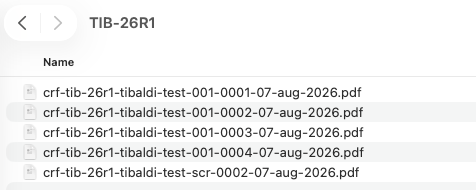
To ensure maximum readability and compliance with document standards, special characters and spaces within names will be replaced with hyphens, and dates will be formatted using study’s date settings.
If the file naming convention would result in exceeding maximum length limits (218 bytes), Vault will truncate the text to ensure the most critical identification details remain intact:
- The full date will always be included.
- Participant ID will be truncated after 176 bytes
- Study Name and Site Name will each display a minimum of 10 bytes
When a site closeout process is interrupted because a site is unlocked, the status label now clearly reflects this change across the application. The closeout status updates to “Closeout process reset due to site unlock” within the Closeout Activity dialog, the Sites grid, and the closeout action menu. The closeout audit history for future closeouts also records this event with clear details indicating which user unlocked the site.

Enablement & Configuration
This feature is auto-on.
Suppress Site & Country Fields in the Audit Trail for Non-subject Objects 26R2.2
Use Case
Subject transfers between sites historically generated redundant site and country audit entries across all child records associated with the subject, unnecessarily duplicating these entries within the audit trail. Streamlining audit trail outputs eliminates redundant historical entries across lower-level casebook objects while preserving full traceability at the subject level. This reduces audit clutter and simplifies compliance review workflows for clinical operations and data management teams.
Description
The site and country changes are now suppressed from non-subject audit trails, in the EDC Audit Trail UI, Audit Exports, and Audit PDFs. The suppressed site and country changes include the Assessments, Assessment Responses, Casebooks, Event Groups, Events, Forms, Item Groups (Data Model V1), Items (Data Model V1), and Query records. For Item Groups and Items, this feature impacts studies operating in Data Model 1. The Item and Item Group records for site and country changes were already not shown in Data Model 2 studies.
The full site and country transfer details remain preserved in the subject-level audit trail and on medical coding objects to support coding decision reviews. The records are suppressed.
Enablement & Configuration
This feature is auto-on for both existing and new studies. For existing studies with a preference to still show these records, contact Veeva Product Support to enable the related setting to un-suppress the non-subject records.
Labs
Features in this section are new features for the Labs module of Veeva EDC.
- Labs Translations Enhancements
- Allow LBSEX to be Set as Derived
- Prevent Use of Archived Lab Codelist & Unit Items for Normal Ranges
Labs Translations Enhancements 26R2.3
Use Case
When managing lab definitions, users working in languages other than the default vault language could unintentionally overwrite primary text definitions when making updates. This feature protects base system definitions by ensuring that label edits made by non-primary language users only update the translated text rather than the core vault record. These updates prevent accidental data overwrites and ensure consistency across multi-language users.
Description
The system now checks the user’s language settings relative to the vault’s base language before saving changes when users update labels for the following: analyte definitions, lab unit item definitions, or lab codelist item definitions.
If a user whose language differs from the vault’s base language edits a label that already has a translation, the system updates the translated label without affecting the base language label. If the user is viewing the base language label because no translation currently exists, their edits will update the base language label field.
When a user whose language matches the vault’s base language makes updates, the changes are applied directly to the base language label field.
This enhancement modifies existing edit behaviors for lab unit item definitions, codelist item definitions, and analyte labels in the user interface. Bulk import is also supported for lab unit item definitions and codelist item definitions.
Enablement & Configuration
This feature is auto-on.
Allow LBSEX to be Set as Derived 26R2.2
Use Case
Capturing a participant’s sex is necessary to establish accurate Lab Normal Ranges in clinical trials using Local Labs. In studies involving single-sex populations or in which a participant’s sex is already recorded on another form, requiring study sites to manually enter/re-enter this information per casebook creates redundant data entry. With this feature, study designers can now automatically derive the Lab SEX value from existing study data or hardcode it. This update reduces site burden, minimizes data entry errors, and ensures seamless evaluation of lab normal ranges across forms.
Description
The Derived item type can now be added to the item definition properties panel alongside the standard EDC item type when configuring the system-generated LBSEX (or deduplicated LBSEX_#) item in Studio for Local Labs. The EDC item type cannot be removed.
Setting LBSEX as derived allows a cross-form derivation rule to target the item. The derived SEX value updates during standard data entry or when executing the Rules Job, accurately evaluating Lab Forms for outdated or newly loaded lab normal ranges.
Key Constraints & Interactions:
- Controlling Item Restriction (Generic): An item cannot be configured as a controlling item for progressive display if it is already set as derived. Attempting this update blocks the action and displays the following error message: “You cannot set an item as a controlling item for progressive display if it is set as derived.” (Applies to studies on the Cross Form derivation version).
- Derived LBSEX Restriction (Specific): The system-generated LBSEX item cannot be set as derived if it is already configured as a controlling item for progressive display. Attempting this update blocks the action and displays the following error message: “You cannot set the Local Labs LBSEX item as derived if it is a controlling item for progressive display.” (Applies to studies on the Cross Form derivation version).
- Display Visibility: Display visibility remains fully configurable for LBSEX when set to derived.
Enablement & Configuration
Automatically available in Studies using the global version of Local Labs. Study designers must configure the feature in Studio by setting the Local Labs LBSEX Item Definition to Derived and creating the appropriate derivation rule.
Prevent Use of Archived Lab Codelist & Unit Items for Normal Ranges 26R2.2
Use Case
Archived system-managed Lab codelist and unit values should no longer be available for selection or import to ensure accuracy when configuring Normal Ranges. Previously, archived values in system-managed definitions were visible and able to be selected, which led to configuration errors and unnecessary clutter. This update aligns system-managed Lab Codelist/Unit Definitions with user-defined definitions by hiding archived options, minimizing configuration mistakes, and keeping selection lists clean and relevant.
Description
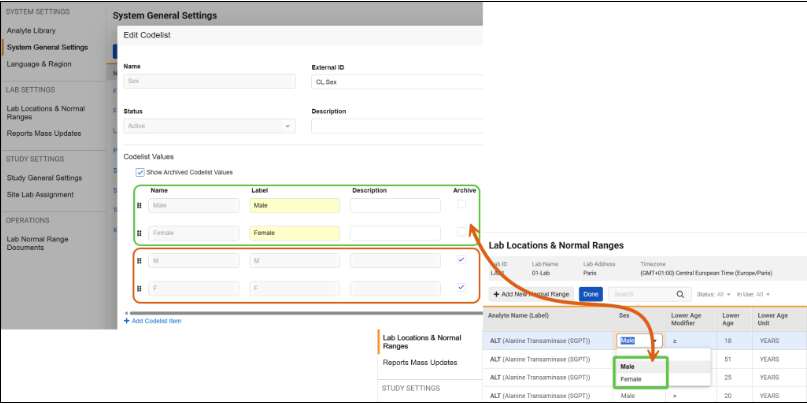
When configuring or importing Normal Ranges, codelist/unit values in system-managed Lab codelist definitions (such as Sex, Female Cycle, Fasting Status, and Lab unit definitions, such as Age) that are archived are no longer selectable.
Key updates include the following:
-
Normal Ranges Grid Selection: Archived Lab codelist/unit item definitions are hidden from drop-down selection
-
File Imports: If an import file contains an archived Lab codelist or Lab unit option, the import preview displays an error indicating that the selected value is archived, which prevents the record from being imported.
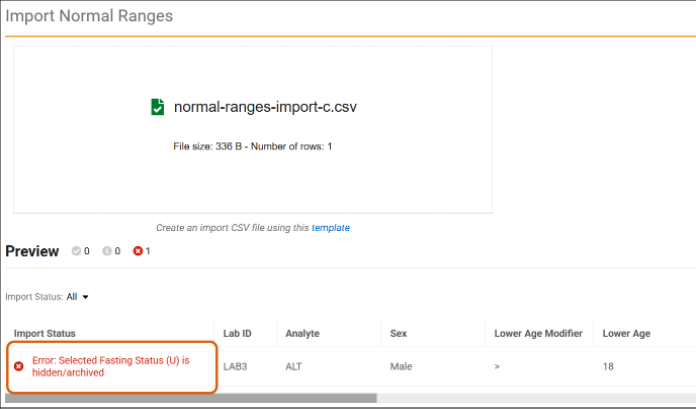
Existing Normal Range records created prior to an option being archived remain unaffected unless a user attempts to update those specific fields.
Enablement & Configuration
Auto-on.
EDC Clinical Reporting
The following are new features for the Veeva EDC Clinical Reporting application.
- Study File Format (SFF) with SDV, DMR Counts and Event Group Override Labels
- Clinical Reporting Global Configuration to Include In Edit Data
- Clinical Reporting System Listing Updates with New Columns
Study File Format (SFF) with SDV, DMR Counts and Event Group Override Labels 26R2.3
Use Case
For downstream integration, data parity and appropriate metadata visibility within extracted study files are required. By expanding the Study File Format (SFF) package with additional subject attributes, item-level review counts, and repeating event group override labels, organizations can streamline downstream processing with SFF.
Description
In SFF package versions 1.0 and 2.0, a new file, EGROUP_REPEAT_LABELS, has been added to the SFF package to reference Event Group Repeat Override Labels with the following columns:
- EGROUPNAME
- EGROUPLABEL
- EGSEQ
- SOURCE (defaulted to EDC)
- ROWWRITEDT
- ROWID
This event group repeat label information is only available in the full SFF package for the latest study design version.
In SFF package versions 1.0 and 2.0, for full and incremental exports, the SYS_FORMS file now includes the following columns:
- ITEMSDVREQCT: Number of items where SDV is required.
- ITEMSDVCOMPCT: Number of items where SDV is required and completed.
- ITEMSDVINCCT: Number of items where SDV is required but incomplete.
- ITEMDMRREQCT: Number of items where DMR is required.
- ITEMDMRCOMPCT: Number of items where DMR is required and completed.
- ITEMDMRINCCT: Number of items where DMR is required but incomplete.
The SYS_SUBJECTS file now includes IXRSID in accordance with the SYS_SUBJECTS standard system listing in DQS.
Enablement & Configuration
This feature is Auto-On across package versions 1.0 and 2.0. A full SFF package will be created for all production vaults during the 26R3 release.
Clinical Reporting Global Configuration to Include In Edit Data 26R2.3
Use Case
Data managers need full visibility into data modifications made after initial form submission. By enabling the inclusion of In Edit data across system-controlled listings in Clinical Reporting, teams can evaluate post-submission changes and track timepoints surrounding initial and updated data submissions.
Description
In Clinical Reporting, administrators can configure the system to include post-submission In Edit form data across system-controlled listings, including
- Core Listings
- Listings created or modified by the Listing Builder
- Export Listings that inherit/include Core Listings or Listing Builder-created listings (Raw and Custom Exports)
A new In Edit Data setting on the Clinical Reporting Configurations page allows administrators with the ‘Configure CDB’ permission to enable or disable the inclusion of In Edit data at the application level. This configuration applies to all studies in a Vault and can’t be deployed, but must be configured in each environment.
The configuration log zip package is expanded by an in_edit_data_configuration_log.CSV file for In Edit Data configuration changes.
When enabling or disabling the inclusion of post-submission In Edit form data, the change will be immediately applied to all existing Core Listings. New listings will also include or exclude the In Edit data, respectively. Existing listings will have to be modified and re-saved within the Listing Builder in order to include or exclude the In Edit data according to the current system configuration.
Cloned listings retain their configuration state when copied between studies.
Export listings display a change detection notification when parent Core Listings are updated, allowing users to review and accept output updates.
Enablement & Configuration
This feature is available for use. Once enabled, will immediately apply to all Core Listings, newly created listings, re-saved Listing Builder-managed listings, and Export listings where output updates are accepted.
Clinical Reporting System Listing Updates with New Columns 26R2.2 26R2.3
Use Case
Consistent metadata is required across system listings and exports to streamline downstream analysis and reporting. Adding additional information to DQS standard system listing adds to the ultimate goal of parity amongst the EDC Study Data Extract (SDE) and DQS system listings.
Description
Clinical Reporting provides standard System listings, including Sys_Sites, for each study.
Clinical Reporting standard System listings have been expanded with the following columns.
Sys_Subjects:
- Study.Label
- Site.CountryName
- Subject.IXRSID
- Subject.CasebookVersion
- Subject.SDVPlan
- Subject.DMRPlan
- Subject.Frozen
- Subject.Locked
- Subject.Signed
- Subject.Arm
- Subject.Cohort
- Subject.Substudy
- Subject.InitialConsentDate
- Subject.ScreenedDate
- Subject.ScreenFailedDate
- Subject.EnrolledDate
- Subject.RandomizedDate
- Subject.StartedTreatmentDate
- Subject.EndOfTreatmentDate
- Subject.WithdrawnDate
- Subject.StartedFollowUpDate
- Subject.LostToFollowUpDate
- Subject.EndOfStudyDate
Subject status indicators (Subject.Frozen, Subject.Locked, Subject.Signed) in the Clinical Reporting SYS_subjects standard listing are only supported for Data Model 2.0 studies.
Sys_Sites:
- Study.Label
- Site.CountryName
- Site.Status
- Site.Timezone
Sys_ILB and Sys_Links:
The Sys_ILB and Sys_Links listings now display data from forms in all statuses, including:
- blank__v (Blank) (as of 26R3)
- submitted__v (Submitted) (prior to 26R2)
- in_progress__v (In Progress) (as of 26R3)
- in_progress_post_submit__v (In Edit) (prior to 26R2)
Enablement & Configuration
This feature is auto-on. Subject status indicators (Subject.Frozen, Subject.Locked, Subject.Signed) in the Clinical Reporting SYS_subjects standard listing are only supported for Data Model 2.0 studies. Export Listings will not have change detection indicators for System Listings included in Export Definitions.
Veeva DQS
The following are new features for for Veeva DQS.
- Review Planner
- DQS Sets
- DQS Listings Drafts
- SDV Counts in Clinical Reporting Form and Event Progress Reports
- SDV Counts in DQS Form and Event Progress Reports
- Study File Format (SFF) with SDV, DMR Counts and Event Group Override Labels
- DQS Global Configuration to Include In Edit Data
- DQS Study Renames
- Review Listing Columns and Quick Filter
- Observation Team Assigments
- DQS System Listing Updates with New Columns
Review Planner 26R2.3
Use Case
Historically, clinical scientists and data managers managed trial risks in static documents while programming edit checks and listings in separate operational silos. The new Risk-Based Review Planner addresses this gap by offering a centralized master-study workspace to build, manage, and deploy structured Review Plans. By establishing direct operational traceability from high-level trial endpoints down to individual checks, listings, and metrics, the Risk-Based Review Planner ensures data review schedules align precisely with variable criticality giving teams early visibility into patient safety and data integrity risks before endpoints are compromised.
Description
DQS Review Planner introduces a framework for building review plans in DQS. Review Planner can be accessed from the DQS study menu or navigation area, and features two primary workspace tabss: Targets and Reviews.
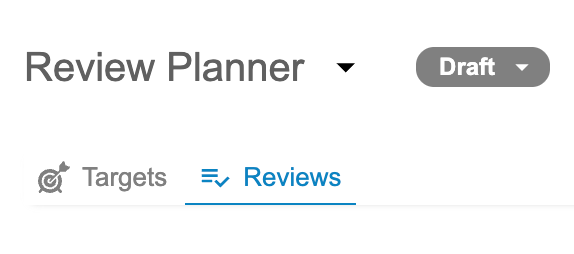
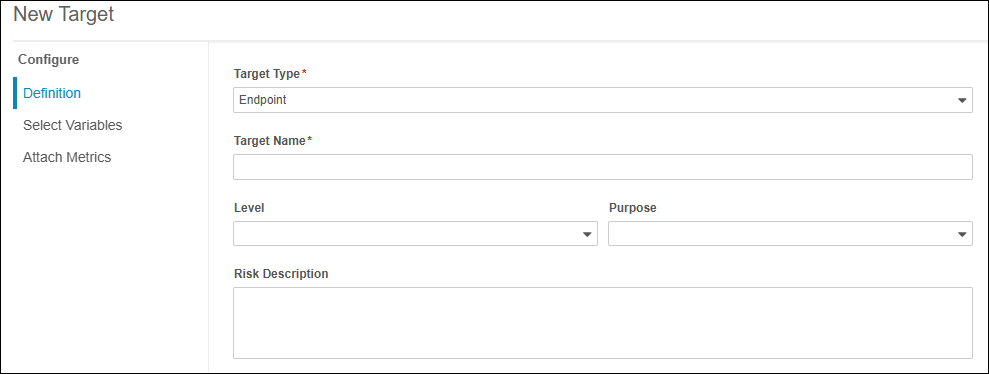
In the Targets tab, DQS users can define and track critical goals for their trial. Available Target Types include Endpoint, Safety Signal, Data Quality, or Compliance.
For the Endpoint target type, users can also specify the Level (Primary, Secondary, Exploratory) and Purpose (Efficacy, Safety, PK, PD). Variables that can be selected for the target display their associated criticality tiers for a better identification of critical items. Users can assign existing Metrics directly to targets.
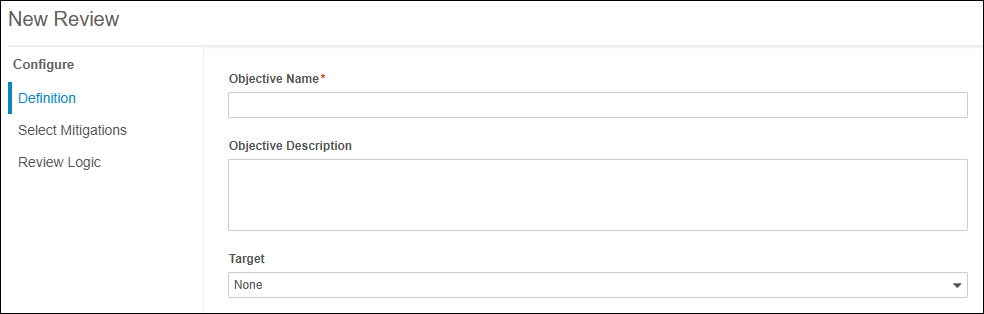
In the Reviews tab, users can define operational review objectives complete with mitigation plans, review frequencies, and automatically assigned review roles.
In addition to these elements, DQS Review Planner also includes the following:
Executable Objects & Actions: Attach automated checks or manual listings to review objectives, defining action targets that trigger system events such as Queries or Protocol Deviations.
Expandable Detail Grids: Inspect nested accordions across Targets and Review grids to view associated sub-tables, including metrics summaries, execution status tooltips, and assigned roles.
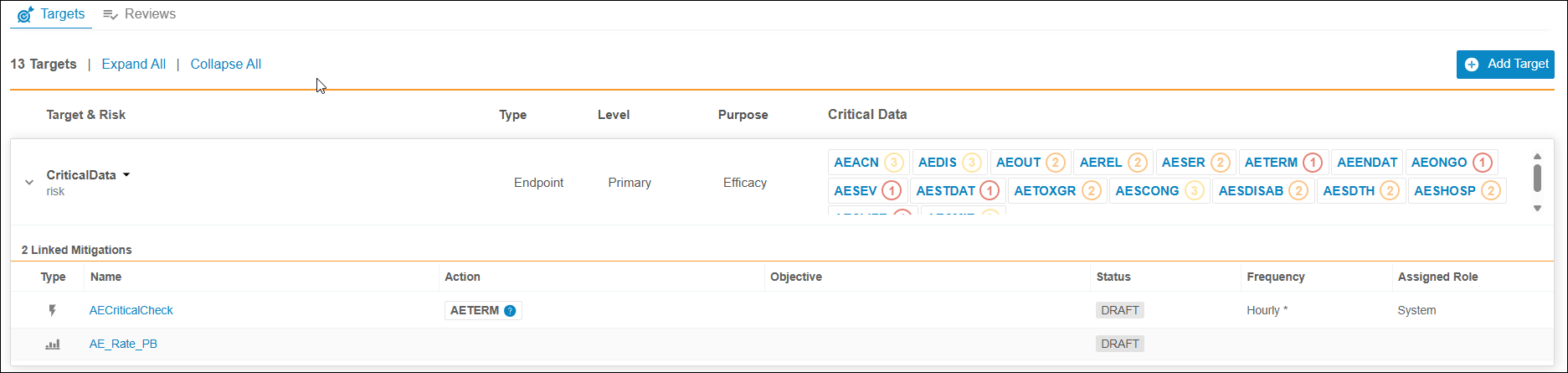
Step-Based Builders: Configure endpoints and review objectives through multi-step wizards featuring live field validation, duplicate name checks, and unsaved change warnings.
Approval & Deployment Workflow: Transition plans through formal workflow statuses (Draft, Ready for Approval, Approved, Deployed) to push configurations from master studies to production.
Enablement & Configuration
This feature is auto-on.
DQS Sets 26R2.3
Use Case
Data Managers and Clinical Operations Experts can leverage stored, user-defined data sets to replace Views. This improves overall query execution performance and enables advanced data transformations.
Description
Data Workbench now supports Sets as user-defined data sets, offering improved query performance over traditional Views. Users can create, edit, view, deploy, clone, and export Sets directly within the Data Workbench interface.
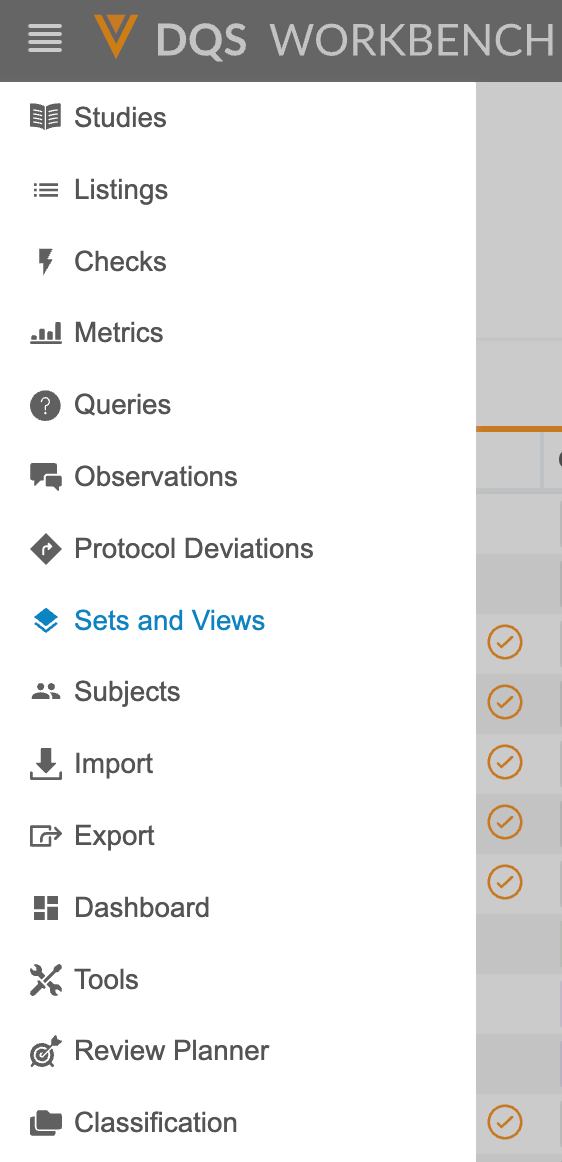
- Sets and Views Management: The Workbench menu item and table tab previously titled “Views” are now updated to “Sets & Views” to accommodate Set management alongside existing Views.
- Creating & Editing Sets: Users can create Sets from existing queries in Listings, Views, Checks, or other Sets. The editor provides two dedicated tabs: CQL Editor (editable definition) and Reference CQL (read-only execution statement).

- Visual Identifiers & Tooltips: Set Pills display a unique, six-character uppercase alias across Data Workbench. Tooltip indicators notify users of auto-refresh status, including reduced refresh frequency or disabled states for long-running queries.
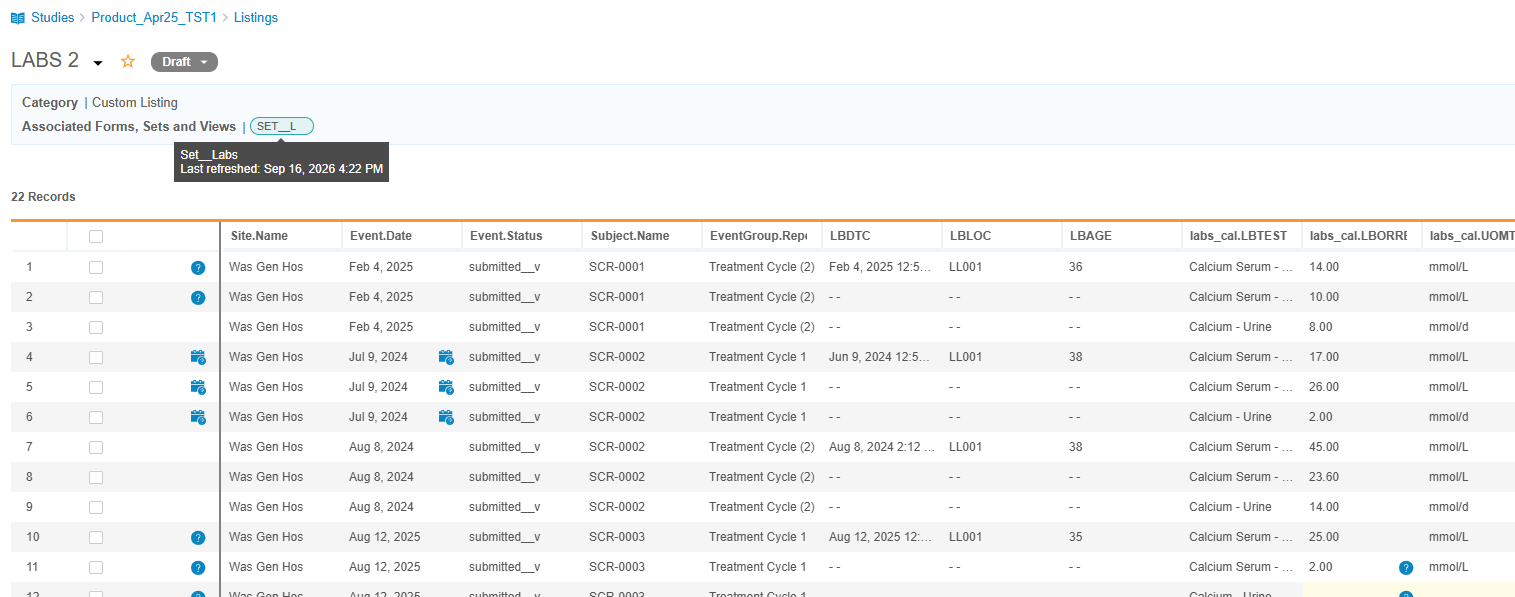
- Custom Listings Integration: Sets can be combined with standard forms or other Sets inside Custom Listings.
- Deployment & Cloning: Approved Sets can be included in study deployment packages from UAT/TST to Production. Cloned studies support transferring Set definitions into target studies.
- Exports & Data Manifests: Custom and Raw Exports include materialized Set data as standalone files within the generated zip archive, complete with full export manifest logging.
Customer Constraints & System Limits
- Study Maximum: Each study master supports a maximum of 15 Sets.
- Column Cap: Sets are limited to a maximum of 100 columns per Set.
- Query Restrictions: Set definitions cannot contain
GROUP BYclauses with mismatched projection columns,SELECT *,CALLnotations,COMPACT, Reference Objects, or nested references to other Sets or Views. - Row- and form-level blinded forms are not supported for use in Sets.
- Listing Limitations: Combining Sets and Views within the same custom listing is not supported. Checks and review-enabled listings cannot reference Sets.
- Impacted Areas: Data Workbench (Listings, Deployment, Cloning, Exports, and Permissions). Clinical Reporting does not support user-defined Sets.
- Supporting Functionality: Impacted operations include Study Validations, Approval Logs, Study Package Deployment, Clone from Study, Custom/Raw Exports, and Form Change Logs.
The standard permissions for Views, Browse View, Create View, Modify View, and Delete View, apply identically to the managements of Sets. To indicate that these permissions now also account for Sets, the standard permissions in EDC > System Tools > Role Management have been re-labeled to Browse View & Set, Create View & Set, Modify View & Set, and Delete View & Set.
Enablement & Configuration
This feature is auto-on.
DQS Listings Drafts 26R2.3
Use Case
DQS programmers can now draft new listings directly from a blank CQL editor. This allows users to directly create new listings without starting from the Listing Builder or an existing listing’s CQL editor. Additionally, work-in-progress listings can now be saved as new drafts even with incomplete or invalid CQL, preventing work loss during complex programming tasks and streamlining listing creation.
Description
Users with the ‘Create Listing’ and ‘Edit CQL’ permissions can now initiate a blank CQL editor from the Create New menu. The previous ‘Create New’ selections have been moved under the ‘Listing Builder’ menu.
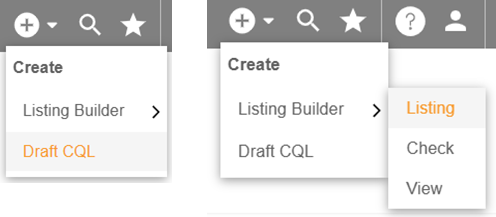
Selecting ‘Draft CQL’ opens a blank CQL editor initialized as ‘Untitled Draft’. This option is available in both TST and PROD environments. When changing the CQL statement, in both new and existing listings, the CQL Editor will now show a “Unapplied Changes” indication until the changes have been applied. If a draft CQL statement is applied and executed, but contains syntax errors or execution times out after 4.5 minutes, an error message and detailed syntax errors are displayed.
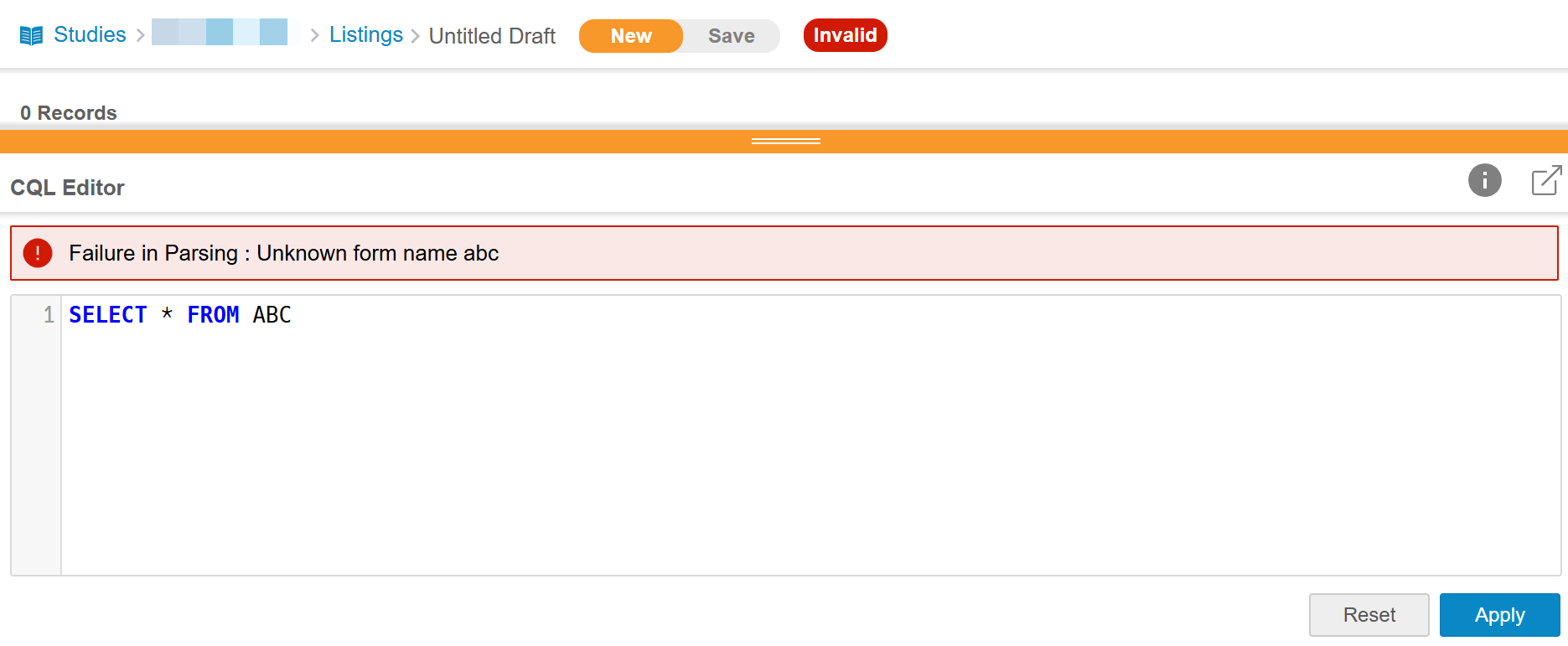
New drafts with an incomplete or invalid CQL can only be saved as New Draft. Saved New Draft listings are stored in a dedicated New tab on the Listings page. New drafts can’t be deployed or cloned, and cannot have data exported.
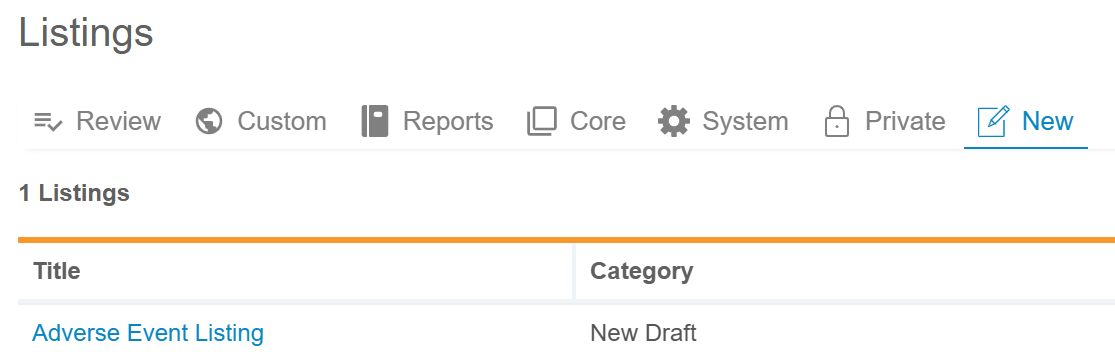
The system automatically deletes new drafts that are not modified for 60 consecutive days.
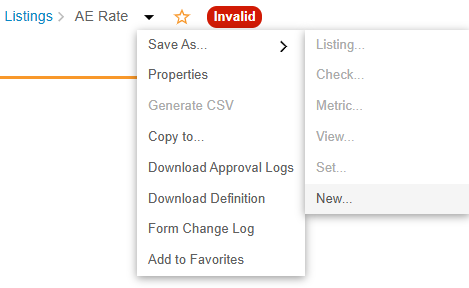
Once the CQL syntax is valid, the draft listing can be saved as Listing, View, Check, Set or Metric.
Existing Listings can only be saved with a valid CQL statement; if an existing listing is edited and invalid, users can select New for the Save as option to save it as New Draft.
For an easier tracing of the listing deployment, all listings that have already been deployed to PROD now display an indication of Previously Deployed.
Enablement & Configuration
This feature is auto-on.
SDV Counts in Clinical Reporting Form and Event Progress Reports 26R2.3
Use Case
Clinical operations and data management teams require clear visibility into Source Data Verification (SDV) progress across study forms and events to streamline and focus data cleaning workflows. Providing counts of required, completed, and outstanding SDV directly within Clinical Reporting standard reports enables teams to monitor review statuses and accelerate data verification.
Description
This enhancement updates the Form Progress and Event Progress standard reports in the Clinical Reporting Reports tab to include detailed metrics for SDV requirement and completion status.
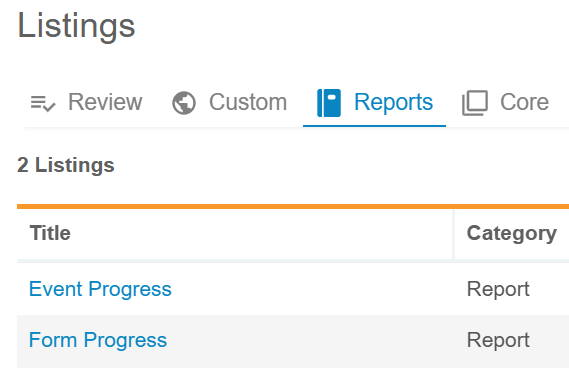
The following columns have been added after the RequiresReSDV column:
Form Progress Report: *Item.SDVCompleteCount: Number of items on a form where SDV is required and completed. *Item.SDVRequiredCount: Number of items on a form where SDV is required. *Item.SDVIncompleteCount: Number of items on a form where SDV is required but not yet completed.
Event Progress Report: *Event.SDVCompleteCount: Number of required and completed SDV for event date and visit method. *Event.SDVRequiredCount: The number of required SDV for event date and visit method. *Event.SDVIncompleteCount: The number of required but incomplete SDV for event date and visit method.
Enablement & Configuration
This feature is auto-on.
SDV Counts in DQS Form and Event Progress Reports 26R2.3
Use Case
Clinical operations and data management teams require clear visibility into Source Data Verification (SDV) progress across study forms and events to streamline and focus data cleaning workflows. Providing counts of required, completed, and outstanding SDV directly within DQS standard reports enables teams to monitor review statuses and accelerate data verification.
Description
This enhancement updates the Form Progress and Event Progress standard reports in the DQS Reports tab to include detailed metrics for SDV requirement and completion status.
The following columns have been added after the RequiresReSDV column:
Form Progress Report:
- Item.SDVCompleteCount: Number of items on a form where SDV is required and completed.
- Item.SDVRequiredCount: Number of items on a form where SDV is required.
- Item.SDVIncompleteCount: Number of items on a form where SDV is required but not yet completed.
Event Progress Report:
- Event.SDVCompleteCount: Number of required and completed SDV for event date and visit method.
- Event.SDVRequiredCount: The number of required SDV for event date and visit method.
- Event.SDVIncompleteCount: The number of required but incomplete SDV for event date and visit method.
Enablement & Configuration
This feature is auto-on.
Study File Format (SFF) with SDV, DMR Counts and Event Group Override Labels 26R2.3
Use Case
For downstream integration, data parity and appropriate metadata visibility within extracted study files are required. By expanding the Study File Format (SFF) package with additional subject attributes, item-level review counts, and repeating event group override labels, organizations can streamline downstream processing with SFF.
Description
In SFF package versions 1.0 and 2.0, a new file, EGROUP_REPEAT_LABELS, has been added to the SFF package to reference Event Group Repeat Override Labels with the following columns:
- EGROUPNAME
- EGROUPLABEL
- EGSEQ
- SOURCE (defaulted to EDC)
- ROWWRITEDT
- ROWID
This event group repeat label information is only available in the full SFF package for the latest study design version.
In SFF package versions 1.0 and 2.0, for full and incremental exports, the SYS_FORMS file now includes the following columns:
- ITEMSDVREQCT: Number of items where SDV is required.
- ITEMSDVCOMPCT: Number of items where SDV is required and completed.
- ITEMSDVINCCT: Number of items where SDV is required but incomplete.
- ITEMDMRREQCT: Number of items where DMR is required.
- ITEMDMRCOMPCT: Number of items where DMR is required and completed.
- ITEMDMRINCCT: Number of items where DMR is required but incomplete.
The SYS_SUBJECTS file now includes IXRSID in accordance with the SYS_SUBJECTS standard system listing in DQS.
Enablement & Configuration
This feature is Auto-On across package versions 1.0 and 2.0. A full SFF package will be created for all production vaults during the 26R3 release.
DQS Global Configuration to Include In Edit Data 26R2.3
Use Case
Data managers and medical reviewers need full visibility into data modifications made after initial form submission. By enabling the inclusion of In Edit data across system-controlled listings in DQS, teams can evaluate post-submission changes and track timepoints surrounding initial and updated data submissions without the need of custom listings or CQL modifications.
Description
In DQS, administrators can configure the system to include post-submission In Edit form data across system-controlled listings, including
- Core Listings
- Listings created or modified by the Listing Builder
- Export Listings that inherit/include Core Listings or Listing Builder-created listings (Raw and Custom Exports)
The In Edit Data setting does not apply to listings created or modified using custom CQL.
A new In Edit Data setting on the DQS Configurations page allows DQS Administrators with the ‘Configure CDB’ permission to enable or disable the inclusion of In Edit data at the application level. This configuration applies to all studies in a Vault and can’t be deployed, but must be configured in each environment.
The configuration log zip package is expanded by an in_edit_data_configuration_log.CSV file for In Edit Data configuration changes.
When enabling or disabling the inclusion of post-submission In Edit form data, the change will be immediately applied to all existing Core Listings. New Listing Builder-generated listings will also include or exclude the In Edit data, respectively. Existing listings will have to be modified using the Listing Builder and re-saved within the Listing Builder in order to include or exclude the In Edit data according to the current system configuration.
If the In Edit Data inclusion setting is enabled, the underlying CQL WHERE statement will be expanded by the OR-statement (`@Form`.`Status` = ‘in_progress_post_submit__v’).

Cloned listings retain their configuration state and underlying CQL statement when copied between studies. Export listings display a change detection notification when parent core listings are updated, allowing users to review and accept output updates.
Enablement & Configuration
This feature is available for use. Once enabled, will immediately apply to all Core Listings, new Listing Builder-created listings, re-saved Listing Builder-managed listings, and Export listings where output updates are accepted.
DQS Study Renames 26R2.3
Use Case
When a study’s official name changes mid-trial, clinical operations teams need the updated name reflected accurately across all system interfaces and listings. This feature ensures that study name updates are processed without data corruption by temporarily restricting study access and pausing background activities during the rename process and subsequently updating all relevant areas of the study once complete.
Description
During renaming, the study link is disabled and updated to display “(Original Study Name) (Study rename in progress)” on the main Studies page. If a user attempts to navigate directly to the study using a saved link or direct web address, they are directed to a page informing them that the study rename is in progress and the study is currently unavailable.
While the rename is in progress, background study tasks, automated metric updates, dashboard refreshes, and scheduled data exports are temporarily paused. Any incoming third-party data imports received during the rename window are rejected with an error indicating that the study rename is in progress.
Once the rename process finishes, normal operations resume automatically. The system processes any queued data packages received during the update. Displayed study names across listing grids, custom views, metrics, unblinding rules, key mappings, and navigation breadcrumbs are automatically updated to reflect the new study name.
Historical audit logs—such as deployment histories, import audits, and export audits—will not preserve the original study name stamped at the time the audit was generated and will all be updated to the new study name. Third-party data sources loaded prior to the rename must be reloaded with an updated manifest matching the new study name. All items (for example, queries, protocol deviations, observations, etc.) created on the third party data before the study name change will be lost after the third-party data is loaded with the new study name.
The study rename process is not intended for production studies that already contain data and does not support Open EDC studies.
Enablement & Configuration
This feature is Auto-On.
Review Listing Columns and Quick Filter 26R2.2
Use Case
Review workflows need to be efficiently monitored and tracked. Surfacing review metadata directly within the Review Listing allows users to identify who completed a review, when, and the reason for review without exporting data. Additionally, the pre-set quick filter enables teams to immediately isolate rows requiring review, streamlining data oversight and shortening review cycles.
Description
This feature expands the review listing data grid by surfacing review metadata and providing additional filtering capabilities. Each review listing includes three new columns:
- Reviewed By: name of the user that last changed the Review status.
- Review Reason: optional reason stated as part of the latest Review status change. If no Reason was entered, this field is empty.
- Review Date: date of latest Review status change.
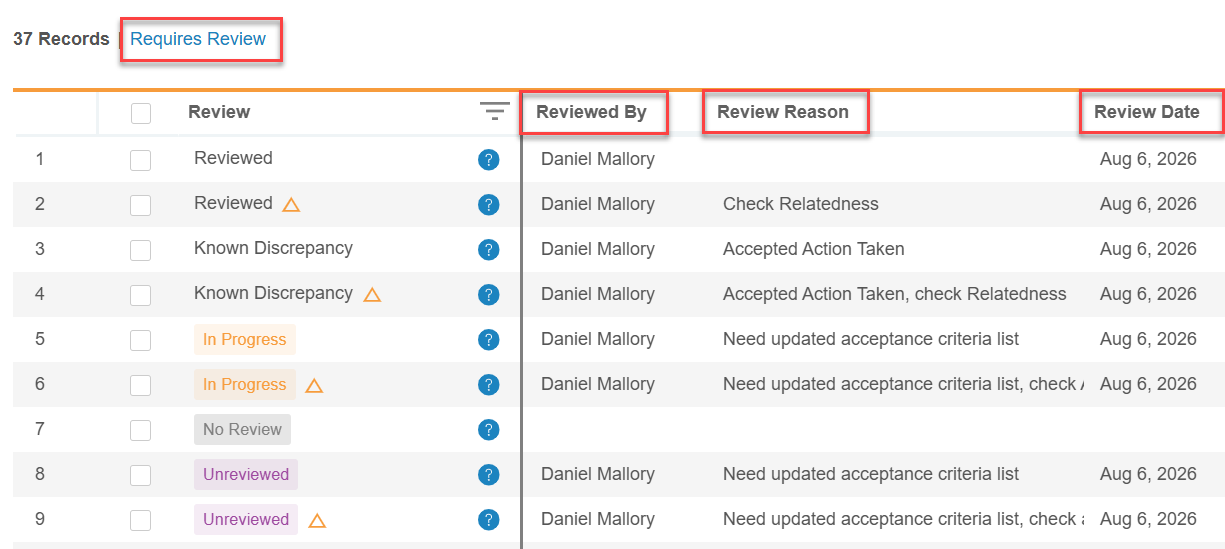
These columns support column pinning, hiding, and standard column filtering.
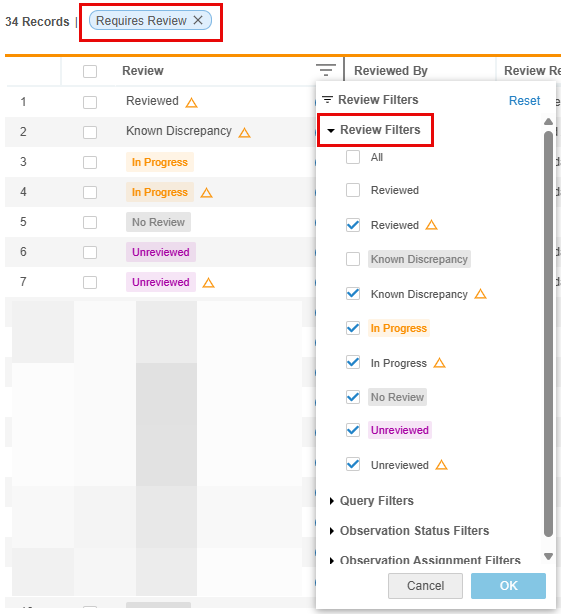
A new ‘Requires Review’ quick filter is now available, which automatically filters the grid to display all rows with the following Review statuses:
- Reviewed with change (indicated by an orange delta icon)
- Known Discrepancy with change (indicated by an orange delta icon)
- In Progress with change (indicated by an orange delta icon) and without change
- No Review
- Unreviewed with change (indicated by an orange delta icon) and without change
Enablement & Configuration
This feature is automatically enabled.
Observation Team Assigments 26R2.2
Use Case
In data management, data review often requires collaboration across multiple functional groups before a discrepancy is judged and a site query is generated. Previously, observations could only be created on data fields and assigned to individual DQS users, which led to bottlenecks when team members were unavailable. Assigning observations to an individual user or a functional team streamlines cross-team hand-offs, ensures immediate visibility for the responsible group, and facilitates clear accountability throughout the review process.
Description
Users can now assign observations not only to other DQS users, but also to teams within DQS. Teams are defined in EDC > System Tools > Role Management. The relevant DQS permissions are listed in the ‘CDB’ area of the role matrix. In EDC > System Tools > Users, one or more user roles are assigned to a user. A user with a given role will belong to the team to which the role is assigned to. If a user is assigned to more than one role, they will belong to all teams associated with those roles.
Prior to 26R3, observations could only be assigned to an individual user when creating a new observation or replying to an existing one. With 26R3, observations can be assigned either to an individual user or to a team when creating or modifying observations.
Additionally, when creating an observation, the system will automatically attribute it to both the user that created it and their team. If the user is part of more than one team, the user will be prompted to select under which team to create the observation. Once selected, the creation team can’t be modified.
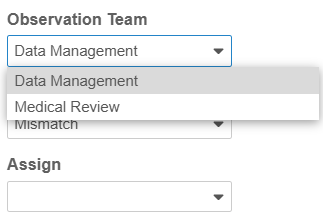
When assigning an observation during creation or reply, the user is now prompted with a team assignment option above the list of available users from the assignment dropdown.
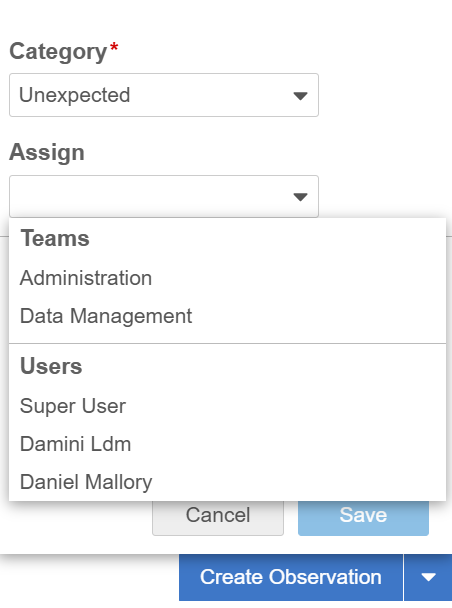
The assigning user can choose to assign the observation to either a team or an individual user.
Drop down options dynamically adjust based on the user role setup and the selected cell:
- The dropdown only displays teams where at least one role has the DQS permission ‘Reply to Observation’ or ‘Close Observation’.
- If a cell for which an observation is to be assigned is blinded, the system limits assignment options to teams associated with roles that have restricted data access permissions.
- The detail panels in Data Listings and Observation Listings now display both the user and the team name associated with the observation creator.
- Review listings allow filtering by specific assigned teams, individual users, or combinations of both. Filter dropdowns only display teams with active Reply to Observation or Close Observation permissions.
- Users can filter review listings to display observations assigned to specific teams, individual users, or combinations of both. The filter dropdowns only display teams for which in EDC > System Tools > Role Management at least one role has the DQS permission ‘Reply to Observation’ or ‘Close Observation’.
Updated CQL syntax allows to track observation team assignments across the observation lifecycle:
- @OBS.Team returns the team associated with the user who created the initial observation.
- @OBSMSG.Team returns the team associated with the user who created a specific observation message.
- @OBSMSG.AssignedTeam returns the team currently assigned to the observation.
Enablement & Configuration
This feature is auto on.
DQS System Listing Updates with New Columns 26R2.2 26R2.3
Use Case
Consistent metadata is required across system listings and exports to streamline downstream analysis and reporting. Adding additional information to DQS standard system listing adds to the ultimate goal of parity amongst the EDC Study Data Extract (SDE) and DQS system listings.
Description
DQS provides standard System listings, including Sys_Sites, for each study.
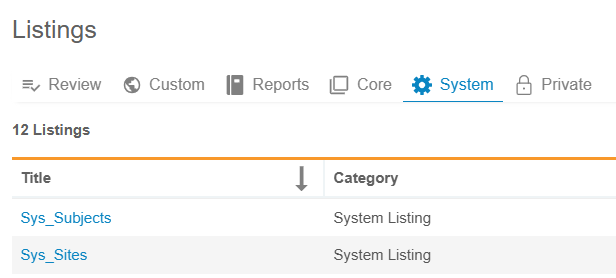
DQS standard System listings have been expanded with the following columns.
Sys_Subjects:
- Study.Label
- Site.CountryName
- Subject.IXRSID
- Subject.CasebookVersion
- Subject.SDVPlan
- Subject.DMRPlan
- Subject.Frozen
- Subject.Locked
- Subject.Signed
- Subject.Arm
- Subject.Cohort
- Subject.Substudy
- Subject.InitialConsentDate
- Subject.ScreenedDate
- Subject.ScreenFailedDate
- Subject.EnrolledDate
- Subject.RandomizedDate
- Subject.StartedTreatmentDate
- Subject.EndOfTreatmentDate
- Subject.WithdrawnDate
- Subject.StartedFollowUpDate
- Subject.LostToFollowUpDate
- Subject.EndOfStudyDate
Subject status indicators (Subject.Frozen, Subject.Locked, Subject.Signed) in the DQS SYS_subjects standard listing are only supported for Data Model 2.0 studies.
Sys_Sites:
- Study.Label
- Site.CountryName
- Site.Status
- Site.Timezone
Sys_ILB and Sys_Links:
The Sys_ILB and Sys_Links listings now displays data from forms in all statuses, including:
- blank__v (Blank) (as of 26R23)
- submitted__v (Submitted) (prior to 26R2)
- in_progress__v (In Progress) (as of 26R23)
- in_progress_post_submit__v (In Edit) (prior to 26R2)
Enablement & Configuration
This feature is auto-on. Subject status indicators (Subject.Frozen, Subject.Locked, Subject.Signed) in the DQS SYS_subjects standard listing are only supported for Data Model 2.0 studies. Export Listings will not have change detection indicators for System Listings included in Export Definitions.
Role Management & Security
Features in this section are enhancements to the System Tools > Role Management and System Tools > Users areas, as well as changes to standard Study Roles, security, and access control in Veeva Clinical Data.
- Permission Changes to API Standard Roles
- New Standard Role and Updated Permissions to Support eSource
Permission Changes to API Standard Roles 26R2.3
Use Case
The EDC API Query endpoints have been updated to be able to work with Quick Query requirements and the Observed Source Value to support a feature in a future release. For this, the API standard roles require new permissions.
Description
The CDMS API Read Write role has now the following new permissions:
- View Observed Source Value
- Edit Observed Source Value
The CDMS API Read Only role has now the following new permission:
- View Observed Source Value
Enablement & Configuration
This feature is auto-on.
New Standard Role and Updated Permissions to Support eSource 26R2.3
Use Case
This release introduces a new standard role designed for site-level administrators responsible for eSource administration, as well as updated permissions to existing standard roles to provide visibility of eSource transmissions.
Description
Four new permissions have been added to support visibility and management of eSource connections and transmissions:
-
View Site eSource Connection: Grants view-only access to the status of site-level eSource connections.
-
Edit Site eSource Connection: Allows users to establish, modify, or disconnect site eSource integrations. Selecting this option automatically requires view access.
-
View eSource Transmissions: Enables users to monitor inbound and outbound data transmission logs and statistics.
-
Edit eSource Transmissions: Grants permission to manage eSource data transmissions. Selecting this option automatically requires view access.
A new standard role, CDMS eSource Site Administrator, has been created to support eSource This role includes all of the standard permissions of the CDMS Clinical Research Coordinator, along with API access and the permissions to view and edit eSource connections and eSource data transmissions.
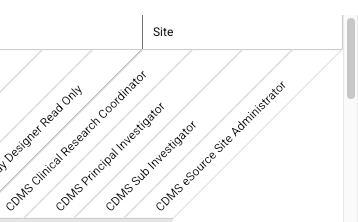
Additionally, standard roles have been updated to include these permissions.
The following standard roles have been updated with View Site eSource Connection, Edit Site eSource Connection, View eSource Transmissions, and Edit eSource Transmissions permissions:
- CDMS API Read Write
- CDMS Study Designer
- CDMS Super User
The following standard roles have been updated with View Site eSource Connection and View eSource Transmissions permissions only:
- CDMS API Read Only
- CDMS Auditor Read Only
- CDMS Clinical Research Associate
- CDMS Clinical Research Coordinator
- CDMS Data Loader
- CDMS Data Manager
- CDMS Deployment Administrator
- CDMS Imaging Specialist
- CDMS Lead Data Manager
- CDMS Librarian
- CDMS Principal Investigator
- CDMS Randomization Manager
- CDMS Safety Administrator
- CDMS Study Designer Read Only
- CDMS Sub Investigator
Enablement & Configuration
These updates are auto-on. The new role and permissions will be immediately visible in System Tools Role Management; however, the new permissions will only take effect when eSource integration is in use.
Connections & Integrations
Features in this section are new connections or integrations with Veeva Clinical Data or enhancements to existing ones.
- Safety Integrations: New Operations UI with Cross-Study Case Management
- Clinical Operations - DQS Connection: DQS Metrics in Veeva CTMS
- Safety Cases as PDF
- Safety-EDC Connection: Include Related Data on Safety Case Initiating Event
- Safety-EDC Connection: New Child Standard Fields & Updated Validations
- Safety-EDC Connection: Weight, Height & Last Menstrual Period Date Closest to Case Start Date
- Safety-EDC Connection: Support for Merge of Different Case Initiating Events
Safety Integrations: New Operations UI with Cross-Study Case Management 26R2.3
Use Case
Management of Safety Cases in EDC requires monitoring of safety integrations, case transmissions and case details across multiple clinical trials. Previously, accessing safety information required running reports or navigating into each study and case individually, making high-level oversight and rapid issue resolution time-consuming. This feature introduces a centralized Safety Integrations workspace that brings safety case tracking into a unified, cross-study view. Users can now efficiently track safety case statuses, review system alerts across all assigned studies, and download complete case histories from one place.
Description
The Tools > Safety Integrations workspace has been redesigned with a left-navigation panel categorized into Operations and Setup sections.
Accessing Safety Integrations defaults to the new cross-study Cases page, eliminating the requirement to select an individual study first.
The new Cases tab displays the relevant Safety Case information across all studies.
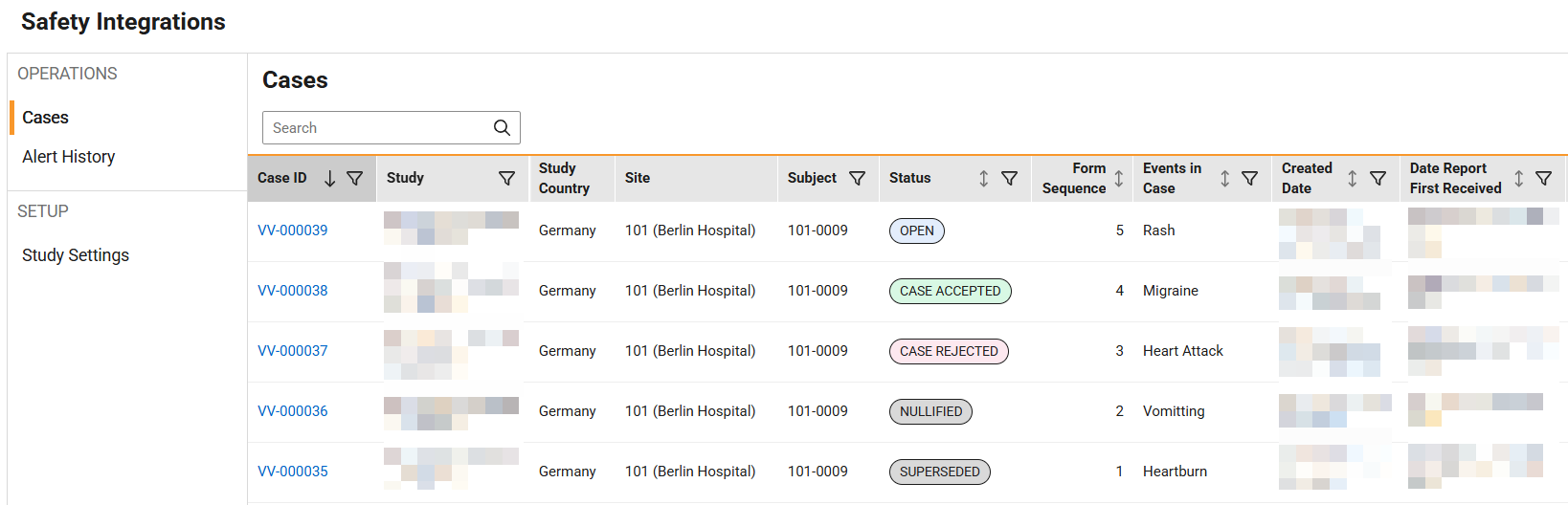
Clicking the Case ID opens a dedicated detail page presenting top-level case metadata, reporter details, transmission dates, and safety integration format classifications (Safety-EDC Connection or E2BLink).
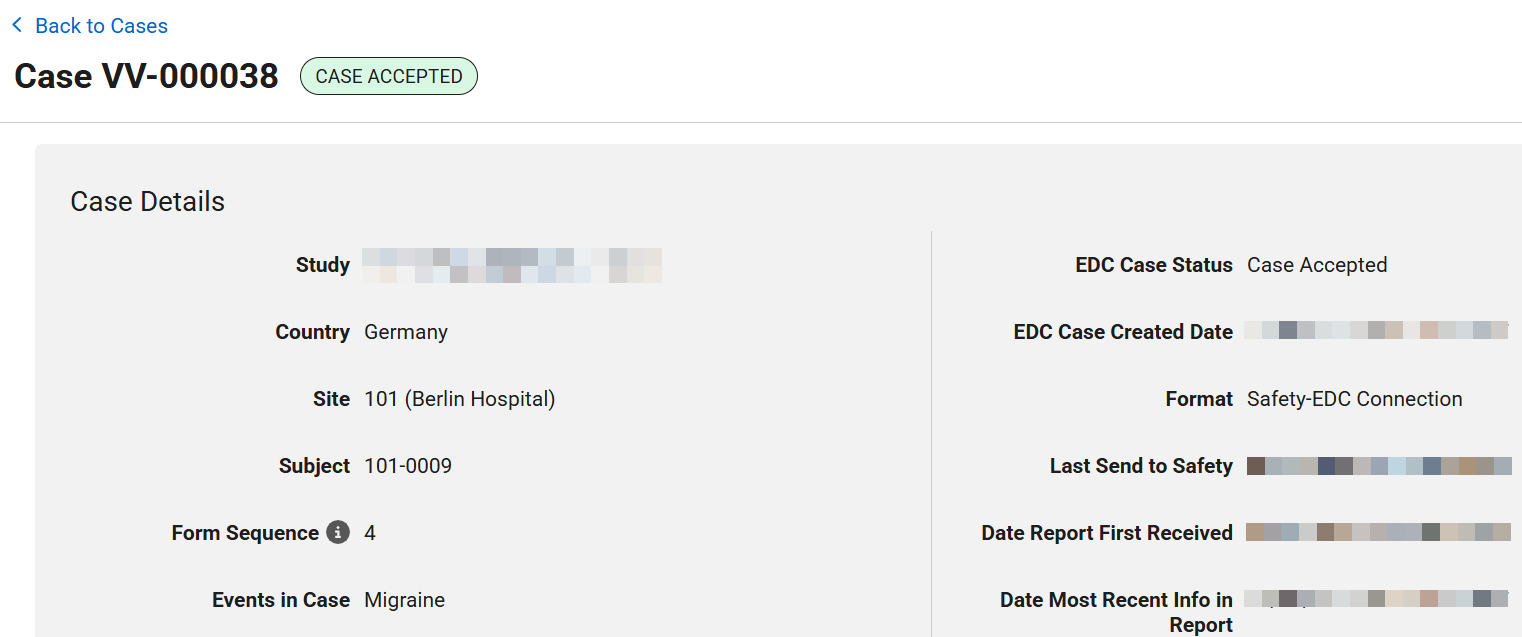
For Safety Cases transmitted via the E2BLink, a case zip package containing a CSV file with the summary of all messages and all message-related files (XML, MDN, PDF) can be downloaded from the case detail page.
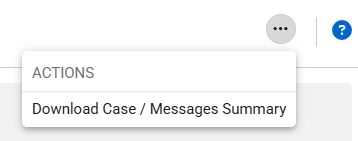
The Alert History tab remains mostly unchanged, but now provides all safety integration alerts across all studies. To group the relevant alerts, the Study column was added.
Prior to 26R3, the top-level Safety Settings tab allowed the configuration of study-specific safety settings.

The new Study Settings tab now provides all study-level settings and alert recipient configurations for each individual study, including the Integration Setup and Alert Recipients.
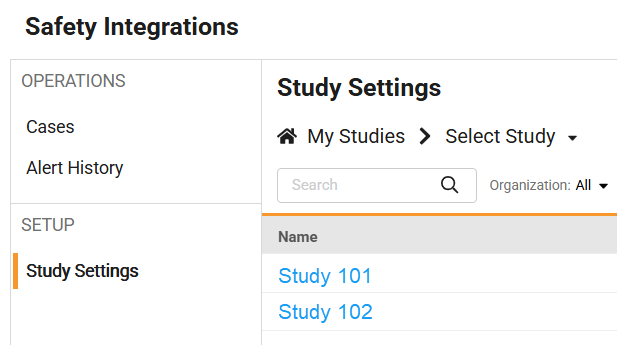
Display and access to case details respect the user’s individual study access and site permissions, displaying only cases and alerts for authorized studies and participants.
Enablement & Configuration
This feature is auto-on for all Vault using the Safety-EDC Connection or E2BLink Safety integrations. Existing Safety Cases are not impacted by the re-structured Operations UI. We recommend users to update existing browser bookmarks to point to the new Safety Integrations workspace landing page.
Clinical Operations - DQS Connection: DQS Metrics in Veeva CTMS 26R2.4
Use Case
Clinical Operations teams need to monitor Key Risk Indicators (KRIs) and Quality Tolerance Limits (QTLs) outcomes directly within CTMS. By surfacing DQS metric definitions and daily outcome results to CTMS, users can track metrics, view scores, and trigger operational signals based on defined thresholds. This automated data sharing eliminates manual exports between clinical systems and ensures timely mitigation of quality risks.
Description
DQS now sends both metric definitions and data packages automatically to Veeva CTMS via the new Clinical Operations-DQS Connection.
The Metric definition will be transferred to Veeva CTMS and can be selected to create a new Study Key Indicator record, including Name, Type, Level, Formula, and Threshold Definitions. For the CTMS study key indicators linked to DQS, metric data fields will be transferred to the Study Key Indicator Value records in Veeva CTMS, including Metric, Score (where applicable), Direction, and Alert Flag. The new Clinical Operations-DQS Connection will retrieve the mapping of Studies, Study Countries, and Sites via the Clinical Operations - EDC Connection, which is required for a study to be set up before Metrics definitions and data can be transferred.
For production environments, Metrics data is synchronized between the systems to ensure daily updated values in Veeva CTMS. In DQS TST environments, Metrics data is manually refreshed and synchronized twice daily to Veeva CTMS.
DQS Metrics with the levels Study, Study Country or Site are available for transfer to CTMS. In order to ensure that metric data is transferred based on the correct level to CTMS, additional logic has been added to derive the level in DQS for Study, Study Country, Site, and Subject based on unique @HDR attributes in the metric CQL. The Level field becomes non-editable after you create the metric.
Enablement & Configuration
This feature is available for use. It must be tested in conjunction with Veeva CTMS and Veeva EDC, which must have a Clinical Operations - EDC Connection with an active Study, Study Country, and Site transfer.
Safety Cases as PDF 26R2.3
Use Case
All clinical trials require safety case tracking, yet not all studies utilize external gateway integrations. Veeva EDC now offers case generation in PDF format with an automated email distribution for the initial case initiation as well as follow-up messages. This functionality can also be applied to studies using the E2B XML based transfer of safety data to a Safety system. The PDF representation of a safety case streamlines the safety reporting workflows for studies without gateway-based Safety Integrations and helps meeting reporting timelines when manual Safety Case tracking is required.
Description
In Tools > System Tools > Connections > Safety, a new Connection profile can now be created with the PDF Only (E2B) type.
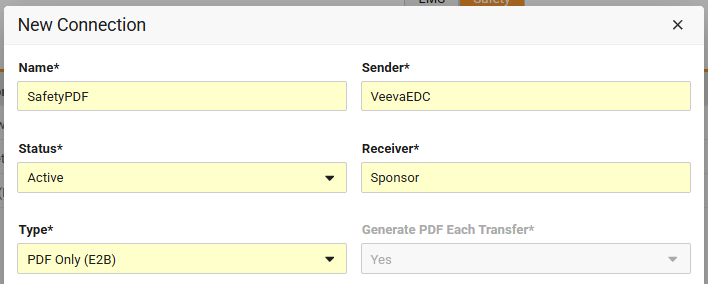
A new Generate PDF Each Transfer dropdown setting is available when the connection’s Type is either set to
- PDF Only (E2B) for Safety Case PDF creation only
- AS2 Gateway for the E2BLink
- Vault Safety and the Vault Safety Inbox Type to Main Inbox (E2B) for the legacy safety data transfer to Veeva Safety
The setting is defaulted and locked to Yes for PDF Only (E2B).
For existing integrations, the new dropdown has no impact as it is defaulted to No for E2BLink/AS2 Gateway and Vault Safety/Main Inbox (E2B) connections, maintaining the current integrations and case transfer behavior.
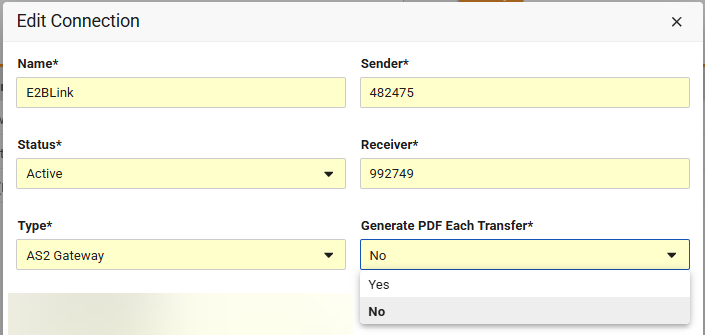
If Generate PDF Each Transfer is set to Yes for an integration of a study, Veeva EDC automatically generates a bookmarked PDF representation of the E2B XML content whenever a safety case or follow-up send is created. Each message PDF, both initial send and follow-ups messages, will always contain the full safety case information as configured in Studio > Safety Integrations.
Each Safety Message of PDF Only (E2B) type is automatically marked as Case Accepted.
All other integration types retain the existing safety case status handling, including Acknowledgement File Late Behavior, independent of a PDF creation.
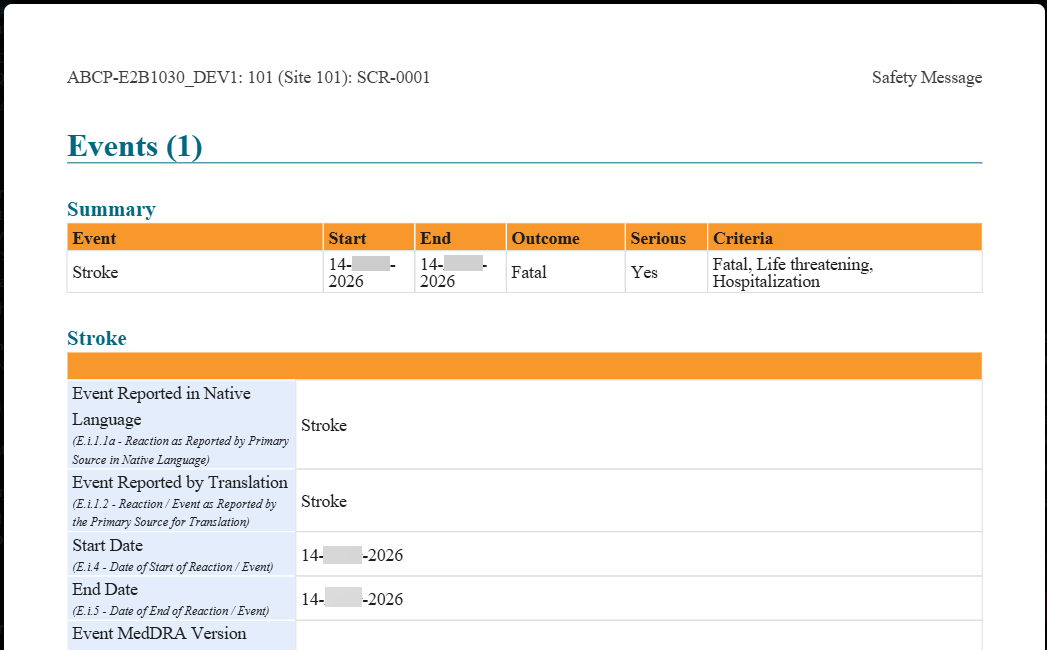
Automated email alerts to designated distribution lists or email groups provide direct access to both the E2B XML and PDF file where applicable.
Study Alert Recipients are managed in a similar manner as for the Non Submitted Form alert.
Two new alert types are available for studies using the PDF creation or E2B XML-based safety case transfer:
- First Send Generated (New Case): Sends an email notification if a first Safety Case send was created.
- Follow-up Generated (Existing Case): Sends an email notification if a follow-up message was created.
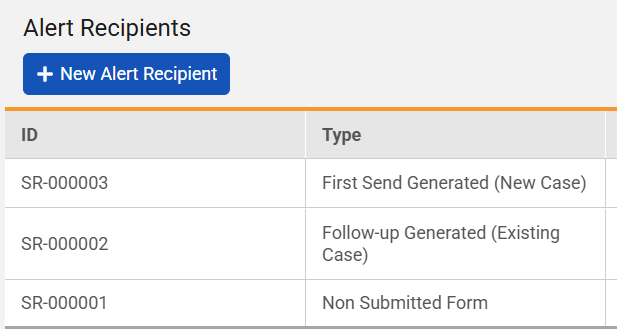
The automated email notification will include a comprehensive list of the safety case initiating event details, subject and site identifiers, case counts, timestamps, and direct links to the E2B XML and PDF rendition where applicable.
The above described functionalities do not apply to Safety-EDC Connection studies.
Enablement & Configuration
This feature is available for use for all studies without Safety Integration, E2BLink or E2B XML based data transfer. Existing integrations, studies or safety cases will not be affected or change their current behavior.
Safety-EDC Connection: Include Related Data on Safety Case Initiating Event 26R2.3
Use Case
Whereas safety-relevant information such as medical history, test results, or drug history is mostly recorded in separate forms, it can also be embedded as repeating item groups directly on the Adverse Event form. Allowing study designers to map these embedded item groups directly to safety data types provides greater study design flexibility for the Safety-EDC Connection. This ensures seamless safety data collection and transfer to Veeva Safety across all types of study builds.
Description
In Studio > Safety Integrations > Form Configurations, study designers can now select an EDC form previously mapped to the ‘Safety Case Initiation Event’ safety data type and configure it for the following safety data types:
- Concomitant Medications
- Drug History
- Medical History
- Study Drug
- Test Results
- In Case of Death
Inclusion criteria for form data mapped to a second safety data type other than the Safety Case Initiation Event automatically update to Automatically, due to being part of a safety case initiation event form, disabling site linking and date-based inclusion rules.
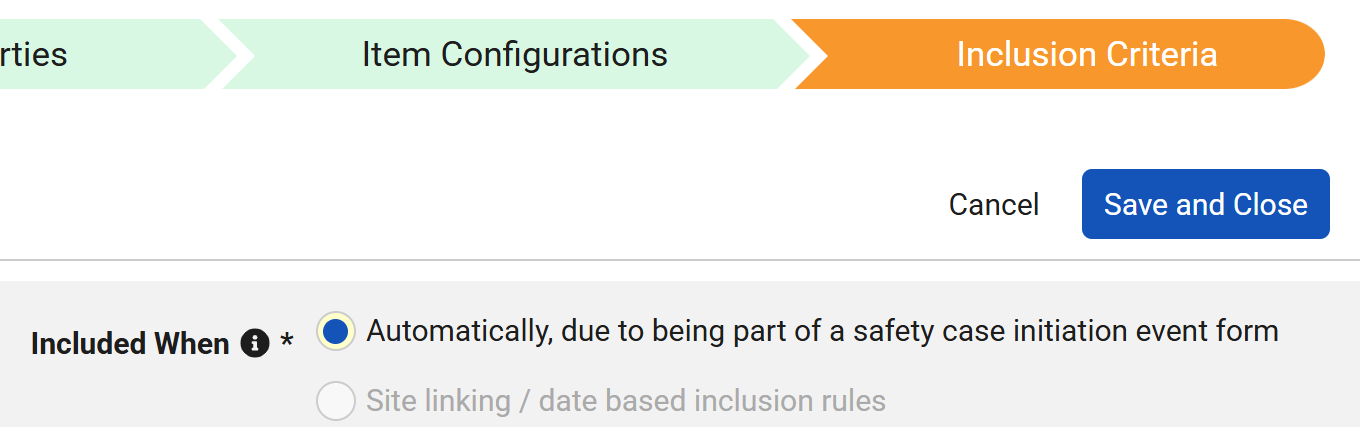
The following safety data types are only supported as repeating item groups on the previously mapped form:
- Concomitant Medications
- Drug History
- Medical History
- Study Drug
- Test Results
When configuring an item group embedded on the Safety Case Initiation Event for a second safety data type, Each Entry In automatically defaults and locks to ‘Repeating item group in form’.
This new functionality is now enabled whenever Each Entry In is set to Repeating item group in form. The new required dropdown field, Repeating Item Group for Mappings, presents all still unmapped repeating item groups of the form. This allows the selection of the item group containing the primary field and other Item Configurations for a focused mapping experience. Once saved, the setting is immutable.
Note: The dropdown selection of the repeating item group will be empty for existing studies. This will not change the current EDC behavior or Safety Case transfer nor create Follow-up sends.
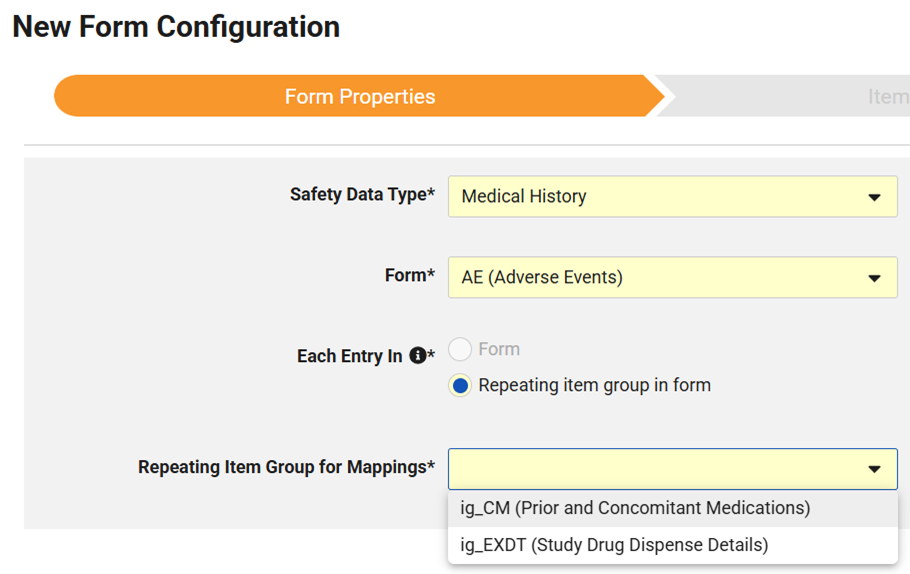
When mapping Study Drugs as a repeating item group embedded on the Safety Case Initiation Event, the Study Drug Defined From selection automatically restricts configuration to Specific drug from study design, disabling selection of Item values in the Data Entry tab.
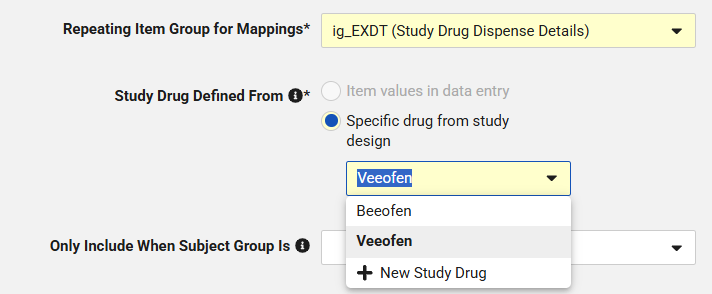
When configuring In Case of Death as the secondary safety data type, Each Entry In automatically defaults and locks to Form. For In Case of Death mapping, the inclusion rule for the mapped data to be transferred only if the event was fatal automatically applies without presenting the selection option in the Inclusion Criteria tab.
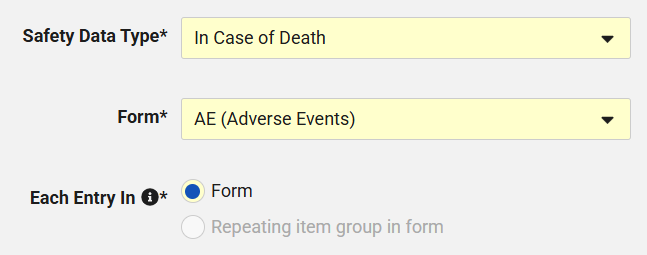
An EDC form already mapped to a Safety Case Initiation Event can’t be mapped to Patient Characteristics or mapped a second time as a Safety Case Initiation Event.
The new configuration options are reflected in the Study Design Specifications (SDS) and Difference Report, included by Copy Forms, and validated during Studio publishing validation.
Enablement & Configuration
This feature is available for use for all studies using the Vault Safety-EDC Connection.
Safety-EDC Connection: New Child Standard Fields & Updated Validations 26R2.3
Use Case
The Safety-EDC Connection allows the transfer of additional safety-relevant EDC data. We have adjusted configuration options and further expanded the spectrum of Standard Safety Fields that can be transferred from EDC to Veeva Safety in relation to pregnancy cases.
Description
Studies using the Safety-EDC Connection Reporter Country (AE_REPORTER_COUNTRY) and Reported Language (AE_REPORTER_LANGUAGE) now allow for static values.
The following new child information standard fields are available for mapping:
- Child Date of Pregnancy Outcome (AE_CHILD_PREG_INFO_OUTCOME_DT)
- Child Pregnancy Outcome (AE_CHILD_PREG_INFO_OUTCOME)
- Child Delivery Method (AE_CHILD_PREG_INFO_DELV_METH)
Enablement & Configuration
This feature is available for use for all studies using the Safety-EDC Connection. Existing studies or safety cases will not be affected or change their current behavior.
Safety-EDC Connection: Weight, Height & Last Menstrual Period Date Closest to Case Start Date 26R2.3
Use Case
Safety teams need to capture the most relevant demographics information while avoiding unnecessary safety follow-up requests when subject characteristics change over time. By establishing a logic to select a single relevant weight, height, or last menstrual period record for safety cases, organizations can reduce redundant notifications, and ensure consistent data flow across EDC and safety systems.
Description
The Paired Date fields, Weight, Height, and Last Menstrual Period, were refactored to only transfer the data closest to the overall Start Date for the safety case.
Veeva EDC evaluates all available entries and selects a single record that occurs closest on or before the safety case start date, depending if only the primary or all case initiating events are configured for consideration. If two records are entered for the same date, the record created or edited latest will be transferred.
The new logic will result in follow-up messages to all existing Safety Cases that contain paired weight, height or last menstrual period dates. This is required to prevent future ongoing creation of new follow-up messages with every new data entry of a weight, height, or latest menstrual period date into EDC.
Entries not transferred with the actual Safety Case remain available for review in Veeva Safety. After introducing this change, new follow-ups are only generated if the closest on or before value or date are being changed, or when new data entries find a different record to be closer to the current record.
Enablement & Configuration
This feature is auto-on for all studies using the Safety-EDC Connection This feature must be tested in conjunction with Veeva Safety. Follow-up sends are expected for all cases that contain paired weight, height or last menstrual period dates.
Safety-EDC Connection: Support for Merge of Different Case Initiating Events 26R2.3
Use Case
Safety workflows can require the merging of safety events originating from distinct EDC form configurations into a single safety case within Veeva Safety. Previously, EDC supported safety merges for events sharing the same form definition. This enhancement ensures that EDC accurately reflects cross-form case merges and includes relevant cross-form data in the evaluation of follow-up messages.
Description
In Veeva Safety, users can merge Safety Cases reported in Veeva EDC. Veeva EDC allows to map more than one EDC form as a Safety Case Initiation Event, resulting in the transfer of different form definitions as the initiating event for a safety case. The merging functionality is now expanded to allow the merge of Safety Cases in Veeva Safety that originate from different EDC Safety Case Initiation Event form definitions. Independent of the mix of form definitions, subsequent evaluation of the case data for follow-up messages incorporates the primary and all secondary events, and the event-related data of all events in the merged Safety Case.
Enablement & Configuration
This feature is auto-on for all studies using the Vault Safety-EDC Connection. This feature must be tested in conjunction with Veeva Safety.
EDC API
The following are new features for the EDC API. See our Developer Portal's release notes for more detailed feature information.
EDC API Features 26R2.3
This release includes the following features for EDC developers:
- Automate Study Designs from Core Data Definition (CDD)
- Support for Dynamic Site Enrollment Quota
- Code Request Review Workflow
- Audit Trail Export 2.0 Format
- Protocol Deviation and Query Endpoints with Expanded Support
DQS API
The following are new features for the DQS API. See our Developer Portal's release notes for more detailed feature information.
DQS API Features 26R2.3
This release includes the following features and service announcements for DQS developers:
- Service Announcement: New Versioning Pattern & Standard Vault URL
- Feature: DQS API Support for Observations
- Feature: New Listing Endpoints & Update to Retrieve Studies
EDC Migrator
Features in this section are new features for Veeva EDC Migrator.
- New Step: Derived Rules
- Migrator Support for Repeating Item Groups with Default Data
- New Steps: Freeze & Lock and Reconcile Freeze & Lock
- Validate & Stage Fails on Invalid Sequence Number
- Queuing & Scheduling Loads
New Step: Derived Rules 26R2.3
Use Case
Previously, derived rules were executed as part of the form submission step during data migration. Because derived rules often depend on event dates or clinical items that had not yet been created at that point in the workflow, rules could fail, run out of order, or be skipped entirely due to missing or locked data. By separating derived rules into their own dedicated migration step after all study objects are created, users can ensure their rules run reliably without encountering errors from missing dependencies. Migration users can also choose to skip the derived rules step entirely.
Description
The migration process now includes a standalone Derived Rules step that automatically runs after all study objects have been created but before attributes are applied or objects are frozen and locked.
The following changes have been applied to the EDC Migrator:
- New Derived Rules Step: Active derived rules now run sequentially in EDC in batches after study object creation. Users can track workflow progress, skip the step to expedite development cycles, stop execution mid-process, or reset rules as needed.
- Renumbered Migration Steps: Subsequent workflow steps have been renumbered to accommodate the new step:
- Step 9: Dynamic Rules
- Step 10: Subject Statuses
- Step 11: Freeze & Lock
- Step 12: Reconcile Freeze & Lock
- Step 13: Reactivate Rules
- EDC Job History Links: The former zip file direct link in the progress table is renamed to “EDC Job History”. This direct link is now available for the new Derived Rules step, as well as Dynamic Rules, and Subject Statuses steps, to allow faster access to execution log files.
- Diagnostic Rules Support: The Derived Rules step includes a Diagnostic Rules link to help identify slow-running rules and optimize performance.
- Audit Trail & Logging: Detailed log files and audit trail entries are automatically generated when the Derived Rules step begins, queues, completes, or encounters an error.
- Deactivation Fallback: This feature is available by default with an option to disable. If disabled, derived rules fall back to deactivating and running during the Form Submission step as part of the legacy workflow.
Since electronic signatures may occur prior to the new step, a casebook or event may be signed before a derived value is populated on the form.
Enablement & Configuration
This feature is Auto-On.
Migrator Support for Repeating Item Groups with Default Data 26R2.2
Use Case
When migrating studies from other platforms into Veeva EDC, study designs often include repeating item groups pre-populated with default information. To ensure that incoming data closely matches the original study setup, the migration repair process now automatically generates repeating item groups for every default data permutation. Also, if a study design uses Visibility Criteria, migration managers need the flexibility to control when this automatic creation happens so extra, unwanted default data is not generated.
Description
During study migrations, the Migrator’s repair process identifies forms containing repeating item groups with default data and automatically generates the corresponding item group instances for each permutation. This ensures all default rows display properly in the user interface post-migration, including cases where forms or item groups are read-only.
The functionality includes the following capabilities and configurations:
- Automatic Item Group Creation: Generates repeating item groups for each default data permutation as part of the repair process.
- Form State & Attribute Support: Supports item group creation on read-only forms and forms with locked, frozen, SDV, or DMR attributes.
- Migration Override Setting: Includes a project-level and vault-level override that allows users to disable the repair process for item groups with default data.
The Migrator’s repair process does not evaluate Visibility Criteria during migration. If a study’s default data uses Visibility Criteria, the repair process will create default item groups regardless of the criteria unless the repair override is explicitly set to disable them.
Enablement & Configuration
The automatic creation of default repeating item groups is enabled by default, but it can be configured or disabled at both the project and vault levels if Visibility Criteria is used in a study design.
New Steps: Freeze & Lock and Reconcile Freeze & Lock 26R2.2
Use Case
Rules such as dynamic, derived, and subject status cannot execute on locked or frozen casebooks during migration. Moving freeze and lock actions to dedicated steps near the end of the migration workflow allows rules to execute completely without interference from locked objects. This ensures that data entry is paused or sealed appropriately while maintaining fully synchronized casebook summaries.
Description
The EDC Migrator separates the application of frozen and locked attributes from step 6, Post-Run, so they are now applied after all migration objects are created and rules are executed.
The workflow introduces the following new steps prior to rule reactivation:
- Step 10. Freeze & Lock: Applies freeze and lock attributes using the provided Attributes CSV file. If the Attributes CSV file is not present, the step completes immediately and proceeds to the next step. If this step fails, a log file is generated.
- Step 11. Reconcile Freeze & Lock: Re-runs reconciliation to create casebook summaries exclusively for frozen and locked objects, updating EDC records. If this step fails, no log file is provided.
Step 12, Reactivate Rule, remains the final workflow step. The Post-Run step remains as step 6 with its full functionality, but it no longer applies locked and frozen attributes.
Both new steps (Freeze & Lock and Reconcile Freeze & Lock) are automatically included in the Execute All workflow, cannot be skipped, and allow users to stop execution or reset rules if interrupted. The system notifies users upon step completion and logs audit trail entries when steps are queued, started, stopped, or completed.
Enablement & Configuration
This enhancement is automatically enabled for all studies using the EDC Migrator and does not require any additional configuration.
Validate & Stage Fails on Invalid Sequence Number 26R2.2
Use Case
During early development cycles and initial study data migrations, catching data format issues as early as possible saves significant time. Previously, records containing invalid sequence numbers—such as text values or numbers below the required starting threshold—were not detected during the initial validation step. Instead, they caused errors much later during the actual migration run. Catching these formatting errors upfront ensures migrations are cleaner and prevents unexpected mid-process failures.
Description
The Migrator now automatically validates sequence numbers during the initial Validate & Stage step. It checks sequence numbers across event groups, forms, and item groups to ensure they meet all formatting rules before moving to subsequent processing steps.
A sequence number is flagged as an error if it:
- Contains letters or text instead of numbers.
- Includes decimal places other than .0 (for example, 1.0 is accepted, but 1.2 is flagged).
- Falls below the minimum starting number specified in the header configuration files (for example, starting at 0 when the minimum required sequence is 1).
When an invalid sequence number is detected, the system logs an error in both the log file and the Details section of the Validate & Stage results page, preventing the process from continuing.
Enablement & Configuration
This enhancement is automatically enabled for all studies using the EDC Migrator and does not require any additional configuration.
Queuing & Scheduling Loads 26R2.3
Use Case
Clinical operations and data management teams often need to execute multiple migration loads concurrently without overloading the system. Automated queueing and scheduling allow users to initiate or schedule migrations for off-peak hours without manual monitoring. Prioritization controls ensure critical production or time-sensitive loads execute ahead of standard loads when capacity becomes available.
Description
The EDC Migrator manages concurrent execution capacity at the vault level through automated queueing and scheduling mechanisms. When system capacity limits are reached, additional loads automatically enter a queue rather than failing or impacting performance.
Key user-facing functionality and controls include:
- Load Admin Dashboard: A Load Admin tab providing real-time visibility into all active vault loads across three tables: In Progress Loads, Queued Loads, and Scheduled Loads.
- Automated Queueing: When capacity is full, initiating a load assigns it a Queued status. Queued loads execute automatically in sequence as active loads complete.
- Queue Reordering: Users can adjust the execution sequence of queued loads using the Up arrow in the Load Queue section. Non-priority loads cannot be placed ahead of priority loads.
- Removing from Queue: Users can remove a queued load using the Actions menu in the Load Admin tab or via the Workflow Progress page without canceling the load entirely.
- Load Prioritization: During load creation or updating, users can turn on the Set as Priority setting. Priority loads are placed at the front of the queue ahead of standard non-priority loads.
- Scheduled Execution: The Execute menu includes a scheduling option allowing users to schedule an Execute All load up to 14 days in the future with a specific time and time zone setting. Scheduled loads display a Scheduled status until triggered.
- Automatic Notifications & Pre-checks: Users receive an email and system notification when a queued load transitions to In Progress (if queued for longer than 60 seconds). Automated system pre-checks execute immediately before a queued load begins running.
Enablement & Configuration
This enhancement is automatically enabled for all studies using the EDC Migrator and does not require any additional configuration.