Best Practices: Creating Effective Targeted Review Listings
Targeted listings in Veeva DQS are custom review listings that focus on a single review objective, displaying only the records and supporting fields needed to evaluate potential data issues. Unlike traditional listings created by programmers that combine multiple objectives across thousands of rows, targeted listings align data upon ingestion and surface only records requiring human review. These best practices will help you design effective targeted review listings that reduce manual reconciliation time and improve data quality, saving hundreds of hours of review over the course of your trial.
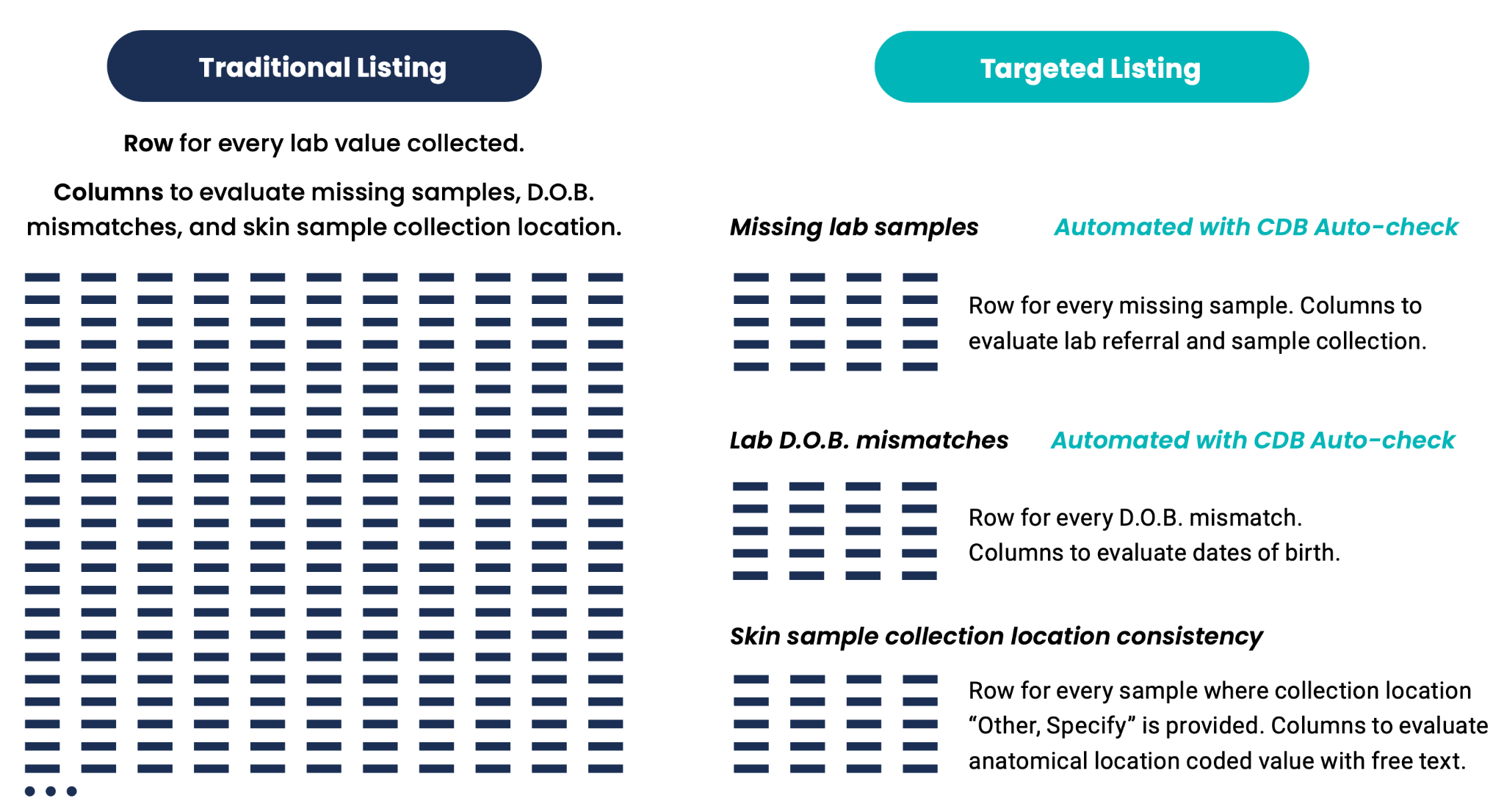
Elements of an Effective Targeted Listing
An effective targeted review listing centers on a single objective and displays only the records and columns needed to support clinical evaluation. Data managers and medical reviewers can evaluate records quickly and with minimal filtering.
Key elements required for a targeted listing to be effective will be described in the following sections:
- Single, scoped objective: Focus on one specific question or evaluation goal.
- Only include essential fields: Apply the 80/20 rule to only include fields needed to evaluate the objective at least 80% of the time.
- Built-in calculations: Use pre-configured logic to filter out non-impactful data.
- Checks: Leverage autochecks instead of review listings when discrepancies consistently require the same query without requiring human judgment.
- Effective querying: Incorporate predefined query templates to eliminate manual query writing.
Targeted listings filter data upfront to show only records needing evaluation. They automatically run calculations and pull in the latest data whenever a new batch arrives. Users can open a targeted listing and assess the data with minimal sorting and filtering. Learn more about creating listings in Veeva DQS.
Identify a Single Listing Objective
A well-targeted review listing has a single objective and includes only the information needed to assess data against that objective.
A single objective refers to having a single goal or question to be answered, not a single context. When evaluating the same question across different visits, you can combine them into one review listing. For example, if you want to ask “Was nitroglycerin administered at Visit 1?” and ask the same question for Visit 5, you can configure a single review listing and filter by visit as needed.
Best practice: Identify a single listing objective and avoid creating overly broad listings: When a listing includes too much data, users often export the file and perform their work in Excel. This causes the organization to lose out on the rapid querying, automation, and tracking capabilities available in Veeva DQS.
Only Display Data Fields That Serve Your Listing Objective
When deciding which fields to include in a listing, refer to the listing objective and ask yourself “What information is needed to answer this question?” Follow the 80 / 20 rule: if a field is not needed 80% of the time, don’t include that field. Information overload makes data review slower, less possible to automate, and more prone to error. Learn more about adding properties and items to listings in Veeva DQS.
Best practice: Evaluate your data fields against your listing purpose: To test whether a listing is appropriately scoped, review the displayed fields without reading the listing title. If you can determine the purpose of the listing from the fields alone, the scope is correct. If the fields could serve multiple different review goals, narrow the data fields.
Minimize Manual Filtering During Review
Targeted review listings have a single objective and include only the information needed to assess the data against the objective. Additional filters are essential to targeted listings, but where and when they are applied makes the operational difference. Daily manual filtering should only be used for dynamic operational scoping, such as focusing on a specific site, country, or interim patient lock. If reviewers must apply the same filters repeatedly to make a listing usable, those filters belong in the pre-built listing definition instead. Learn more about configuring filters for listings in Veeva DQS
When creating a listing, you can identify the elements that are relevant to the listing objective, and then create persistent and also more complex filters using CQL to only display relevant records for review.
For example, you may want to create a listing with the objective of confirming whether heart rate medication was administered. Data needed to evaluate this includes the list of administered medications. A traditional listing would include all the medications listed in the source form. However, the data manager only needs to evaluate medications that impact heart rate. You can make a more efficient targeted listing that cross-reference the drugs administered to the ATC codes of medications that influence heart rate, such as calcium channel blockers and beta blockers, and display only administered medications that may have impacted heart rate. With smart targeting, the data manager isn’t looking through a long list of extraneous medications. A well-targeted listing provides solely the information needed to make that determination and excludes the rest. Narrowing the display of medications makes it easier for data managers to make fast and accurate assessments.
Best practice: Minimize manual filtering during review: Ensure that filtering is needed only for displaying data in the reviewer’s operational scope, and not to make cluttered data reviewable.
Use Checks for Repeatable Discrepancies
Checks automate the data cleaning process by identifying the most repeatable discrepancies. Checks can be configured to create queries on Items and Event Dates, and to create Protocol Deviations. By using checks for repeatable discrepancies, you can greatly reduce manual review time. Learn more about configuring checks to automate queries and protocol deviations.
| Feature Type | Selection Criteria | Example Use Case |
|---|---|---|
| Autocheck | Use when a discrepancy is unambiguous and always results in the exact same query response. | Reconciling external lab sample dates against visit dates in Veeva EDC. Mismatched dates always require a query, so the system creates or closes the query automatically. |
| Review Listing | Use when human assessment or clinical evaluation is required before taking action. | Evaluating whether heart rate control medication was administered. Because multiple medications affect heart rate, comparing "Yes" answers against medication logs requires human review. |
Best practice: Use checks instead of review listings for repeatable discrepancies: Review listings are best when human judgement is required, and autochecks are best for discrepancies that prompt the same query every time.
Use Listing Defined Quick Queries Where Appropriate
In addition to custom queries, which are the traditional manual query type, you can use Quick Queries to quickly confirm a value or create a listing defined query message that the system dynamically populates with the relevant fields. During review, you can create queries on single or multiple records. When creating a targeted listing, ask yourself what messages the reviewer will need to send when querying records. Create listing defined query messages with dynamic tokens that automatically display the relevant value when the query message is sent to a site. Learn more about querying data in Veeva DQS
Best practice: Use Listing Defined Quick Queries where appropriate: Configure listing defined queries for your listing to reduce time spent on manual queries during review.
Specification Standards for Targeted Listings
This table details the best practices for elements of targeted review listings in Veeva DQS.
| Element | Recommended Practice |
|---|---|
| Listing Title |
Create a succinct, intuitive title that describes the objective. Listing titles often start with the form name. Users should be able to read the title and know its purpose without opening the listing. |
| Objective | Specify a single, highly targeted, topic or concept to review. Only combine similar questions if they differ along a single dimension such as visit number. |
| Source Study | If the listing or check is cloned from another study, list the source study here. |
| Category |
Categories are defined by each organization according to its needs. Commonly used categories include:
|
| Type | Designate whether the request is for a Review Listing or DQS Check. |
| Programming Guide |
Provide context and rationale for your requests. Clearly define the selection criteria details for data fields and any derived value calculations. Tell the programmer how you would like the listing sorted and in what order you’d like the fields displayed. EXAMPLE: Display Adverse Event records, sort by Subject. Order items: Subject, Preferred term, start date, end date, ongoing checked. Detect where TERM matches and start/end dates overlap or are duplicates. |
| Associated Forms and Views | List the Veeva EDC and non-EDC forms and data sources that will be used to generate the listing. |
| Data to Pull In | Specify the EDC and Non-EDC data fields required to evaluate the objective, following the 80/20 rule to exclude data clutter. |
| Predefined Query Message |
Draft standard query text for listing-defined query messages. These should follow standard best practices regarding clear and concise language. You can create highly tailored and descriptive messages by using cell reference tokens to insert supporting information into your message. Specify the column(s) you’d like to draw from when inserting the column value(s) into the query message. |
Optimizing Legacy Review Plans for DQS
To maximize the benefits of streamlined review and reduction in manual tasks, the data review plan you implement for Veeva DQS should differ from legacy plans. Your review plan for Veeva DQS should identify and target your review objectives at the right level of granularity.
This process also includes reevaluating checks that are specific to your prior EDC. For example, some environments will use “candidate queries,” which ask the data manager to check the output and decide whether it should go to the site. The DQS best practice is to parse the two scenarios: when a known discrepancy results in a specific query, create a check. For discrepancies where human judgement is needed, create a review listing.
Migrating legacy review procedures into Veeva DQS is a four-step process:
-
Deconstruct legacy listings: For each traditional listing, ask yourself what are the different questions being assessed with this listing? List each question being asked or issue being checked for separately. Be as granular as possible, listing each question and context independently.
-
Consolidate similar questions: Group questions that vary along a single variable (such as visit or form) into single targeted listings.
-
Refine listing scope: Review your proposed listings to ensure query text is consistent across the listing and that manual filtering is limited, with reference to the following questions:
- What query text do I use for this listing? If you need different query text based on different questions or scenarios, the listing may not be targeted enough. Consider breaking it apart.
- How much filtering do I need to assess the data? Filtering on one or two fields is acceptable. Filtering three or more times suggests more targeting is needed.
-
Automate repeatable checks: Work with the CDB Admin to convert clear, unambiguous discrepancies into automated Veeva DQS checks. If an output results in the same action every time, make it a check.