Assigning Review Plans to Sites
With Targeted SDV (Source Data Verification) and DMR (Data Management Review), your organization can define SDV or DMR requirements for a subject in a Review Plan. Targeted SDV and DMR are extremely flexible and support varying review requirements across Items at the Form level. You can also configure Targeted SDV or DMR for some Forms to be very granular, drilling down to a specific Item Group and Item combination.
Instead of having a single Review Plan for DMR or SDV in your entire Study, you can choose to assign Review Plans on a site-by-site basis or by Subject status using Dynamic Review Plans. For example, a Study may use one experienced site and then another site that is conducting its first ever clinical trial. For the experienced site, you can configure an SDV-type Review Plan with fewer Required items. Then you can configure a second Review Plan that requires SDV for all Items in the Study for the inexperienced site. You can manage these assignments from EDC Tools.
EDC supports three versions of the Review Plan Assignment. Contact Veeva Support for more information on versioning enablement.
Prerequisites
Before you can assign Review Plans to sites, a study designer must first create Review Plans in Studio.
Users with the standard Vault Owner security profile or CDMS Lead Data Manager study role can perform the actions described above by default. If your organization uses user-defined Study Roles, you must have the following permissions:
| Type | Permission Label | Controls |
|---|---|---|
| Standard Tab | EDC Tools Tab | Ability to access the EDC Tools tab |
| Functional Permission | Manage Review Plan Assignment | Ability to access EDC Tools > Review Plan Assignments and update the study- and site-level templates |
| Functional Permission | Edit SDV | Ability to perform SDV |
| Functional Permission | Edit DMR | Ability to perform DMR |
If your Study contains restricted data, you must have the Restricted Data Access permission to view it.
Learn more about Study Roles.
Accessing EDC Tools
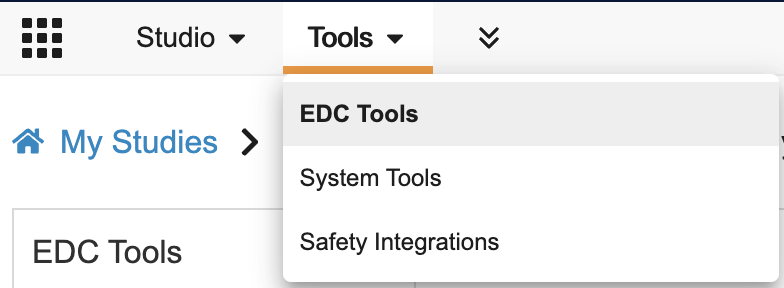
To access the EDC Tools administration area, click the Tools tab in the primary navigation bar, and then click EDC Tools.
Review Plan Assignment Version 1
The following functionality is available in Review Plan Assignment version 1 (V1).
Viewing Review Plan Assignments
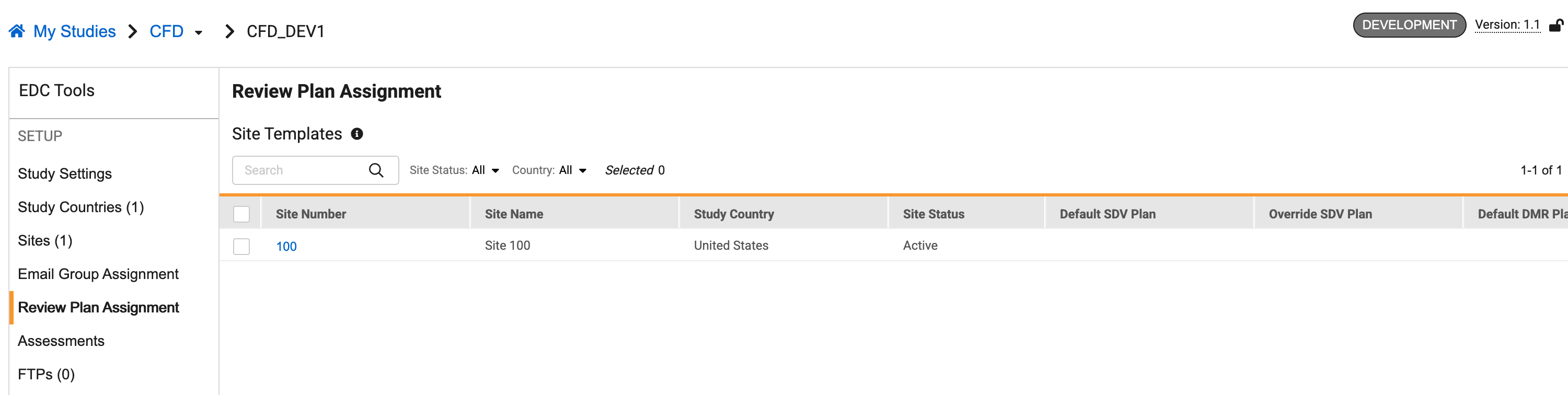
To view the review plan assignments using V1, navigate to Tools > EDC Tools > Review Plan Assignment. On this page, Vault lists the Review Plan Assignment site templates. You can search by site using the search bar.
Manually Assign Review Plans to Subjects
You can manually assign Review Plans to Subjects as needed, separate from the application of override plans.
To manually assign Review Plans to Subjects:
- Navigate to Tools > EDC Tools > Review Plan Assignment.
- Click into the Site containing the Subject or Subjects you want to update.
- Select one or more Subjects to update.
-
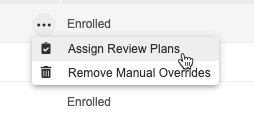
Click Assign Review Plans (if assigning in bulk) or select Assign Review Plans from the subject’s Actions menu (if assigning for one subject).
-
In the Assign Review Plans dialog, select an SDV Plan and a DMR Plan.
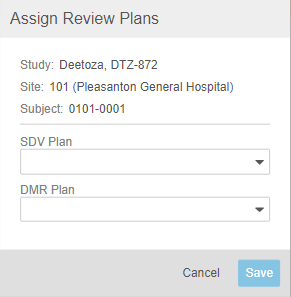
- Click Save. Vault updates the Review Plans for the subjects and begins SDV Re-assignment and DMR Re-assignment jobs.
Removing Manual Overrides
If you have previously manually assigned a Review Plan to a subject, you can remove that override assignment later if required. When you remove a manual override, Vault resets that subject’s assignment to either the default or override plan, depending on the site’s Override Ordinals.
To remove manual overrides:
- Navigate to Tools > EDC Tools > Review Plan Assignment.
- Click into the Site containing the Subject or Subjects you want to update.
- Select a Subject to update.
-
Select Remove Manual Overrides from the subject’s Actions menu.
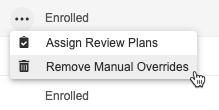
- In the confirmation dialog, click Remove.
- Click Save. Vault updates the Review Plans for the subjects and begins SDV Re-assignment and DMR Re-assignment jobs.
Form-level Overrides with Rules
Your study may also include Override Review Plan rules. These rules override the assigned review plan at the form level, based on user-entered data. For example, the rule may assign a 100% required SDV plan when an Adverse Event form’s seriousness item is set to Yes.
The SDV and DMR Re-assignment jobs do not override the Review Plan assigned by an Override Review Plan rule.
Default & Override Plans
The Default SDV Plan and the Default DMR Plan are the Review Plans that Vault assigns to subjects by default. These are typically low- to medium-risk plans that are widely applicable. Your organization may also have defined a higher-risk plan, for use with inexperienced sites or high-risk subjects. You can use this Review Plan as the override. Vault can also apply the override plan assignment to defined subjects.
Subject Ordinals
While you can assign override plans manually by updating the subject-level Review Plan assignment, Vault can also apply override plans automatically to certain Subjects as they are created using “subject ordinals.”
Subject ordinals are numbers and ranges of numbers, representing Subjects as they are created in the Site. 1 would be the first Subject, 2 the second, 5 the fifth, and so on.
For example, if you enter “1, 5, 10, 20-30” in the SDV Subject Ordinals field, Vault would apply the Override SDV Plan to the first, fifth, tenth, and twentieth through thirtieth Subjects created in the Site.
If subjects already exist in your study, Vault applies the override plan to subject ordinals prospectively, meaning that if you enter “1,” the override plan applies to the first Subject created after you define the subject ordinals. You can run the SDV and DMR re-assignment jobs to reset the order, so that Vault applies override plans with your first Subject in the first ordinal (1).
Study & Site Templates
Review plans can also be configured at the Study level via the Study Template configuration in Studio > Review Plans. When creating Review Plans for your Study, a study designer selects a Default Plan, an Override Plan, and Override Subjects to use as a “template” for assigning Review Plans to your sites. Vault applies those selections to each Site. As Subjects are created in that Site, Vault uses the site-level assignments as a template for assigning Review Plans at the Subject level.
You can override these templates and manually assign Review Plans to Sites and Subjects from Tools > Review Plan Assignments. See details below.

Editing Site Templates
You can edit the Review Plan assignments and Override Ordinals that Vault automatically applies to Sites from the Study-level template. These changes apply to all Subjects in that Site.
To edit a Site Template:
- Navigate to Tools > EDC Tools > Review Plan Assignment.
- Select the Site or Sites that you want to edit.
- To edit a single site, select Edit Site Templates from the site’s Actions menu.
- To edit multiple sites, select the checkbox for each Site and then click Edit Site Templates.
-
In the Edit Site Templates dialog, make any required changes. Note that the Override Subjects fields for each section (SDV and DMR) map to the SDV Subject Ordinals and DMR Subject Ordinals fields at the study-level.
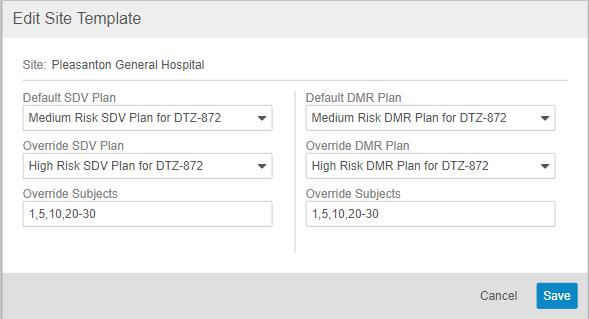
- Click Save. Vault updates the Site to begin using your new selections right away. To apply your new selections to existing Subjects, you can run the re-assignment jobs to update review requirements on those Subjects.
Review Plan Assignment Versions 2 & 3
The following functionality is available in Review Plan Assignment versions 2 (V2) and 3 (V3).
Viewing Review Plan Assignments
To view the review plan assignments using V2 or V3, navigate to Tools > EDC Tools and select either the Review Plan Assignment Criteria or the Review Plan Manual Assignment from the left-hand menu. On these pages, Vault lists all review plan assignment criteria and manual assignments. You can search by Review Tasks using the search bar on the Review Plan Assignment Criteria page.
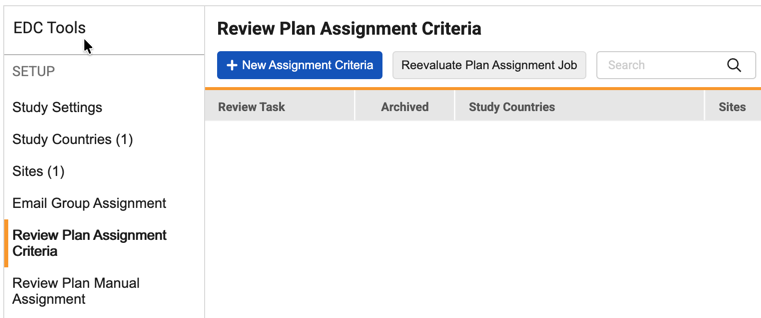
You’ll need the Manage Review Plan Manual Assignment permission to access the Review Plan Manual Assignment page.
Manually Assigning Review Plans to Subjects
You can manually assign Review Plans to Subjects as needed, separate from the application of override plans.
Prospective Review Plan Assignment
The manual assignment process utilizes Prospective Assignment. This means that when you update a Subject’s review plan, you choose whether the new requirements apply only to casebook data moving forward or to all data in the casebook. This feature eliminates the need for CRAs and DMs to perform additional reviews on visits when a new plan introduces new review requirements. With Prospective Review Plan Assignment, Vault still assigns review plans at the Subject level, but you choose how you want to apply the new review requirements to the casebook. The system automatically assigns review plans to events and log forms based on your selection.
To manually assign Review Plans to Subjects:
- Navigate to Tools > EDC Tools > Review Plan Manual Assignment for your Study.
- Click into the Site containing the Subject or Subjects you want to update.
-
For bulk assignment, select the Subjects and click Assign Review Plans.
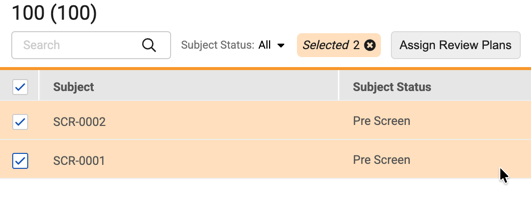
-
For individual assignment, select Assign Review Plans from the Subject’s Actions menu.
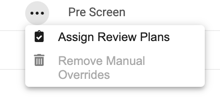
- In the Assign Review Plans dialog, complete the following:
-
Select an SDV Plan, a DMR Plan, or both.
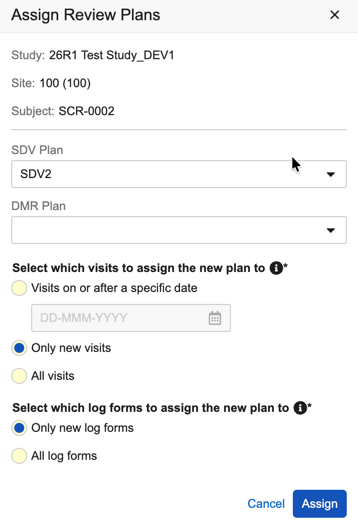
- In the Select which visits to assign the new plan to section, select a behavior:
- Visits on or after a specific date: Enter a cutoff date.
- Selecting this option tells Vault to base the assignment on the event date. Events with a date prior to the cutoff date stay on their current plan. Events with a date on or after the cutoff date receive the new plan. This applies to existing events at the time of the review plan change and to events that users create going forward.
- If the event doesn’t have a date yet, Vault assigns the current review plan for the Subject to the event. Once a user enters the event date, Vault updates the plan assignment back to the original plan if that event date falls before the cutoff date.
- In reports, when the event date is prior to the cutoff date, you may see events in which the previous review plan is the new plan and the current review plan is the old plan. This is expected behavior.
- Only new visits: No change to existing visits. The system applies the new plan requirements to events created after the plan changes.
- All visits: The system will apply the new plan requirements to all existing and future visits.
- Visits on or after a specific date: Enter a cutoff date.
- In the Select which log forms to assign the new plan to section, select a behavior:
- Only new log forms: No change to existing log forms. The system will only apply the new plan requirements to log forms created after the Subject’s review plan changes.
- All log forms: The system will apply the new plan requirements to all existing and future log forms.
-
- Click Assign.
Removing Manual Overrides
If you have previously manually assigned a Review Plan to a subject, you can remove that override assignment later if required. When you remove a manual override, Vault resets that subject’s assignment, returning it to its assigned Review Plan Criteria.
To remove manual overrides:
- Navigate to Tools > EDC Tools > Review Plan Manual Assignment.
- Click into the Site containing the Subject or Subjects you want to update.
- Select a Subject to update.
- Select Remove Manual Overrides from the Subject’s Actions menu.
- Click Remove in the confirmation dialog. Vault deletes the manual parameters and updates the Subject to the assigned Review Plan Criteria, provided the Subject falls within an existing assignment criteria. Otherwise, the plan remains assigned to the Subject.
Form-level Overrides with Rules
Your study may also include Override Review Plan rules. These rules override the assigned review plan at the form level, based on user-entered data. For example, the rule may assign a 100% required SDV plan when an Adverse Event form’s seriousness item is set to Yes.
The SDV and DMR Re-assignment jobs do not override the Review Plan assigned by an Override Review Plan rule.
Reevaluate Plan Assignment Job
You can run the Reevaluate Plan Assignment job to recalculate Review Plan Assignment criteria for each subject. You must run the Reevaluate Plan Assignment job after changing Review Plan Assignments in a live study.
When running the Reevaluate Plan Assignment job, you have two options for how the system re-assesses the subjects:
- Re-assess all subjects: Fully recalculates all the review plan assignments for every subject. For example, if the override percentage changes from 25% to 20%, this selection would shift the override plan from every 4th subject to every 5th subject. In this case, data that is reviewed remains reviewed, but the review plan may change for the reviewed subjects, and additional subjects will be assigned the override plan.
- Re-assess the most recent subjects first: Makes the fewest changes possible, applying changes to most recent subjects before applying to earlier subjects. For example, if the override percentage changes from 25% to 20%, this selection would remove the override plan starting from the most recent subjects first, until the 20% override percentage is reached. This avoids duplication of review efforts.
Prospective Review Plan Assignment
The Reevaluate Plan Assignment job utilizes Prospective Assignment. This means that when running the job, you choose whether the new requirements apply only to casebook data moving forward or to all data in the casebook. This eliminates the need for CRAs and DMs to perform additional reviews on visits when a new plan introduces new review requirements. With Prospective Review Plan Assignment, Vault still assigns review plans at the Subject level, but you choose how you want the job to apply the new review requirements to the casebook. The system automatically assigns review plans to events and log forms based on your selection.
How to Run the Reevaluate Plan Assignment Job
To run the Reevaluate Plan Assignment job:
- Navigate to Tools > EDC Tools > Review Plan Assignment Criteria.
-
Click Reevaluate Plan Assignment Job.

- Choose to include All Sites or Specific Sites.
-
Choose to either Re-assess all subjects or to Re-assess the most recent subjects first.
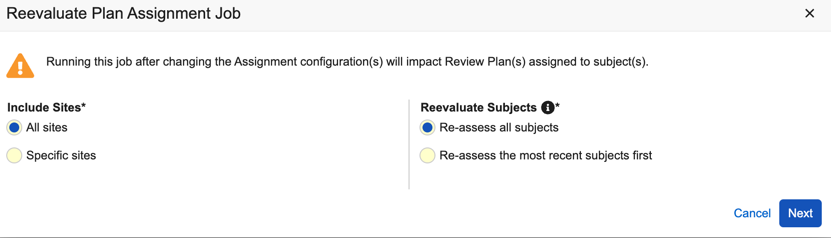
- Click Next.
- In the Reevaluate Plan Assignment Job dialog, complete the following:
- In the Select which visits to assign the new plan to section, select a behavior:
- Visits on or after a specific date: Enter a cutoff date.
- Selecting this option tells Vault to base the assignment on the event date. Events with a date prior to the cutoff date stay on their current plan. Events with a date on or after the cutoff date receive the new plan. This applies to existing events at the time of the review plan change and to events that users create going forward.
- If the event doesn’t have a date yet, Vault assigns the current review plan for the Subject to the event. Once a user enters the event date, Vault updates the plan assignment back to the original plan if that event date falls before the cutoff date.
- In reports, when the event date is prior to the cutoff date, you may see events in which the previous review plan is the new plan and the current review plan is the old plan. This is expected behavior.
- Only new visits: No change to existing visits. The system applies the new plan requirements to events created after the plan changes.
- All visits: The system applies the new plan requirements to all existing and future visits.
* In the Select which log forms to assign the new plan to section, select a behavior:
* Only new log forms: No change to existing log forms. The system only applies the new plan requirements to log forms created after the* Subject’s* review plan changes.
* All log forms: The system applies the new plan requirements to all existing and future log forms.
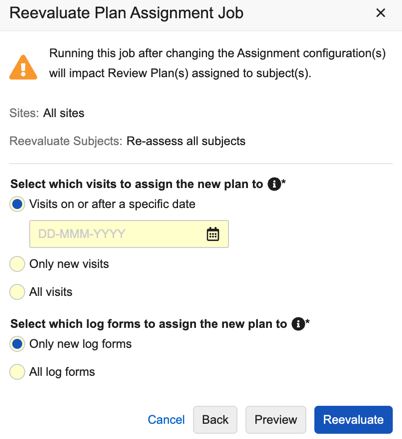
- Click Preview to preview the job’s output.
- Click Reevaluate to run the job.
To view the parameters used for the job, hover over the job record Information icon in EDC Tools > Job History.
Dynamic Review Plans
Dynamic Review Plans allow Sponsors to vary the amount, intensity, and criticality of review requirements based on risk. For less experienced, higher-risk sites, for example, a Sponsor can assign plans with more Required items to casebooks at a higher sampling percentage. Conversely, casebooks in sites and countries that are at a lower risk can be assigned less intensive plans, and/or have a smaller percentage of casebooks that are assigned intensive override plans. You can create SDV Review Plans based on Subject Status in addition to creating plans by Site. Review plans based on Subject Status can be applied to a subset of subjects and has multiple parameters for identifying subjects for verification.
Example Use Case
Refer to the following example for more information on Dynamic Review Plans and how to create them:
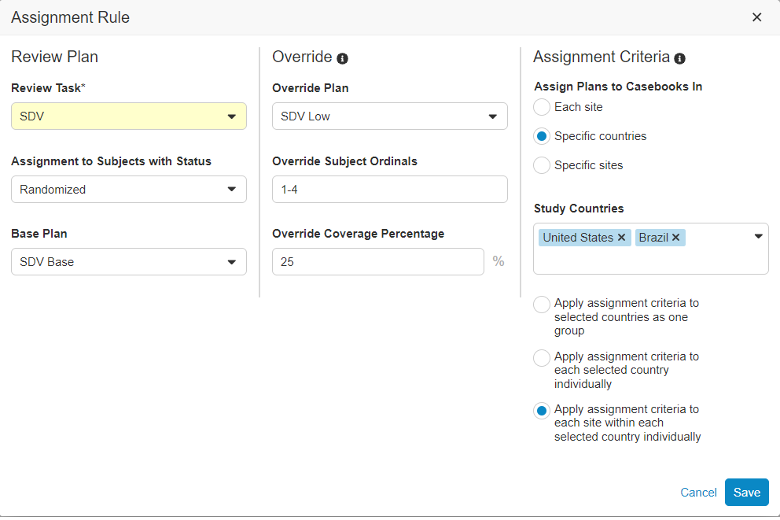
In this example using SDV, there is a study with 30 sites: 15 in the United States, seven (7) in Brazil, and eight (8) in Switzerland. The study has a base SDV Review Plan, “SDV Base,” and two SDV override Review Plans, “SDV Low” with a minimal amount of additional Required items, and “SDV High” with a majority of items marked for Required review. The Sponsor in this example has determined that, based on the therapeutic area being investigated and according to their risk-based monitoring protocol, all sites in Switzerland are at an increased risk of data integrity liabilities compared to the sites in the US and Brazil. Therefore, the sponsor has chosen to focus verification resources where the overall risk profile is higher. This approach is represented by the Dynamic Review Plan assignment rule pictured here:
How to Enable Dynamic Review Plans
Dynamic Review Plans will be automatically enabled for new studies but will need to be configured for already existing studies.
To configure Dynamic Review Plans:
- Navigate to Business Admin > Study Configuration.
- Locate your Study in the list of records.
- Click your study’s Name to open it.
- Click Edit.
- Set Review Plan Assignment Version to “2” or “3” to use version 2 or 3, respectively.
- Click Save.
How to Create a Dynamic Review Plan
To utilize Dynamic Review Plans after configuration, follow the steps below:
- Navigate to Tools > EDC Tools > Review Plan Assignment.
- Click + New Assignment Criteria to add a new Review Plan.
- Select your Review Task.
- Select your Base Plan and Override Plan. Your Base Plan is the plan that applies to most of the subjects and your Override Plan is the plan that applies to the subjects specified by the Override Subject Ordinals and Override Coverage Percentage. All review plans are configured in Studio > Review Plans.
-
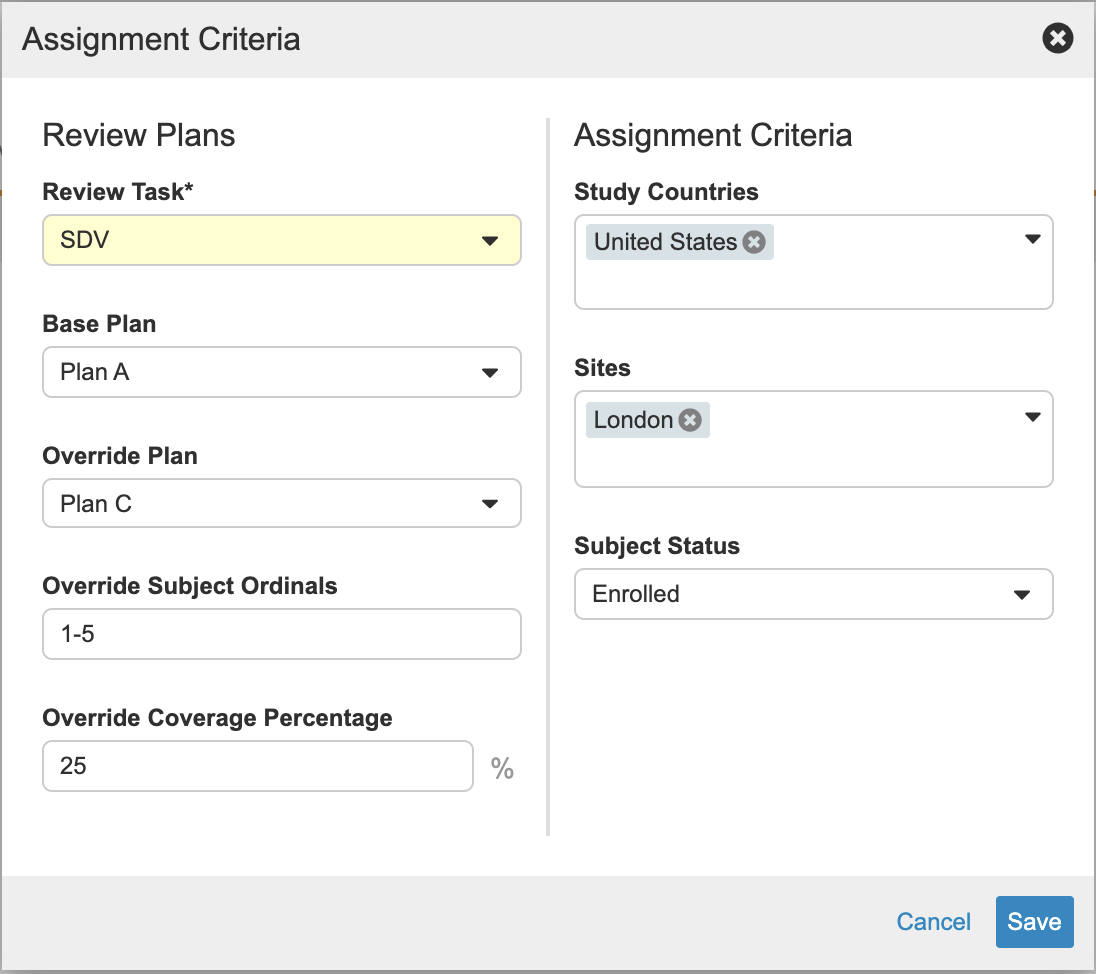
Fill in your Override Subject Ordinals and/or Override Coverage Percentage fields if you selected an Override Plan in the previous step. Override Subject Ordinals and Override Coverage Percentage determine which subjects your Override Plan applies to. They can be used together to apply to a very specific subset of subjects (e.g. 25% of every 5 subjects, as shown in the screenshot below) or used separately to apply to a larger group of subjects. The following screenshot applies to Review Plan Assignment v2 :
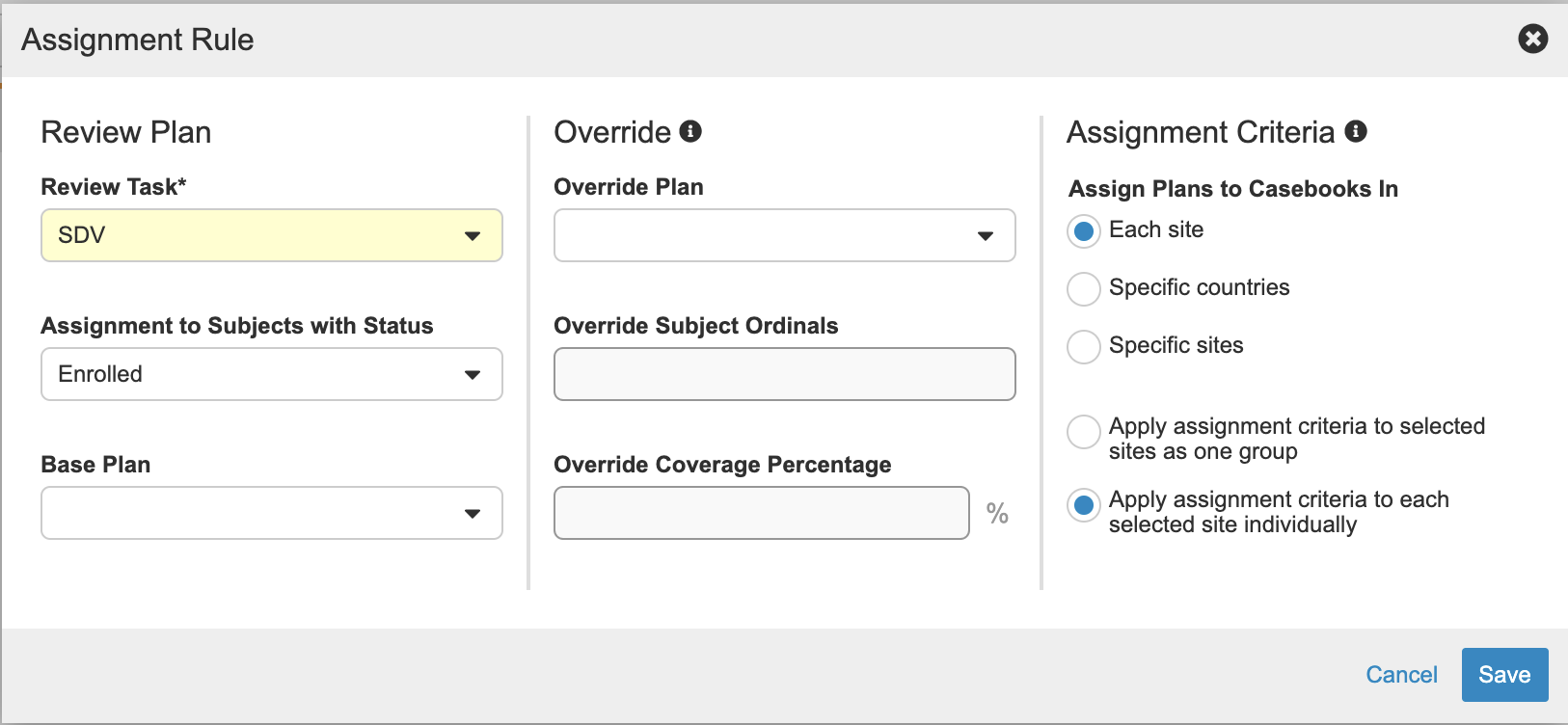
 The following screenshot applies to Review Plan Assignment v3
:
The following screenshot applies to Review Plan Assignment v3
:
- Choose the Study Countries and Sites that your Review Plan should apply to. When a Study Country is selected, only Sites outside that country can be selected in the Sites field. The Sites field is used to specify additional Sites outside the selected Study Country that the Review Plan should apply to, but is not a subset of the Study Countries field.
- Optional: Select a Subject Status that your Review Plan should apply to. Only subjects with the chosen status will be affected by your Review Plan. When a Review Plan is assigned to a subject based on their status, that Review Plan will remain assigned when the subject moves to subsequent statuses unless there are additional applicable assignment rules for those subsequent statuses.
- Click Save.
Override Subject Ordinals apply to all Study Countries in totality, rather than Study Countries individually. The Override Coverage Percentage field, however, applies to all Assignment Criteria in totality.
Review Plan Assignment Audit Trail
You can view the audit trail for your Review Plan Assignment Criteria in the Review Plan Assignment Criteria tab:
-
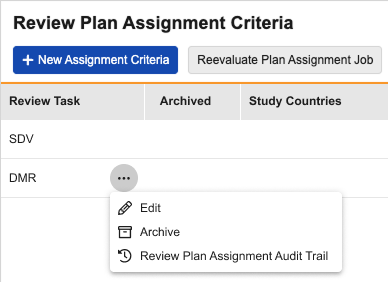
Hover over the Review Task you’d like to view the audit trail for and click on the More Actions icon.
-
Select Review Plan Assignment Audit Trail.
The Review Plan Assignment Audit Trail displays the following information about the Review Plan Assignment Criteria record:
- Event Description
- Username
- Timestamp in the timezone of the user viewing the audit trail
Archiving a Review Plan Assignment Criteria
You can archive - previously labeled “Delete” - a Review Plan Assignment Criteria by hovering over the desired task and clicking on the More Actions icon where you’ll find an Archive option. You can also view the audit trail for archived assignment records.
Archived Review Plan Assignment Criteria can’t be un-archived, so you’ll be prompted to confirm your decision by a confirmation dialog. If you want to use the same criteria from the archived review plan assignment criteria to assign review plans, you will need to create a new assignment criteria with the same configuration as the one you archived.
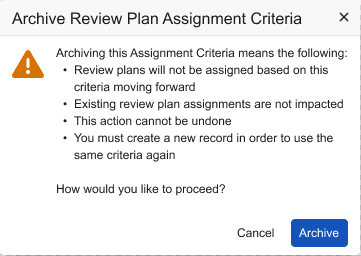
You can choose to display archived assignment criteria by clicking the Show Archived Assignments checkbox located in the upper right section of the page. When checked, archived assignment criteria will display a checkbox in the Archived column.
Archiving an assignment criteria will not affect subjects with review plans already assigned to them. These assignments will not change.
Running the SDV and DMR Re-assignment Job at the Site Level
You can run the SDV and DMR Re-assignment job at the Site level in addition to the Study level, regardless of your study’s active version.
To run an SDV or DMR Re-assignment Job:
- Navigate to Tools > EDC Tools > Job History or Job Schedule.
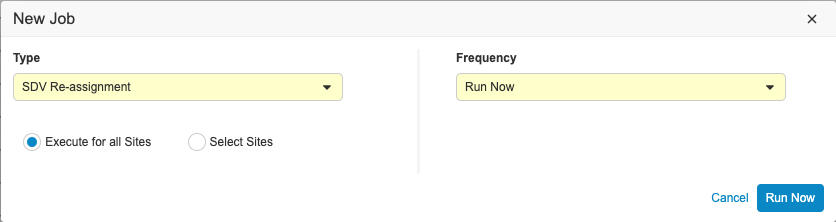
- Click + New Job.
- Select SDV Re-assignment or DMR Re-assignment for Type.
- Click Select Sites below the dropdown menu.