Viewing the Import Audit Log
CDB records audit events on the Import > Audit Log page. Workbench generates an entry in the Package Audit Log for each package import that was processed and reprocessed. Workbench generates an entry in the Import Approvals Audit Log when a package is approved or rejected. You can filter the audit log by Source for any time period and then refine your results by column (such as Status or Uploaded By).
The Audit Log records events starting at the time of the 21R3 release.
Prerequisites
Users with the standard CDMS Data Manager, CDMS Lead Data Manager, and CDMS Super User study roles can perform the actions described below by default. If your vault uses custom Study Roles, your role must grant the following permissions:
| Type | Permission Label | Controls |
|---|---|---|
| Standard Tab | Workbench Tab | Ability to access and use the Data Workbench application, via the Workbench tab |
| Functional Permission | View Import | Ability to access the Import page |
If your Study contains restricted data, you must have the Restricted Data Access permission to view it.
Learn more about Study Roles.
Access the Audit Log
You can access the audit log from the Import area of CDB. You can navigate to the Import area from the Navigation Drawer () or, after you select your Study, from the Study menu () on the Studies page.
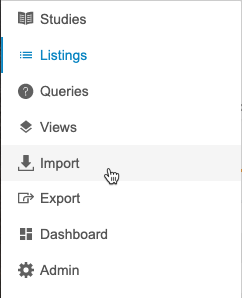
|
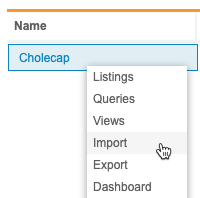
|
Once you’ve entered the Import area, select Audit Log from the Import menu.
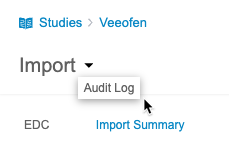
You can also view an audit log for a specific source by clicking Audit Log for the Source.
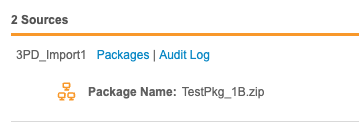
This opens the Audit Log page.
Log Types
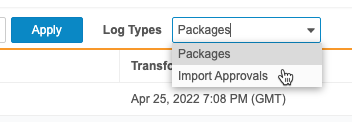
There are two log types: Package Audits and Import Approvals. The Package Audits log records the import of packages into Workbench. The Import Approvals log records events related to the approval and rejection of modified third party data packages.
You can switch between the two log types using the Log Types drop-down.
Package Audits Log Columns
The Package Audits Log has the following columns:
| Column | Description |
|---|---|
| Study | The Name (Study Number) of the Study |
| Source | The Name of the Source |
| Package | The File Name of the Package |
| Type | The Category of the package, either Reference or Data |
| Uploaded Date | The Uploaded Date of the Package |
| Uploaded By | The user who uploaded the Package to the server |
| Transform Start | The date and time transformation started for the package (UTC) |
| Transform Completion | The date and time the import package was transformed (UTC) |
| Loading Start | The date and time the import package load started (UTC) |
| Loading Completion | The date and time the import package load completed (UTC) |
| Loaded By | The Name of the user who loaded the package |
| Imported Date | The date and time the import package was imported (UTC) |
| Status | The Status of the import package |
| Audit Date | The creation date of the audit record (UTC) |
Import Approvals Audit Log Columns
The Import Approvals Audit Log has the following columns:
| Column | Description |
|---|---|
| Study | The Name (Study Number) of the Study |
| Source | The Name of the Source |
| Package | The File Name of the Package |
| Uploaded Date | The Uploaded Date of the Package |
| Uploaded By | The user who uploaded the Package to the server |
| Decision | The decision on the package, either Approved or Rejected |
| Decision By | The Name of the user who reviewed the package |
| Decision Date | The date the decision was made for the package |
| Reason | The reason the reviewer provided when approving or rejecting the package |
Filter the Audit Log
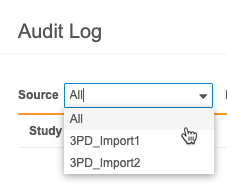
You can filter the audit log by Source for any time period. To further narrow your results, filter by the following columns:
- Uploaded By
- Uploaded Date
- Imported Date
- Status
- Audit Date
By default, the audit log displays a descending sort order by Audit Date.
To filter the audit log:
- Navigate to Import > Audit Log.
-
Select a Source.
- Locate the column you want to filter by in the datasheet.
- Hover over the Column Header to show the Filter icon ((filter_list)).
- Click the Filter icon ((filter_list)).
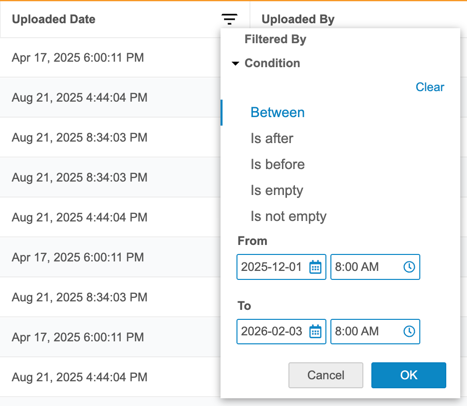
- For date-based columns, select a Condition (such as Between or Is before).
-
Enter From and To dates and times.
- Click OK.
-
For value-based columns, click Select Values. This opens the Select Values dialog.
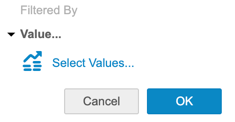
- Select values individually or click Select All to select all value checkboxes.
- Click OK.
- Optional: Click Clear in the Condition menu or Select Values dialog to reset the column and page.
After applying a column filter, the page displays the Active filter tag and a total record count above the datasheet. Click the X on the filter tag to remove it.
Download the Audit Log
You can download the audit log as a CSV file. The CSV lists entries sorted by Import Date in descending order.
To download the audit log:
- Navigate to Import > Audit Log.
-
- Click Download.
-

- Save the CSV file (“{Study_Name}-Ingestion_Audit_Trail-{DateTime}.csv”) and open it in a viewer of your choosing.