Monitoring Protocol Deviations
Sponsors have the ability to track Protocol Deviations for a Study from within Vault. You can manually create Protocol Deviations from the Review > Protocol Deviations tab, or the system may create a Protocol Deviation programmatically via a rule. Both manual and programmable protocol deviations are linked to a Subject, Event, Form, or Item, and each protocol deviation captures the following details:
- Summary
- Category
- Subcategory
- Severity
- Description
- Date of Deviation
- Date Identified
Prerequisites
The Protocol Deviations feature must be enabled for your Study by a study designer.
A study designer must create Categories, Subcategories, and Severities for you to reference when creating Protocol Deviations.
Users with the standard CDMS Clinical Research Associate, CDMS Data Manager, and CDMS Lead Data Manager study roles can perform the actions described below by default. If your organization uses user-defined Study Roles, then your role must grant the following permissions:
| Type | Permission Label | Controls |
|---|---|---|
| Standard Tab | Review Tab | Ability to access the Review tab |
| Standard Tab | Protocol Deviations Tab | Ability to access the Protocol Deviations tab |
| Functional Permission | View Protocol Deviations | Ability to view Protocol Deviations |
| Functional Permission | Edit Protocol Deviations | Ability to edit Protocol Deviations |
| Functional Permission | Create Protocol Deviations | Ability to create Protocol Deviations |
If your Study contains restricted data, you must have the Restricted Data Access permission to view it.
Learn more about Study Roles.
Viewing Protocol Deviations
Vault displays a Protocol Deviation indicator () on any Subject, Event, Form, or Item that has an associated Protocol Deviation.
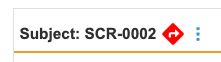
You can click the indicator to show a summary of the Protocol Deviation, which includes a link to open the complete view of the Protocol Deviation in the Protocol Deviations tab.
To view a list of all Protocol Deviations, navigate to Review > Protocol Deviations.
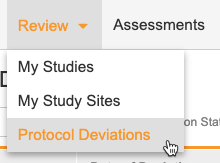
This opens the Protocol Deviations listing.

Searching & Filtering
You can search for individual Protocol Deviations. You can also filter the listing to only show Protocol Deviations in a certain status.
To filter by Protocol Deviation Status:
- Navigate to Review > Protocol Deviations.
- Click All to open the Protocol Deviation Status filter list.
-
Select the Statuses that you want to include.
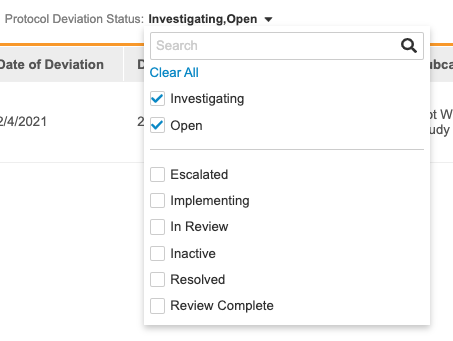
- Click anywhere on the page to leave the filter list.
- Open the filter again and either click Clear All or clear individual status checkboxes to remove your filters.
Creating a Manual Protocol Deviation
You can create Protocol Deviations manually, in addition to the programmatic deviations that Vault creates automatically. Note that you can’t create a new Protocol Deviation in locked sites.
On a Subject
To create a Protocol Deviation on a Subject:
- Navigate to the Subject in the Review tab.
- From the More Actions menu, select Create Protocol Deviation.
- In the Create Protocol Deviation dialog, fill the required fields.
- Click Save.
On an Event
To create a Protocol Deviation on an Event:
- Navigate to the Event in the Review tab.
- From the More Actions menu, select Create Protocol Deviation.
- In the Create Protocol Deviation dialog, fill the required fields.
- Click Save.
On a Form
To create a Protocol Deviation on a Form:
- Navigate to the Form in the Review tab.
- From the More Actions menu, select Create Protocol Deviation.
- In the Create Protocol Deviation dialog, fill the required fields.
- Click Save.
On an Item
To create a Protocol Deviation on an Item:
- Navigate to the Item in the Review tab.
- From the More Actions menu, select Create Protocol Deviation.
- In the Create Protocol Deviation dialog, fill the required fields.
- Click Save.
Creating Manual Protocol Deviations
Last Updated: 26R2
This video goes over how to create a new, manual Protocol Deviation in the Review tab.
System-generated Protocol Deviations
System-generated Protocol Deviations are those created automatically, when user-entered data qualifies. This is controlled by a Create Protocol Deviation rule action, which is part of your study’s design. Vault automatically sets the Summary, Category, Subcategory, Severity, and Description based on the rule’s configuration.
You can respond to and interact with these Protocol Deviations in the same ways you interact with manually created Protocol Deviations.
These Protocol Deviations are marked as created by the “System”. They are automatically created in the Open status. If a site user later edits a Form, and the resulting data no longer qualifies as a protool deivation, Vault sets the protocol deviation to Inactive. If another edit results in the data qualifying once more, Vault will create a new Protocol Deviation, instead of activating the existing one.
Managing Protocol Deviations for Clinical Operations - EDC Connection Studies
To prevent data overwrites, CTMS acts as the primary management tool for protocol deviations (PD) in studies utilizing the Clinical Operations - EDC Connection. You cannot edit PD fields in EDC for Connection Studies, but you may still perform the following actions:
- Manually inactivate the PD
- View all PD details
- Access the audit trail
When a PD is deleted in EDC, the connection updates the Protocol Deviation Status in EDC field to Deleted in CDMS in the CTMS vault.
Automatic updates to the PD status and date of deviation function normally, but only apply to system protocol deviations, not manual ones.
We recommend enabling the Limit Clinical Operations-EDC Connection Protocol Deviations Updates setting in your Clinical Operations Vault to prevent EDC from unintentionally overwriting CTMS fields (e.g., Severity or Resolution) with stale data during inactivation or date of deviation updates. To enable this setting in your vault, navigate to Admin > Settings > Application Settings > CTMS Features.
Manually Inactivating a Protocol Deviation
You can manually inactivate a protocol deviation in EDC. This action is useful, as it prevents users from seeing active protocol deviations in EDC that are already inactive in CTMS.
You must have the Edit Protocol Deviations permission to inactivate protocol deviations.
To inactivate a protocol deviation:
- Navigate to Review > Protocol Deviations.
- Select the protocol deviation that you want to inactivate.
-
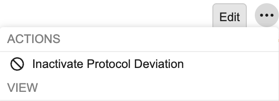
From the Actions menu (), select Inactivate Protocol Deviation.
-
Select a Reason for Change.
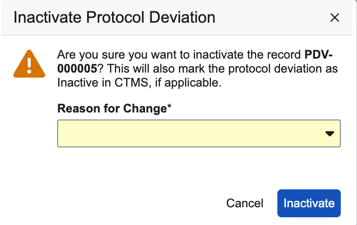
- Click Inactivate. The system updates the protocol deviation status to Inactive in EDC.
Updating Protocol Deviations
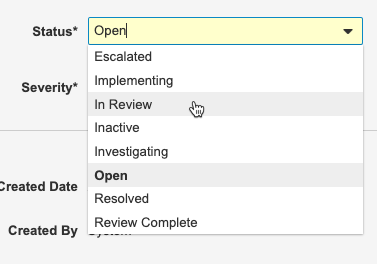
You can update Protocol Deviations by changing the Status, Severity, and Resolution fields in the Sponsor Review section of the Protocol Deviation Details page. What you enter into these fields will depend on your organization’s defined workflow for handling protocol deviations.
To update a Protocol Deviation:
- Navigate to Review > Protocol Deviations.
- Click the Summary to open a Protocol Deviation.
- Click Edit.
-
Update the Status, Severity, and Resolution fields based on your response.
- Click Save.
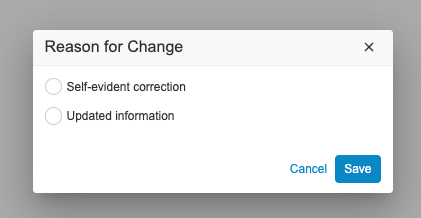
- Select a Change Reason.
Clinical Operations - EDC Connection Studies: For studies using the Clinical Operations - EDC Connection, the system disables the ability to edit protocol deviation fields. You can still view the full protocol deviation details and its audit trail in EDC as needed.
Reviewing Protocol Deviations
Last Updated: 26R2
This video goes over how to review Protocol Deviations in the Review tab.
Exporting Protocol Deviations
You can export a list of all Protocol Deviations as a CSV or Excel™ file. Note that any filters you apply to the listing don’t apply to the export.
To export Protocol Deviations:
- Navigate to Review > Protocol Deviations.
-
From the Actions menu, select CSV.
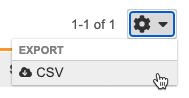
- Vault begins generating the file. When finished, Vault sends you an email with a link to download the file.
Viewing the Audit Trail
You can view the Audit Trail for individual Protocol Deviations from the Protocol Deviation Details page. Select Audit Trail from the Actions menu.