Study General Settings for Labs
In the Study General Settings section, you can configure Clinical Significance and Out-of-range Query Settings. Study Settings are inherited from the System General Settings tab when a Study is created.
Configure your study’s normal overrides and clinical significance settings before creating a Lab Panel, as Vault locks these settings once a Lab Panel is created.
Study Settings
You can edit the following study-level settings from Labs > Study General Settings:
- Fire Out-of-range Queries by Default
- Allow Site Overrides for Lab Normals (changes to this setting are not possible after deployment to Production)
- Default Day and Month for Age Calculations
- Disable Unit Selection for Lab Results when Lab Normals are Present
- Enable Clinical Significance (changes to this setting are not possible after deployment to Production)
To edit study settings:
- Navigate to Labs > Study General Settings.
- Click your Study to open it, or click Select Study and select your Study in the breadcrumb menu.
- Click Edit.
- Make your changes.
- Click Save.
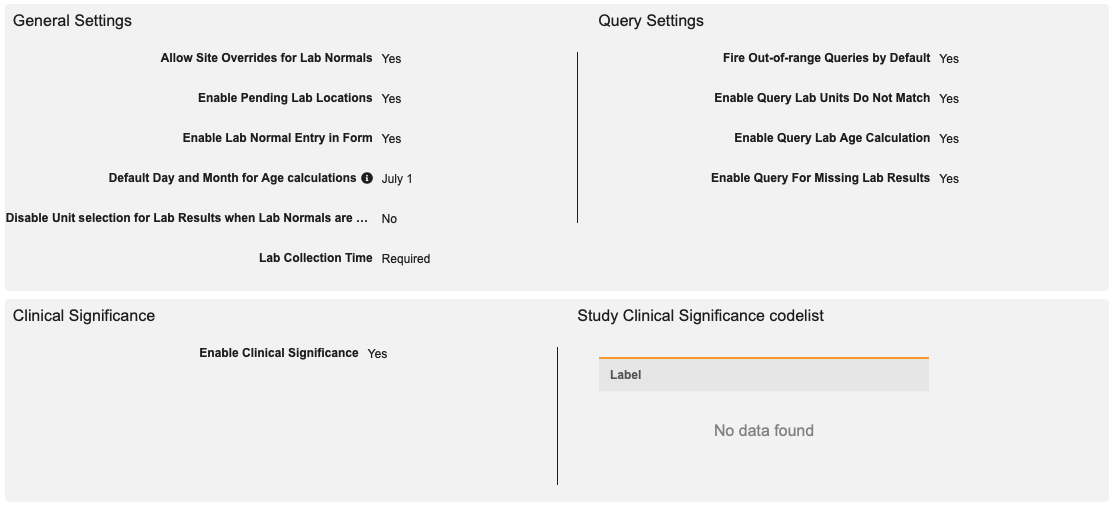
You must deploy study settings to each environment in order for them to be effective in your chosen environments.
General Settings
Allow Site Overrides for Lab Normals
The Labs module supports the ability of sites to override the normal range if the current range is inaccurate or doesn’t exist.
| Setting | Description |
|---|---|
| Yes | When set to Yes, Site users can override the Normal Range for a lab result using the Normal Override column in Data Entry. |
| No (default) | When set to No, Vault doesn’t allow site users to override the normal range. |
This setting can’t be updated once lab panels have been created for the study. Lab panels must be deleted in order to make edits.
Enable Pending Lab Locations
| Setting | Description |
|---|---|
| Yes (default) | When set to Yes, Sites can enter pending Lab Locations in Data Entry. |
| No | When set to No, Vault doesn’t allow Sites to enter pending Lab Locations but Sites can report that a Lab Location is not found. |
This setting can be updated Post Go-Live.
Enable Lab Normal Entry in Form
| Setting | Description |
|---|---|
| Yes (default) | When set to Yes, Sites can enter pending Normal Ranges in Data Entry. This setting is only available when working in a pending Lab Location or when no Lab Location is found. |
| No | When set to No, Vault doesn’t allow Sites to enter Normal Ranges. |
This setting can be updated Post Go-Live.
Default Day and Month for Age Calculations
Select a Day and Month to use as the default value when calculating Age and the birth date contains unknowns.
Disable Unit Selection for Lab Results when Lab Normals are Present
This setting controls whether site users are able to change the Unit for a Lab Result when there are Lab Normals.
| Setting | Description |
|---|---|
| Yes | When set to Yes, Sites are not able to change the Unit for a Lab Result when Lab Normals are present. |
| No (default) | When set to No, sites are able to change the Unit for a Lab Result when Lab Normals are present. |
This setting can be updated Post Go-Live.
Lab Collection Time
| Setting | Can this setting be updated Post Go-Live? | Description |
|---|---|---|
| Required (default) | Yes, if updating to “Allow Unknown”. This change requires a new casebook version and may affect existing rules related to Lab Date/Time. | Lab Collection Time is required. |
| Allow Unknown | No | Lab Collection Time can be set to Unknown. |
| Always Unknown | Yes, if updating to “Allow Unknown”. This change requires a new casebook version and may affect existing rules related to Lab Date/Time. | Lab Collection Time is always set to Unknown. Sites will only be prompted to enter a date and the time will automatically be marked as Unknown in the audit trail. |
Enable Clinical Significance
| Setting | Description |
|---|---|
| Yes (default) | When set to Yes, Vault allows Sites to mark data’s clinical significance based on the Clinical Significance codelist labels for analytes that are out of range. |
| No | Vault doesn’t allow Sites to mark clinical significance. |
This setting can’t be updated once lab panels have been created for the study. Lab panels must be deleted in order to make edits.
Query Settings
Fire Out-of-Range Queries by Default
| Setting | Description |
|---|---|
| Yes (default) | When set to Yes, Vault automatically opens a query when the value is out of range. |
| No | Vault doesn’t automatically open a query on an out-of-range result value. |
This setting can be updated Post Go-Live.
Enable Query Lab Units Do Not Match
| Setting | Description |
|---|---|
| Yes (default) | When set to Yes, Vault automatically opens a query when Lab units don’t match between the result and the normal range. |
| No | Vault doesn’t automatically open a query when units don’t match. |
This setting can be updated Post Go-Live.
Enable Query Lab Age Calculation
| Setting | Description |
|---|---|
| Yes (default) | When set to Yes, Vault automatically opens a query when the Age value is different from the system-calculated age. |
| No | Vault doesn’t automatically open a query when the Age value differs from the system-calculated age. |
This setting can be updated Post Go-Live.
Enable Query for Missing Lab Results
| Setting | Description |
|---|---|
| Yes (default) | When set to Yes, Vault automatically opens a query when Lab results aren’t entered. |
| No | Vault doesn’t automatically open a query when Lab results aren’t entered. |
This setting can be updated Post Go-Live.
Certain queries will be automatically generated by Vault. Refer to the table below for more details.
| Query | System Behavior |
|---|---|
| Out of Range | If a Lab result is out of range, Vault will generate a query if Out of Range queries are configured in the Study Settings. |
| Missing Labs Result | If a Site doesn't enter a Lab result, Vault will generate a query. |
| Missing Clinical Significance | If clinical significance is enabled for the study and a lab result is out of range, the clinical significance field will appear. If the Site doesn't select clinical significance, a system query will generate. |
| Age | If you enter an age that's different from the age that has been calculated by the system, Vault will generate a query. |
| Unit Discrepancy | If the Site changes the Unit that was automatically populated with the selected Lab Location, Vault will generate a query. |
Site Lab Assignment
In the Site Lab Assignment section, you can manage the Lab Locations available for each Site in your Study.
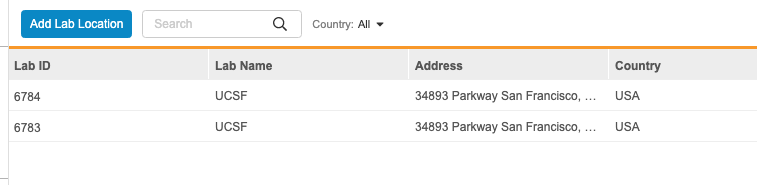
Assign a Lab Location
To assign a Lab Location to a Site:
- Navigate to Labs > Site Lab Assignment.
- Click your Study to open it, or click Select Study and select your Study in the breadcrumb menu.
- Click the Site Number of the site you want to edit.
-
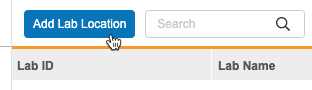
Click Add Lab Location.
- Select the Labs that you want to add using the selection checkboxes.
- Click Continue.
Delete (Unassign) a Lab Location
To delete, or unassign, a Lab Assignment from a Site:
- Navigate to Labs > Site Lab Assignment.
- Click your Study to open it, or click Select Study and select your Study in the breadcrumb menu.
- Click the Site Number of the site you want to edit.
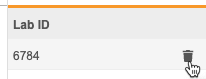
- Hover over the Lab ID to show the Delete button ().
-
Click Delete ().
- In the Delete Lab confirmation dialog, click Continue.
This deletes the Lab Assignment. It doesn’t delete the Lab Location. You can still assign the location to other Sites in your Study, or reassign it to the current Site.