In Edit Data
When working in Clinical Reporting, you may want to maintain visibility into data modifications made after initial form submission. In Edit data is form data that was previously submitted in Veeva EDC, but the form is in the process of being edited before re-submission. The In Edit Data configuration controls inclusion of post-submission In Edit data across system-controlled listings. By enabling the inclusion of In Edit data across system-controlled listings in Clinical Reporting, teams can evaluate post-submission changes and track timepoints surrounding initial and updated data submissions.
You can configure the system to include post-submission In Edit form data across system-controlled listings, including the following:
- Core Listings
- Listings created or modified by the Listing Builder
- Export Listings that inherit/include Core Listings or Listing Builder-created listings (Raw and Custom Exports)
Prerequisites
By default, users with the standard CDB Administrator or CDMS Super User study role, or with the Vault Owner security profile, are able to perform the actions described below. If your organization uses user-defined Study Roles, then your role must grant the following permissions:
| Type | Permission Label | Controls |
|---|---|---|
| Standard Tab | Workbench Tab | Ability to access and use the Data Workbench application, via the Workbench tab |
| Functional Permission | Configure CDB | Ability to perform configurations in Workbench that apply to all studies from the Configurations area |
If your Study contains restricted data, you must have the Restricted Data Access permission to view it.
Learn more about Study Roles.
Enabling In Edit Data
Applying In Edit Data Configuration to Existing Listing Builder Listings: Changes to the In Edit data configuration do not automatically apply to Listing Builder-generated Listings. To include or exclude In Edit Data from the listing, you must use Listing Builder to edit and re-save the listing after applying the configuration.
Change Detection for Export Listings: The system displays change detection for export listings that are tied to parent core listings and are impacted by an In Edit Data configuration change. The changes must be reviewed and accepted before the system applies the new configuration to the export listing.
To enable the In Edit Data configuration:
-
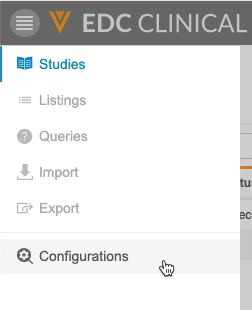
Navigate to the Configurations area from the Navigation drawer.
-
On the Configurations page, hover over the In Edit Data row to display the menu icon () and click it to open the menu.

-
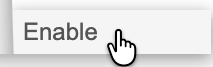
From the menu, click Enable.
-
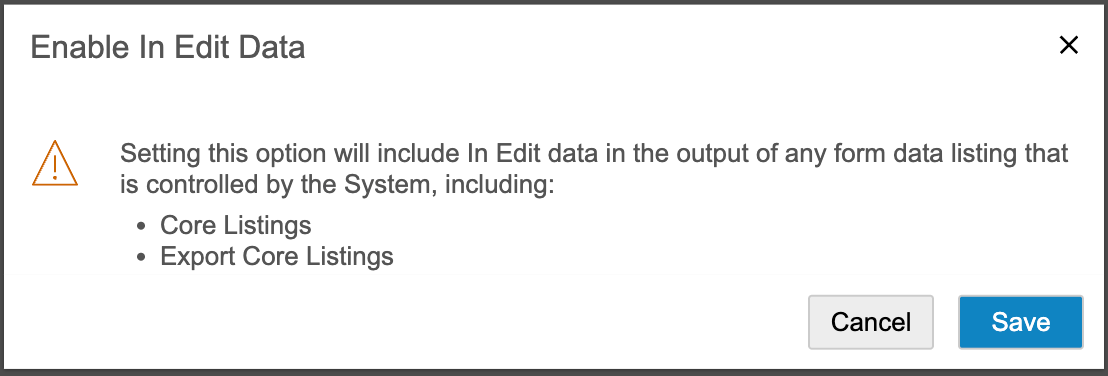
In the Enable In Edit Data dialog, click Save.
-
The In Edit Data configuration is enabled.

When the In Edit Data configuration is enabled, the system automatically applies the change to all core listings and new Listing Builder-generated listings. To include In Edit data in existing Listing Builder-generated listings, you must use Listing Builder to edit the listing, and then re-save it.
Disabling In Edit Data
To disable the In Edit Data configuration:
-
Navigate to the Configurations area from the Navigation drawer.
-
On the Configurations page, hover over the In Edit Data row to display the menu icon () and click it to open the menu.
-
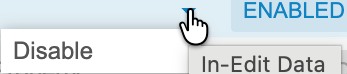
From the menu, click Disable.

-
In the Disable In Edit Data dialog, click Save.
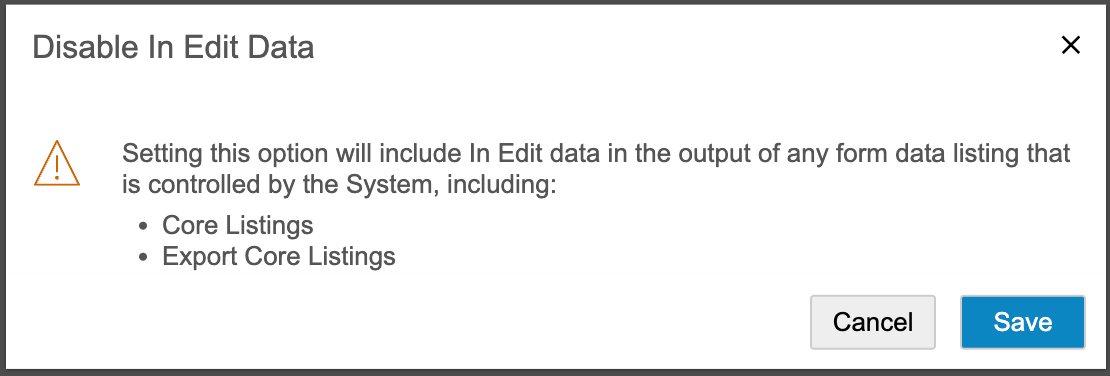
-
The In Edit Data configuration is disabled.
