Rules in EDC Tools
You can manage rules from EDC Tools > Rules. You can review each rule’s expression criteria and rule action, as well as execute one or more rules with the Rule Job. This is especially useful after completing an amendment or making post-go live changes to rules. You can also review any errors that occurred during execution of post-save rules in the Error Console subtab.
Prerequisites
Users with the standard CDMS Lead Data Manager study role can perform the actions described above by default. If your vault uses custom Study Roles, your role must have the following permissions:
| Type | Permission Label | Controls |
|---|---|---|
| Standard Tab | EDC Tools Tab | Ability to access the EDC Tools tab |
| Functional Permission | Run Rules | Ability to run rules from EDC Tools > Rules |
If your Study contains restricted data, you must have the Restricted Data Access permission to view it.
Learn more about Study Roles.
Viewing Rules
Rules Listing
You can view and run the rules in a Study from EDC Tools > Rules. Note that Send Email, Set Item Value, and Progressive Display rules cannot be run from EDC Tools and are not listed here.
Rules can be filtered by Rule Status, Rule Action Type, and Last Modified Date.
To filter the rule listing by Rule Action Type or Last Modified Date:
- Click to expand the Advanced Filters panel.
-
- Select the desired Rule Actions to include in the list.
-
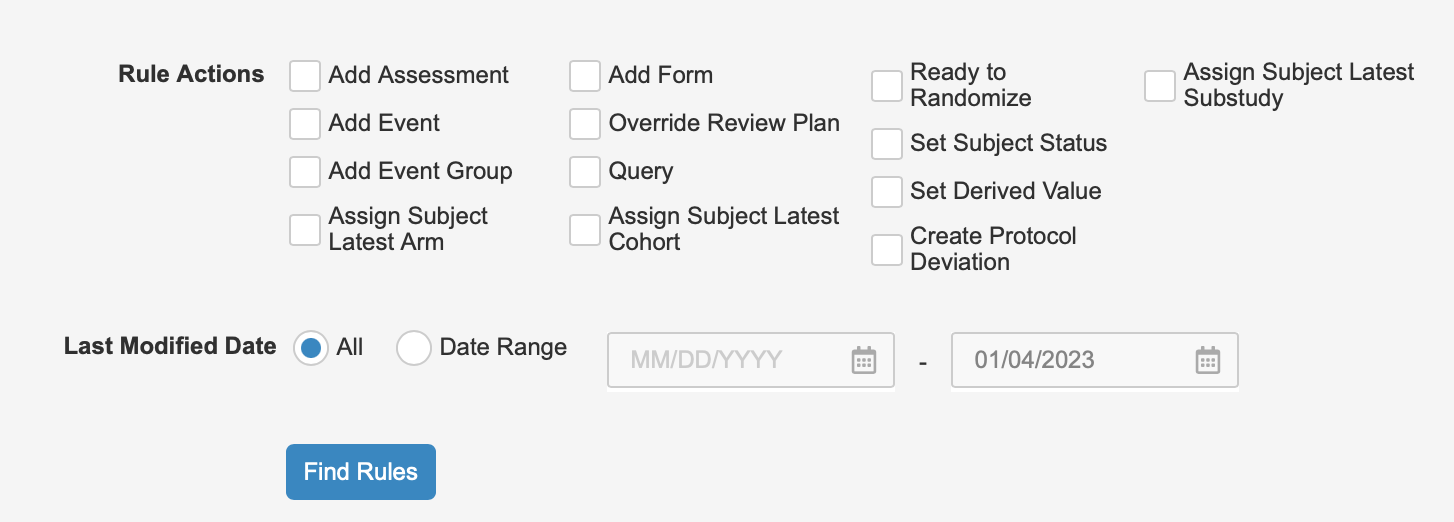
- Select Date Range with a Start Date and an End Date to only show Rules that were modified within that date range.
- Click Find Rules.
Viewing Rule Details
To view more details about a user-defined rule, including the rule’s properties, expression, and actions:
- Navigate to EDC Tools > Rules > Run Rules for your Study.
- Click the Name of the rule you want to view.
- Vault opens the Rule Details dialog. Review the rule information.
- When finished, click Close.
Running Rules
While Rules typically trigger automatically when Site users perform data entry, they can also be executed manually using the Rule Job. You can run up to 300 rules at a time.
Job Completion Time: Depending on the number of rules that are configured to run and the number of Casebooks that are selected, the Rul Job may take a prolonged time to finish.
Running Rule Jobs
To run a new Rule Job:
- Navigate to EDC Tools > Rules > Run Rules.
-
Optional: To display inactive rules, click the Rule Status filter and select Inactive. By default, only active rules are displayed.

- Select the Rules that you want to run.
- Click Run Rules.
-
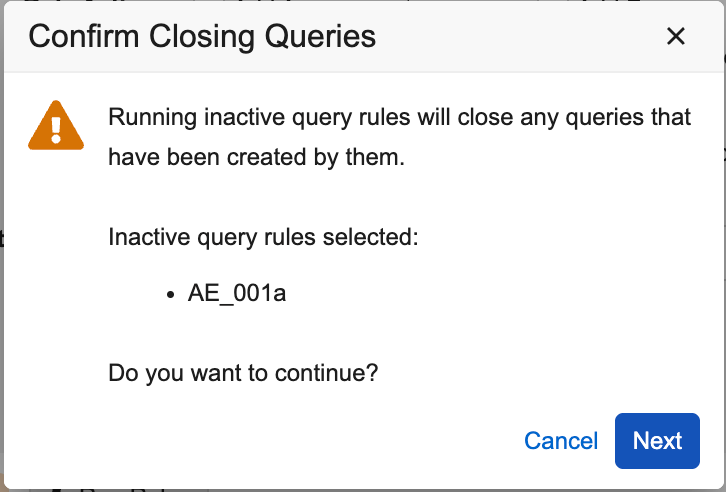
Optional: if you selected inactive Open Query rules, in the Confirm Closing Queries dialog, review the selected inactive rules and click Continue.
- In the Run Rules dialog, select Selected subjects if you want to run rules on a selection of subjects. Otherwise, leave All subjects selected.
- If you chose Selected subjects, select the Subjects you want to include.
- Optional: Click Preview to see the outcome of this job without actually executing the rules.
- Click Run. Vault begins the job. When finished, Vault sends you an email notification with a link to download the job log and any relevant output files. You can also view the results of the job in EDC Tools > Job History.
Reselect Rules from a Recent Rule Job
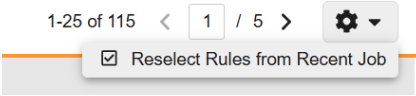
Instead of manually reselecting rules from a previous job, you can utilize the Reselect Rules from Recent Job option in the actions menu which allows you to select a previous job and have the system automatically select the same rules from that job.
To reselect rules from a previous rule job:
- Click on the Actions menu in EDC Tools > Rules > Run Rules.
-
Select the Reselect Rules from Recent Job option from the dropdown.
-
Choose which job to reselect rules from in the Reselect Rules from Recent Job dialog.
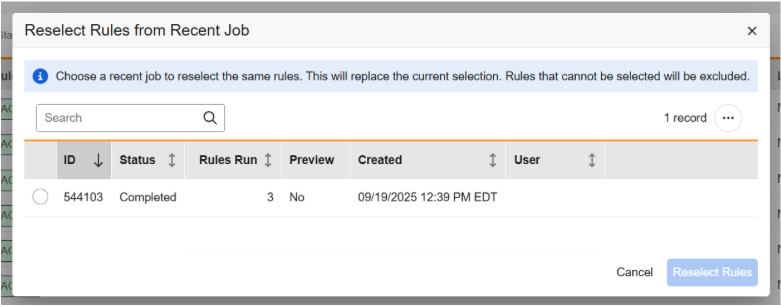
- Click Reselect Rules.
- The system will automatically select the rules from the selected job. You can select or un-select individual rules as needed if necessary before running the rules job.
When to Run Rules
Some common scenarios in which you need to run a rule job are as follows:
- Amendments and post go-live changes: After you make an amendment or make post go-live changes that modify or create rules, the Rule Job ensures that your casebooks are fully updated and cleans up rule results that were made obsolete by the changes.
- Post go-live changes to dynamic rules: When the Dynamic Action Scope or Action Identifier in a dynamic rule is changed, the system deletes all rule results from the original rule the next time that rule is triggered. The Rule Job ensures the dynamic action of the rule is executed as expected and results are cleaned up before the Site continues data entry.
- Inactive *Open Query *rules: Run inactive Open Query rules to close any queries previously opened by the rule. Note that when you change the action identifier of an inactive Open Query rule, running the rule does not remove queries that were opened on the original action identifier before the change. You must run the inactive rule to remove any queries before changing the action identifier.
- Post-save rule failure: If a post-save rule fails, you can run a rule job to ensure that the system executes the rule action as expected.
- Unlocking or unfreezing Casebook data: When you unlock or unfreeze Casebooks, if you need to apply rules to the Casebooks, for example, if a post go-live change has been made to rules since the Casebook was locked or frozen, you can run a rule job to ensure that the rule changes take effect in those Casebooks.
Query-type Rules: For query-type rules, a system query that has been manually closed will not be recreated if the item values that are being evaluated in the rule have not changed and you run the Rule Job or resubmit the form.
Rules Job Results
About the Output Files
The Rule Job output is an Excel file with five tabs:
- Summary: Provides a high-level overview of the job, including the Job ID, Vault and Study name, Job Execution Time, number of Rules Selected, and number of Subjects Included.
- Subjects: Lists every subject included in the job.
- Each row counts Total Changes, a high-level count of all changes that resulted for the subject across all rule types, as well as the total number of each type of change, based on Rule Action Type and resulting Action.
- There is one row per subject.
- The Forms Created column increments by only one for each Add Form action, even if the rule adds a dynamic repeating form with a minimum repeats value of greater than one.
- Rule Summary: Lists every rule included in the job and provides a high-level count of the total number of subjects impacted by the rule, as well as the total number of each specific action taken by that rule (e.g., number of Forms Created and Removed, Derived Items Changed, or Subject Statuses Changed).
- There is one row per rule.
- The Forms Created column increments by only one for each Add Form action, even if the rule adds a dynamic repeating form with a minimum repeats value of greater than one.
- Rule Details: Lists every single rule execution that occurred in the job and the action that resulted in the casebook for each.
- There is one row per rule execution, with each row specifying the exact location in the casebook where the action took place.
- Rules that execute more than once within a casebook will display as separate rows with distinct actions and specific locations within the casebook for each.
- Note that it is possible for a rule included in the job to trigger the execution of another chained rule which was not explicitly selected to be run. In these cases, results of the chained rules will be listed as additional rows.
- If rule conflicts occur, the Action Details column of the Rule Job output file identifies which rule conflicts with or overrides the rule that was run.
- To identify the location that the system performed the specified rule action, you can check the definition name (Event Group, Event, Form, Item Group, Item) columns and the sequence number (Event Group Sequence, Form Sequence, Item Group Sequence) columns.
- When a rule action is None, in some cases, the rule output file will only display a partial path. For example, the output file may display only the Event Group and Form information.
- Errors: Lists any errors that occurred during execution of the job. If no errors are encountered, the columns are blank.
Rule Action Outputs
The following is a list of rule action outputs that may occur when running rules jobs:
| Rule Type | Action | Explanation |
|---|---|---|
| Dynamic Rules | Added | Indicates that the rule evaluated to true and the target study object was added to the schedule, or that the parent object was added to the schedule triggering the child object to be added. |
| Removed | Indicates that the rule evaluated to false, the target study object did not contain any data, and was removed from the schedule. | |
| Marked for Removal | Indicates that the rule evaluated to false and the system attempted to remove the object from the schedule, but found there was data in it. Not used for studies on Data Model 1. | |
| Unmarked for Removal | Indicates that the rule evaluated to true after previously evaluating to false and the system unmarked for removal a form that had been previously marked for removal. | |
| Skipped | The rule evaluated to true, but did not take action because it found the action had already been taken. For example, an Add Form rule could evaluate to true but skip the action because the form already exists | |
| Failed to Delete | For studies on Data Model 1. The rule evaluated to false, but the object cannot be deleted either because it contains data, or because it contains objects that are locked or frozen. | |
| Open Query | Query Opened | Indicates that the rule evaluated to true and the system opened a query. |
| Query Closed | Indicates that the rule evaluated to false and the system closed an existing system query. | |
| Query Skipped | Indicates that the rule evaluated to true, but an opened or answered query already exists on the target so the query opening was skipped. | |
| Set Derived Value | Derived Value Added | The rule evaluated and the system added a derived value for an item that was previously null. |
| Derived Value Updated | The rule evaluated and returned a value that updates an existing value. | |
| Derived Value Not Changed | The rule evaluated and returned a value that is the same as an existing value. | |
| Set Subject Status | Set to [Status] | The rule evaluated to true and the system set the latest subject status. |
| Subject Status History Updated | The rule evaluated to true and the system updated a historical subject status date but not the current status. | |
| Subject Status Rolled Back | The rule evaluated to false and the system rolled back the subject’s current status. | |
| All | None | Either the selected rule did not execute (for example, because the target object or parent object did not exist) or the rule ran but resulted in no action. This can occur when the target object or parent of the target object is locked or frozen. |
Target Object Path for None Action: When a rule action is None, in some cases, the rule output file will only display a partial path. For example, the output file may display only the Event Group and Form information. This occurs when there may be multiple.
Considerations for the Rule Job Output Files
- When the rules job output reaches more than 500,000 rows in the output file, the additional rows are split into another tab..
- When multiple Set Derived Value rules are selected that point to the same object, the rule listed with the “Dynamic Value Added” and “Dynamic Value Updated” may differ between the preview file and the job output file.
- When the target object definition of a rule action does not exist in the current casebook version, the Rule Action is None, and the Rule Details is empty.
Error Console
You can review any errors that occur during rule execution from the Error Console subtab in EDC Tools > Rules. Vault shows the number of errors in parentheses after the Error Console subtab label.
Vault sends all study users with the Run Rules permission a notification when an error occurs for rules post-save. Vault keeps errors in the console for sixty (60) days
To access the Error Console, navigate to Tools > EDC Tools > Rules and click Error Console.
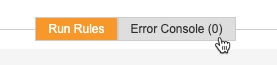
Vault displays the following information for each error in the list:
| Column | Description |
|---|---|
| Error Message | This column shows the actual error message text. If the error message is truncated, hover over it to show the full text. |
| Rule | The Name of the Rule that failed. |
| Study Country | The Study Country for the Subject in which the Rule failed to execute. |
| Site | The Site for the Subject in which the Rule failed to execute. |
| Subject | The Subject that contains the Event Date or Item on which the Rule failed to execute. |
| Created Date | Created Date refers to the date and time that the rule failed to execute, which is when Vault creates the error. |
Filter the Errors
You can filter the list of errors by Site, Subject, and Rule.
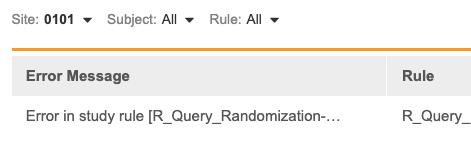
To filter the list of errors:
- Click Site, Subject, or Rule to open the filter menu.
- Optional: Begin typing your search term in the search box. Vault searches as you type. You can click Clear () to clear the search box.
- Select the checkboxes for the Sites, Subjects, or Rules you want to filter by.
- Click outside the filter menu to close.
To clear a filter:
- Click Site, Subject, or Rule to open the filter menu.
- Clear the checkboxes for the filters you want to remove.
-
- Optional: Click Clear All to remove all filters.
-
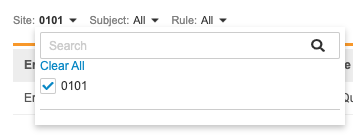
- Click outside the filter menu to close.
View Error Details
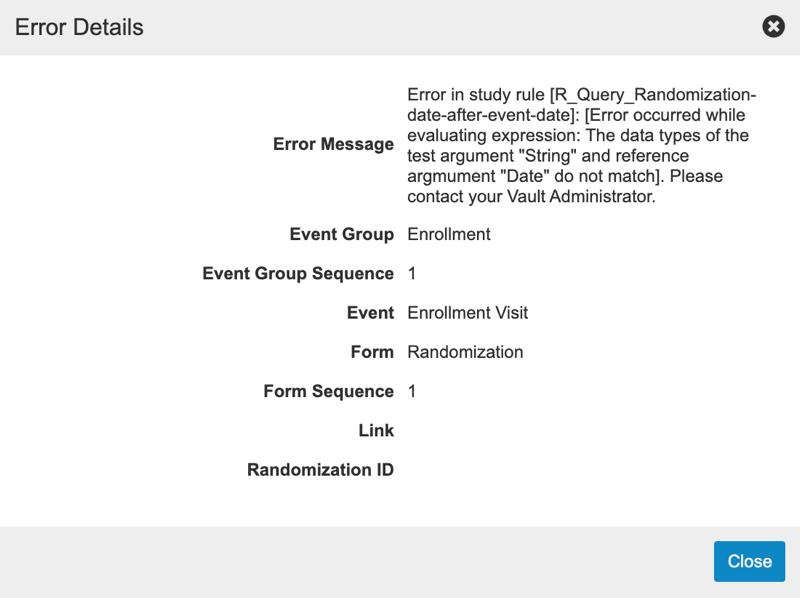
You can view the following information for an error in the Error Details dialog:
- Error Message
- Event Group
- Event Group Sequence
- Event
- Form
- Form Sequence
- Link
- Randomization ID
To open the Error Details dialog:
- Locate the error that you want to check in the Error Console.
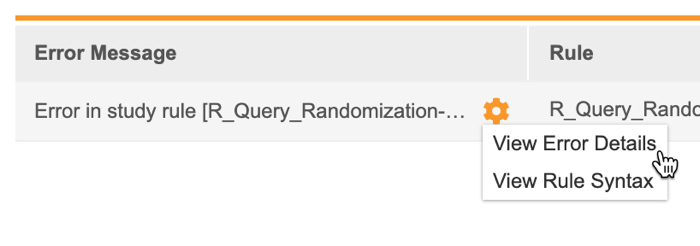
- Hover over the Error Message to display Actions menu.
-
- From the Actions menu, select View Rule Details.
-
-
- Review the information in the Error Details dialog.
-
- Click Close.
View Rule Syntax
To view the syntax of a rule:
- Locate the error that you want to check in the Error Console.
- Hover over the Error Message to display the Actions menu.
-
- From the Actions menu, select View Rule Syntax.
-
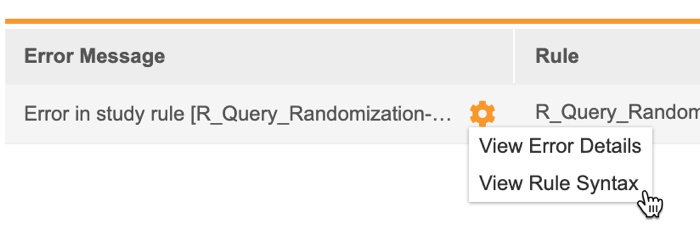
- Vault shows the rule’s properties, expression, and action in the Rule Syntax dialog. When finished, click Close.
Export Error List to CSV
You can export a list of errors as a CSV file.
To export:
- Navigate to your Study in Tools > EDC Tools > Rules.
- Click Error Console.
-
- From the Actions menu, select CSV. Vault begins generating the file. When finished, Vault sends an email with a link to download the CSV.
-