Adding Custom Configuration Components to the Deployment List
You can deploy vault-level configuration from within System Tools, including user-defined Study Roles, custom vault objects, reports, and dashboards.
Before you can deploy these components, you must first add them to the Deployment List for your vault. The Deployment List identifies each custom configuration that your vault includes in deployments. If an object, role, report, or dashboard is not on the Deployment List, Vault doesn’t include it in any deployments.
Prerequisites
To deploy a custom vault object, that object must be fully-configured in such a way that it meets all requirements for deployment. See details below.
Users with the standard CDMS Deployment Administrator study role or the Vault Owner security profile can perform the actions described below by default. If your study uses user-defined Study Roles, you must have the following permissions:
| Type | Permission Label | Controls |
|---|---|---|
| Standard Tab | System Tools Tab | Ability to access the Tools > System Tools tab |
| Functional Permission | Manage Deployments | Ability to manage study deployments. |
If your Study contains restricted data, you must have the Restricted Data Access permission to view it.
Learn more about Study Roles.
Accessing the Deployment List
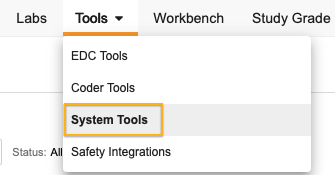
To access the Deployment List, navigate to Tools > System Tools. You can view the deployment list items within each configuration component by opening that page from the Navigation Panel.
On each deployment list page, you can search the Deployment List using the Search Bar in the header. Type your search term into the search bar. Vault searches as you type once you’ve entered at least two characters.
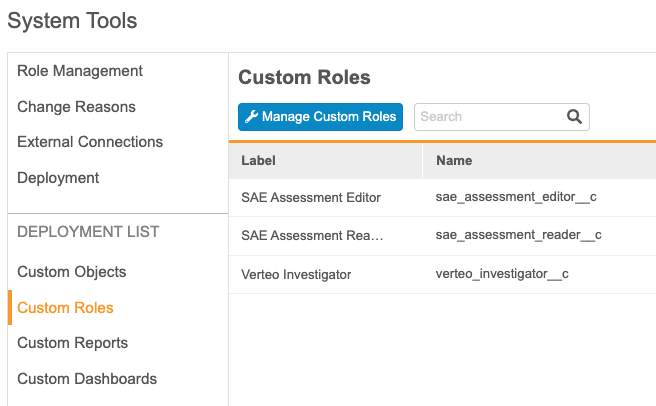
User Defined Objects
You can include custom Vault object configuration in your deployment. For deployments, these are referred to as User Defined Objects. Including a user-defined object in a deployment also deploys any custom object tabs.
Object Configuration Requirements
For user-defined vault objects to be eligible for deployment, they must have the following configuration:
- The object must be a custom object “__c” namespace (this is automatically true for any user-defined object).
- The object must have an object reference field to the Study (
study__v) object. - The object must have an object lifecycle.
How to Add an Object to the Whitelist
To add an object to the deployment whitelist:
- Navigate to Tools > System Tools > User Defined Objects.
-
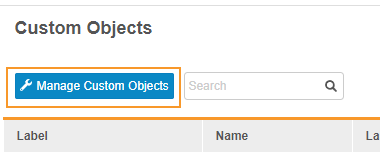
Click Manage User Defined Objects.
-
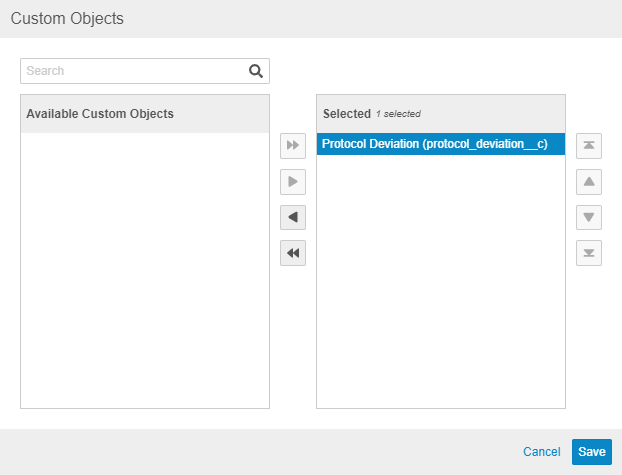
In the User Defined Objects dialog, use the Arrow buttons to move objects from the Available User Defined Objects list to the Selected objects list. Any objects in the Selected objects list are included in the deployment whitelist.
- Click Save.
Any objects in the Selected list are now included in the deployment whitelist. The next deployment you initiate, select the User Defined Objects checkbox to include the configuration of these objects.
Vault only deploys user-defined object configuration, not records. Should you need to move object records in a whitelisted object from environment to environment, a Vault Owner can use Vault Loader to do so.
User Defined Roles
To add a user-defined Study Role to the deployment list:
- Navigate to Tools > System Tools > User Defined Roles.
-
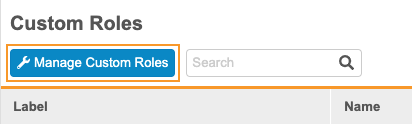
Click Manage User Defined Roles.
-
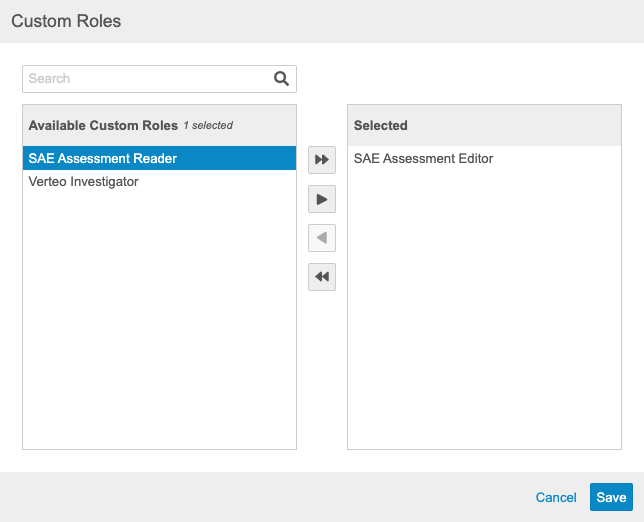
In the User Defined Roles dialog, use the Arrow buttons to move roles from the Available User Defined Roles list to the Selected roles list. Any objects in the Selected roles list are included in the deployment.
- Click Save.
Any user-defined Study Roles in the Selected list are now included in the deployment list. The next deployment you initiate, select the User Defined Roles checkbox to include these roles.
User Defined Reports
To add a user-defined _Report _to the deployment list:
- Navigate to Tools > System Tools > User Defined Reports.
-
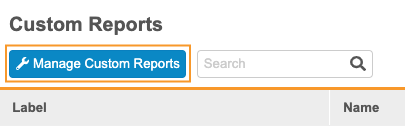
Click Manage User Defined Reports.
-
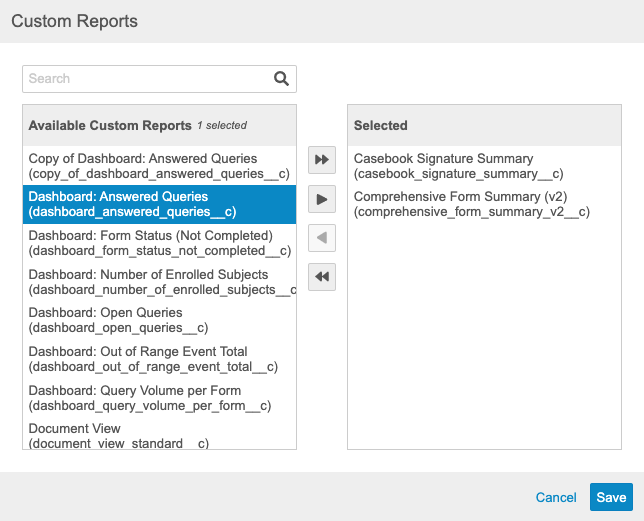
In the User Defined Reports dialog, use the Arrow buttons to move reports from the Available User Defined Reports list to the Selected reports list. Any objects in the Selected reports list are included in the deployment.
- Click Save.
Any custom Reports in the Selected list are now included in the deployment list. The next deployment you initiate, select the Reports and Dashboards checkbox to include these user-defined reports.
User Defined Dashboards
To add a user-defined _Dashboard _to the deployment list:
- Navigate to Tools > System Tools > User Defined Dashboards.
-
Click Manage User Defined Dashboards.
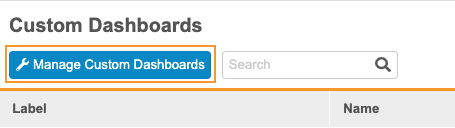
- In the User Defined Dashboards dialog, use the Arrow buttons to move dashboards from the Available User Defined Dashboards list to the Selected dashboards list. Any objects in the Selected dashboards list are included in the deployment.
- Click Save.
Any custom Dashboards in the Selected list are now included in the deployment list. The next deployment you initiate, select the Reports and Dashboards checkbox to include these user-defined reports.
How to Remove a Component from the Deployment List
To remove a user-defined object, role, report, or dashboard from the deployment list:
- Navigate to Tools > System Tools.
- Click to open User Defined Objects, User Defined Roles, User Defined Reports, or User Defined Dashboards, depending on what type of component you want to remove.
- Locate the component you want to remove in the list.
- Hover over the component’s Label to display the Actions menu.
-
From the Actions menu, select Remove.

- In the confirmation dialog, click Remove.
Once you remove a configuration component from the deployment list, Vault no longer includes it in any future deployments. If necessary, you can add it back into the deployment list later.