Using File Attachments
Veeva EDC allows you to upload file attachments using the File Attachment Item type. The file name is deidentified, and attached files can be viewed in the Data Entry or Review tabs. These attachments can then be viewed, reviewed, and verified within EDC. Individual and bulk downloads provide an easy way to export the files. File Attachments removes the need for custom solutions or third-party file storage software outside of EDC, facilitating streamlined and efficient upload, review, and download of study files.
Uploading File Attachments
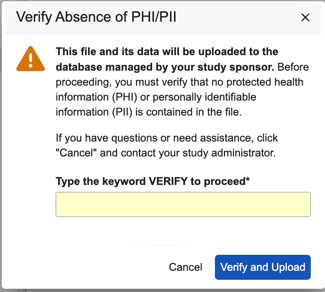
Reviewing File Attachments for PHI/PII: We recommend that you thoroughly review all files to verify that they do not contain any PHI/PII. If a file contains PHI/PII, do not upload the file and follow your organization’s processes for deidentifying the file.
To upload a file attachment:
- Navigate to the Form that contains the File Attachment Item.
-
Click Select File. For non-gridded items, you can also drag the file to the Drag and drop area.

-
In the Verify Absence of PHI/PII dialog, type VERIFY and click Verify and Upload.
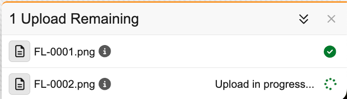
- The system begins uploading the File Attachment to the Form and the system displays an upload drawer that tracks the progress of the file attachment upload. You can continue performing data entry while the upload is in progress, but you cannot submit the Form until the upload has completed. Do not log out of Veeva EDC or navigate away from the Data Entry tab or the upload will be canceled.
Limitations on File Attachment Items
The following limitations apply to File Attachment items:
- File attachment items cannot exceed 4GB in size
- For security reasons, the system prevents the upload of executable files for Windows, macOS, and Linux. To ensure accurate identification, the system validates the file format based on its MIME type rather than the file extension.
- DICOM files are not supported for use with File Attachments.
Canceling an File Attachment Upload
To cancel an upload that is in progress:
- In the upload drawer, hover over the loading circle to display the cancel icon () next to the file attachment upload and then click it.
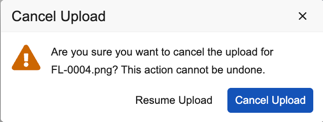
- In the Cancel Upload dialog, click Cancel Upload. The upload is canceled.
Deleting an Uploaded File Attachment Item
To delete an uploaded File Attachment:
- Navigate to the form containing the File Attachment item you want to delete.
- Click the Edit Form button to place the form in edit mode.
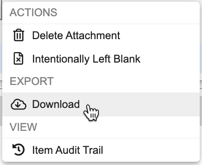
- Hover over the File Attachment item to display the Actions menu.
- Click Delete Attachment.
- In the Delete Attachment dialog, click Delete.
Using the File Attachment Viewer
After uploading a File Attachment item, you can use the File Attachment viewer to review the file content. Only file types supported by Vault Renditions can be viewed in the File Attachment viewer.
To open the file attachment item in the File Attachment viewer:
- Navigate to the form containing the File Attachment item you want to view.
-
Click the file attachment to open the viewer in a new window.

- Optional: Use bookmarks () to navigate between sections.
- Optional: Use destinations () to navigate to specific sections of the file.
- Optional: Search () the file to locate specific content.
- Optional: You can pan (), view the current page as a thumbnail (), rotate the current page () or all pages (), zoom (), and maximize the current page in the viewer ().
Supported File Formats
The following table lists file formats and details support for viewing them in the File Attachments viewer:
| Format Name | Extensions | Viewer | Full-Text Search |
|---|---|---|---|
| Adobe Encapsulated PostScript | *.eps | Yes | Yes |
| Adobe Illustrator | *.ai | Yes | Yes |
| Adobe InDesign (V19 or earlier) | *.indd | Yes | No |
| Adobe InDesign Package | *.zip | Yes | No |
| Adobe Photoshop | *.psd | Yes | Yes |
| AV1 Image File Format | *.avif | Yes | Yes |
| Bitmap | *.bmp | Yes | Yes |
| Data | *.cov, *.ext, *.inp, *.lst, *.op, *.param, *.r, *.sas, *.scm, *.jsl, *.ssc, *.sbml | Yes | Yes |
| Electronic Mail File | *.eml | Yes | Yes |
| Graphics Interchange Format | *.gif | Yes | Yes |
| High-efficiency Image File | *.heif, *.heic | Yes | Yes |
| HyperText Markup Language | *.html, *.htm | Yes | Yes |
| JPEG | *.jpg, *.jpeg | Yes | Yes |
| Microsoft Excel Workbook | *.xls, *.xlsx | Yes | Yes |
| Microsoft Office Data Connection | *.odc | Yes | No |
| Microsoft Outlook Mail Message | *.msg | Yes | Yes |
| Microsoft Powerpoint Presentations | *.ppt, *.pptx | Yes | Yes |
| Microsoft Word Documents | *.doc, *.docx, *.docm, *.dotm, *.dot, *.dotx | Yes | Yes |
| Portable Document Format | Yes | Yes | |
| Portable Document Format Portfolio | No | No | |
| Portable Network Graphics | *.png | Yes | Yes |
| RAW Image | *.raw | No | No |
| Rich Text Files | *.rtf | Yes | Yes |
| Shell Script | *.bash, *.csh, *.sh | Yes | Yes |
| Scalable Vector Graphics | *.svg | Yes | Yes |
| Tagged Image File Format | *.tif, *.tiff | Yes | Yes |
| Text | *.txt, *.csv | Yes | Yes |
| WebP | *.webp | Yes | Yes |
| XML (Extensible Markup Language) | *.xml | Yes | Yes |
| Hangul Word Processor (HWP) | *.hwp | Yes | Yes |
| ZIP Archive Format | *.zip | No | No |
Downloading a File Attachment
To download a file attachment:
- Navigate to the form containing the File Attachment item you want to download.
- Hover over the File Attachment item to display the actions menu **icon (ICON) **and then click it.
- Click Download. The download begins.