Browsing Sets and Views
Sets and Views are virtual tables based on the result set of a CQL statement. You can reference sets and views using simple CQL, allowing you to easily reuse complex CQL statements in various listings. Each set or view contains rows and columns, where the fields are from one or more real tables in the study database. Set listing snapshots are refreshed hourly or daily to provide high-performance responsiveness for complex CQL statements when referenced by other objects in DQS. View listings are run in real time, for up-to-date data based on the view’s CQL statement.
Prerequisites
Users with the standard CDMS Data Manager, CDMS Lead Data Manager, and CDMS Super User study roles can perform the actions described below by default. If your organization uses user-defined Study Roles, your role must grant the following permissions:
| Type | Permission Label | Controls |
|---|---|---|
| Standard Tab | Workbench Tab | Ability to access and use the Data Workbench application, via the Workbench tab |
| Functional Permission | Browse Sets and Views | Ability to access the Sets and Views tab within Workbench and browse Sets and Views. Ability to save a View as a Check |
If your Study contains restricted data, you must have the Restricted Data Access permission to view it.
Learn more about Study Roles.
Accessing Sets & Views
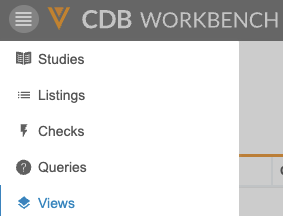
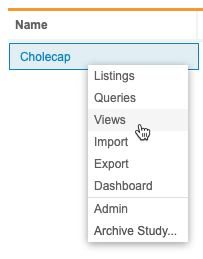
You can access sets and views from the Sets and Views area of DQS. You can navigate to the Sets and Views area from the Navigation Drawer () or, after you select your Study, from the Study menu () on the Studies page.
|
|
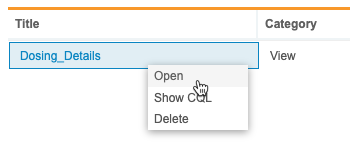
From the related tabl in the Sets and Views page, you can click the Title of a set or view to open it. You can also open a set or view from its menu:
- Navigate to Sets and Views for your Study.
- Locate the Set or View that you want to open in the list.
- Hover over the Title to show the menu.
-
- From the menu, select Open.
-
Search for a Set or View
You can search for a specific set or view, using the Title, Category, Objective, Description, and Source columns. This search uses “contains”.
To search:
- Navigate to your Study in Workbench.
-
In the top navigation bar, click Search ().

-
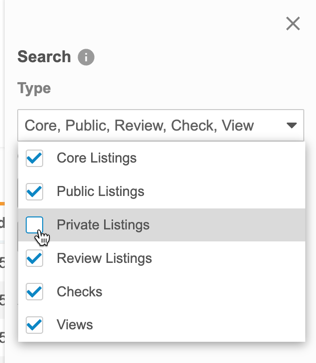
By default, Workbench searches across all object types. You can select and clear checkboxes in the Type drop-down to change which objects Workbench is searching.
- Select the Column to search. The default is Title.
- Enter your Search Text.
- Click Search or press Enter to search.
- Click the set or view Title in the Results section to open it.
Workbench shows your search results in the Results section of the Search panel.
Click Close () to close the Search panel.
Sort & Filter the View List
You can sort and filter the Sets and Views listings in the Sets and Views page by the following columns:
- Title
- Category
- Objective
- Created On
- Created By
- Modified On
- Modified By
- Last Uploaded
If a column already has a sort or filter applied, Workbench shows the Sort icon ( for ascending or for descending) and the Filter icon (filter_list). You can click these in the Column Header to edit the sort or filter. You can also sort and filter columns that don’t already have a sort and filter.
How to Sort
To sort the Sets and Views page:
- Navigate to the Sets and Views page for your Study.
- Locate the column you want to sort by.
- In that column, hover to show the Sort & Filter button.
- Click Sort & Filter (filter_list).
- Click to expand Sort by.
- Select Ascending or Descending for the sort order.
How to Filter
To filter the Sets and Views page:
- Navigate to the Sets and Views page for your Study.
- Locate the column you want to sort by.
- In that column, hover to show the Sort & Filter button.
- Click Sort & Filter (filter_list).
- Click to expand Condition.
- Select an Operator. Workbench uses the entered Value and chosen Operator to compare the values within the column. Learn more about the available comparison operators in the CQL Reference.
- If required, enter a Value compare values against. Note that you can only use a static value and not a function. For dates, use the YYYY-MM-DD format or use the calendar picker.
- You can also filter by comparisons. After selecting an Operator, click Compare. Then, you can select from the available columns.
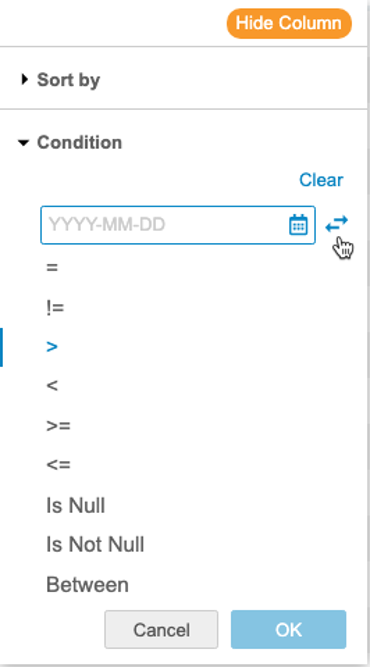
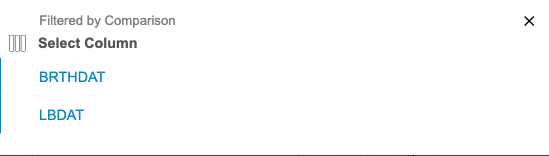
- Click OK.
How to Reset a Filter
To reset (remove) a filter from a column, open the Sort & Filter menu and click Clear.
Hide Set or view Columns
You can hide and show columns as needed without removing them from your set or view using the Hide Columns option.
This setting persists across the object and Study until you unhide the columns.
DQS represents hidden columns with an orange, dotted line. DQS shows one dotted line for each set of hidden columns (columns next to each other that are all hidden).
To hide a column:
- Navigate to your set or view.
- Hover over the Column Header to show the Sort & Filter menu (filter_list).
-
Click Hide Column.
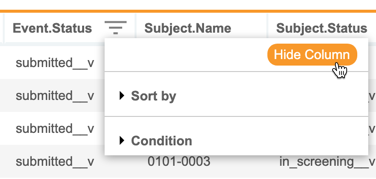
- DQS hides the column. Hidden columns are indicated by a dotted orange line. Click Unhide Columns to show all hidden columns.
To hide or show multiple columns:
- Navigate to your set or view.
-
From the Actions menu (), select Hide Columns.
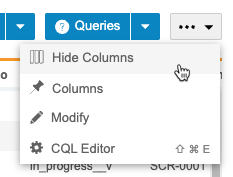
-
In the Show/Hide Columns dialog, you can select columns to show. To hide a column, clear the column’s checkbox. You can click Select All and Clear to select or clear all column checkboxes at once.
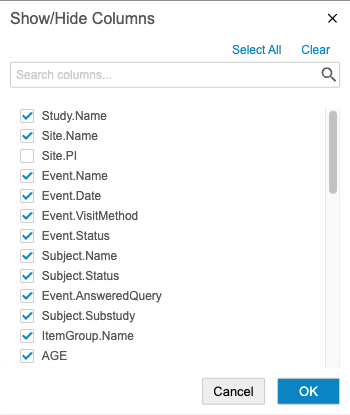
- When finished, click OK.
Favorite Sets or Views
You can mark sets or viewss as favorites to easily access them later from the Favorites menu.
To mark a sets or views as a favorite:
- Navigate to the sets or views that you want to favorite.
-
Click Add to Favorites ().

- You can now access it from the Favorites menu ().
To remove it from your favorites, click Remove from Favorites (), or click Remove () for it in the Favorites menu.
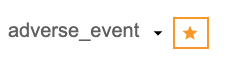
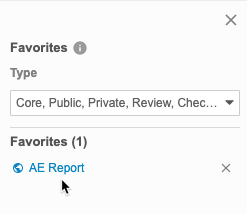
To access your favorites, click to open the Favorites menu () in the top navigation bar after selecting a Study.

You can click the linked Object Name to open that sets or views.
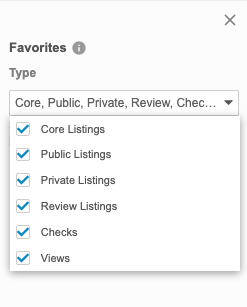
You can filter the list of objects by type.
Browsing Set and View Data
Set Header
The Set page’s header displays the Category, a deployment status pill, and the last refresh, modified, and deployed dates for the set.

View Header
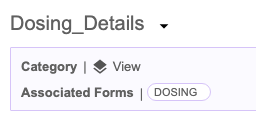
The View page’s header displays the Category and Associated Forms, as well as the last modified and last deployed dates for the view. The Category is automatically set to layers View , and DQS generates the list of Associated Forms based on the Forms referenced in the FROM clause.
Datasheet
Each view represents the results of a CQL query or set of queries. Workbench displays those results in the Datasheet of the set or view. Depending on the size of the data set, you may have to scroll horizontally to view all data for a row.
Resizing Columns
To set column widths:
- Hover over the line between two columns.
- Click and drag the line to resize the columns.
Pagination
DQS displays up to 50 rows per page in a listing. Use the left and right Arrow buttons to move between pages. To go directly to a page, enter the Page Number and press Enter.
Viewing CQL for Sets & Views
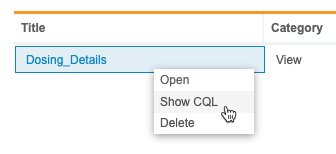
Show CQL
To show the CQL for a set or view:
- Navigate to Sets and Views for your Study.
- Locate the Set or View that you want to check in the list.
- Hover over the Title to show the menu.
-
- From the menu, select Show CQL.
-
Reviewing CQL in the CQL Editor
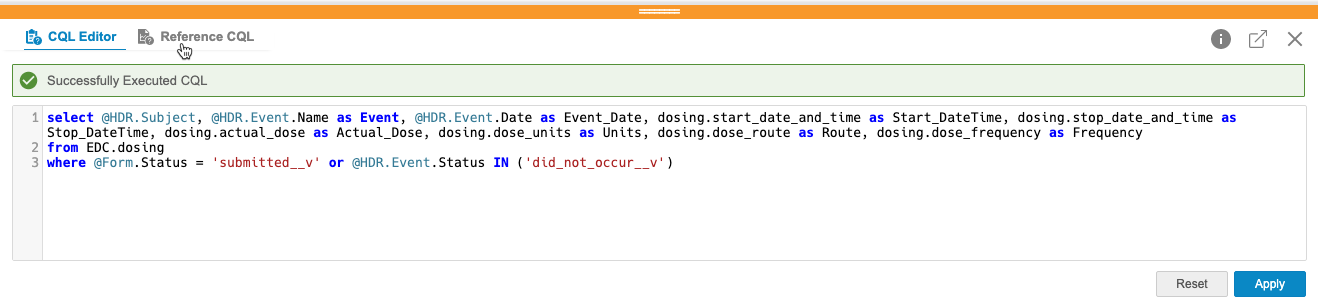
You can review the CQL statement for a View in the CQL Editor, as well as the reference CQL statement for the listing the View was created from.
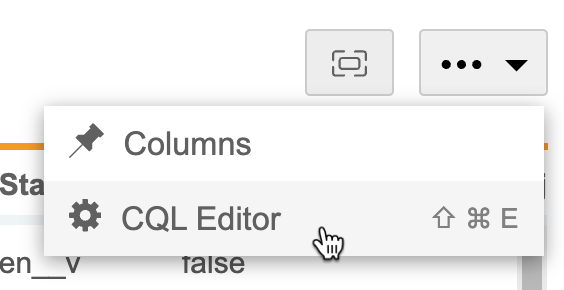
You can open the CQL Editor from the set or view page by selecting CQL Editor from the Actions menu ().
You can drag the orange border of the CQL Editor to change the size of the panel. Click Pop Out () to open the CQL Editor in a separate browser window.
Click CQL Editor and Reference CQL to switch between the two CQL statements in the editor.
Pin Columns in a Set or View
You can pin columns in your set or view so that those columns remain visible even when you scroll to the right.
To pin columns:
- Navigate to the Set or View you want to work with.
- Click Columns.
- Select a Number of columns to pin. This is a count of columns from the left, the leftmost column being 1.
- Click outside of the Pin Columns menu to close it.
Workbench pins the columns, showing a bolded border on the right side of the rightmost pinned column.
Generate CSV for Set or a View
You can download a set or a view as a CSV file.
To generate a CSV for a set or a view:
- Navigate to the related Sets or Views tab in the Sets and Views area for your Study.
- Click to open the Set or View you want to download.
-
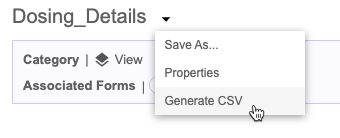
- From the menu (), select Generate CSV.
-
-
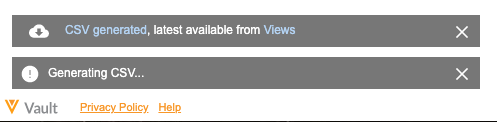
- Workbench shows a toast notification at the bottom of the screen when your CSV file is ready to download. Click the CSV generated link to download.
-
Workbench also allows you to download the most recently generated CSV file from the Sets or Views listing. Click Download () in the Latest Download column.