Bulk Lock & Freeze
You can Freeze and Lock subsets of data using the Bulk Lock & Freeze feature in the Review tab. You can customize the scope of your filter based on Sites, Subject and Subject Status, Study Schedule or Date Range, and Form and Event State.
Prerequisites
Users with the CDMS Data Manager and CDMS Lead Data Manager study roles can perform the actions described below by default. If your organization uses user-defined Study Roles, your role must grant the following permissions:
| Type | Permission Label | Controls |
|---|---|---|
| Standard Tab | Review Tab | Ability to access the Review tab |
| Functional Permission | View Bulk Lock & Freeze | Ability to view bulk lock and freeze status. |
| Functional Permission | Manage Bulk Lock & Freeze | Ability to create, edit, and overall manage Bulk Lock & Freeze |
If your Study contains restricted data, you must have the Restricted Data Access permission to view it.
Learn more about Study Roles.
You must be on Data Model V2 to use Bulk Lock & Freeze.
Creating a Bulk Lock & Freeze Filter
Creating a filter includes defining the scope of your bulk action by specifying what data to include based on a number of criteria.
To create a new filter:
-
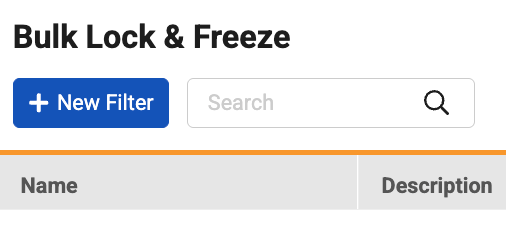
Navigate to Review > Bulk Lock & Freeze and select +New Filter.
- Enter a Name and (optional) Description for your filter.
-
Define your Filter Scope.
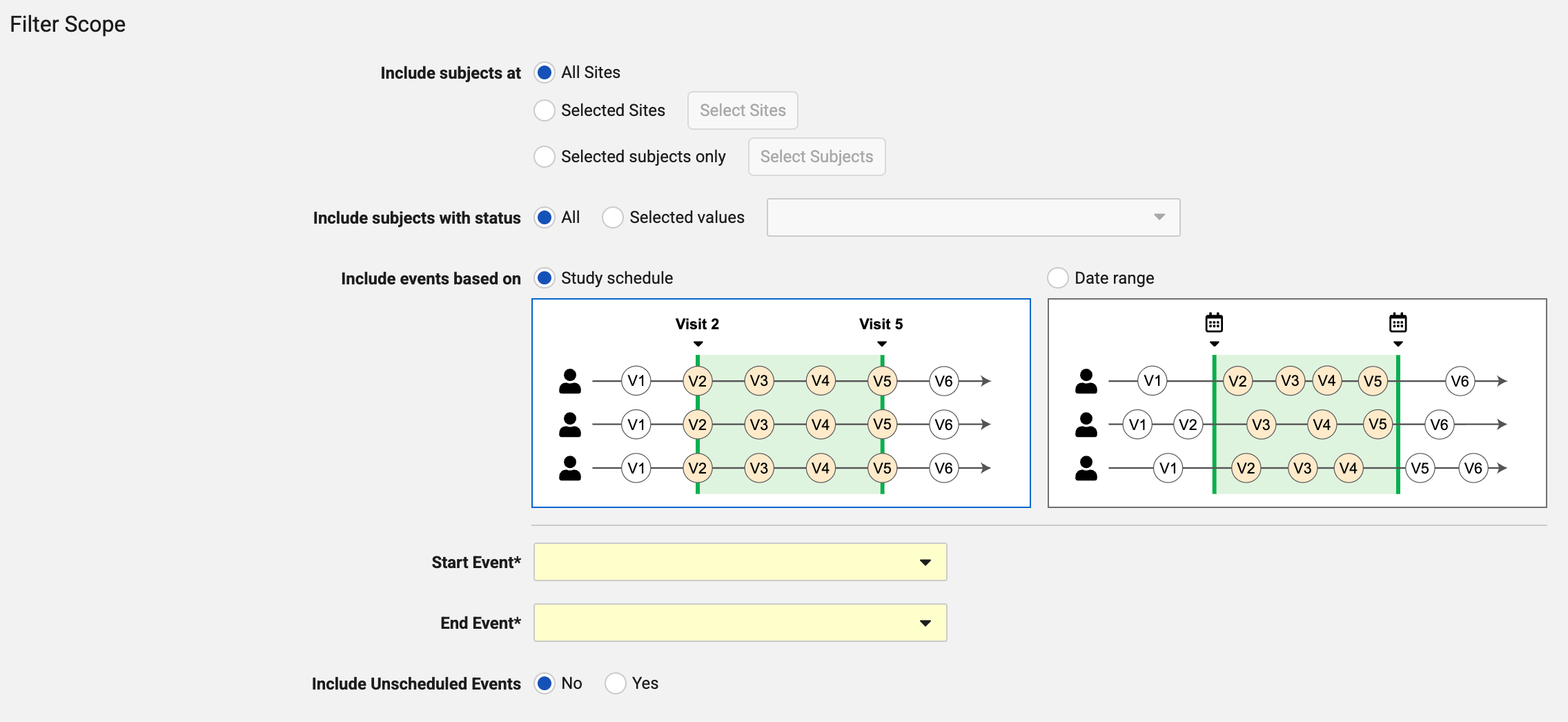
- Include subjects at: Specify which specific sites or subjects this filter should apply to.
- Include subjects with status: Specify which subjects should be included based on status.
- Include events based on: Select Study Schedule to include events based on specific visits or select Date Range to include events based on specific dates. If including events based on Study Schedule, you have the option to include any unscheduled events that are in range.
- Include subjects by group or cohort (if configured): Specify which groups/cohorts should be included.
- Include Unscheduled Events: Choose whether to include events that aren’t scheduled.
- Specify which forms to include and whether to include log forms. See Using Log Forms below for more information. If specific forms are included, the bulk freeze/lock action will apply at the individual form level. If you include all forms in all events, the bulk freeze/lock action will apply at the event level.
-
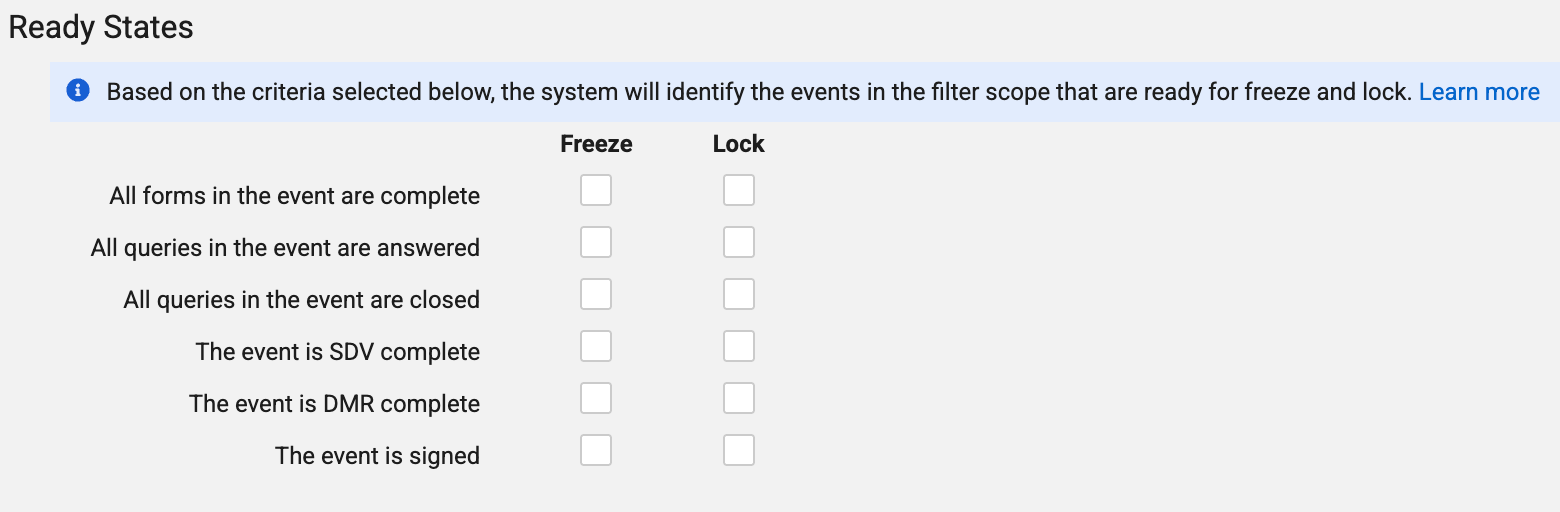
Specify when data is ready to be frozen or locked.
- Click Save to save the filter and return to the previous page or Save and Get Results to save the filter and start a Refresh Results job, which will find data that meets your filter specifications.
 Vault will queue the Refresh Results job and send you an email when it completes.
When all forms within an event are complete, that event will be frozen or locked.
Using Log Forms
Log Events not Lockable: To enable Sites to add additional log forms as needed, log-type Events cannot be locked with a Bulk Lock & Freeze filter.
If you’re using log forms in a filter, a start date is required. The chosen log form will be included in the filter scope if the start date of the log form is within the filter’s start and end dates.
Specifying an end date for when using log forms, however, is optional. The log form will be included in the filter if the start date and end date of the log form is within the filter’s start and end dates but won’t be included if the log form end is after the filter’s end date.
Only date items can be used as start or end dates for log forms.
Ready States: Event-based Bulk Lock & Freeze Filters
Refer to the table below for more information about Ready State criteria when using Bulk Lock & Freeze filters for events.
| Ready State | Description |
|---|---|
| All events & forms complete | All events in scope and all forms in those events must be submitted or ILB. If an Event is blank or a Form in the Event is blank or in progress, that Event will not be included in the filter scope. |
| All queries answered | If a Form or Event in scope has an open unanswered query, that Event will not be included in the filter scope. |
| All queries closed | If a Form or Event Date in scope has an open unanswered query, that Event will not be included in the filter scope. |
| All events & forms SDV complete | All forms and events (if applicable) in scope must be SDV complete. If SDV is pending on a Form or Event, that Event will not be included in the filter scope. |
| All events & forms DMR complete | All forms and events (if applicable) in scope must be DMR complete. If DMR is pending on a Form or Event, that Event will not be included in the filter scope. |
| All events & forms signed | All forms and events (if applicable) in scope must be signed. If a signature is pending on a Form or Event, that Event will not be included in the filter scope. |
Ready States: Form-based Bulk Lock & Freeze Filters
Refer to the table below for more information about Ready State criteria when using Bulk Lock and Freeze filters for forms.
| Ready State | Description |
|---|---|
| All events & forms complete | All selected forms in scope must be submitted or ILB |
| All queries answered | If a Form in scope has an open unanswered query, that Form will not be included in the filter scope. |
| All queries closed | If a Form in scope has an open or unanswered query, that Form will not be included in the filter scope. |
| All events & forms SDV complete | All forms in scope must be SDV complete. If SDV is pending on a Form, that Form will not be included in the filter scope. |
| All events & forms DMR complete | All forms in scope must be DMR complete. If DMR is pending on a Form, that Form will not be included in the filter scope. |
| All events & forms signed | All forms in scope must be signed. If a signature is pending on a Form, that Event will not be included in the filter scope. |
Results
You can view the results of a Refresh Results job and perform bulk locking and freezing in the Results tab. You can also run another Refresh Results job from this tab, if necessary.

To perform a bulk lock or freeze operation:
- From the Results tab, hover over the intended row and click the freeze, lock, unfreeze, or unlock icon next to the number of subjects in the appropriate category. This will launch a Bulk Operation job, which will perform your chosen bulk operation for the data selected. Vault will send you an email when the job completes. You can click on the number of subjects to view the specific subjects in each column.

Details
You can view and edit your filter scope in the Details tab.
Operation History
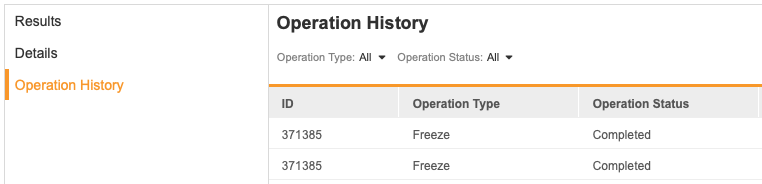
The Operation History tab displays what operations have been performed as well as the operation status, the user who performed the operation, the site and subjects that were affected, and a downloadable results file for each operation.
Bulk Lock & Freeze (Snapshots) Overview
Snapshots renamed to Bulk Lock & Freeze: As of 26R2, the Snapshots feature is renamed to Bulk Lock & Freeze. This video refers to the previous Snapshots naming.
Last Updated: 26R2
This video gives an overview of the Bulk Lock and Freeze feature in the Review tab. Note that this video refers to the feature previously known as “Snapshots”.