Reviewing Codes
The Coder Review workflow allows you to perform quality reviews of coded data without delaying downstream processes by keeping Code Requests in a non-final coding status. Under the Coder Review workflow, each Code Request is assigned both a coding status and a review status.
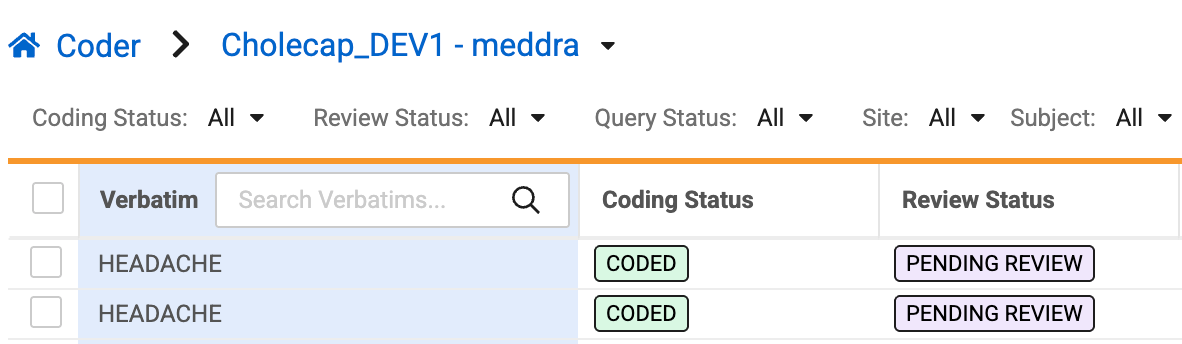
A coder (typically a coding manager or administrator) evaluates the coding decision, and moves the review status from Pending Review to Reviewed or Rejected. When you reject a review, Veeva EDC requires a mandatory rejection comment and posts it as a Note on the Code Request.
Prerequisites
To perform the actions described below, the Coder Review Workflow must be enabled in your Study.
The actions below are automatically available to users with the standard CDMS Coding Manager and CDMS Coding Administrator study roles. If your organization uses user-defined Study Roles, your role must grant the following permissions:
| Type | Permission Label | Controls |
|---|---|---|
| Standard Tab | Coder Tools Tab | Ability to access the Coder Tools tab |
| Functional Permission | Manage Coder Study Settings | Ability to edit Study Settings in Coder Tools |
| Standard Tab | Coder Tab | Ability to access the Coder tab |
| Functional Permission | View Code | Ability to view coding progress |
| Functional Permission | Approve and Review Code | Ability to utilize the Review and Approval workflows in Coder |
If your Study contains restricted data, you must have the Restricted Data Access permission to view it.
Learn more about Study Roles.
Enable the Coder Review Workflow
To enable the Coder Review Workflow feature:
- Navigate to Tools>Coder Tools>Study Settings.
-
Select your Study.
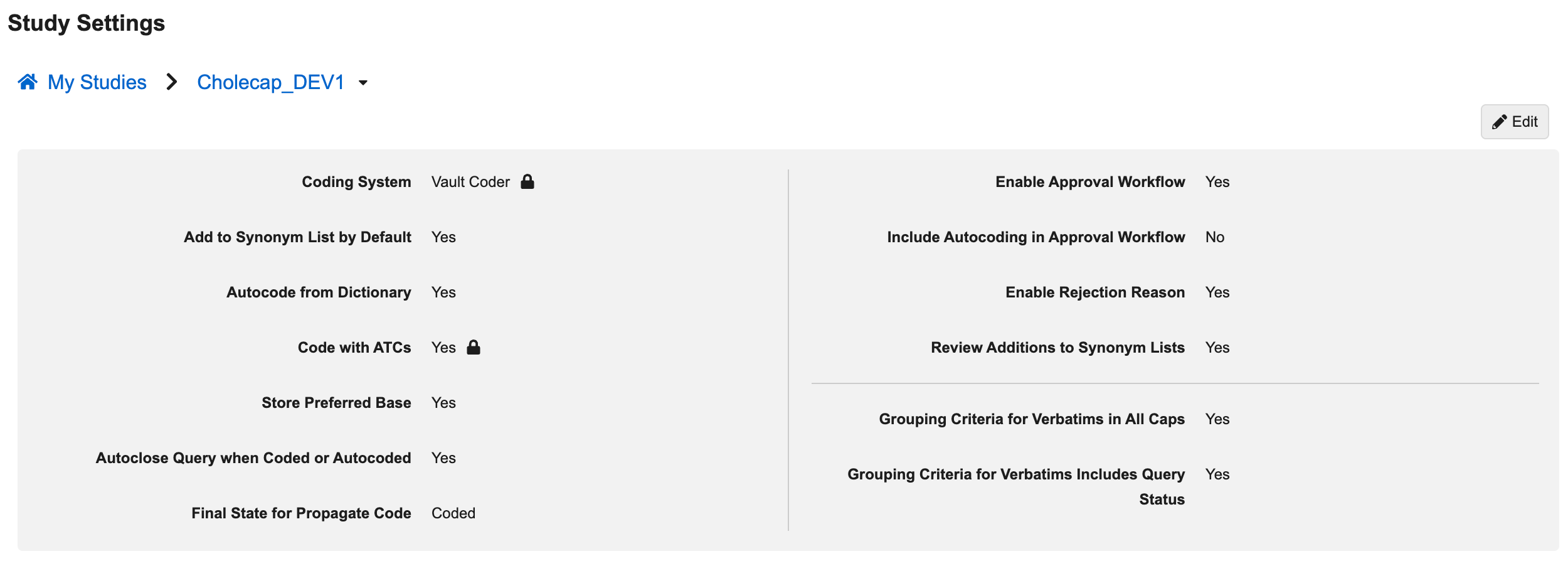
- In the Study Settings page for your study, click Edit.
-
Select Yes for Enable Review Workflow.

- Click Save.
- The system automatically starts an EDC job to set the review status for all existing Code Requests, which are already Coded or Autocoded, in the Study to Pending Review. When finished, the system sends you an email notification.
How to Review a Code Request
To review a Code Request:
- Open the Form in Coder.
-
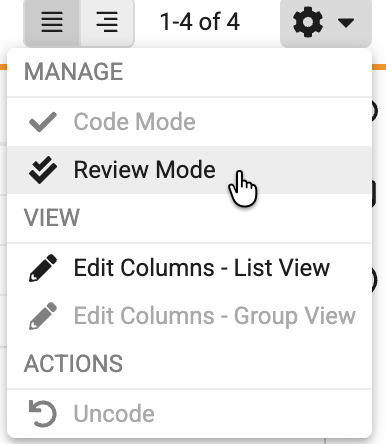
In the Actions menu, click Review Mode.
- Optional: Switch to Group view if you want to review groups of Code Requests at a time.
- Select one or more Code Requests (or groups of Code Requests) that you want to review.
- Click Mark as Reviewed.

The Code Request is moved into the Reviewed review status.
How to Reject a Code Request
To reject a Code Request:
- Open the Form in Coder.
-
In the Actions menu, click Review Mode.
- Optional: Switch to Group view if you want to reject groups of Code Requests at a time.
- Select one or more Code Requests (or groups of Code Requests) that you want to reject.
-
Click Reject.
-
In the Reject Review dialog, enter a Comment. Veeva EDC posts this reason as a Note on the Code Request. If you are reviewing in Group view, the same comment is posted as a note on all Code Requests in the group. Any selected Code Requests that are already in Rejected status, will not receive the note.
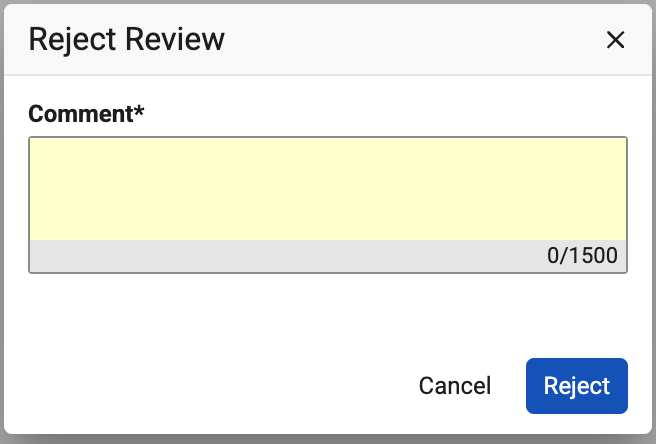
- Click Reject.
The Code Request is moved into the Rejected review status.