Configurations Overview
Clinical Reporting Configurations allow you to manage data display, formatting, and inclusion from a central area.
Prerequisites
By default, users with the standard CDB Administrator or CDMS Super User study role, or with the Vault Owner security profile, are able to perform the actions described below. If your organization uses user-defined Study Roles, then your role must grant the following permissions:
| Type | Permission Label | Controls |
|---|---|---|
| Standard Tab | Workbench Tab | Ability to access and use the Data Workbench application, via the Workbench tab |
| Functional Permission | Configure CDB | Ability to perform configurations in Workbench that apply to all studies from the Configurations area |
If your Study contains restricted data, you must have the Restricted Data Access permission to view it.
Learn more about Study Roles.
Accessing the Configurations Area
You can access the Configurations area of DQS via the Navigation Drawer ().
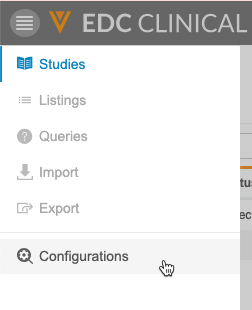
Once you’ve entered this area, you can manage your configuration settings.
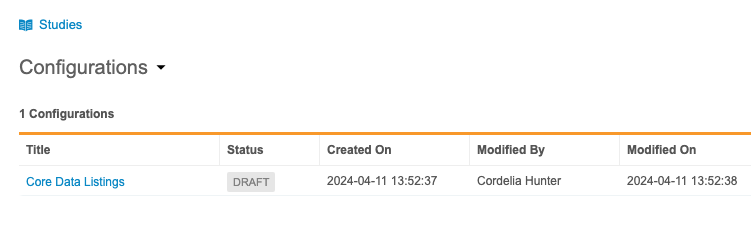
The following configurations are available for Clinical Reporting:
- Core Data Listings: Configure the format and study attributes to include in all Core Listings. Learn more aboutconfiguring Core Data Listings.
- In Edit Data: Configure the inclusion of In Edit data in Core and Listing-Builder Listings. Learn more about configuring In Edit Data inclusion.
Download the Configuration Log
You can download a log (CSV) of configuration actions from the Configurations menu.
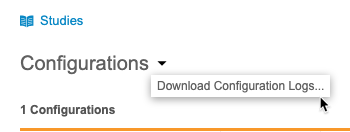
Each row in the log corresponds to each configuration transition, in reverse chronological order. For each row, the following information is captured:
- Vault ID: The Vault ID of the current vault
- Configuration: The configuration values as of the log event
- Last Modified By: The user who initiated the action for the log event
- Last Modified On: The date and time the log event occurred
- Current Status: The current status as of the log event
- Transition comments: Any reasons entered during status change