New Features in 26R3 Limited Releases
26R3 Planned General Availability: November 20 & December 4, 2026
26R2.4 Release Date: October 16, 2026
26R2.3 Release Date: October 2, 2026
26R2.2 Release Date: August 21, 2026
We are pleased to bring you new functionality with each limited release. These release notes are updated with upcoming new features one week before the limited release date.
Enablement Changes: The enablement of each feature is subject to change from release to release. For limited releases in the same general release, we will update this page. Enablement may also change before the general release. Refer to the Release Impact Assessment for the most up to date enablement for a general release.
Data Entry
Features in this section are changes to the Data Entry tab, a working area for investigators and clinical research coordinators to enter study execution data.
- Removed the Delete Event Action for Dynamic, Unscheduled Events
- New Tooltip for + New Event Button when Repeat Max is Reached
- Only Show Form Not Submitted Dialog when Form Data Changes
- Seamless Navigation through Non-sequential Repeating Forms
Removed the Delete Event Action for Dynamic, Unscheduled Events 26R2.2
Use Case
By preventing users from manually deleting dynamically added events in unscheduled event groups, casebooks will now stay aligned with rule results. This prevents accidentally removing events that cause data entry delays, avoiding operational overhead with re-running rules to restore events.
Description
Site users are no longer able to manually delete events that were dynamically added to unscheduled event groups through Studio rules. The Delete Event action is no longer available for dynamically added events in unscheduled event groups, mimicking the current behavior as the scheduled dynamic events. If the rule triggering the dynamic event is re-evaluated to False then the dynamic event will be automatically removed if there is no form data. If there is form data, then Vault will mark it for removal.
Enablement & Configuration
This feature is auto-on.
New Tooltip for + New Event Button when Repeat Max is Reached 26R2.2
Use Case
Data entry users need clarity on why system actions are unavailable when adding new unscheduled event groups. Providing an explicit hover message on the + New Event button informs users that the configured limit has been met. This improves site usability and reduces support requests regarding disabled casebook controls.
Description
When the a casebook reaches the max number of repeating unscheduled events, the + New Event button will now show a tooltip message to clarify for data entry users why they cannot add another unscheduled event to the casebook.
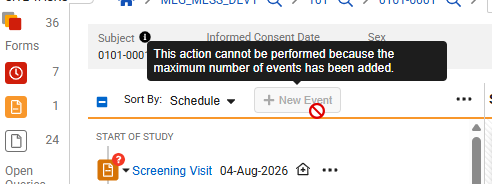
Note, when the subject is locked, the hover over will instead display the existing subject lock message.
Enablement & Configuration
This feature is auto-on in the Data Entry tab.
Only Show Form Not Submitted Dialog when Form Data Changes 26R2.2
Use Case
Previously, navigating away from any in progress form triggered a warning prompt regardless of whether data updates were made. Restricting this prompt to instances with unsaved data changes removes the unnecessary prompt, streamlines data entry, and maintains the warning for uncommitted data.
Description
The criteria for when the Form Not Submitted warning dialog displays is updated during casebook navigation. The Form Not Submitted dialog will now only display when a user updates item data and attempts to navigate away without submitting the form.
Enablement & Configuration
This feature is auto-on in the Data Entry tab.
Seamless Navigation through Non-sequential Repeating Forms 26R2.2
Use Case
In Veeva EDC, repeating forms are presented in the order of their repeat sequence. If middle forms are deleted via dynamic rule logic after reset or not created during study migrations, sequence numbers may contain gaps. Non-sequential sequence numbers previously caused inconsistent navigation and unclear reference counts. The new user experience ensures users can seamlessly navigate non-sequential repeating forms while maintaining clear visibility of current sequence numbers and total form counts.
Description
This feature updates the reference count behavior and navigation controls to seamlessly accommodate non-sequential repeating forms. The new user experience is applied to the Data Entry form view, Review form view, and Review View As Site.
If a repeating form was created (for example, a Concomitant Medication), reset, and thereafter deactivated due to dynamic rule logic (for example, Informed Consent re-drawn), the form is removed from the repeated form grid UI and navigation. Similarly, when migrating studies, not all repeats of a form may be present in the legacy studies, leaving gaps in the form reference number sequence.
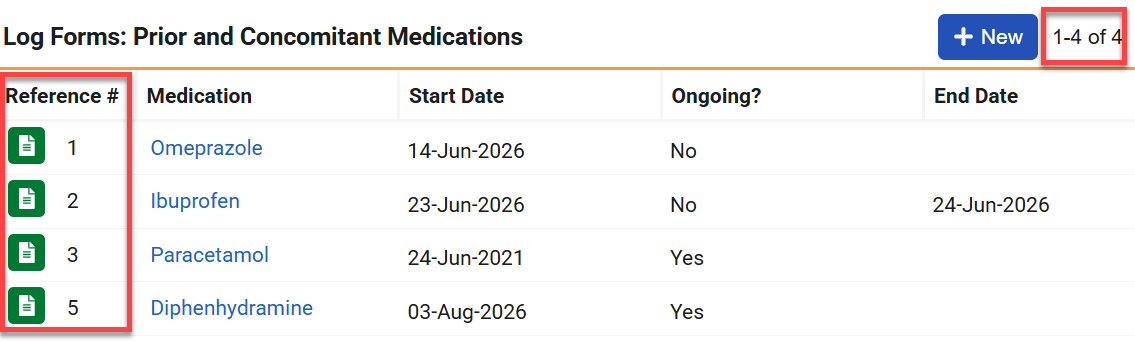
This feature makes the following updates:
The first number in the reference count continues to display the sequence number of the form currently being viewed. The second number now displays the highest sequence number among the repeating forms, representing the total sequence count including all deleted forms.
The navigation buttons (the side arrows in Data Entry views and the up/down arrows in Review view) are disabled when viewing the first or last repeating form, respectively.
Grid pagination continues to display the total count of existing repeating forms rather than sequence numbers.

Enablement & Configuration
This feature is automatically enabled.
Clinical Coding
The following are new features for Veeva Coder, the clinical coding area for Veeva Coder.
Redirect Users to Dictionary Validation on Dictionary-related Links 26R2.2
Use Case
When reviewing medical coding reports, users may click on links for dictionary releases or definitions to verify dictionary details. Previously, these links navigated directly to the record page, where users could inadvertently modify core dictionary settings. Redirecting users to the Dictionary License Validation page provides a safe, seamless way to view dictionary information without risking accidental edits to essential system data.
Description
When users click a dictionary hyperlink (in Medical Coding Dictionary Release or Medical Coding Dictionary Definition objects) in a standard or user-defined EDC report, the System now automatically routes them to the Dictionary License Validation page within Coder Tools.
- Permission Controls:
- Users with access to Coder Tools who lack the Manage Coder Study Settings permission will see the validation page in view-only mode, with editing and validation buttons hidden.
- If a user does have the Manage Coder Study Settings permission, they will see the edit and validation buttons as usual.
- Users who do not have permission to access Coder Tools at all will see a standard ‘Page not found’ permission notice upon clicking the link.
- Users with access to Coder Tools who lack the Manage Coder Study Settings permission will see the validation page in view-only mode, with editing and validation buttons hidden.
- Filtering: The link directs users to the generic Dictionary License Validation page view; it does not apply specific record ID filters.
Enablement & Configuration
This feature is automatically enabled.
Study Design & Configuration
Features in this area apply to Studio, the study design and configuration area for Veeva EDC.
Job Permissions Update (Read-Only User) 26R2.2
Use Case
Previously, users with the CDMS Study Designer Read Only role or a user-defined role with Studio access but without the Manage Jobs permission could generate the Study Design Specification (SDS). However, this process did not create an entry in EDC Tools > Job History.
Description
With this release, when users with one of these roles generate the SDS, the entry will now appear in EDC Tools > Job History.

Enablement & Configuration
This update is Auto-On.
Study Administration
Features in this section apply to System Tools or EDC Tools, a study-level administration area for Veeva EDC.
- Site Closeout PDF Naming & Status Updates
- Suppress Site & Country Fields in the Audit Trail for Non-subject Objects
Site Closeout PDF Naming & Status Updates 26R2.2
Use Case
To help clinical research teams remain compliant with regulatory guidelines, site closeout file names now include specific study, site, and participant details. Additionally, we’ve updated site closeout status messaging to provide clearer indication when the closeout process is interrupted due to a site being unlocked. This eliminates confusion around whether a closeout process needs to be restarted after site access changes.
Description
When generating a site closeout document, Vault automatically creates a standardized file name using lowercase text and a clear structure, for example, “crf-[study name]-[site name]-[participant ID]-[date generated].pdf”.
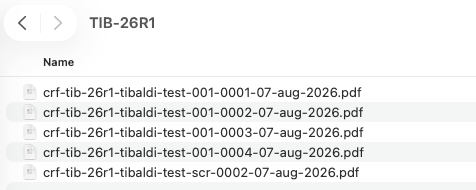
To ensure maximum readability and compliance with document standards, special characters and spaces within names will be replaced with hyphens, and dates will be formatted using study’s date settings.
If the file naming convention would result in exceeding maximum length limits (218 bytes), Vault will truncate the text to ensure the most critical identification details remain intact:
- The full date will always be included.
- Participant ID will be truncated after 176 bytes
- Study Name and Site Name will each display a minimum of 10 bytes
When a site closeout process is interrupted because a site is unlocked, the status label now clearly reflects this change across the application. The closeout status updates to “Closeout process reset due to site unlock” within the Closeout Activity dialog, the Sites grid, and the closeout action menu. The closeout audit history for future closeouts also records this event with clear details indicating which user unlocked the site.

Enablement & Configuration
This feature is auto-on.
Suppress Site & Country Fields in the Audit Trail for Non-subject Objects 26R2.2
Use Case
Subject transfers between sites historically generated redundant site and country audit entries across all child records associated with the subject, unnecessarily duplicating these entries within the audit trail. Streamlining audit trail outputs eliminates redundant historical entries across lower-level casebook objects while preserving full traceability at the subject level. This reduces audit clutter and simplifies compliance review workflows for clinical operations and data management teams.
Description
The site and country changes are now suppressed from non-subject audit trails, in the EDC Audit Trail UI, Audit Exports, and Audit PDFs. The suppressed site and country changes include the Assessments, Assessment Responses, Casebooks, Event Groups, Events, Forms, Item Groups (Data Model V1), Items (Data Model V1), and Query records. For Item Groups and Items, this feature impacts studies operating in Data Model 1. The Item and Item Group records for site and country changes were already not shown in Data Model 2 studies.
The full site and country transfer details remain preserved in the subject-level audit trail and on medical coding objects to support coding decision reviews. The records are suppressed.
Enablement & Configuration
This feature is auto-on for both existing and new studies. For existing studies with a preference to still show these records, contact Veeva Product Support to enable the related setting to un-suppress the non-subject records.
Labs
Features in this section are new features for the Labs module of Veeva EDC.
- Allow LBSEX to be Set as Derived
- Prevent Use of Archived Lab Codelist & Unit Items for Normal Ranges
Allow LBSEX to be Set as Derived 26R2.2
Use Case
Capturing a participant’s sex is necessary to establish accurate Lab Normal Ranges in clinical trials using Local Labs. In studies involving single-sex populations or in which a participant’s sex is already recorded on another form, requiring study sites to manually enter/re-enter this information per casebook creates redundant data entry. With this feature, study designers can now automatically derive the Lab SEX value from existing study data or hardcode it. This update reduces site burden, minimizes data entry errors, and ensures seamless evaluation of lab normal ranges across forms.
Description
The Derived item type can now be added to the item definition properties panel alongside the standard EDC item type when configuring the system-generated LBSEX (or deduplicated LBSEX_#) item in Studio for Local Labs. The EDC item type cannot be removed.
Setting LBSEX as derived allows a cross-form derivation rule to target the item. The derived SEX value updates during standard data entry or when executing the Rules Job, accurately evaluating Lab Forms for outdated or newly loaded lab normal ranges.
Key Constraints & Interactions:
- Controlling Item Restriction (Generic): An item cannot be configured as a controlling item for progressive display if it is already set as derived. Attempting this update blocks the action and displays the following error message: “You cannot set an item as a controlling item for progressive display if it is set as derived.” (Applies to studies on the Cross Form derivation version).
- Derived LBSEX Restriction (Specific): The system-generated LBSEX item cannot be set as derived if it is already configured as a controlling item for progressive display. Attempting this update blocks the action and displays the following error message: “You cannot set the Local Labs LBSEX item as derived if it is a controlling item for progressive display.” (Applies to studies on the Cross Form derivation version).
- Display Visibility: Display visibility remains fully configurable for LBSEX when set to derived.
Enablement & Configuration
Automatically available in Studies using the global version of Local Labs. Study designers must configure the feature in Studio by setting the Local Labs LBSEX Item Definition to Derived and creating the appropriate derivation rule.
Prevent Use of Archived Lab Codelist & Unit Items for Normal Ranges 26R2.2
Use Case
Archived system-managed Lab codelist and unit values should no longer be available for selection or import to ensure accuracy when configuring Normal Ranges. Previously, archived values in system-managed definitions were visible and able to be selected, which led to configuration errors and unnecessary clutter. This update aligns system-managed Lab Codelist/Unit Definitions with user-defined definitions by hiding archived options, minimizing configuration mistakes, and keeping selection lists clean and relevant.
Description
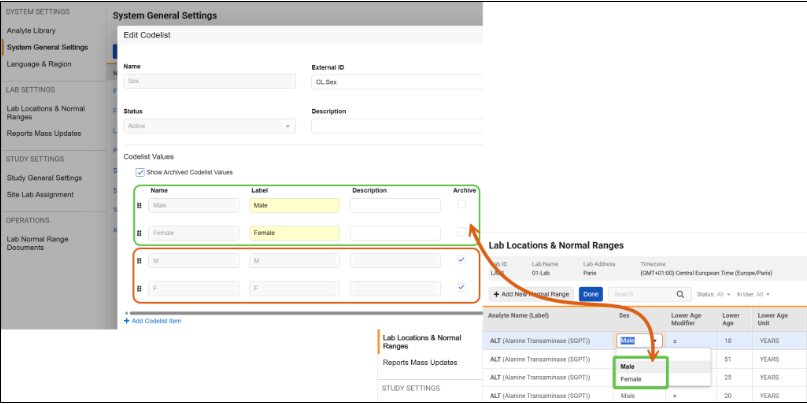
When configuring or importing Normal Ranges, codelist/unit values in system-managed Lab codelist definitions (such as Sex, Female Cycle, Fasting Status, and Lab unit definitions, such as Age) that are archived are no longer selectable.
Key updates include the following:
-
Normal Ranges Grid Selection: Archived Lab codelist/unit item definitions are hidden from drop-down selection
-
File Imports: If an import file contains an archived Lab codelist or Lab unit option, the import preview displays an error indicating that the selected value is archived, which prevents the record from being imported.
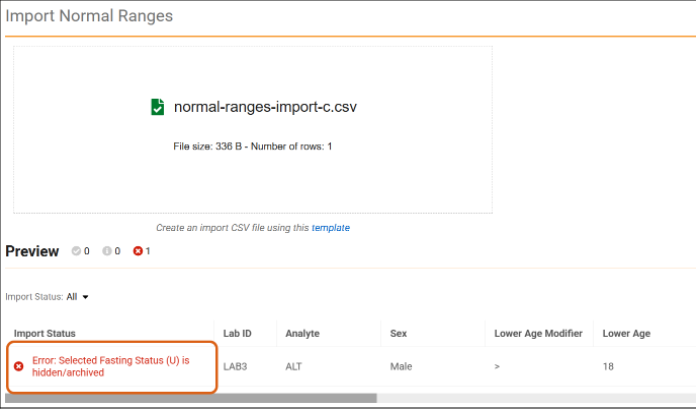
Existing Normal Range records created prior to an option being archived remain unaffected unless a user attempts to update those specific fields.
Enablement & Configuration
Auto-on.
Veeva DQS
The following are new features for for Veeva DQS.
- Review Listings: Additional Columns & Quick Filter
- Assignment of Observations to Teams
- DQS System Listing Updates with New Columns
Review Listings: Additional Columns & Quick Filter 26R2.2
Use Case
Review workflows need to be efficiently monitored and tracked. Surfacing review metadata directly within the Review Listing allows users to identify who completed a review, when, and the reason for review without exporting data. Additionally, the pre-set quick filter enables teams to immediately isolate rows requiring review, streamlining data oversight and shortening review cycles.
Description
This feature expands the review listing data grid by surfacing review metadata and providing additional filtering capabilities. Each review listing includes three new columns:
- Reviewed By: name of the user that last changed the Review status.
- Review Reason: optional reason stated as part of the latest Review status change. If no Reason was entered, this field is empty.
- Review Date: date of latest Review status change.
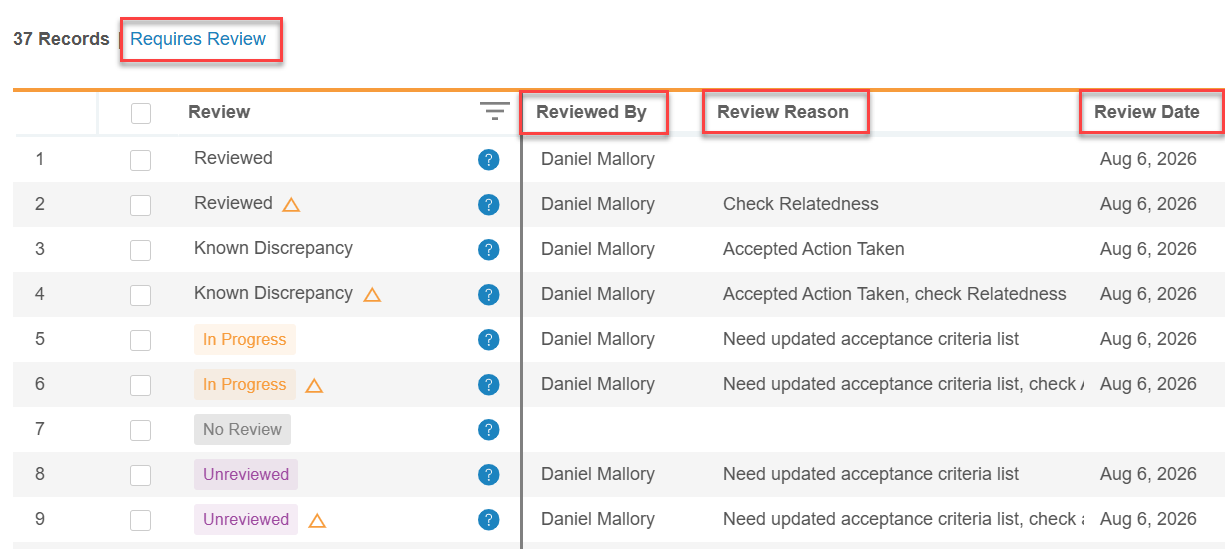
These columns support column pinning, hiding, and standard column filtering.
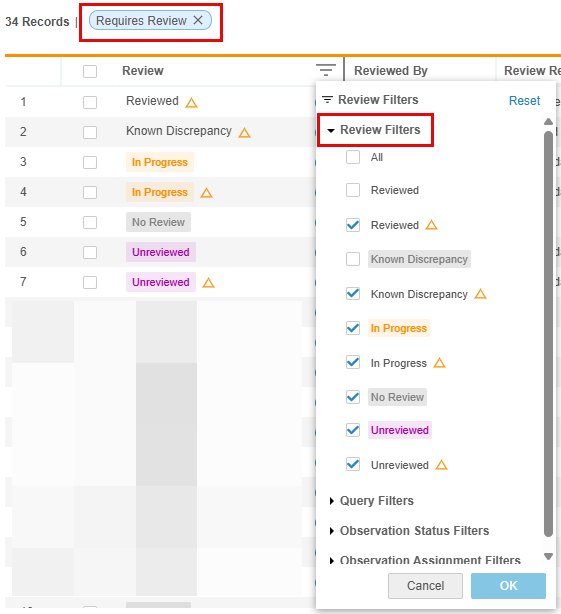
A new ‘Requires Review’ quick filter is now available, which automatically filters the grid to display all rows with the following Review statuses:
- Reviewed with change (indicated by an orange delta icon)
- Known Discrepancy with change (indicated by an orange delta icon)
- In Progress with change (indicated by an orange delta icon) and without change
- No Review
- Unreviewed with change (indicated by an orange delta icon) and without change
Enablement & Configuration
This feature is automatically enabled.
Assignment of Observations to Teams 26R2.2
Use Case
In data management, data review often requires collaboration across multiple functional groups before a discrepancy is judged and a site query is generated. Previously, observations could only be created on data fields and assigned to individual DQS users, which led to bottlenecks when team members were unavailable. Assigning observations to an individual user or a functional team streamlines cross-team hand-offs, ensures immediate visibility for the responsible group, and facilitates clear accountability throughout the review process.
Description
Users can now assign observations not only to other DQS users, but also to teams within DQS. Teams are defined in EDC > System Tools > Role Management. The relevant DQS permissions are listed in the ‘CDB’ area of the role matrix. In EDC > System Tools > Users, one or more user roles are assigned to a user. A user with a given role will belong to the team to which the role is assigned to. If a user is assigned to more than one role, they will belong to all teams associated with those roles.
Prior to 26R3, observations could only be assigned to an individual user when creating a new observation or replying to an existing one. With 26R3, observations can be assigned either to an individual user or to a team when creating or modifying observations.
Additionally, when creating an observation, the system will automatically attribute it to both the user that created it and their team. If the user is part of more than one team, the user will be prompted to select under which team to create the observation. Once selected, the creation team can’t be modified.
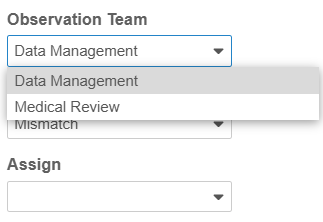
When assigning an observation during creation or reply, the user is now prompted with a team assignment option above the list of available users from the assignment dropdown.
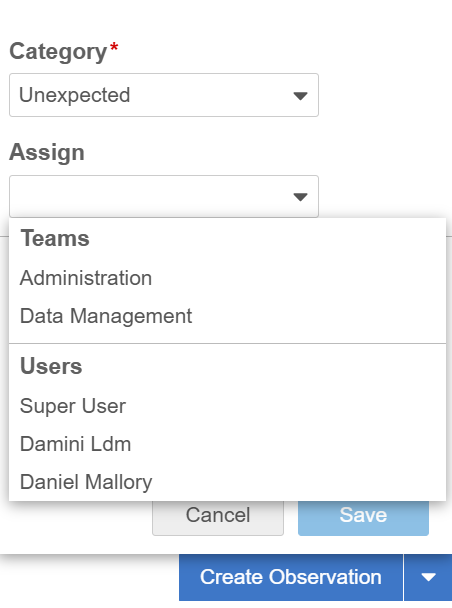
The assigning user can choose to assign the observation to either a team or an individual user.
Drop down options dynamically adjust based on the user role setup and the selected cell:
- The dropdown only displays teams where at least one role has the DQS permission ‘Reply to Observation’ or ‘Close Observation’.
- If a cell for which an observation is to be assigned is blinded, the system limits assignment options to teams associated with roles that have restricted data access permissions.
The detail panels in Data Listings now display both the user and the team name associated with the observation creation.
Enablement & Configuration
This feature is automatically enabled.
DQS System Listing Updates with New Columns 26R2.2
Use Case
Consistent metadata is required across system listings and exports to streamline downstream analysis and reporting. Adding additional information to DQS standard system listing adds to the ultimate goal of parity amongst the EDC Study Data Extract (SDE) and DQS system listings.
Description
DQS provides standard System listings, including Sys_Sites, for each study.
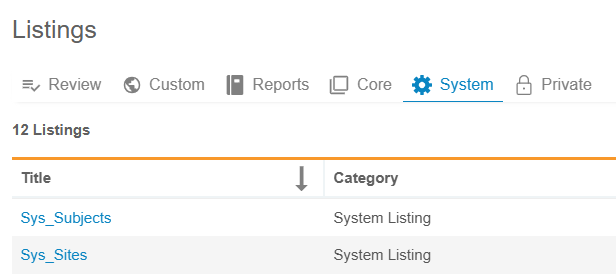
DQS standard System listings have been expanded with the following columns.
Sys_Sites:
- Study.Label
- Site.CountryName
- Site.Status
- Site.Timezone
Enablement & Configuration
This feature is automatically enabled. Export Listings will not have change detection indicators for System Listings included in Export Definitions.
EDC Migrator
Features in this section are new features for Veeva EDC Migrator.
- Migrator Support for Repeating Item Groups with Default Data
- New Steps: Freeze & Lock and Reconcile Freeze & Lock
- Validate & Stage Fails on Invalid Sequence Number
- Queuing & Scheduling Loads
Migrator Support for Repeating Item Groups with Default Data 26R2.2
Use Case
When migrating studies from other platforms into Veeva EDC, study designs often include repeating item groups pre-populated with default information. To ensure that incoming data closely matches the original study setup, the migration repair process now automatically generates repeating item groups for every default data permutation. Also, if a study design uses Visibility Criteria, migration managers need the flexibility to control when this automatic creation happens so extra, unwanted default data is not generated.
Description
During study migrations, the Migrator’s repair process identifies forms containing repeating item groups with default data and automatically generates the corresponding item group instances for each permutation. This ensures all default rows display properly in the user interface post-migration, including cases where forms or item groups are read-only.
The functionality includes the following capabilities and configurations:
- Automatic Item Group Creation: Generates repeating item groups for each default data permutation as part of the repair process.
- Form State & Attribute Support: Supports item group creation on read-only forms and forms with locked, frozen, SDV, or DMR attributes.
- Migration Override Setting: Includes a project-level and vault-level override that allows users to disable the repair process for item groups with default data.
The Migrator’s repair process does not evaluate Visibility Criteria during migration. If a study’s default data uses Visibility Criteria, the repair process will create default item groups regardless of the criteria unless the repair override is explicitly set to disable them.
Enablement & Configuration
The automatic creation of default repeating item groups is enabled by default, but it can be configured or disabled at both the project and vault levels if Visibility Criteria is used in a study design.
New Steps: Freeze & Lock and Reconcile Freeze & Lock 26R2.2
Use Case
Rules such as dynamic, derived, and subject status cannot execute on locked or frozen casebooks during migration. Moving freeze and lock actions to dedicated steps near the end of the migration workflow allows rules to execute completely without interference from locked objects. This ensures that data entry is paused or sealed appropriately while maintaining fully synchronized casebook summaries.
Description
The EDC Migrator separates the application of frozen and locked attributes from step 6, Post-Run, so they are now applied after all migration objects are created and rules are executed.
The workflow introduces the following new steps prior to rule reactivation:
- Step 10. Freeze & Lock: Applies freeze and lock attributes using the provided Attributes CSV file. If the Attributes CSV file is not present, the step completes immediately and proceeds to the next step. If this step fails, a log file is generated.
- Step 11. Reconcile Freeze & Lock: Re-runs reconciliation to create casebook summaries exclusively for frozen and locked objects, updating EDC records. If this step fails, no log file is provided.
Step 12, Reactivate Rule, remains the final workflow step. The Post-Run step remains as step 6 with its full functionality, but it no longer applies locked and frozen attributes.
Both new steps (Freeze & Lock and Reconcile Freeze & Lock) are automatically included in the Execute All workflow, cannot be skipped, and allow users to stop execution or reset rules if interrupted. The system notifies users upon step completion and logs audit trail entries when steps are queued, started, stopped, or completed.
Enablement & Configuration
This enhancement is automatically enabled for all studies using the EDC Migrator and does not require any additional configuration.
Validate & Stage Fails on Invalid Sequence Number 26R2.2
Use Case
During early development cycles and initial study data migrations, catching data format issues as early as possible saves significant time. Previously, records containing invalid sequence numbers—such as text values or numbers below the required starting threshold—were not detected during the initial validation step. Instead, they caused errors much later during the actual migration run. Catching these formatting errors upfront ensures migrations are cleaner and prevents unexpected mid-process failures.
Description
The Migrator now automatically validates sequence numbers during the initial Validate & Stage step. It checks sequence numbers across event groups, forms, and item groups to ensure they meet all formatting rules before moving to subsequent processing steps.
A sequence number is flagged as an error if it:
- Contains letters or text instead of numbers.
- Includes decimal places other than .0 (for example, 1.0 is accepted, but 1.2 is flagged).
- Falls below the minimum starting number specified in the header configuration files (for example, starting at 0 when the minimum required sequence is 1).
When an invalid sequence number is detected, the system logs an error in both the log file and the Details section of the Validate & Stage results page, preventing the process from continuing.
Enablement & Configuration
This enhancement is automatically enabled for all studies using the EDC Migrator and does not require any additional configuration.
Queuing & Scheduling Loads 26R2.2
Use Case
Clinical operations and data management teams often need to execute multiple migration loads concurrently without overloading the system. Automated queueing and scheduling allow users to initiate or schedule migrations for off-peak hours without manual monitoring. Prioritization controls ensure critical production or time-sensitive loads execute ahead of standard loads when capacity becomes available.
Description
The EDC Migrator manages concurrent execution capacity at the vault level through automated queueing and scheduling mechanisms. When system capacity limits are reached, additional loads automatically enter a queue rather than failing or impacting performance.
Key user-facing functionality and controls include:
- Load Admin Dashboard: A Load Admin tab providing real-time visibility into all active vault loads across three tables: In Progress Loads, Queued Loads, and Scheduled Loads.
- Automated Queueing: When capacity is full, initiating a load assigns it a Queued status. Queued loads execute automatically in sequence as active loads complete.
- Queue Reordering: Users can adjust the execution sequence of queued loads using the Up arrow in the Load Queue section. Non-priority loads cannot be placed ahead of priority loads.
- Removing from Queue: Users can remove a queued load using the Actions menu in the Load Admin tab or via the Workflow Progress page without canceling the load entirely.
- Load Prioritization: During load creation or updating, users can turn on the Set as Priority setting. Priority loads are placed at the front of the queue ahead of standard non-priority loads.
- Scheduled Execution: The Execute menu includes a scheduling option allowing users to schedule an Execute All load up to 14 days in the future with a specific time and time zone setting. Scheduled loads display a Scheduled status until triggered.
- Automatic Notifications & Pre-checks: Users receive an email and system notification when a queued load transitions to In Progress (if queued for longer than 60 seconds). Automated system pre-checks execute immediately before a queued load begins running.
Enablement & Configuration
This enhancement is automatically enabled for all studies using the EDC Migrator and does not require any additional configuration.