Send Procedure Notifications to CTMS
You can configure Payable Activity Definitions in your study to send information to your organization’s Clinical Vault for processing payments in CTMS (learn more about Veeva Payments).
You can trigger the payment process to send data to CTMS using one of two methods:
- Form or Event Triggers: When you submit, delete, or reset a form or event, the system automatically creates and sends a Procedure record to CTMS. For example, if you have a Form that collects data about a CT scan, EDC sends that information to CTMS as a Procedure to be used for payments.
- Rule Triggers: For dynamic Payable Activity Definitions, the Create Payable Activity rule action also initiates the payment process to create and send the Procedure record to CTMS.
Procedures are clinical events on EDC forms that map to Procedure definitions in CTMS. System rules or data entry actions in EDC trigger the Clinical Operations - EDC Connection, which automatically transfers this information to CTMS for Payments.
Prerequisites
For studies created after the 26R2 release, this feature is automatically enabled. For studies created prior to the 26R2 release, reach out to Veeva Support for feature enablement.
An administrator in the CTMS vault must create the required Procedure Definition records for each Procedure that your organization will collect data for in EDC.
Users with the CDMS Lead Data Manager study role can perform the actions described below by default. If your organization uses user-defined Study Roles, your role must grant the following permissions:
| Type | Permission Label | Controls |
|---|---|---|
| Standard Tab | Studio Tab | Ability to access the Studio tab |
| Functional Permission | View Integration Mappings | Ability to view Integration Mappings |
| Functional Permission | Edit Integration Mappings | Ability to edit Integration Mappings |
If your Study contains restricted data, you must have the Restricted Data Access permission to view it.
Learn more about Study Roles.
How to Configure a Payable Activity
You can create a Payable Activity Definition for each data point that requires a payment in CTMS. To create a Payable Activity Definition:
- Navigate to Studio > Payable Activities for your study. This opens the Payable Activity Configuration listing page.
-
Click + New Payable Activity Definition.
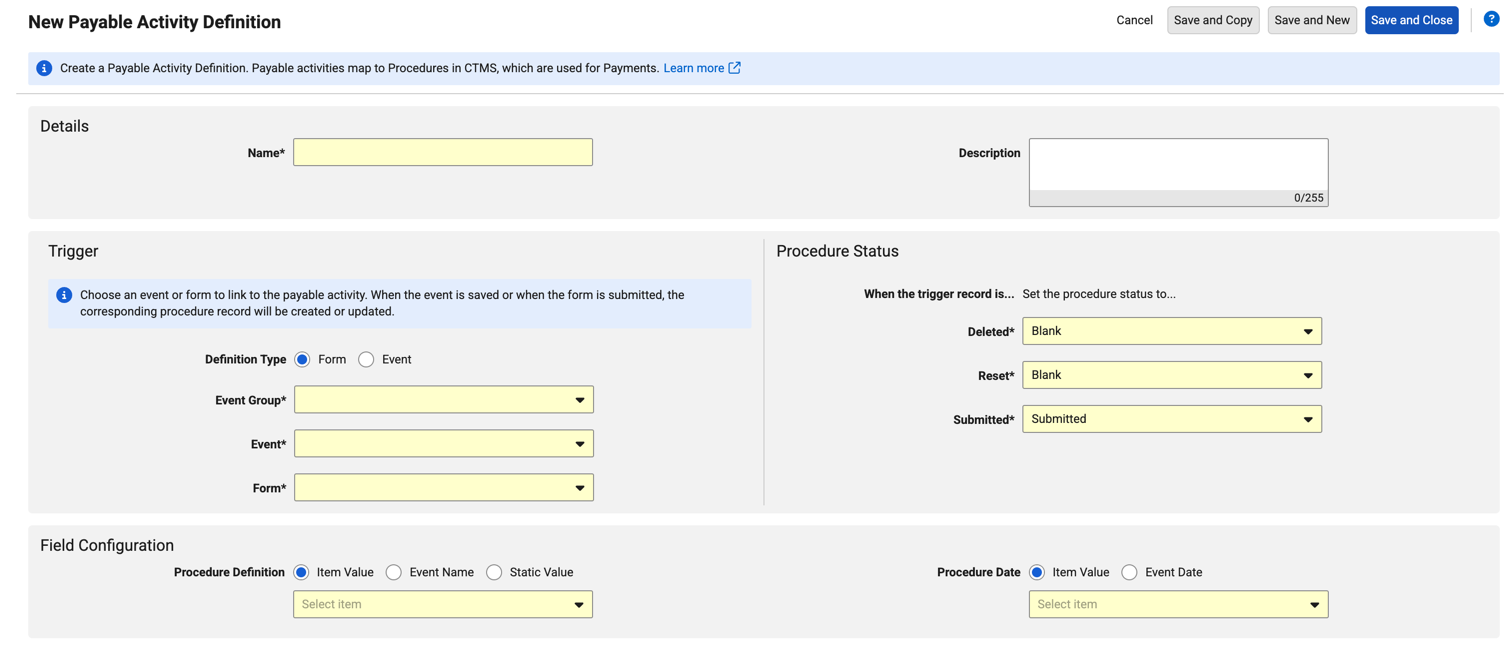
- In the Details section, enter a Name.
- Optional: Enter a Description.
- In the Trigger section, select a Definition Type (i.e., the type of EDC object that triggers the payment process): Form or Event.
- Select the appropriate Event Group, Event, and Form from the dropdown menu. Selecting the Event definition type disables the Form field.
- In the Procedure Status section, Vault automatically populates the Deleted, Reset, and Submitted fields with default values. If you need to change them, select options from the appropriate dropdown menu.
- In the Field Configuration section, select which type of reference value to use for the Procedure Definition. You can only select one reference value:
- Item Value: Derives the definition from an Item on the form. Select an Item from the dropdown menu.
- Event Name: Derives the definition from an Event. Select an Event from the dropdown menu.
- Static Value: Applies a value up to 128 characters. Enter the exact name of the CTMS record.
- Select which type of reference value to configure the **Procedure Date. **You can only select one reference value:
- Item Value: Derives the date from a Date or Datetime Item on the form. Select an Item from the dropdown menu.
- Event Date: Derives the Date from an Event Date. Select an Event from the dropdown menu.
- If you choose an item inside a repeating item group in the Field Configuration section, a Repeating Item Group Behavior section appears with the first option selected by default. Choose from the following behaviors:
-
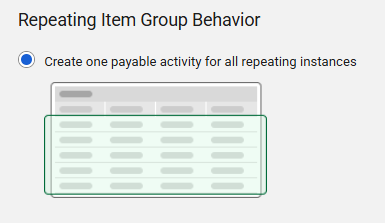
Create one payable activity for all repeating instances: Creates one Payable Activity for the entire repeating group by pulling data from the first instance (i.e., row). Use this option if you only want one payment record per form.
-
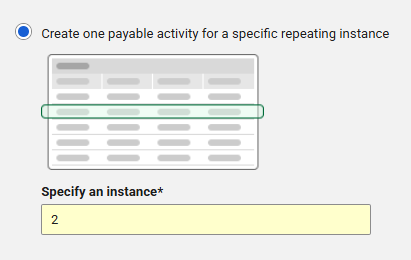
Create one payable activity for a specific repeating instance: Creates a single Payable Activity using data from one specific instance inside a repeating group. Enter a numeric value in the Specify an instance field. This value must be greater than 0 and less than or equal to the repeat maximum for this repeating item group.
-
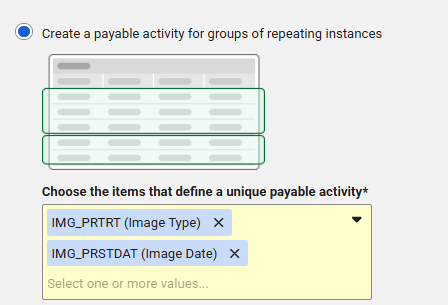
Create one payable activity for groups of repeating instances: Creates a Payable Activity per group of unique values (rows) in the repeating item group. Select the appropriate items.
- To create a Payable Activity for each repeating instance: Select Reference Number from the list. This tells Vault to map each individual item group sequence (each row in the repeating item group) as a separate Payable Activity.
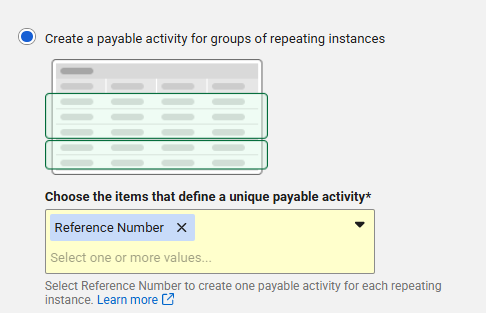
- To create a Payable Activity for each repeating instance: Select Reference Number from the list. This tells Vault to map each individual item group sequence (each row in the repeating item group) as a separate Payable Activity.
-
- Select a Save option.

Field Configurations
Map study data to fields on Procedure records in the Field Configuration section. The table below describes each configurable field:
| Field | Required | Description |
|---|---|---|
| Procedure Date | Yes | The Date on the Procedure sent to CTMS. This can be an Item Value from a date or Datetime Item, or an Event Date. Procedures cannot be created for dates with unknown values. |
| Procedure Definition | Yes | The Procedure Definition to use when sending the information to CTMS. CTMS creates a Procedure based on this definition when the EDC data is received. The value can be an Item Value, an Event Name, or a Static Value up to 128 characters. |
| Procedure Status | Yes | The Status assigned to the Procedure in CTMS. When a user performs a system action in EDC (submit, delete, or reset), Vault automatically updates the procedure Status in CTMS. |
Visit Name: As of 26R2, the Visit Name field no longer appears on the Field Configuration page in Studio, as Vault automatically includes this information and sends it to CTMS.
Edit a Payable Activity Definition
You can edit an Payable Activity Definition while your Study is in progress.
Any changes you make to an Payable Activity Definition will not apply to existing Procedures. To apply those configuration changes, existing procedure Forms must be resubmitted.
To edit a Payable Activity Definition:
- Locate the definition you want to edit in the list.
- Click on the Name of the definition. This opens the editor page.
- Alternatively, hover over the Row of the definition to show the Actions menu.
- From the Actions menu, select Edit. This opens the editor page.
- Make your changes.
- Select a Save option.
Duplicate a Payable Activity Definition
You can duplicate an existing Payable Activity Definition from the Actions menu.
To duplicate a Payable Activity Definition:
- Locate the definition you want to copy in the list.
- Hover over the Name of the definition to show the Actions menu.
- From the Actions menu, select Duplicate. This opens the editor page with all fields pre-populated from the source record.
- Enter a unique name in the Name field.
- Optional: Make any additional changes.
- Select a Save option.
Duplicating a dynamic Payable Activity does not automatically set the new record as dynamic. To mark the new record as dynamic, you must create a rule for it.
Archive a Payable Activity Definition
You can archive an active Payable Activity Definition to ensure it will not create new Procedure records. This action preserves the configuration and allows tracking in the Difference Report.
When you archive a Payable Activity Definition for the Procedure, it only stops Vault from creating any new Procedures. Vault doesn’t archive any existing or past Procedure records in CTMS.
To archive a Payable Activity Definition:
- Locate the definition you want to archive in the list.
- Hover over the Row of the definition to show the Actions menu.
- From the Actions menu, select Archive.
- In the confirmation dialog, click Archive.
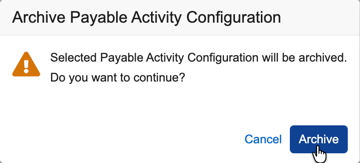
Difference Report
If an archived definition is present in one environment and not present in another, the Difference Report displays the variation. If the archived definition is not present in either environment, the report excludes it entirely.
Create Payable Activities via Rules
You can use a rule with the Create Payable Activity action type to create a Payable Activity when certain conditions are met. When Vault creates a Payable Activity, EDC sends your Procedure to CTMS.
This option provides an alternative way to trigger creation when you want to generate a Procedure based on additional custom criteria, rather than triggering it upon form submission.
Vault only allows rule creation for Form-triggered definitions and disables the new rule option for Event-triggered definitions. To apply a rule, you must select Form as the Definition Type in the Trigger section of the Payable Activity Definition dialog.
To create a rule for a Payable Activity:
- Navigate to Studio > Rules for your study.
- Enter your rule details and expression. For more information, see Creating Rules.
-
For the Action, select Create Payable Activity.
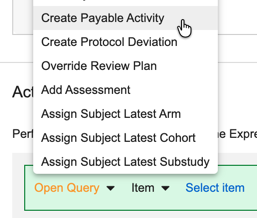
- Click Select Payable Activity Definition.
-
Select your definition from the Payable Activity Definition dropdown menu.
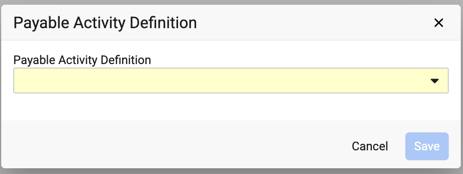
- Click Save.
- To save your rule, click Save.