New Features in 26R2 Limited Releases
26R2 Planned General Availability: July 31 & August 7, 2026
26R1.4 Release Date: June 26, 2026
26R1.3 Release Date: June 12, 2026
26R1.2 Release Date: May 1, 2026
We are pleased to bring you new functionality with each limited release. These release notes are updated with upcoming new features one week before the limited release date.
Enablement Changes: The enablement of each feature is subject to change from release to release. For limited releases in the same general release, we will update this page. Enablement may also change before the general release. Refer to the Release Impact Assessment for the most up to date enablement for a general release.
Clinical Data
Features in this section are changes that apply to all application areas of Veeva EDC and DQS.
- Test Data Import
- Support Source Fields for Audit Trail 1.0
- Update Application Font Family to Roboto from Arial
Test Data Import 26R1.4
Use Case
To reduce the manual effort with creating test data, a new import functionality and test data template assist Study Designers and Data Managers to more easily manage their test data and efficiently load test data into DEV and TEST environments.
Description
A new Study Testing tab provides a list of studies and a grid layout to manage test data within each study. Two buttons, Export Template and Test Data Import help users to specify and import the test data to the current environment.
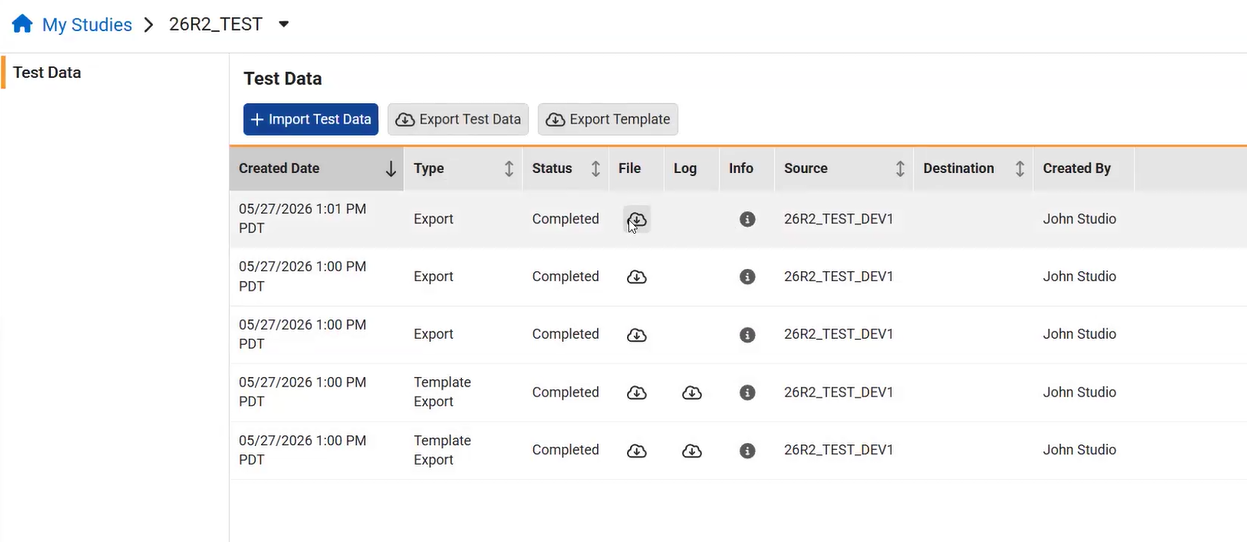
Export Template
To simplify test data creation, the Export Template button provides a downloadable template tailored to your casebook. Selecting the optional Include Sample Subject checkbox prefills columns for the Event, Form, Item Group, and Item definitions and Sequences for all forms in the casebook, providing a baseline to create additional test data. Testers will still need to manually enter the site, subject, and specific data values for the sample subject (as well as subsequent values for Form Link, Change Reason, ILB DNO Reason, where relevant). If left unselected, the template will only include column headers with all rows left blank.
Import Test Data
From the Import Test Data dialog, users can upload or drag and drop their file and select the instance of the destination environment where they wish to load the data, e.g. TST1, TST2. Validations will inform users should the file exceed the import file limits: 1 million rows, 500 MB per file and 1 GB for zipped files. Subsequent imports can be completed to load additional data in these cases.
Note when creating test data a pipe or other formatting may be required. Please refer to the Help pages for specific import data formatting examples, e.g.
- Unit data types: 35|YEARS
- Event with Visit Method: 28-04-2026|on_site_visit__v (Use the date format defined in your study’s general settings.)
- Form Link: eg_LOGS>1>ev_LOGS>1>AE>1
During the import, the job will load the subject data, either by matching the subject ID or creating new subjects when a match is not found. Invalid data will not be loaded and can be referenced in the job results, accessed in the Test Data grid and through the link in the email notification. The Test Data grid provides the history of actions taken along with the resulting file and log.
Roles and Permissions
Two new permissions “Study Testing Tab” and “Import Test Data” are added to the following standard roles:
- CDMS Super User
- CDMS Study Designer
- CDMS Librarian
- CDMS Lead Data Manager
- CDMS Data Manager
- CDMS User Administrator (Study Testing Tab only)
Enablement & Configuration
This feature is automatically available in studies using Data Model 2.0.
Support Source Fields for Audit Trail 1.0 26R1.4
Use Case
New Source fields provide further clarity in Audit Trail 1.0 for studies migrated from other EDC systems. Tracking source fields in the audit trail will also provide the necessary framework for future external features such as eSource.
Description
When clinical data is transferred into EDC through a migration, the Source records are now displayed in the Audit Trail 1.0 UI and within the Audit Trail Export. The Source records are included with the Subject, Event Group, Event, Form, Item Group and Item records. For Migration studies, Source Type will appear with “cdms_migration__v”.
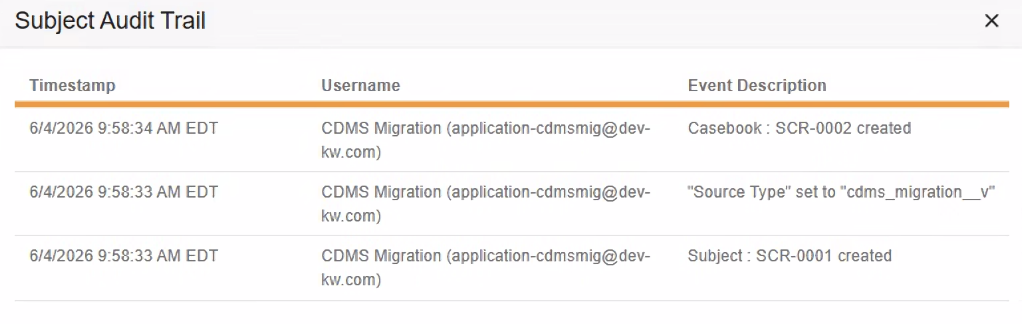
For future external features such as eSource, the Source System, Source System Created Date, Source ID, and Source User will also be populated.
Enablement & Configuration
This feature is auto-on for studies migrated after 26R2.
Update Application Font Family to Roboto from Arial 26R1.4
Description
With this release, text in the Veeva Clinical Data application uses the Roboto font family. Prior to this release, it used the Arial font family.
Enablement & Configuration
This change applies automatically.
Data Entry
Features in this section are changes to the Data Entry tab, a working area for investigators and clinical research coordinators to enter study execution data.
- Improve Repeating Form Grid Performance
- Error When Event Doesn't Have a Change Reason
- Remove Editable Grid Validation for Range Checks
Improve Repeating Form Grid Performance 26R1.3
Use Case
In certain cases, the system previously processed all casebook versions as it rendered the repeating form grids. Repeating form, form link, and view summary grids now only load columns exclusively from the active event or casebook version, removing excessive cache calls to improve page performance.
Description
The loading behavior of repeating forms and form link grids is improved to optimize page performance. Instead of processing all historical study casebook versions to render the grid columns, the system selectively restricts data processing to the active casebook version. The following are the grid locations with improved performance,
- Data Entry
- Repeating Form grid
- Add/Edit Form Link grid and Link & Copy grid
- Form Link visible group
- Review
- View Summary grid for repeating forms
Enablement & Configuration
This feature is auto-on.
Error When Event Doesn't Have a Change Reason 26R1.2
Use Case
Updates to the user interface (UI) now provide an error message and ensure that a reason for change is always captured. A reason for change could potentially have not been captured when simultaneous users were entering the same event data, and the user’s page was not refreshed following the other user’s data entry or when one user had multiple tabs open and was revising the same event data in both tabs.
Description
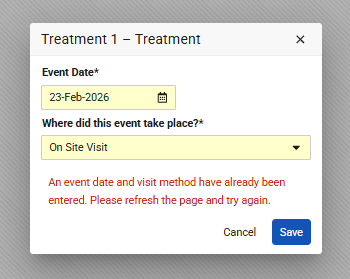
Users will encounter an error if they attempt to change an Event Date or Visit Method that was previously empty in their view but already contains data in the system from another tab or user. Vault will display an appropriate message, depending if the study is configured to use Visit Method:
- “An event date has already been entered. Please refresh the page and try again.”
- “An event date and visit method have already been entered. Please refresh the page and try again.”
To resolve the validation error, the user must refresh the page to view the current data before attempting further modifications.
Enablement & Configuration
This feature is automatically available.
Remove Editable Grid Validation for Range Checks 26R1.2
Use Case
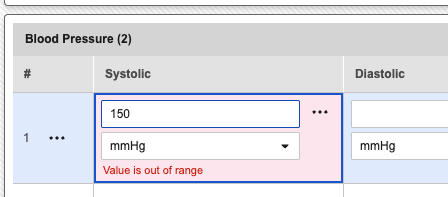
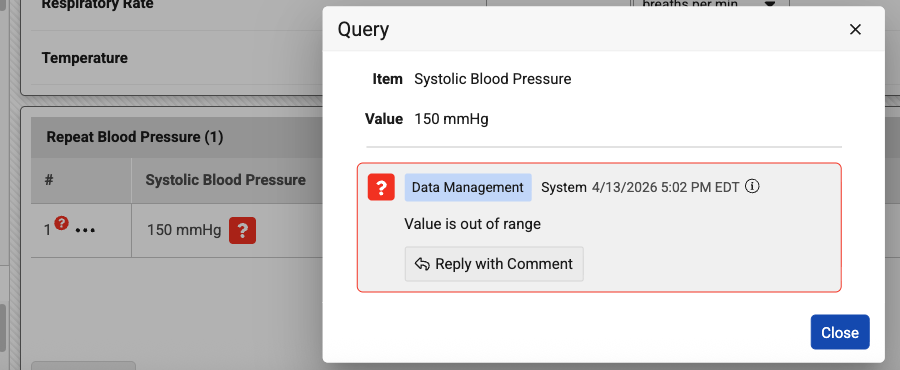
Previously, when entering data into a grid, users encountered a different experience than they did on standard forms. If a value was entered that fell outside of a pre-defined range, the grid would display a warning message that appeared to prevent the form from auto-saving or being submitted.
Description
We have updated the behavior of editable grids to ensure that range checks on number items and units are handled consistently across the platform.
When a user enters a value into a grid that is outside the configured minimum or maximum range, the system will no longer display an immediate validation warning under the field. Instead, the data will auto-save as normal, and the system will automatically open a query to flag the out-of-range value.
Prior to 26R2
After 26R2
Enablement & Configuration
This feature is automatically enabled.
Data Review
Features in this section are changes to the Review tab, a working area for clinical research associates and data managers, or to review functionality within the Data Entry tab.
- Prevent Changing the Query Team When Editing a Query
- Rename Snapshots to Bulk Lock & Freeze
- Increase Character Limit for Observed Source Value
- Increase Number of Columns in View Summary Grid
Prevent Changing the Query Team When Editing a Query 26R1.2
Use Case
To improve consistency and data integrity, users with multiple roles can no longer change a query’s assigned team after the query has been created. Previously, this setting was editable in some cases when Quick Queries were not in use.
Description
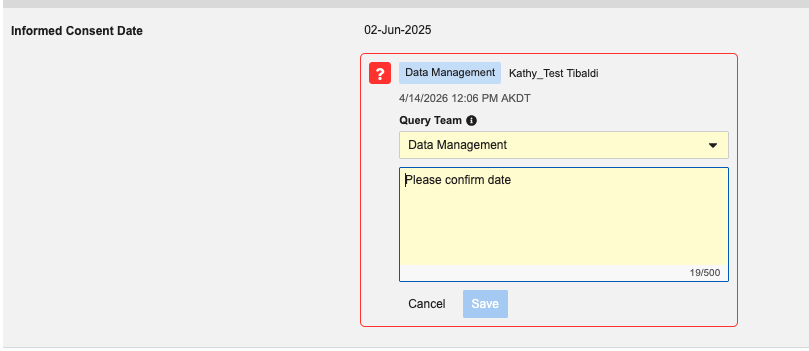
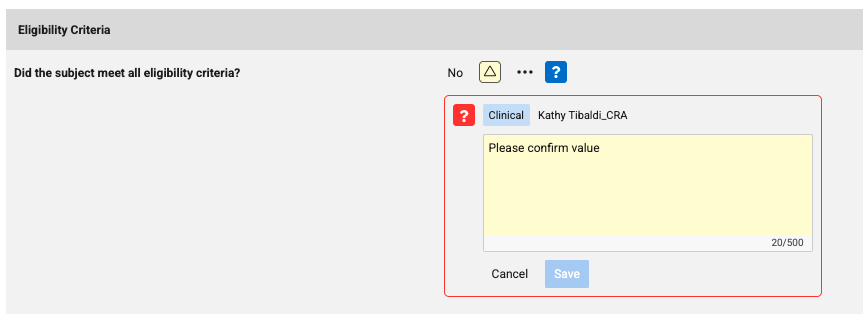
Veeva EDC now restricts multi-role users from editing the Query Team field once a query is active. While users can still select a team when first opening a query, they are no longer permitted to switch teams while editing the query message.
When editing an existing query, the system hides the Query Team dropdown menu to prevent changes and displays the assigned query team as a read-only badge for reference.
Prior to 26R2
After 26R2
If a query was originally assigned to the wrong team, the user should close that query and open a new one with the correct query team selected.
Enablement & Configuration
The update is automatically applied in studies where the Quick Queries feature is not currently in use.
Learn More
Rename Snapshots to Bulk Lock & Freeze 26R1.2
Use Case
Vault EDC now uses intuitive “Bulk Lock & Freeze” terminology to make the UI more consistent with the tool’s core functionality of managing data status changes through bulk actions. This update replaces the “Snapshots” labels throughout the application with “Bulk Lock & Freeze” or “Filter” wording. By standardizing labels across menus, buttons, and confirmation dialogs, the system provides a more cohesive experience.
Description
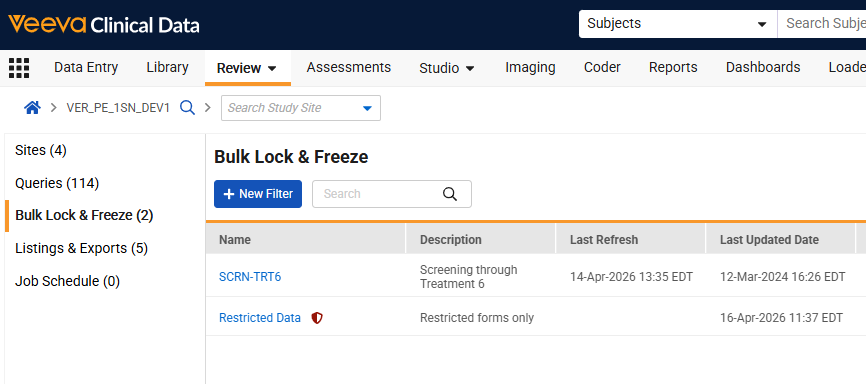
“Snapshot” labels seen within EDC are updated to “Bulk Lock & Freeze” to improve functional clarity. The update impacts labels seen within the Review tab, Role permissions, Email notifications, and Bulk Operation reports.
- The “Snapshots” subtab in the Review menu is renamed to “Bulk Lock & Freeze,” and the “+ New Snapshot” button is now “+ New Filter”.
- When defining a filter, the labels are updated as seen in the definitions and Ready States.
- Confirmation dialogs for deleting, saving, or refreshing results now use “filter” instead of “snapshot”. Error messages for concurrent jobs or limited site access are updated for consistency, including the following:
- This will run a job to evaluate the filter [FILTER_NAME]. Do you wish to continue?
- Unable to perform this action because the Refresh Results job is running for this filter
- Role permissions in System Tools are relabeled from “Manage Snapshots” and “View Snapshots” to “Manage Bulk Lock & Freeze” and “View Bulk Lock & Freeze”.
- Automated emails for Refresh Results and Bulk Operation jobs now reference the “filter” name.
- E.g., Your Refresh Results job for the filter [Filter Name] has finished processing, and the results can be viewed in the application.
- The Bulk Operation Report now uses “Filter Details” and “Filter Results Summary” for the sheet labels.
- EDC Tools - Job names are updated to reflect “View Bulk Lock & Freeze”
- Help documentation and the help page URLs are updated to “bulk-lock-freeze”.
Enablement & Configuration
This feature is automatically available for use.
Increase Character Limit for Observed Source Value 26R1.3
Use Case
Clinical Research Associates (CRAs) frequently need to record precise medical terminology directly from source documentation when managing queries. Extending the Observed Source Value field to accept a larger number of characters ensures longer medical terms are captured within quick queries. By accommodating longer Observed Source Value entries, this feature enhances operational efficiency during the query management process, and streamlines monitoring workflows.
Description
The character limit for the Observed Source Value field is increased from 25 to 100 characters. Should entries exceed 100 characters, the onscreen validation notifies CRAs that they have exceeded the Observed Source Value character limit.
This change also impacts the OBSSOURCEVAL field in the Study Data Extracts SYS_Q listing. The new length for the field is 100 characters and the SAS length is now 400 characters.
Enablement & Configuration
This feature is automatically enabled for studies using Quick Queries.
Increase Number of Columns in View Summary Grid 26R1.2
Use Case
In 25R3, the View Summary grid was limited to displaying only 16 columns. This meant that for longer repeating forms, such as Adverse Events or Concomitant Medications, review users couldn’t see all the data in a single view. This update allows review users to see all items on a repeating form directly within the system, eliminating the need to export data or view it form-by-form.
Description
The View Summary table has been updated to increase the number of columns, supporting viewing of up to 75 items on a single form.
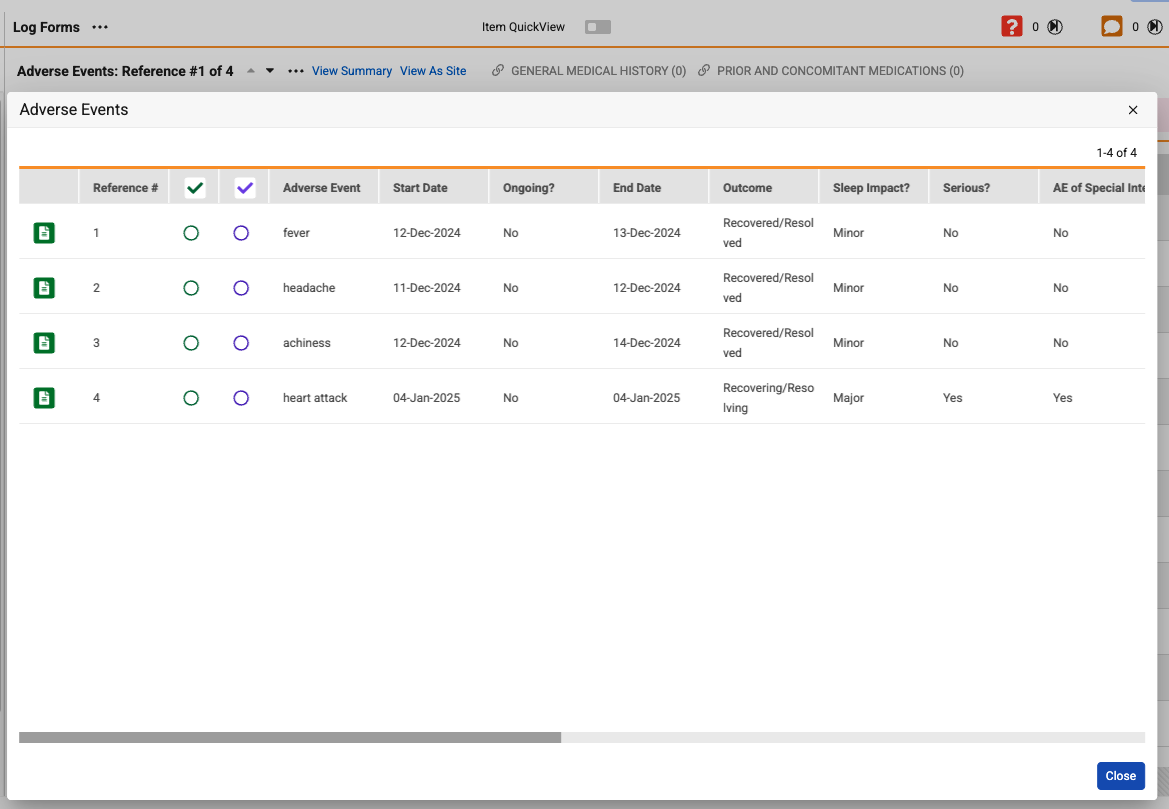
Any repeating item groups that exist on the repeating form are automatically expanded, with all items shown as columns. A grid icon displays on the item label in the column which displays the message “This is a repeating item group.” on hover-over.
Enablement & Configuration
This feature is automatically available.
Clinical Coding
The following are new features for Veeva Coder, the clinical coding area for Veeva Coder.
Resizing for Coder Columns 26R1.3
Use Case
During the manual coding process, users can encounter data that is cut off or wrapped to the point that it becomes difficult to read. This issue is especially common when dealing with long dictionary terms or complex substance names. This feature provides better visibility and a more comfortable reading experience by allowing users to manually adjust column widths, ensuring that coders can quickly verify and select the correct codes.
Description
This update introduces the ability to manually resize columns in the Verbatim grid as well as the Dictionary, Suggestions, and External Suggestions panels.
Users can now hover over the edge of a column header and drag it to expand or shrink the width. The system will remember and maintain these adjustments within the user session across different forms, provided they share the same dictionary type.
In addition to manual column width control, the following improvements have been made:
- If text needs to wrap because a column is too narrow, the system will only break lines between full words, when possible, rather than cutting off in the middle of a word.
- If a column is shrunk so much that the text can’t be displayed, an ellipsis (…) will appear to indicate that there is more to read.
- Several columns now have wider default settings to prevent text from wrapping immediately.
Enablement & Configuration
This feature is automatically enabled.
Include Form Name in Coder 26R1.3
Use Case
In study designs with multiple medical forms of the same type (with multiple Adverse Event or Concomitant Medication forms), identifying specific data entry sources can be challenging. Previously, the system only categorized these records by their general form types or custom labels for forms of type ‘Other’. This update allows users to distinguish medical forms by their exact, unique names as defined in the study design. This provides clearer context during data review and reporting, reducing confusion when managing complex clinical trials.
Description
- Coder Homepage Updates:
- The original ‘Form’ column is renamed to ‘Form Type’.
- A new ‘Form Name’ column is added next to the ‘Form Type’.
- The clickable hyperlink that opens the Code Request Grid is moved onto the value in the new ‘Form Name’ column.
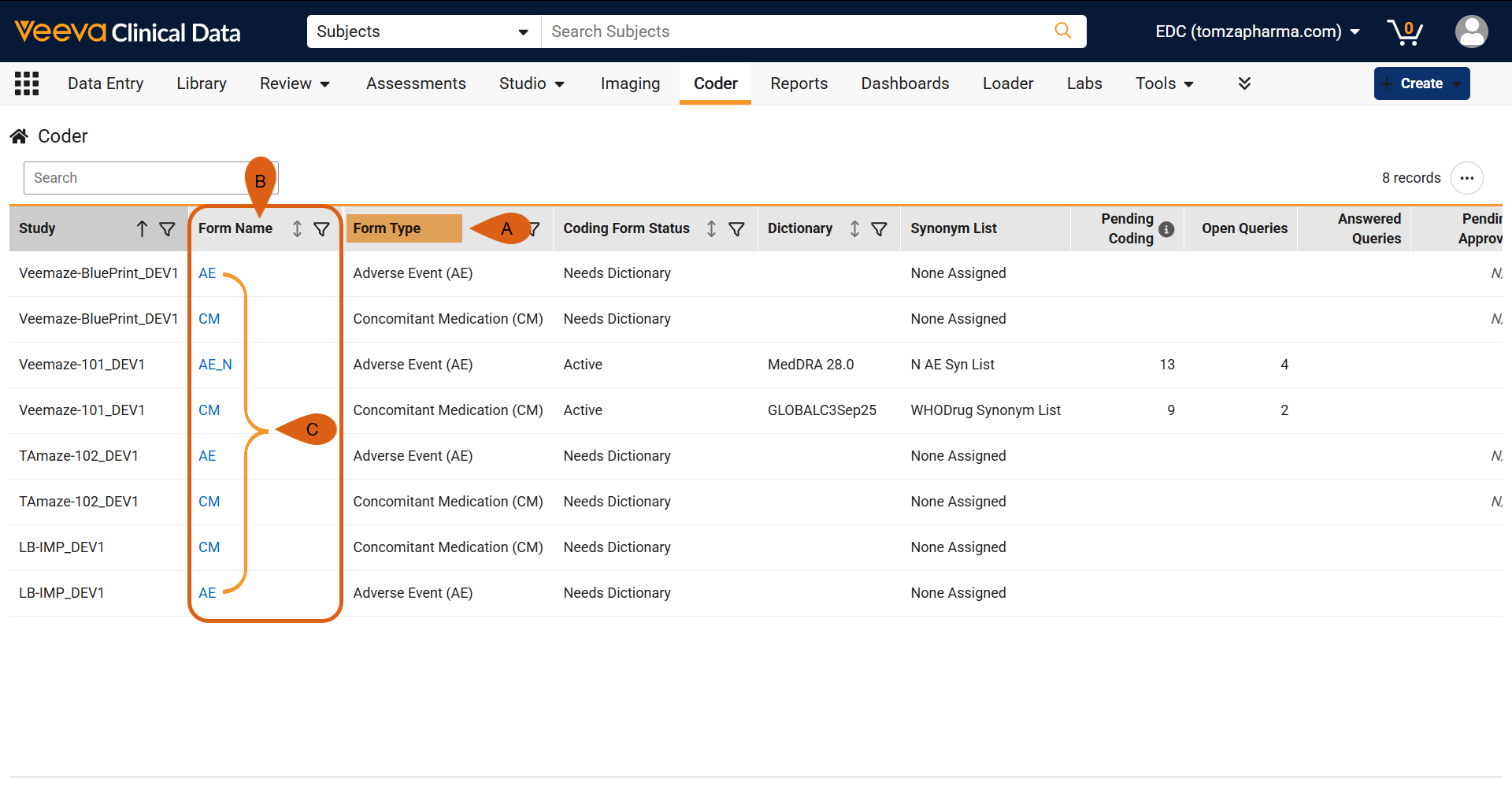
- Coder Panel Breadcrumbs: The breadcrumb menu within specific coding forms is updated to display the format: <Study Number> - <Form Name>.
-
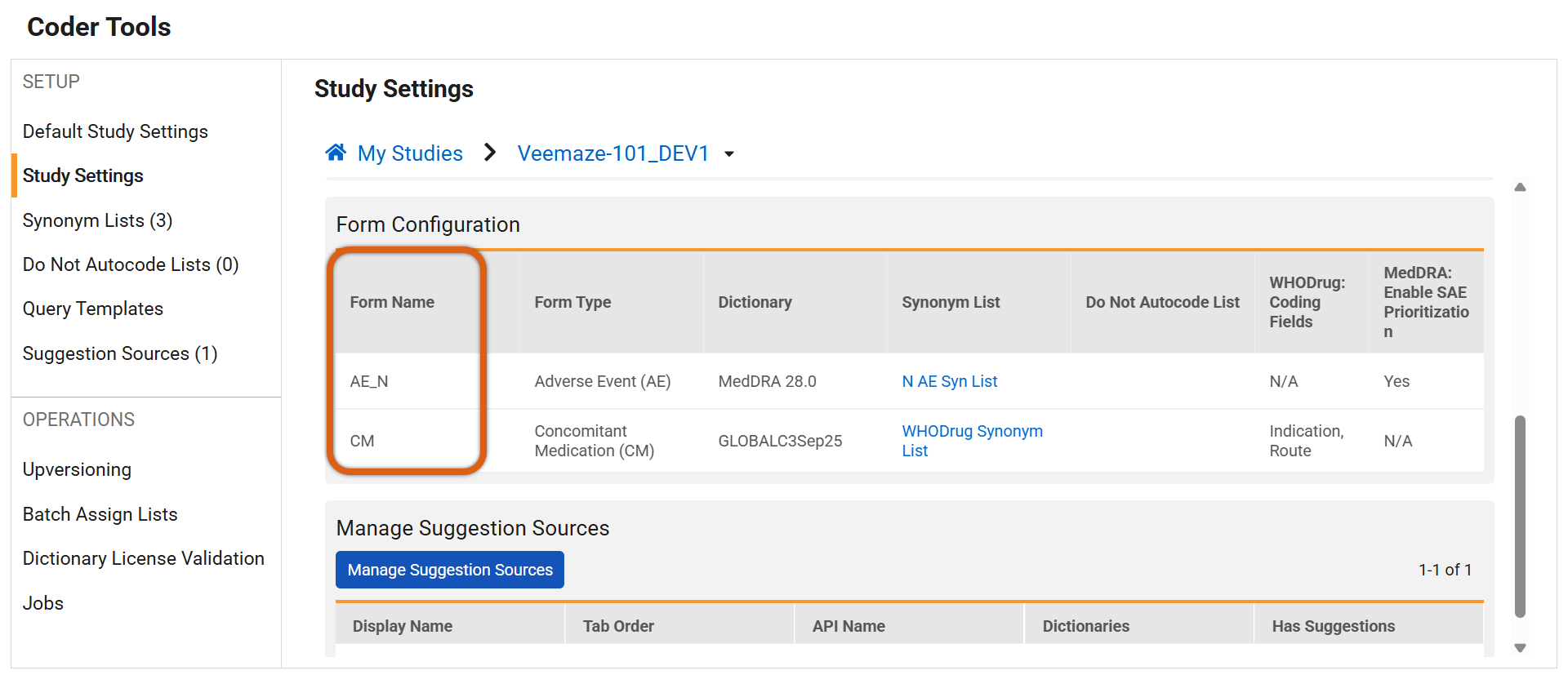
Study Setting Configurations: The Form Configuration grid in Coder Tools (for both Veeva Coder and Third-Party coding systems) now includes a dedicated ‘Form Name’ column before the ‘Form Type’. The new Form Name column is where the actions menu can be accessed.
- Edit Dialog Titles: When editing form configurations, the pop-up dialog title is updated from “Edit <Form Type>” to “Edit <Form Name>”.
- Grid Data Refreshes: Upversioning and Batch Assign Lists tab grids are updated so that the ‘Form’ filter is now labeled ‘Form Type’. Additionally, the Upversioning grid now includes a new ‘Form Name’ column to align with Batch Assign Lists functionality. In both grids, ‘Form Name’ columns pull from the actual form definition records and support header-click sorting.
Key reporting and system behavior updates include:
- Unique Terms Report: The column previously labeled ‘Form Name’ is changed to ‘Form Type’ to align with how record counts are calculated.
- Versioning Impact Report: The Summary Tab displays the actual Form Name value instead of the generic Form Type, and a new ‘Form’ column is added to the Impact Tab.
- Standard Coding Reports: * The WHODrug, MedDRA, and JDrug Coding Reports (V4) are updated to include a dedicated ‘Form Name’ column., Additionally, the existing column , which actually displayed form types and was formerly labeled “Form Name”, has been renamed to Form Type for improved clarity.
- Verbatim Grid URLs: Study Labels and Form Types are removed from the verbatim grid URL string, which now relies strictly on the Coding Form ID.
Enablement & Configuration
This feature is automatically enabled.
Imaging
The following are new features for Veeva EDC Imaging, the imaging exam module for Veeva EDC.
- Optimized Imaging Exam Viewing Performance
- Relocate Change Reason Selection to the Verification Dialog
Optimized Imaging Exam Viewing Performance 26R1.3
Use Case
Reviewing medical images requires a fast and reliable interface. However, large exam files can occasionally cause slow performance that hinders the assessment process. This update significantly improves the speed and responsiveness of the exam viewer by addressing delays that can occur when viewing large image slices, often the result of those images having multiple frames. Reducing wait times for image loading allows for more efficient navigation and review, boosting overall productivity and ensuring the integrity of data assessment.
Description
Performance has been improved through a background caching process. Upon the successful upload of an imaging exam, the system will automatically store a copy in a cache to optimize subsequent viewing.
Cached exams are automatically purged after 90 days from the initial upload to maintain system efficiency. If a user attempts to view an exam that has expired and is no longer in the cache, the system automatically retrieves the exam from primary storage and stores a new copy in the cache. When re-caching is required, the dialog below displays to inform the user that the exam is being processed.
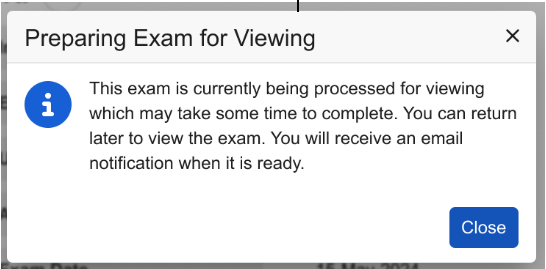
The user who triggered the re-caching will receive an email notification once the exam is ready for viewing.
Enablement & Configuration
This feature is automatically available for early adopters using Veeva EDC Imaging.
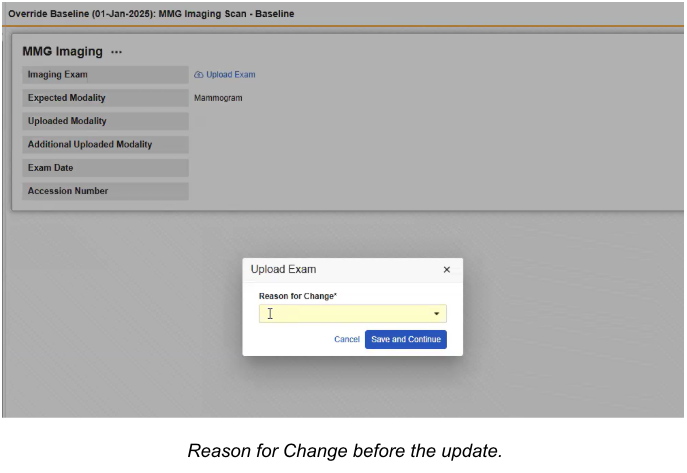
Relocate Change Reason Selection to the Verification Dialog 26R1.2
Use Case
When a user needs to upload a new exam to a form that has already been submitted, the system requires a documented reason for that change. Previously, this reason had to be provided in a standalone dialog box at the very beginning of the upload process. This created a fragmented workflow where the user had to stop and provide justification before starting the upload. Moving this requirement to the final verification step allows the data entry and upload process to flow continuously, only requiring the reason for change at the same time the user is already confirming the final submission.
Description
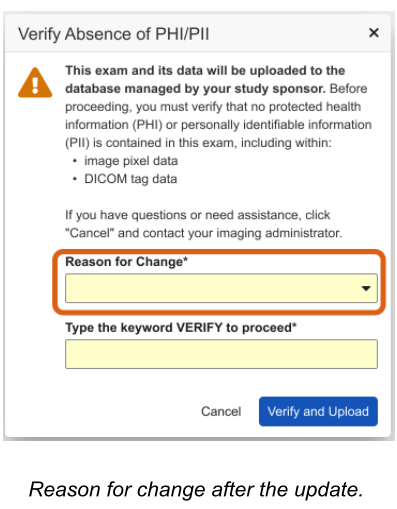
The updated workflow removes the “Reason for Change” dialog that formerly appeared immediately after a user selected the “Upload Exam” link for a submitted form. Instead, the selection of a change reason is now combined with the final verification step.
Once the image is ready for final submission, the Verification Dialog appears, now featuring a required Reason for Change dropdown menu. The dropdown contains all active change reasons defined for the study, and if enabled by the study settings, an “Other (please specify)” option will trigger a text area for custom comments.
To further streamline the process, the system now defaults to the last reason selected by the user or the reason provided during the initial form edit.
Enablement & Configuration
This update is automatically available for early adopters using Veeva EDC Imaging.
Reports & Dashboards
The following are new features for reports and dashboards in Veeva Clinical Data.
Standard Report: VeevaID User Email Address Changes 26R1.3
Use Case
Site users are able to update the email address associated with their VeevaID. A new standard report type provides sponsors with a direct way to identify recent updates made by their site users so that they can update their internal records as needed.
Description
This standard report is designed to identify VeevaID users whose email address was modified during their most recent VeevaID profile update. The report compares a user’s current Person record against their previous record (Prior Person) to detect differences in the email field.
The report contains the Name, Username, Email Address, Timezone, Locale, Language, and User Status fields for the current Person record as well as the most recent “Prior Person” record.
A user will only appear on this report if the email change was the most recent update made to their profile. If other changes, such as a timezone or language update, are made after the email change, the user will no longer appear in this specific report view. To ensure you don’t miss any updates, we recommend creating a copy of the standard report and scheduling this as a “flash report” so you receive timely notifications before further profile changes occur.
Enablement & Configuration
This report is automatically available to Vault Owners to share or schedule as a flash report.
Assessments
The following are new features for the Assessments area of Veeva EDC.
Assessments Support File Attachments 26R1.2
Use Case
Assessors can complete records more efficiently by accessing and downloading file attachments directly within the Assessments tab. Reviewing file attachments along with other assessment data in a single location maintains continuity in the assessment workflow and ensures supporting study data is available when completing assessments.
Description
The Assessments UI now supports file attachments, allowing study builders to configure file attachment items as visible fields within Assessments. When configured, these items appear in the assessment supplemental data section as non-clickable text showing the de-identified file name, rather than a direct link. To access the file, a new action menu (three-dot icon) is available next to each file item, containing an option to download the file.
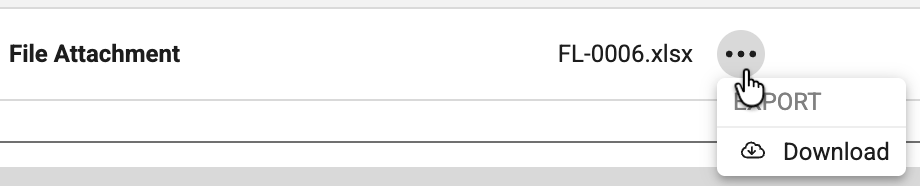
The de-identified file name and extension will be seen within the assessment. For study designs which have the file attachment item included in the reassessment configurations, a Site user replacing or deleting an existing file attachment in Data Entry will trigger a reassessment. If a file attachment is removed from the form, the de-identified file name in the obsolete assessment snapshot shows a hover message stating “File does not exist” and the download option is disabled.

Enablement & Configuration
This feature is automatically available for configuration in Studio.
Study Design & Configuration
Features in this area apply to Studio, the study design and configuration area for Veeva EDC.
- Veeva AI: Study Build QC Agent
- Support Repeating Item Groups on Procedures
- Append Item Names to Coding Form Configuration in Studio
- Studio: Restore Dynamic Definitions
- Direct Link to Form in Email Notifications
- Referencing Item ILB Reason in Rules
Veeva AI: Study Build QC Agent 26R1.4
Use Case
Verify your study build using Veeva AI’s Study Build QC Agent to quickly check for mistakes and correct them before deployments, speeding up and reducing testing efforts for more obvious configuration errors.
Description
When executing a Study Grade Job, an “Include AI QC Report” checkbox is available within the user interface to initiate automated analysis of the study build configurations alongside the current Study Grade evaluations. Selecting the checkbox prompts the Study Build QC Agent to verify the study configurations against a series of distinct quality checks including specific recommended design practices. The agent evaluates the build for form layout, item properties, label naming consistency, future date settings, required checks, repeating form and item group settings, codelist configurations and spelling mistakes. The full list of QC checks can be referenced in CDMS Help.
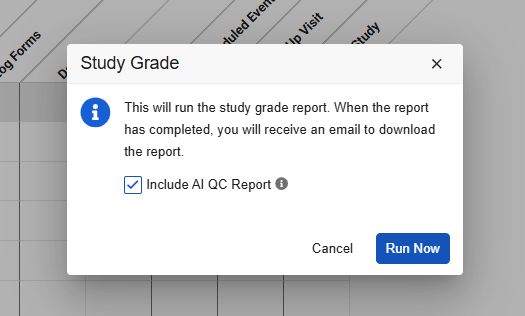
Once the Study Build QC Agent completes the verification, the results are attached to the corresponding Study Grade record. The standard roles with access to the Study Grade tab are able to view the AI QC Report:
- CDMS Super User
- CDMS User Administrator
- CDMS API Read Write
- CDMS Auditor Read Only
- CDMS LIbrarian
- CDMS Study Designer
- CDMS Study Designer Read Only
Enablement & Configuration
This feature is available for use with Veeva AI Agreement. Contact Veeva Support to request this feature for your vaults.
Support Repeating Item Groups on Procedures 26R1.4
Use Case
Studio procedures now support repeating item group configurations for payable activities sent to CTMS. A new UI provides a more user-friendly interface, clearer selections, and new options to define unique payable activities with more precision. This ensures streamlined and accurate payment record creation in CTMS. Updated labels and onscreen validations also help designers avoid misconfigurations.
Description
The former Procedures page in Studio, Integration Configuration, is relabeled as Payable Activities. The listing page is updated to Payable Activity Configuration, and the button label is New Payable Activity Definition.
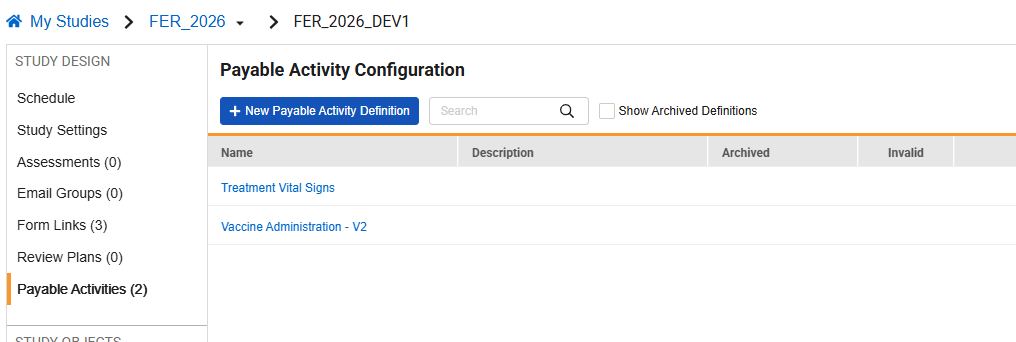
A new configuration page replaces the legacy integration setup and now includes options to define payment activities for data in repeating item groups. Dynamic selections and onscreen validations help ensure valid Procedure records by appropriately enabling and disabling sections. Procedure records can also be created at the event level.
Additionally, users can now create a copy of a Payable Activity Definition from an existing definition within the study. Vault automatically includes the Payable Activity Definition when copying event groups, events, or forms when applicable.
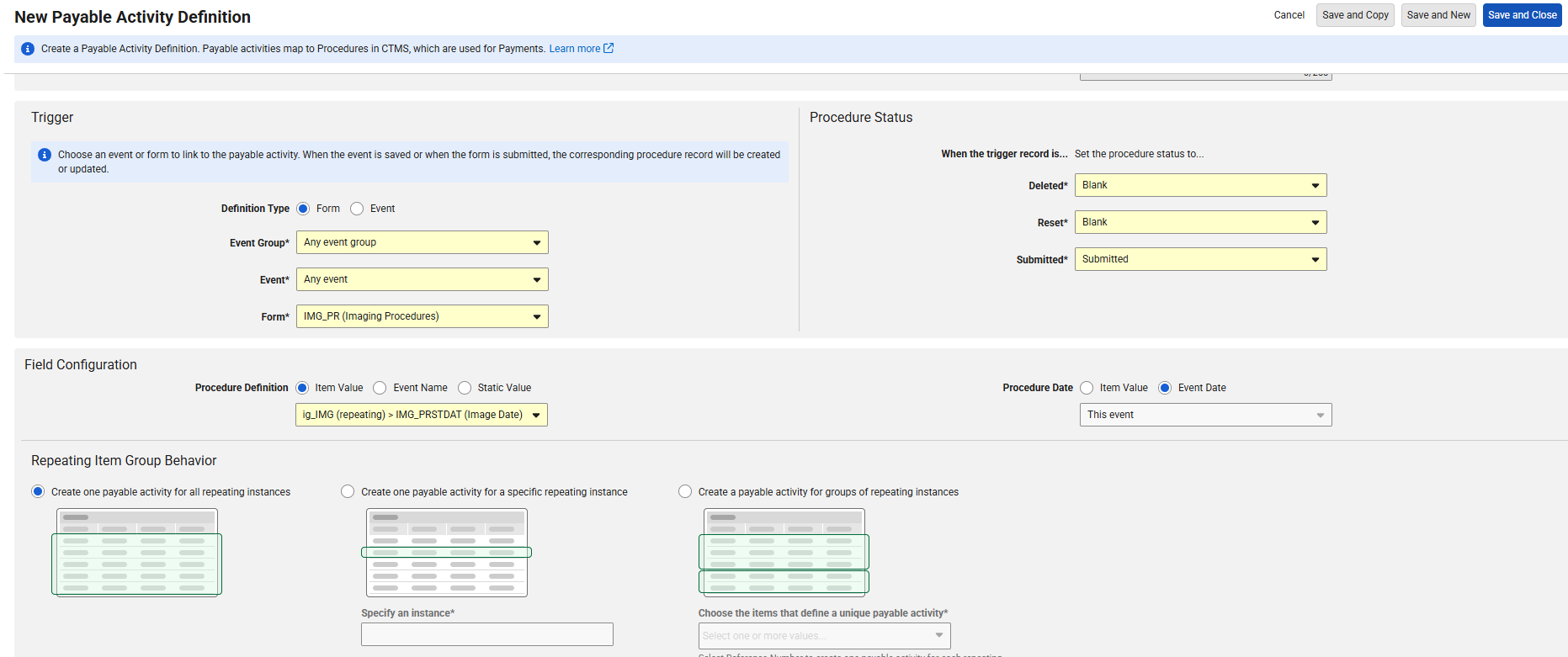
When configuring a Payable Activity triggered at the form level, items from a repeating item group on the triggering form can now be mapped to Procedure fields. When selecting an item from a repeating item group for the Procedure Definition or Procedure Date, a new Repeating Item Group Behavior section appears, providing the designer several options to define how the repeating data will be mapped to Procedure records:
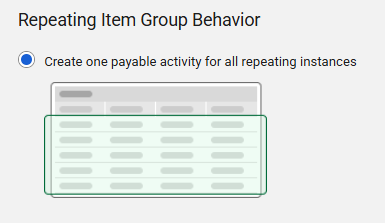
- Create one payable activity for all repeating instances: Maps once per form to generate a single Procedure record containing values from the first instance of the repeating item group.
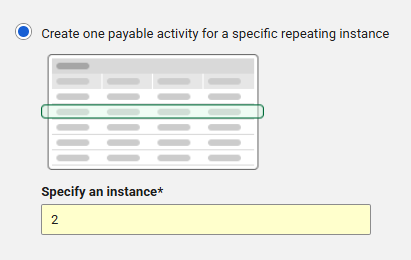
- Create one payable activity for a specific repeating instance: Generates a single Procedure record for the specified sequence number of the repeating item group. Validations ensure the sequence number specified is between 1 and the group’s repeat max value.
- Create one payable activity for groups of repeating instances: Groups entries based on unique combinations of the selected item(s) in the repeating item group. Generates a Procedure record for each set of unique values.
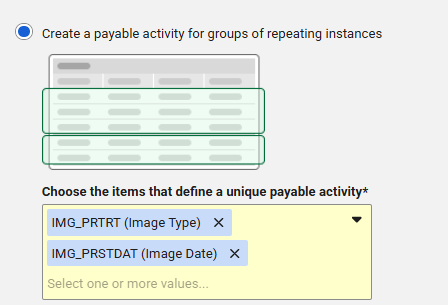
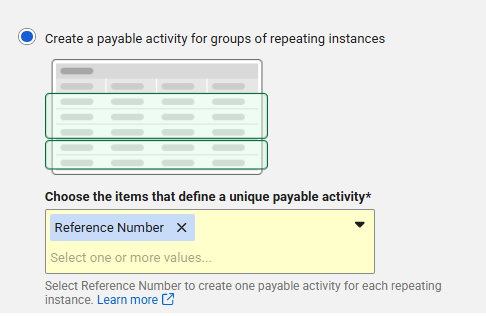
To create one payable activity for each repeating instance, select Reference Number from the list to map each individual item group sequence (each row in the repeating item group) as a separate Procedure record.
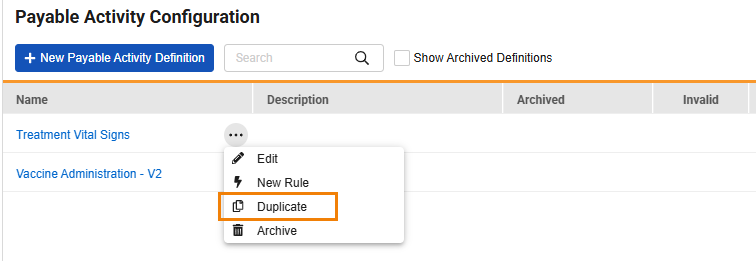
To ease configuration when creating multiple payable activities, the Save and Copy and Save and New buttons are included next to the Save and Close button when editing the definition. When viewing the list of configured Payable Activity Definitions, a new menu selection, Duplicate, is available to copy the configuration.
Rule Configuration
Within the Actions area of the user-defined rules, the Create Integration Record option is now updated to Create Payable Activity when configuring rules that trigger the payment activities.
Documentation
In the Study Design Specifications, the Integrations tab is relabeled to Payable Activities and includes new and updated columns to support the new configuration options. The Studio Comparison (Diff) reports also reflect the updates.
Enablement & Configuration
This feature is Auto-On for studies created after the 26R2 release. For studies created prior to the 26R2 release, reach out to Veeva Support or your Services Consultant for feature enablement.
Learn More
Append Item Names to Coding Form Configuration in Studio 26R1.3
Use Case
Configuring forms for medical coding requires precision to prevent data mapping errors during study design. This feature displays unique item names alongside standard item labels so that study designers can differentiate between items that share identical labels, such as user-entered versus derived fields. This enhancement effectively removes any potential configuration ambiguity, significantly reduces the risk of deploying incorrect mappings to production environments, and streamlines the overall study design validation process.
Description
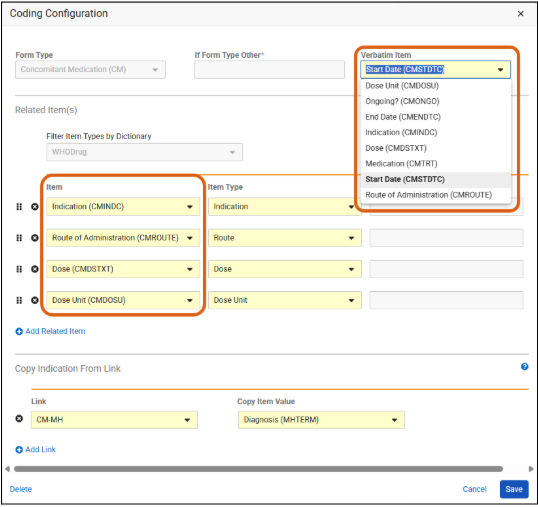
This feature updates the medical coding configuration of forms in Studio to display both the item label and its unique system item name in the following standardized format across several areas of the system: < Item Label> (< Item Name>).
This update is reflected in the following:
-
Studio Coding Configuration Dialog: Both the Verbatim Item dropdown and any related Item dropdowns will use this naming format.
-
Study Design Specification (SDS): The Medical Coding Items tab features three new columns: Form Name, Item Name, and Related Item Name.
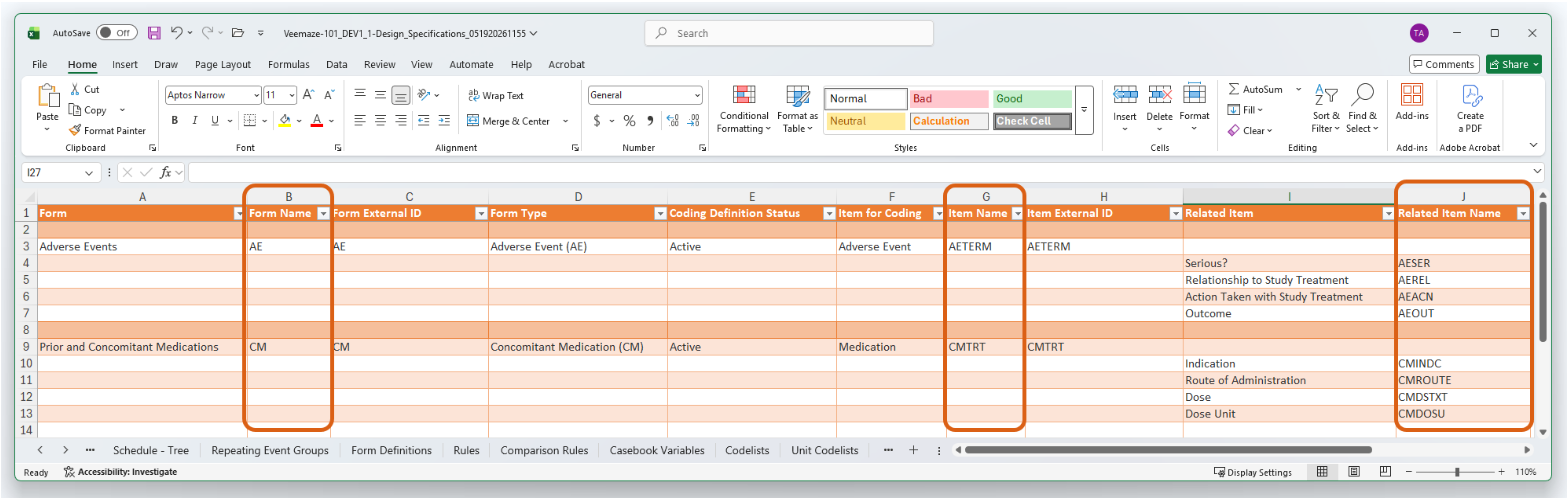
-
Difference (Diff) Reports: The Coding Configuration tab displays the new combined format for the Form, Verbatim Item, and Related Item columns, making it easier to compare changes between two study versions. This update also applies to the study comparison columns where specific values for two studies are being compared. If the value in the Field column is Verbatim Item or Related Item, then the comparison column for each study will display in the new format.
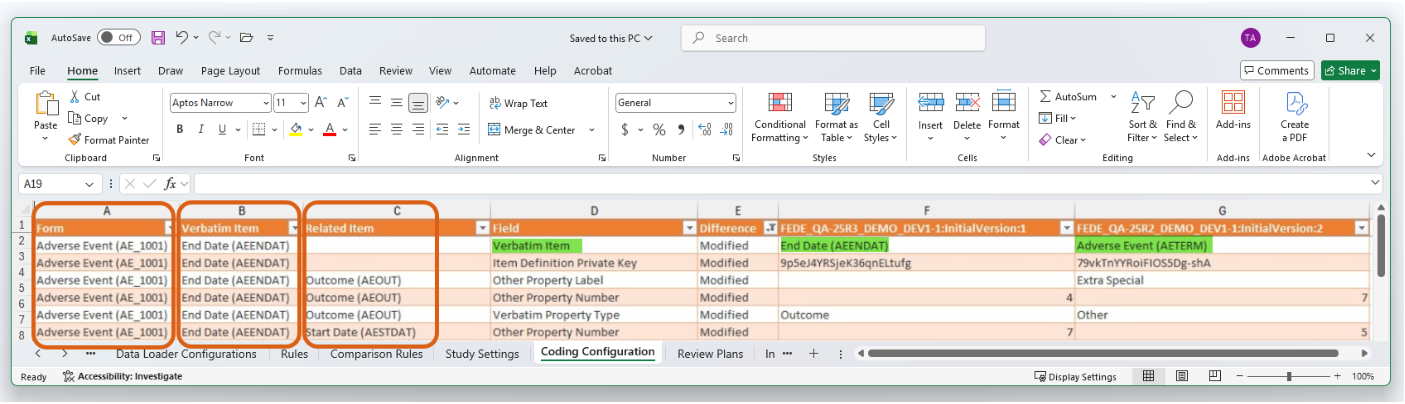
Enablement & Configuration
This feature is automatically enabled.
Studio: Restore Dynamic Definitions 26R1.2
Use Case
Study Designers can now re-add accidentally removed dynamic designs, such as dynamic Forms or Events back to the study design in Studio without receiving an error and having to contact Veeva Support. Study Designers can also restore previously deployed dynamic definitions across casebook versions, eliminating delays and ensuring design continuity.
Description
Studio now allows designers to re-add deleted dynamic definitions for dynamic Forms, Events and Event Groups. The system automatically retrieves and applies the previous dynamic property settings when recreating the relationships between study objects. Users can restore relationships via the drag and drop editor or the Schedule view.
For example, if a user accidentally deletes a dynamic Form from an Event in Casebook version 2 that was deployed in version 1, adding that Form back now automatically restores its dynamic property from version 1 instead of triggering a system error.
Enablement & Configuration
This feature is automatically available in Studio.
Learn More
Direct Link to Form in Email Notifications 26R1.2
Use Case
Form links in Send Email rules allow recipients to navigate directly from the email to a specific record within the participant’s casebook. By including form links within the email messages, recipients no longer need to manually navigate to the record in EDC. They can quickly and easily access the exact data which is referenced in the email. This helps reduce navigation time in EDC and facilitates faster reviews of the clinical data.
Description
Study designers can include a new token, ${Custom.@Form.url__v}, within the Email Message field of Send Email rule actions. The token provides a direct link to the specific form instance for the data received in the email. The new static token is available in the email rule action picklist.
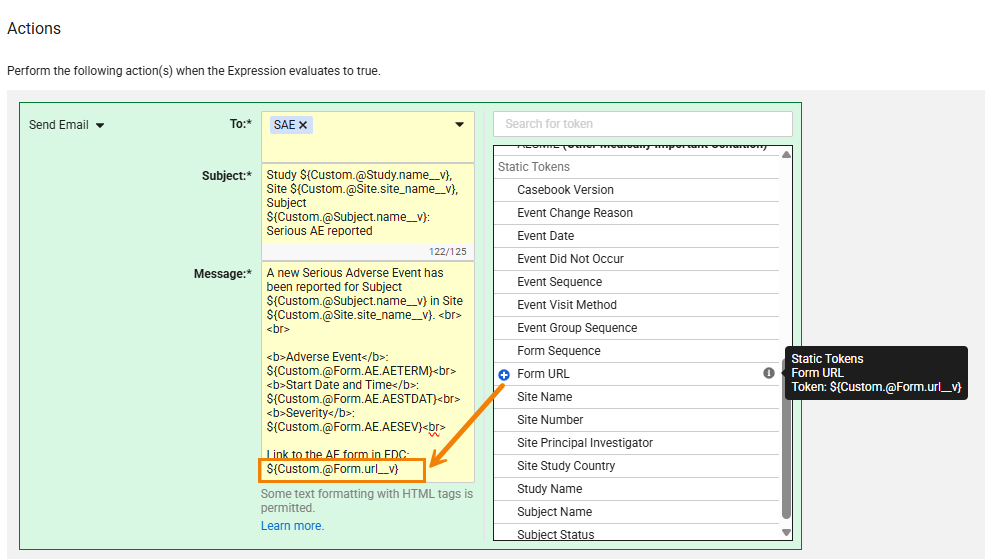
Upon clicking the link from the email, the system automatically directs the user to either the Review or Data Entry tab based on their permissions. If a user has access to both, the system defaults to the Review tab. If the email recipient doesn’t have permission to access the record, Vault directs them to a “Page Not Found” screen.
Enablement & Configuration
This feature is automatically available in Studio.
Learn More
Referencing Item ILB Reason in Rules 26R1.2
Use Case
Study designers can now reference Intentionally Left Blank Reasons (ILB) directly within rule expressions. By evaluating specific ILB reasons via rule expressions, EDC can automatically open queries or log protocol deviations, ensuring higher data quality and protocol compliance.
Description
The intentionally_left_blank_reason__v attribute is now available via the auto-complete dropdown in the Rule Editor when referencing an item identifier. Rule expressions can now include this attribute to return the specific reason an item was marked blank, such as “Not Done” or “Did Not Occur”. Rule identifiers can also include intentionally_left_blank_reason__v for lab analytes to return the Reason for Missing Result.
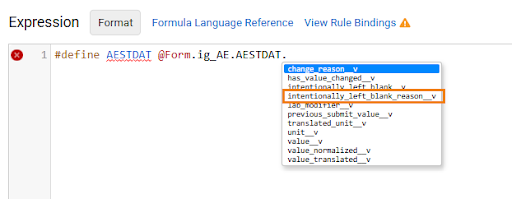
Enablement & Configuration
This attribute is available for use in rule expressions in Studio.
Learn More
Study Administration
Features in this section apply to System Tools or EDC Tools, a study-level administration area for Veeva EDC.
- Process Update for Destructive Study Amendment Changes
- Dynamic Site Enrollment Quota
- Prospective Review Plan Assignment
- Retire Legacy Data Export Job
- SDE–SAS Logging Improvement
- Display Study Lock Data
- Enable Person_SYS (Just in Time VeevaID Registration and PI Management) for all Vaults
- Principal Investigator Phone Number
- Site Management Updates for Clinical Operations - EDC Connected Studies
- Terminate Long-running Rules
- New Permission - Edit RTSM Domain
- FTP UI Validation Enhancements
- SDE Lab Analyte Name and Label Consistency
Process Update for Destructive Study Amendment Changes 26R1.4
Use Case
For several years, Veeva has provided reviews of destructive deployment changes to ensure no unintended data impact. Over time, our customers have demonstrated strong expertise in managing these changes independently. To help users move through amendments more quickly, we are moving to an opt-in model for amendment reviews.
Description
Beginning with the 26R2 release, Veeva will no longer require customers to obtain Veeva review and approval before deploying destructive study amendments. This update removes the vault-level block, giving sponsor teams greater flexibility and full control over deployment schedules.
To protect against unintended destructive changes, Vault Owners can continue to manage these controls via the study-level setting in Admin.
-
Recommended Practice: Keep the Disable Retro Amendment errors setting set to False to maintain standard protections.
-
Deploying Changes: Vault Owners can temporarily toggle this setting to True to complete a deployment after their team has verified the impact of the changes.
For teams that prefer additional review and support, the Veeva CDMS Services team is available to assist. This review can now be requested as an optional managed service by contacting your Services consultant.
Enablement & Configuration
This feature is automatically available with the 26R2 release. This updated process can be implemented in Pre-Release upon request.
Dynamic Site Enrollment Quota 26R1.3
Use Case
Managing subject enrollment across multiple clinical sites has previously required manual oversight within EDC. This feature eliminates that administrative burden by introducing automated, real-time enrollment caps at the site level to prevent over-enrollment and manage study budgets effectively.
Description
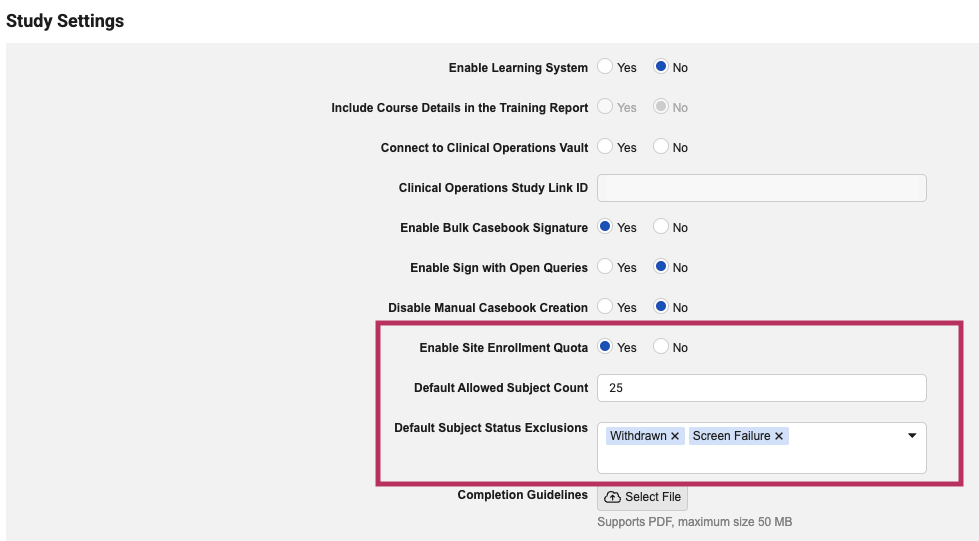
This feature allows study administrators to set clear enrollment ceilings for individual sites. When enabled for a study, Administrators can specify enrollment limits for each site on its respective Sites page, as well as identify specific subject statuses (such as “Screen Failure”) that should be excluded from the count.
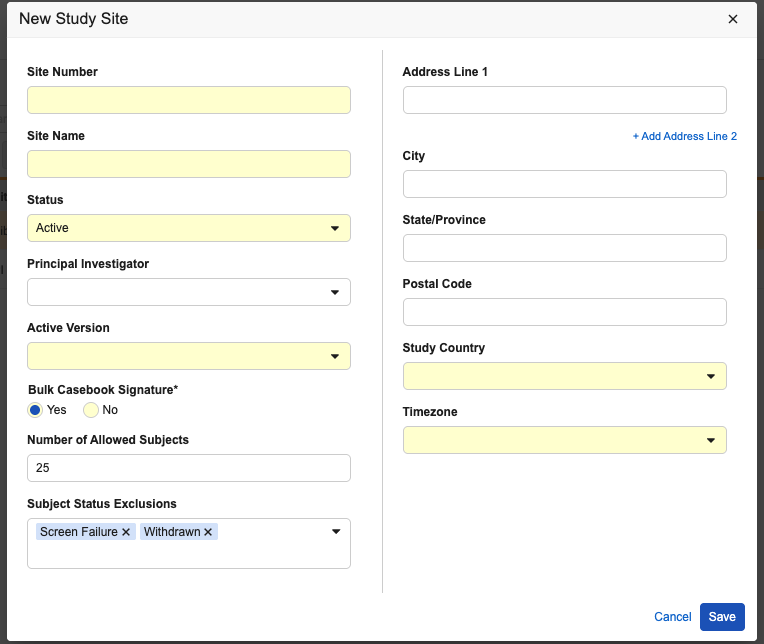
Once a site reaches its designated limit, the “+New Casebook” button is automatically disabled, and a pop-up message appears when hovering over it to explain that the site has reached its quota.
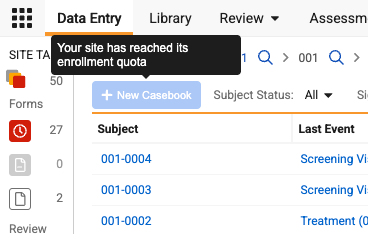
The feature can be enabled for the study in EDC Tools > Study Settings. To streamline site settings after enablement, administrators can optionally specify the Default Allowed Subject Count and *Default Subject Status Exclusions *that will apply as the initial values for any new site created on the study.
Enablement & Configuration
This feature is available for use after the release. A lead data manager must configure it in EDC Tools for the quota to apply.
Prospective Review Plan Assignment 26R1.4
Use Case
Currently, when a review plan for a subject is changed, such as when a site is escalated to a higher level of monitoring, the new requirements are applied to all data in the casebook, including visits that have already been completed and reviewed. This often forces monitors and data managers to revisit past data that was not previously required for review, creating unnecessary work. This feature provides the flexibility to choose whether a new review plan should apply to the entire casebook or only to data moving forward. This ensures that changes in review strategy do not disrupt previously finalized work.
Description
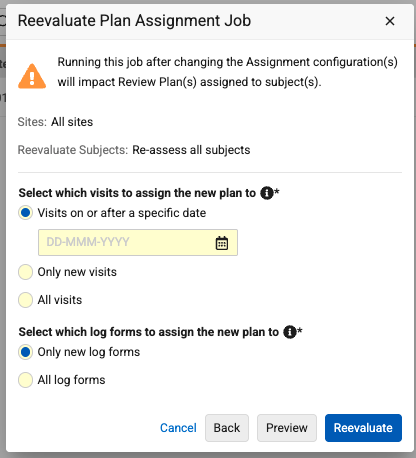
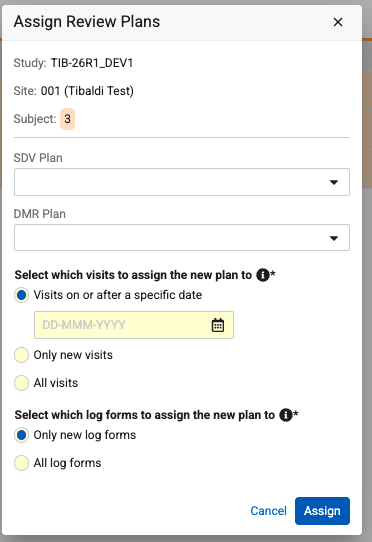
The Prospective Review Plan Assignment introduces more granular control over how review requirements are updated during the course of a study. When reevaluating review plans or manually assigning a new plan to a subject, users are now presented with specific options for how that plan should be applied to visits and log forms.
For visits, users can choose to apply the new plan to:
- All visits: Updates every visit in the subject’s casebook.
- Only new visits: Applies only to visits created after the update is performed.
- Visits on or after a specific date: Applies only to visits with an event date that matches or follows the selected date.
For log forms, users can similarly decide if the new requirements should apply only to new forms created moving forward or to all existing forms for that subject. If a log form has a review plan assigned to it via an Override Review Plan rule, the system will prioritize the override plan. The log form’s prospective assignment will automatically be updated to match the override plan to ensure reports do not show conflicting assignments.
To support these updates, the system now tracks review plan assignments at the event and form level. A review plan will always be assigned to an event. If the assignment is based on the event date and the event doesn’t have a date yet, the current review plan for the subject will be assigned to the event. Once the event date is entered, the assignment will be updated accordingly. Since log events do not have a date, the review plan assignment is at the form level for log forms.
Review Plan Assignment Job & Manual Plan Assignment
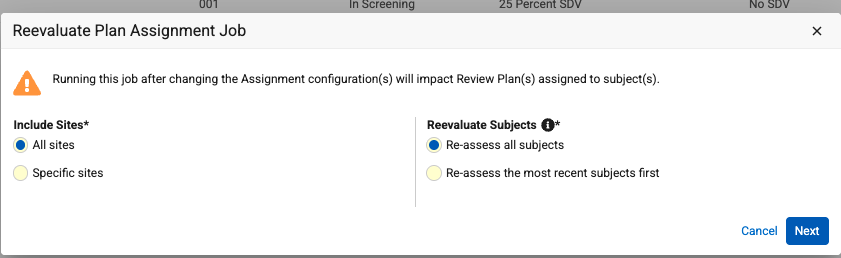
The Reevaluate Plan Assignment job now includes a multi-step workflow. In the first Reevaluate Plan Assignment Job dialog, the Preview button has been removed, and the Reevaluate button has been replaced with a Next button. Users must click Next to access the Preview option in a second dialog.
Impact to Listings & Extracts
To support this feature, the following updates have been made to listings and extracts:
- Event Progress Listing: Existing columns for SDV Plan and DMR Plan have been renamed to Subject SDV Plan and Subject DMR Plan. Two new columns, Event SDV Plan and Event DMR Plan, have been added to display the specific plans assigned at the event level.
- Form Progress Listing: Similar to the Event Listing, the existing SDV Plan and DMR Plan columns are relabeled to Subject SDV Plan and Subject DMR Plan. Four new columns have been added to track more specific assignments: Event SDV Plan, Event DMR Plan, Log Form SDV Plan, and Log Form DMR Plan.
- Study Data Extract (SDE): The 26R2 version of the SDE includes the following updates:
SYS_EVTnow includes SDVPLAN and DMRPLAN columns to display event-level SDV and DMR plan names.SYS_FORMnow includes SDVPLAN and DMRPLAN columns to display the specific Log Form SDV and DMR plan names.
Enablement & Configuration
This feature is automatically available in EDC Tools for studies using Review Plan Assignment version 2 or 3 and Review Rollup version 2.
Learn More
Retire Legacy Data Export Job 26R1.3
Use Case
To ensure a more stable, efficient, and modern platform, we are removing outdated system outputs and replacing them with faster, more reliable data export methods.
Description
We are retiring the legacy Data Export job. This job relies on outdated features and has been superseded by the Study Data Extract (SDE) job, which exports similar data more effectively using SAS. Access to the job has been removed from both the EDC Tools and Review tab UI.
Enablement & Configuration
This feature is automatically enabled.
SDE–SAS Logging Improvement 26R1.2
Use Case
Previously, when a Study Data Extract failed because of a minor data entry issue—such as a date with an invalid year—the job log would simply report a generic failure rather than identify the exact SAS error. This lack of detail meant clinical data managers and programmers often had to request technical assistance to identify the specific field or value causing the SAS error. This update provides immediate, specific feedback directly in the job log, allowing you to triage and correct data issues yourself. By identifying exactly which record is preventing the export, you can resolve the problem and re-run your extracts much faster.
Description
Veeva EDC now automatically identifies common data-related errors that cause SAS export failures and translates them into easy-to-read messages in your job log. Instead of seeing a broad translation error, the log will now list the specific item and the exact value that SAS could not process.
For example, if a field contains a date that the system cannot interpret, your log will display a message such as “Item (LBDTC) contains illegal data: (1000-12-10).”
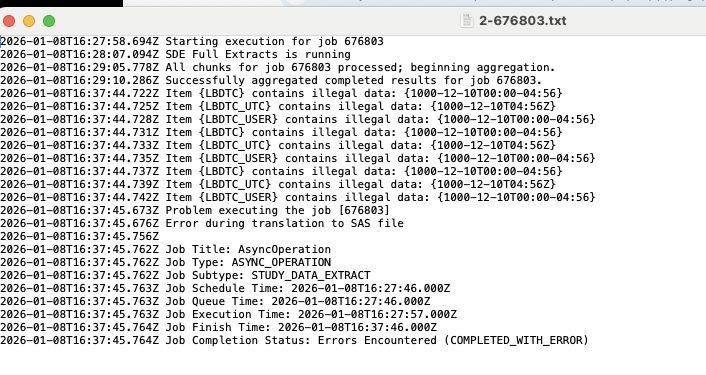
To ensure logs remain easy to navigate, the system will display up to 50 individual errors. If an export contains more than 50 errors, a warning appears stating that the list has been truncated, so you can fix the first batch before reviewing others.
Enablement & Configuration
This feature is automatically enabled.
Learn More
Display Study Lock Data 26R1.3
Use Case
Previously, when sponsors found that a study environment was locked, they could not easily see who performed the action or when it happened from within the user interface.
Description
This update introduces two new columns to the Study Instance grid within EDC Tools: Last Lock Date and Last Locked By. When a study data lock is initiated, the system automatically logs the exact date, time, and full name of the user responsible.

If a study has never been locked, these areas will remain blank. If a study is unlocked and locked again later, the system automatically updates the fields to always display the most recent lock details. For studies that have been locked prior to this release, the Last Lock Date column will be backfilled but the Last Locked By column will not.
Enablement & Configuration
This feature is automatically available. At the time of release, these fields will be automatically visible in the study instance grid and will include backfilled “Last Lock Date” information for any study that has been previously data locked.
Enable Person_SYS (Just in Time VeevaID Registration and PI Management) for all Vaults 26R1.4
Use Case
The rollout of Person_SYS for Just In Time VeevaID Registration and Centralized Principal Investigator Management will be completed for all remaining customer vaults.
Description
In 26R1, the use of the Person_SYS object was introduced to support Just In Time VeevaID Registration and Centralized Principal Investigator Management. Feature rollout was started in phases, and will be completed with the 26R2 release for all remaining customers.
Once enabled:
- The creation of Principal Investigator records is completely separate from User Records. The option to ‘Add as PI’ will no longer be available.
- The Principal Investigators sub tab will be added to System Tools, and all existing PI records will be visible there.
- The CDMS API Retrieve Users endpoint will no longer return Vault Owners.
Review 26R1 Release Notes for Just in Time VeevaID Registration and Centralized Principal Investigator Management for complete details about these new features.
Contact your Veeva Services Representative if you’d like to enable these features prior to the 26R2 release in your EDC Vault.
Enablement & Configuration
This feature is automatically enabled for all remaining vaults as part of the 26R2 release.
Principal Investigator Phone Number 26R1.3
Use Case
Collecting phone numbers provides complete contact information for Principal Investigator / Primary Contact records, especially for transfer of Reporter Details in Safety Cases. Previously, this information could only be added to the record by a Vault Owner through Admin. Adding this information through the UI reduces time spent on repetitive administration.
Description
Study Administrators can now record complete contact information for Principal Investigator / Primary Contact records by adding a phone number directly in the UI. This new optional field is available when creating or editing investigator records within System Tools > Principal Investigators and EDC Tools > Sites, either manually or via import.
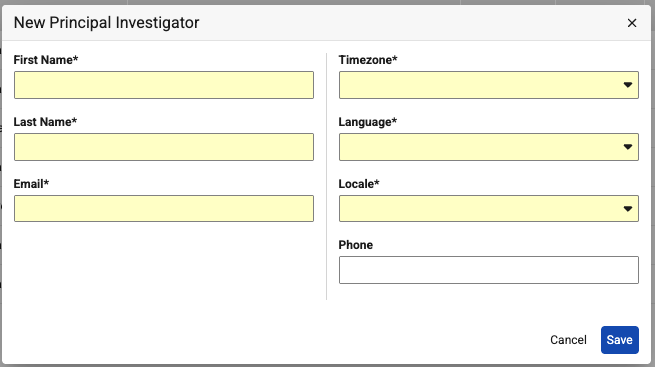
To support the collection of this information, a new column has been added to both import templates. The column must be present in the import file, but completion is not required.
Enablement & Configuration
This feature is automatically enabled for vaults enabled for Person_SYS (Centralized Principal Investigator Management), which will be done for all remaining vaults as part of the 26R2 release.
Site Management Updates for Clinical Operations - EDC Connected Studies 26R1.3
Use Case
This feature establishes Clinical Trial Management Systems (CTMS) as the definitive source of truth for all sites on connected studies. Preventing editing of key site details and restricting site creation or deletion from within EDC Tools ensures that synchronized data is never accidentally overwritten during system transfers.
Description
It is no longer possible to create or delete sites in EDC when a study is connected to Veeva CTMS. Additionally, key fields within the Edit Study Site dialog are now read-only to prevent manual updates: Site Number, Site Name, Status, and Timezone.
An informational banner stating “Site details are managed in CTMS and can only be edited there” will also be displayed at the top of the dialog.
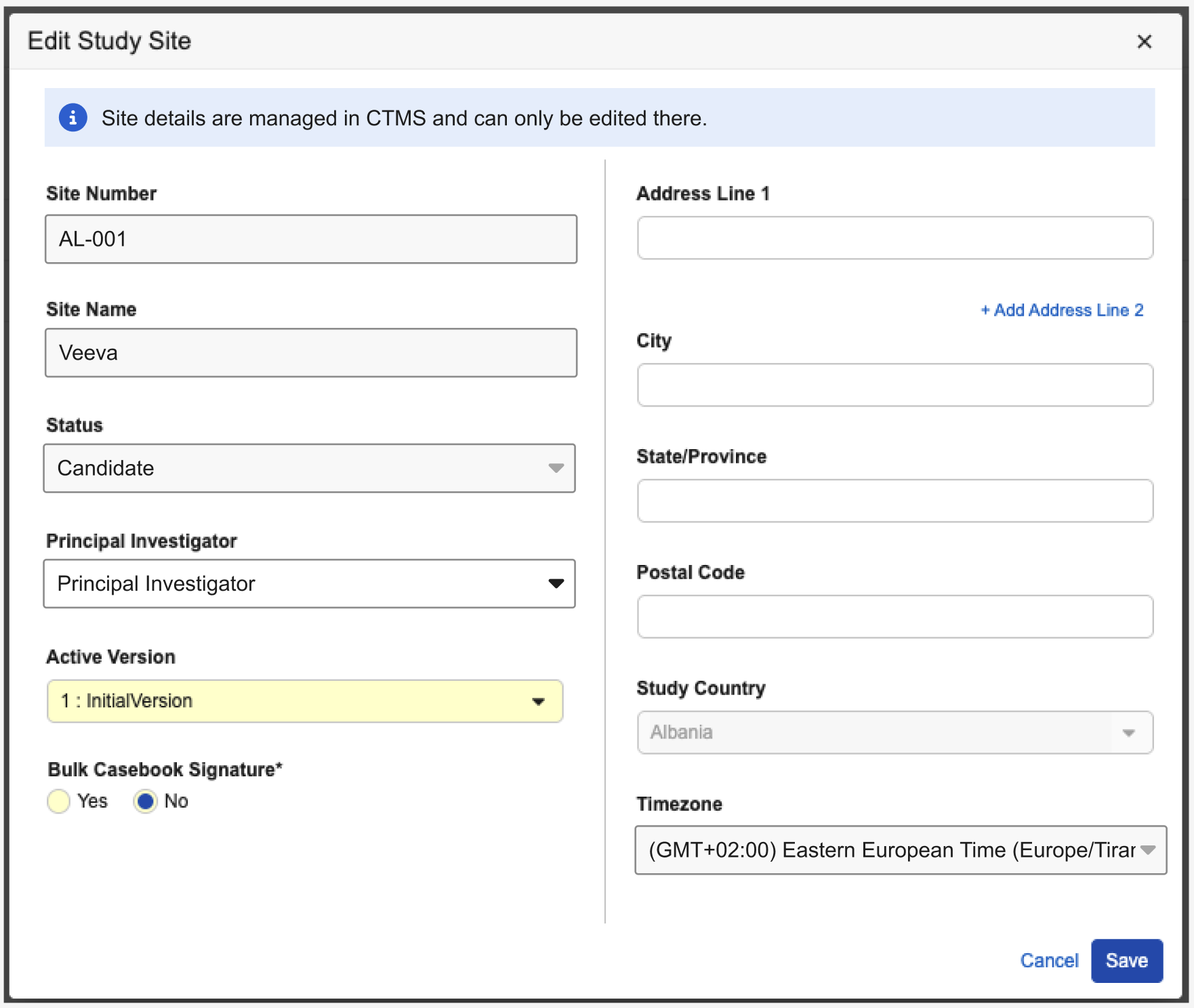
Note: Testing this feature requires an integrated environment with Veeva CTMS.
Enablement & Configuration
This update is automatically enabled for studies using the Clinical Operations - EDC Connection.
Terminate Long-running Rules 26R1.3
Use Case
An automated termination process for long running rules ensures performant form submission for site users and job executions for data managers. This helps ensure inefficient rules or rules with misconfigurations do not delay study conduct.
Description
Rules whose evaluation fragments exceed acceptable time limits will automatically be terminated, allowing form submissions and rule jobs to proceed with fewer delays. All terminated rule executions will be logged in the Rule Error Console (EDC Tools > Rules), and terminated rules that were executed by a Rule Job will also be logged in the Errors tab of the Rule Job output file.
This feature is applicable for rules containing @Form identifiers. Post-save rules, dynamic rules, and subject status rules, and rules running during a study migration from another EDC system into Veeva EDC will not be terminated.
Enablement & Configuration
This feature is auto-on.
New Permission - Edit RTSM Domain 26R1.3
Use Case
In 25R2, for studies using both Veeva EDC and Veeva RTSM, we introduced a link in Data Entry and Review so that users could directly navigate to the subject in Veeva RTSM. Enabling the link required access that was not included in any standard user roles. This release simplifies the feature by adding the necessary permissions to a standard role.
Description
To support the link between Veeva EDC and Veeva RTSM, this release adds a new Edit RTSM Domain permission to the Standard CDMS API Read Write role. This permission is for internal processes and is not intended to be used in any user-defined roles.
Enablement & Configuration
The updated permission is auto-on for the standard CDMS API Read Write role.
Learn More
FTP UI Validation Enhancements 26R1.2
Use Case
When configuring FTP connections for clinical studies, even a small typo in a hostname or username can lead to failed data deliveries. This feature introduces validation directly into the setup screens to catch common errors as they happen. Preventing incorrect configurations — such as using the wrong delivery method for external destinations — can save time for administrators and ensure that study data flows to the correct locations without interruption.
Description
This feature enhances the user interface for FTP connections in both EDC and System Tools by adding validation checks and more detailed reporting as detailed below.
- Protected Directories: To prevent conflicts with internal system folders, the system will now prevent users from using the “/workbench” directory in the destination path for non-DQS connections.
- Username Formatting: For Vault connections, the interface now validates that usernames follow the required
+ pattern.
Additionally, the FTP Configuration Report has been upgraded to help with troubleshooting. It now includes columns for Username and Destination Path and tracks the last modified details more accurately by capturing changes to the specific connection settings, such as port or path updates.
Enablement & Configuration
This feature is automatically available.
SDE Lab Analyte Name and Label Consistency 26R1.3
Use Case
Study Data Extracts now include consistent lab analyte columns to streamline data reconciliation and downstream programming. Statistical programmers can now easily merge clinical datasets containing local labs, SYS_ANALYTES, and SYS_ILB using identical columns for both Lab Analyte Name and Label.
Description
For any forms configured with a lab panel and local labs, the LABANALYTENAME (Analyte Name) column is added directly before the existing LBTEST column.
The LABANALYTELABEL (Analyte Label) column is introduced into the SYS_ILB dataset immediately after the LABANALYTENAME column.
Enablement & Configuration
This feature is available in the 26R2 SDE for studies utilizing Local Labs.
Learn More
Labs
Features in this section are new features for the Labs module of Veeva EDC.
- Ability to Upload Lab Normal Range Documentation
- Update System-Generated Pregnancy Codelist Item Spelling for Female Cycle Codelist
- Max Analytes per Lab Form/Panel Updated to 35
Ability to Upload Lab Normal Range Documentation 26R1.3
Use Case
Lab Data Managers can now upload copies of Lab Normal Range documentation in the Labs module, allowing users to quickly and efficiently verify entered data by checking the uploaded documentation file.
Description
This feature introduces a centralized management area for lab normal range source files through the new Lab Normal Range Documents tab, which is located in the Operations section of the Labs module. This tab displays all uploaded records and their corresponding information organized into the following columns: Lab ID, Associated Lab, Address, Document Name, Initiated By Study, Initiated By Site, Uploaded Date, and Uploaded By.
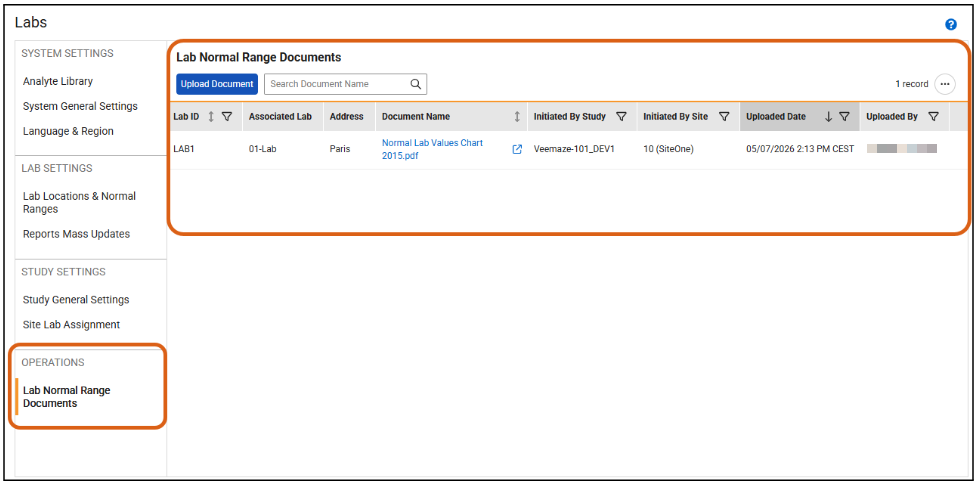
Authorized users can upload a single file in various supported formats, including PDF, MS Word, Excel, and CSV, with a maximum file size of 50 MB.
Users can associate the document with an existing lab location or create a new lab location during the upload process.
Users can also Lock documents to protect the integrity of the data. Locked documents will exist in a read-only state where the Edit and Delete actions are disabled until the document is unlocked.
Enablement & Configuration
Auto-on. Any User Defined Roles that need access to this feature must include the “Manage Lab Normal Documents” and “Lock Lab Normal Documents” permissions.
Update System-Generated Pregnancy Codelist Item Spelling for Female Cycle Codelist 26R1.3
Use Case
This update corrects a spelling error to ensure that lab data remains accurate. Previously, certain vaults contained a system-generated lab item where “Pregnancy” was misspelled as “Preganancy” in the Name field. This feature automatically fixes the spelling error without requiring manual intervention from administrative users.
Description
This feature is a fix that targets the Name field for the system-generated ‘Pregnancy’ lab codelist item. The change applies to any vaults created from the 25R2 version or later that contain this specific system-generated record.
Enablement & Configuration
This feature is automatically enabled.
Max Analytes per Lab Form/Panel Updated to 35 26R1.2
Use Case
Prior to this release, the default maximum number of analytes in a lab form and/or lab panel was limited to 25, which often required customers to submit ad hoc requests for manual increases. This update removes unnecessary hurdles and ensures sufficient capacity is available by default by increasing and standardizing this limit to 35.
Description
This update increases the default value for Max Number of Analytes in Lab Forms and/or Lab Panels from 25 to 35.
Enablement & Configuration
This feature is automatically available.
Veeva DQS
The following are new features for the Veeva DQS application.
- Metrics for KRI and QTL Tracking
- Smart Cross-Column Filtering for DQS and Clinical Reporting
- Audit Trail Record for Deleted Third Party Data Sources
- Automated Export Folder Creation
- DQS/Clinical Reporting: Display Blank for Non-existent Sequence Numbers
- Third-party Data Item-Level Blinding Across Blinded and Unblinded Forms
- DQS Analyte Library
- Automated Listings Decoration Refresh
- Subject Details Panel
- Sys Listings & Progress Listings in Workbench & Clinical Reporting
- Import Metrics for Third Party Source Packages
- Key Mapping by Event Group
- Manual Source Package Re-processing
Availability: Veeva DQS is only available to DQS license holders. Contact your Veeva Services representative for details.
Metrics for KRI and QTL Tracking 26R1.3
Use Case
DQS now empowers study teams to define, visualize, and monitor Key Risk Indicators (KRIs) and Quality Tolerance Limits (QTLs) directly within the application through Metrics. Centralized tracking of metrics enables organizations to identify data quality risks at the study, site, country, or subject level, and to proactively address potential issues before they impact trial integrity. Metrics make critical data trends visible, such as screen failure rates or patient withdrawal percentages, ensuring continuous risk oversight and data-driven decision-making across the study lifecycle.
Description
DQS Metrics introduces a new area in the DQS Workbench to manage risk indicators on a study-by-study basis.
The new Metrics page can be accessed via the drop-down next to a Study Name or from the Navigation Drawer.
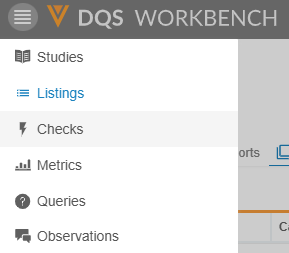
The Metrics page has two subtabs:
- Defined: Metric inputs have been fully defined, including formula, variables, thresholds
- Not Defined: Metric inputs are not complete, and only the Metric title/category/description are defined
Configuration
Users can create Metrics from existing Custom (Public) or Private Listings that are configured with the required metric variables. Upon saving the listing as a Metric, the Title, Category, Description, and Objective can be set and the Metric will be initially saved as Not Defined.
Note: Metrics can not be created from the Listings overview page, but must be saved from within the listing.
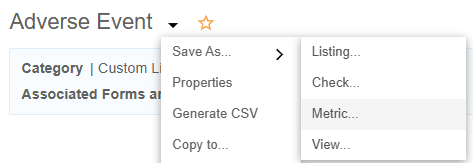
If the Metric input data contains blinded data at the form or column level, or if row-level blinding is applied, the entire Metric will be blinded.
In order to use a listing as a Metric, the listing CQL must have:
- At least one item in a “GROUP BY” statement
- At least one numeric/integer column
You can define a Metric by configuring its Metric Type, Level, Formula, variables, and threshold information:
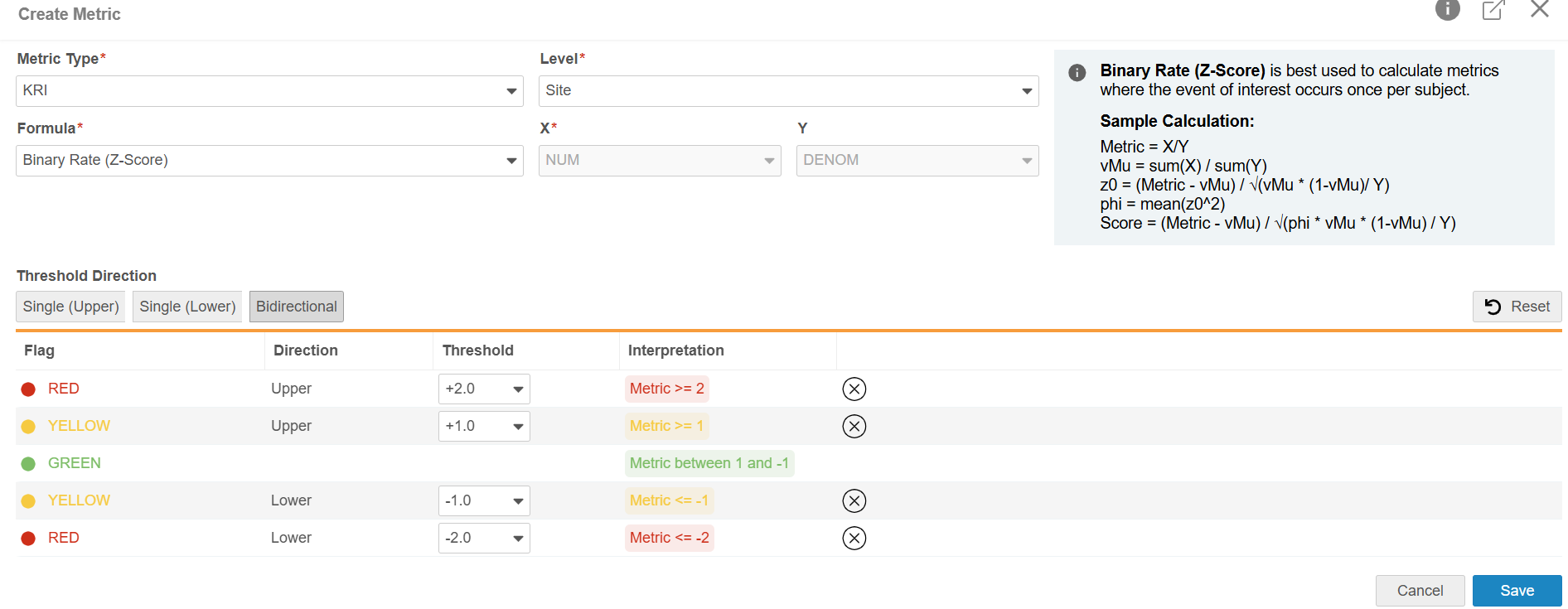
- Metric Type (informational only; does not influence the Metrics calculations):
- QTL
- KRI
- Formula:
- Value
- Percentage
- Binary Rate (Z-score)
- Non-Binary Rate (Z-score)
- Variables:
- X (Value)
- X and Y (Percentage, Binary Rate, Non-Binary Rate)
- Level (informational only; does not influence or change the grouping of the data):
- Study
- Site
- Country
- Subject
- Other
- Threshold Direction:
- Single (Upper) (this is the default)
- Single (Lower)
- Bidirectional
- Threshold Flag
- Red
- Yellow
- Green
At least one yellow or red threshold must be specified for each metric. The following Threshold combinations are available.
| Direction | Configurable Threshold Values | Interpretation |
|---|---|---|
| Single (Upper) |
1 Upper Red Value 1 Upper Yellow Value |
Metric ≥ Upper Value Green is derived as less than (<) lowest Threshold Value |
| Single (Lower) |
1 Lower Yellow Value 1 Lower Red Value |
Metric ≤ Lower Value Green is derived as greater than (>) highest Threshold Value |
| Bidirectional |
1 Upper Red Value 1 Upper Yellow Value 1 Lower Yellow Value 1 Lower Red Value |
Metric ≥ Upper Value Green is derived as greater than (>) highest Lower Threshold Value and less than (<) lowest Upper Threshold Value Metric ≤ Lower Value |
When you save the configuration the Metrics results table displays. For larger data sets, a refresh might be required once the calculation is finished.
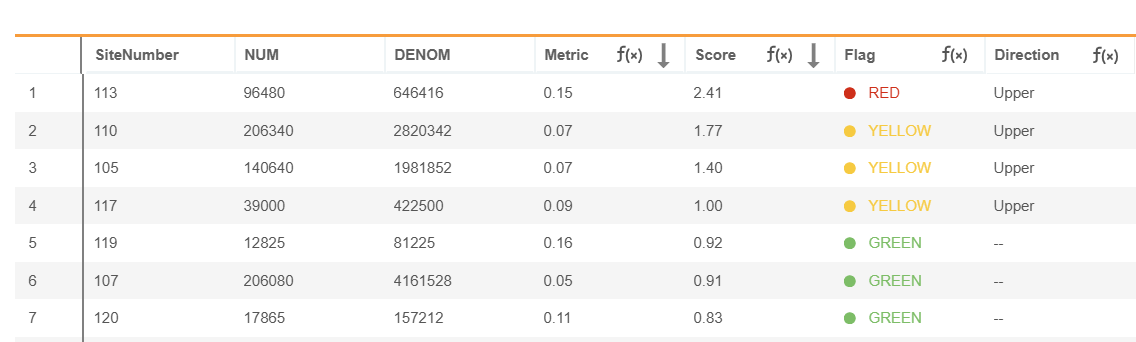
Visualization
From the metric results page, you can click the bar chart icon to visualize the metric.
Metric groupings are displayed on the X-axis.
The Y-axis plots the metric value by default for Value and Percentage formulas, or the score for Binary and Non-Binary Rate formulas. For Binary and Non-Binary Rate formulas, the Y-axis can be toggled between Score and Metric views.
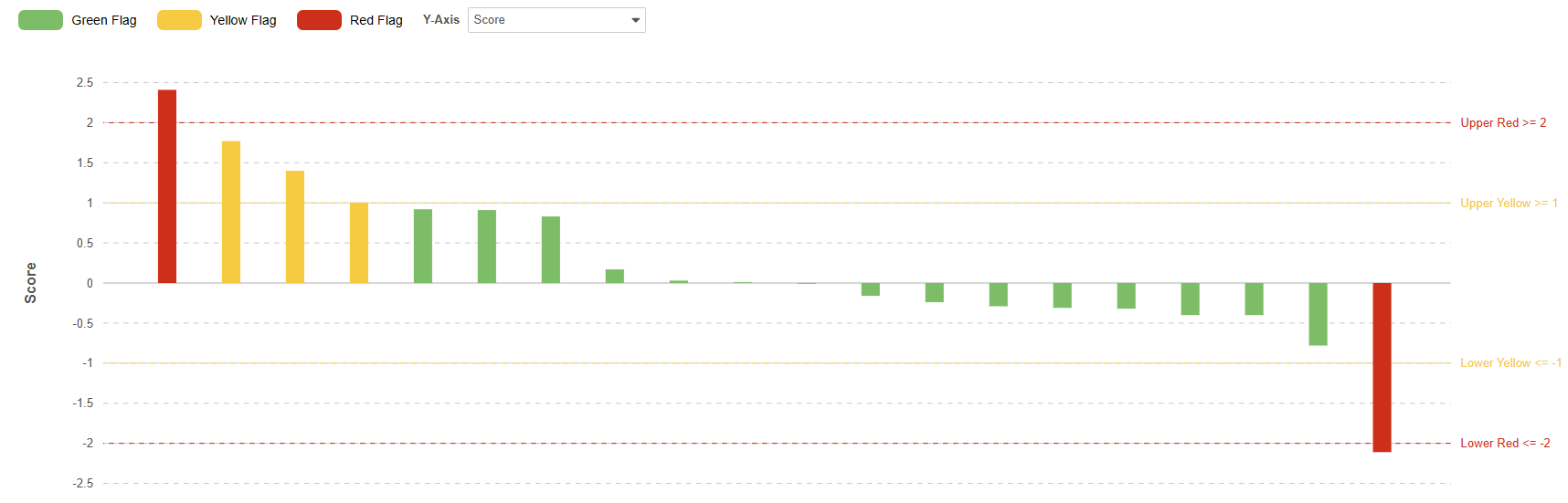
Visualizations are based on the current filtering and sorting of the metric. Metrics can be sorted and filtered by flag. A maximum of 200 groupings can be visualized. When the metric results exceed 200 groupings,; the bar chart icon is disabled.
Metrics don’t support actions on individual data points, such as raising queries, and they also do not display decorations for queries, protocol deviations, or observations.
A maximum of 50 metrics can be created per study. Metrics refresh daily in Production studies. In Test environments, a refresh can be manually triggered every 15 minutes or will be executed due to study design changes. Metric listings with a refresh runtime of more than 5 minutes will be disabled.
Both Defined and Not Defined Metrics can be approved and deployed, exported, as well as cloned to other studies.
As part of this feature, users can now refresh review listings every 15 minutes in TST environments.
Permissions
Metrics utilizes the same permissions as Listings: View All Listings, Modify Listing, Create Listing, Delete Listing.
Metrics supports Listing Access Control for category based access, and a new “Metric” category has been made available for use.
Enablement & Configuration
This feature is available for use in DQS.
Smart Cross-Column Filtering for DQS and Clinical Reporting 26R1.3
Use Case
Data Managers require real-time, multi-variable filtering to efficiently review and identify data discrepancies and resolve query-ready issues. Previously, more complex cross-referencing across multiple columns often required exporting listings to offline spreadsheets, desynchronizing the review workflow. This release introduces enhanced cross-column filtering. Smart Cross-Column Filtering is more intuitive, efficient and context-aware, empowering DQS and Clinical Reporting users to clean data more efficiently.
Description
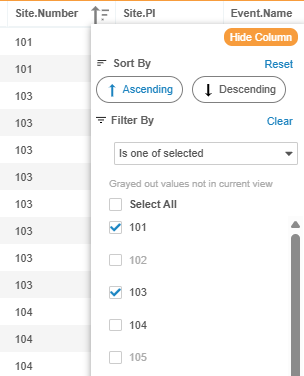
“Is one of selected” is now available for filtering on key header fields (Subject Status, Country, Site Number, Site Name), allowing users to quickly pare down large datasets to a manageable size.
Building on our existing codelist filters, column menus now interact dynamically. Values that yield zero results based on your active selections are instantly grayed out. This prevents zero-match filter combinations.
Filter selections persist (visually grayed out) even if other column filters reduce their match count to zero in the active data selection. This ensures the visual grid state remains in sync with the underlying CQL execution. Meanwhile, unselected free-text values with zero matches automatically vanish to keep menus clean.
The “Is one of selected” option is available for unstructured free text once a dataset is reduced below 1,000 records. This maintains system speed and ensures a continuously smooth review experience on large studies, while guiding users to quickly filter large listings using Global Header or Codelist filters first.
Enablement & Configuration
This feature is automatically enabled.
Audit Trail Record for Deleted Third Party Data Sources 26R1.3
Use Case
This feature offers a comprehensive audit history when a third party data source is removed to ensure full transparency and accountability for all data management activities, allowing organizations to verify intentional source removals and maintain a reliable audit trail for regulatory compliance.
Description
An audit log record will be now recorded when a third party data source is successfully deleted. The entry will include the study name, source name, name of the user that performed the action, and the DateTime timestamp in UTC upon successful execution. Recording the study and source name ensures traceability when the third-party data source has been removed. This feature also includes a new Log Type called Source Audits, which will be visible on the Audit Log page where the deleted sources can be found.
Enablement & Configuration
This feature is automatically enabled.
Automated Export Folder Creation 26R1.3
Use Case
Data Export jobs deliver result files to an FTP destination folder configured as FTP Connection in the EDC Tools tab. With this release, we ensure the seamless delivery of DQS exports by automatically generating the specified destination folder if not found on the target system. This automation eliminates manual setup and prevents job failures caused by missing folders.
Description
This feature automatically creates the DQS export destination folder if the path is not found on the target system to avoid a delivery error.
The system creates the destination folder before delivering the export files exactly as specified in Tools > EDC Tools > FTPs for Study-Level FTP Connections or Tools > System Tools > FTP Connection for Vault-Level FTP Connections.
The pathing when delivering to Vault depends on the credentials provided in the Connection’s Username field:
- Vault Owners: Folder created in /root of the Vault FTP server
- Non-Vault Owners: Folder created in the user’s home directory on the Vault FTP server
Enablement & Configuration
This feature is automatically enabled.
DQS/Clinical Reporting: Display Blank for Non-existent Sequence Numbers 26R1.3
Use Case
Prior to this release, certain data exports and listings within the Workbench and Clinical Reporting incorrectly displayed a “0” value for event groups, forms, and item group sequence numbers when no sequence data actually existed (such as for subject-level protocol deviations or event-level queries).
Description
Workbench and Clinical Reporting listings and extracts, including the Study File Format (SFF), have been updated so that, going forward, sequence numbers that do not exist for specific queries and protocol deviations entered after the release will display as blank or null values instead of “0”. Previously entered values will continue to display “0” where sequence numbers do not exist.
Enablement & Configuration
This feature is automatically enabled for data entered after the release.
Third-party Data Item-Level Blinding Across Blinded and Unblinded Forms 26R1.3
Use Case
Third-party data imports support enhanced flexibility when managing blinded clinical data from external sources. Reusing an identical item definition across blinded and unblinded forms is now also fully supported for third-party data. This optimization in accordance with the EDC data handling streamlines the data ingestion workflows for complex study protocols while maintaining strict data privacy compliance across varying data collection contexts.
Description
Third-party data import behavior is updated to allow identical item definitions that are reused across forms to carry different blinding properties in accordance with the parent form blinding when the item-level blinding is not defined otherwise within the import manifest. When blinding is controlled at the form level, enabling an item to appear blinded in one form and unblinded in another is now possible if no item-level blinding is specified. This will aslo be reflected in exports and the export manifest.
Enablement & Configuration
This feature is automatically enabled.
DQS Analyte Library 26R1.3
Use Case
Managing and reviewing local laboratory data across clinical trials can be challenging when the underlying definitions, locations, and reference ranges are siloed. This feature allows users to review and analyze local lab data with direct visibility into their global Analyte Library data, which includes analyte definitions. By bridging this gap, data managers and reviewers gain better consistency and visibility into standardized laboratory data across the entire study.
Description
This enhancement introduces further integration of the global Analyte Library from the EDC Local Labs module into DQS. The system now features enhanced CQL capabilities through the addition of the new ANALYTENAME specialized function to parse analyte records, alongside the introduction of ANALYTESDTM for extracting standard data names.
When configuring clinical data listings, users can select and insert dedicated LBTEST functional properties, including Specimen Type, Testing Method, LOINC Code, Analyte SDTM, and Analyte Name directly within the Listing Builder and Core Listings Configuration setups. These listing options remain deselected by default.
Downstream data extract modules are modified to support the new SYS_ANALYTES system listing. When generating raw exports or executing custom CQL query outputs, unique library records are displayed to avoid duplication where an analyte is reused across several lab panels.
Concurrently, SFF package versions 1.0 and 2.0 have been enhanced to include the Lab Analyte Name within the clinical data files, the Lab Analyte Label within SYS_ILB, and a new SYS_ANALYTES file.
Enablement & Configuration
This feature is automatically enabled.
Automated Listings Decoration Refresh 26R1.3
Use Case
Listings now dynamically update visual indicators to reflect real-time status changes for queries, observations, and protocol deviations. This automation eliminates the requirement for manual browser refreshes, ensuring DQS Workbench provides immediate visual feedback upon action completion. This functionality accelerates the data review and cleaning workflow and enhances operational efficiency.
Description
The system triggers an automatic refresh of listing decorations whenever an action is completed that results in a decoration change. This behavior ensures that item-level and row-level decorations appear or disappear instantly upon the successful creation or closure of an item.
The refresh applies to queries, observations, and protocol deviations. Users no longer need to manually refresh the page to see decoration updates after opening, answering, or closing items.
Enablement & Configuration
This feature is automatically enabled.
Subject Details Panel 26R1.3
Use Case
When reviewing clinical data, Data Managers and Medical Reviewers often need to access subject-specific context listings without navigating away from their current workspace. In the new Subject Details Panel users can directly access critical subject metadata, operational metrics, and custom listing views from directly within the listing’s panel interface. Users can pin up to five frequently used listings to the panel, ensuring a personalized and efficient workflow across different study views. By providing this comprehensive subject-specific context, time-to-action is reduced and data discrepancies can be identified more efficiently.
Description
The Subject Details Panel displays in the details area of any Core, Custom, or Review listing.

The panel is context-specific and opens automatically when a user clicks on a cell in a row that references the data of a single subject. The panel remains hidden if the row represents aggregated data from multiple subjects, such as a count of subjects per site or adverse events per subject.
Five distinct subject-level listings can be pinned as tabs to the Subject Details Panel. To take action within the subject-level listings, the user can navigate to the listing filtered to the specific subject in a new tab by clicking Go to Listing in the panel.
The Subject Detail Panel and the pinned listings are dynamically updated when the user selects cells corresponding to different subjects.
The Subject Details Panel displays a standardized header which provides an immediate subject overview, including the following information:
Subject Details:
- Subject Name (Link to the EDC casebook Review tab)
- Subject Status in the trial
- Next Planned Visit: Visit Date and Name
In a ‘View More’ option:
- Site Name and Principal Investigator (PI)
- Subject Arm, Cohort, and Substudy
- Count of Open vs. Answered Queries
- Count of Open vs. Pending Observations
- Count of Active Protocol Deviations
The Panel can be popped out into a separate floating window to support multi-screen workflows.
Enablement & Configuration
This feature is automatically enabled.
Sys Listings & Progress Listings in Workbench & Clinical Reporting 26R1.3
Use Case
This update provides Data Managers and other DQS Workbench and Clinical Reporting users with direct, centralized access to the System Listings and Event and Form Progress Reports, which allows users to immediately track study status and review metrics without repeatedly downloading files.
Description
System Listings and Progress Reports can be directly accessed in DQS Workbench and Clinical Reporting through dedicated tabs in the user interface where users can expect the following:
- Users can sort, filter, hide, and pin columns directly within the grid to organize the information as needed.
- The tables are automatically updated by the system hourly.
- The listings and reports can be included in scheduled exports.
- The system automatically respects data restriction and blinding rules.
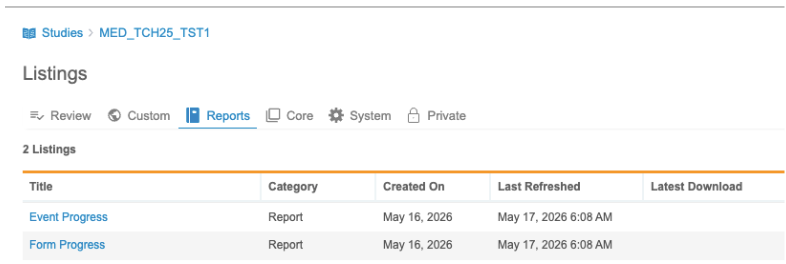
Progress Reports
Use the Reports tab to access Event Progress and Form Progress reports.
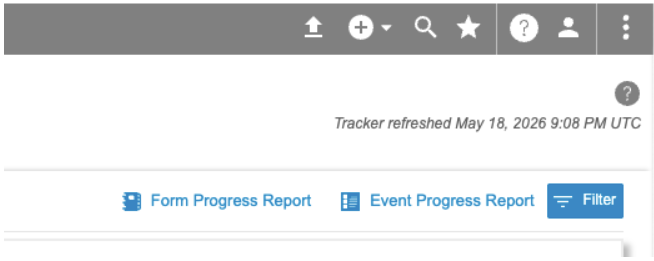
The Clean Patient Tracker UI has also been updated to provide links to these reports instead of the previous Generate Reports button.
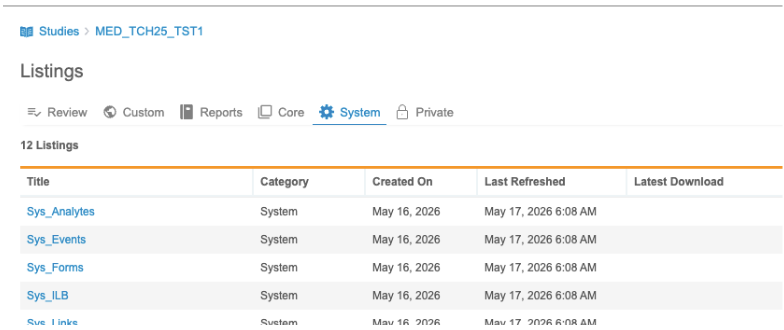
System Listings
Use the System tab to access SYS Listings, including Sys_Subjects, Sys_Sites, and Sys_QRY.
Standard Role Update
For consistency across functional areas, the standard CDMS CDB Programmer role has been updated to include the View Query, View Observation, and View Protocol Deviation permissions.
Custom Listings
As part of this feature, the “Public” listing category has been renamed to “Custom”.
Enablement & Configuration
This feature is automatically enabled.
Import Metrics for Third Party Source Packages 26R1.3
Use Case
Import Metrics provide automated, package-level insights into the ingestion process of every third party data package into DQS. This functionality allows for the rapid identification of trends, such as record volume drops, and streamlines the troubleshooting process for excluded data points. Displaying those metrics directly on the Import Page and in the downloadable Logs file ensures transparency of high-quality data ingestion for third party packages while reducing the need for manual log investigations.
Description
This feature introduces automated tracking and reporting for every third party data package processed in DQS. The system calculates the following core metrics for every package during ingestion, which are available on the Import Page and in the Logs download:
- Row Count: Total number of rows in the package.
- Row Diff (+/-): The difference in the number of rows from the previous package; negative numbers are highlighted in red for immediate visibility.
- Rows with Skipped Data: Number of rows where one or more values failed to import.
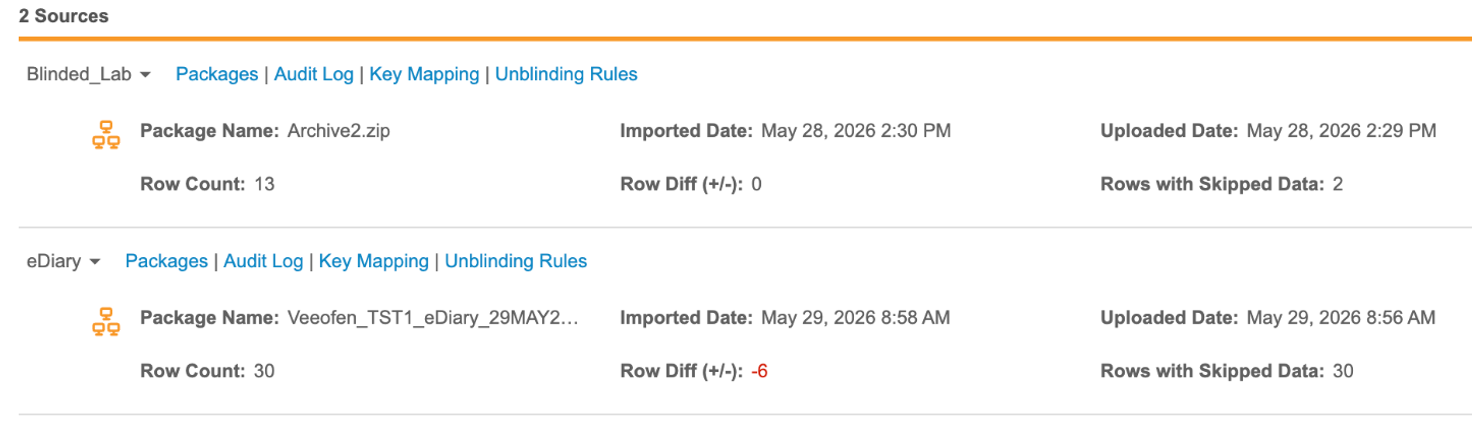
When selecting Download Logs on the Import page, a new text file (
Row counts only include data files explicitly defined in the manifest and ignore header rows or auxiliary CSV files.
Enablement & Configuration
This feature is automatically enabled.
Key Mapping by Event Group 26R1.3
Use Case
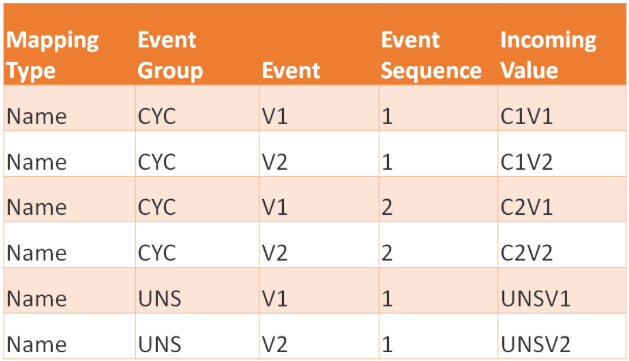
DQS supports the mapping of incoming third party source data values to existing EDC study, site, subject, or event definitions to avoid costly vendor data modifications. This enhancement introduces an optional Event Group definition to the Event Key Mapping for an unambiguous identification of the Event if an Event Definition is reused across multiple Event Groups, such as differentiating “Cycle” visits from “Unscheduled” visits, for example.
Description
This feature updates the Event Key Mapping functionality to uniquely identify target records by incorporating an optional Event Group column between the Mapping Type and Event columns in the mapping template.
The downloadable Event Key Mapping template now includes five headers: Mapping Type, Event Group, Event, Event Sequence, and Incoming Value. If the Event Group column is present in the uploaded file, a value must be provided for every row.
The validation of the Event Key Mappings will remain backwards compatible. A legacy four-column Event Key Mapping CSV without the Event Group column will be accepted and processed in the same way it was before the 26R2 release.
Enablement & Configuration
Available for use in DQS.
Manual Source Package Re-processing 26R1.3
Use Case
Users can now re-trigger the processing of third party data for the latest source data package directly in the UI, which removes the need to manually re-upload files when configuration updates, such as unblinding rules, require a rerun. This feature enhances operational agility by ensuring that the latest system logic can be applied to existing data without requiring file-handling permissions.
Description
The new Reprocess Source action is available in the Study > Import menu for every source package that is not currently being processed. This action allows for the immediate re-execution of processing logic on a third party source’s latest package without a new file upload. The new Reprocess Source permission is required to utilize this feature.
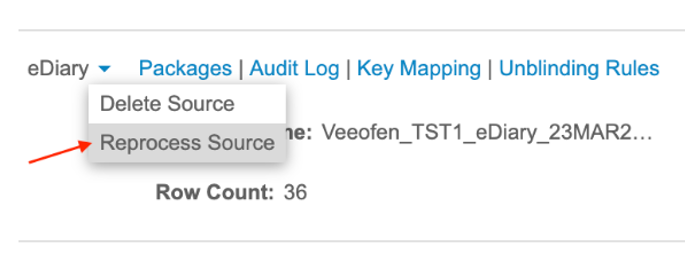
Re-processing will initiate the same processes as importing a new source package or package version.

The new “Reprocess Package” permission allows users to reprocess a package. The following standard roles receive this permission:
-
CDMS Lead Data Manager
-
CDB Administrator
-
CDMS CDB Programmer
Enablement & Configuration
This feature is automatically enabled.
Connections & Integrations
Features in this section are new connections or integrations with Veeva Clinical Data or enhancements to existing ones.
- Safety-EDC Connection: ‘Additional Information’ Safety Data Type
- Safety Integrations: Studio Difference Report with Safety Configurations
- Safety Integrations: Enforced First Send for Unsubmitted Case-Initiating Events
- Clinical Operations-EDC Connection: Restricted Subject Visit Data Synchronization
- Clinical Operations-EDC Connection: Additive SDV Transferred to CTMS
- Safety Integrations: Inclusion of EDC Data Based on Multi-Event Date Ranges
- Safety Integrations: In Case of Death Information Only for Fatal Events
Safety-EDC Connection: ‘Additional Information’ Safety Data Type 26R1.3
Use Case
Processing safety cases in Veeva Safety often requires additional context or supplemental details. These might not fit into standard or custom Safety Fields transferred via the Safety-EDC Connection. The new “Additional Information” Safety Data Type allows the standardized transfer of multiple EDC data points through to a single destination field in Veeva Safety. This capability expands on the “Reporter / Sender Comments by System” Safety Data Type used for E2BLink studies.
By consolidating various data points into a single destination, this update enriches a safety case in Veeva Safety with essential context, ultimately increasing the overall completeness and quality of safety reporting.
Description
The “Additional Information” Safety Data Type for Safety-EDC Connection studies, allows to transfer EDC item data that is not available for mapping in the Item Configuration menu of any Safety Data Type.
If the ‘Additional Information’ Safety Type is selected, EDC Forms can be chosen, which are currently in the schedule and not yet used for another ‘Additional Information’ Safety Type.
“Each Entry In” will be immutably set to Form.
The new Destination field requires the specification of the Safety Field in Veeva Safety into which the data collected in the “Additional Information” Safety Data Type will be transferred. It must be a custom Safety field of type text, and either associated with the Safety Case Initiation Event for event level or the Patient Characteristics for participant or case level. Once saved, the Destination field choice is immutable other than with the deletion of the Safety Data Type.
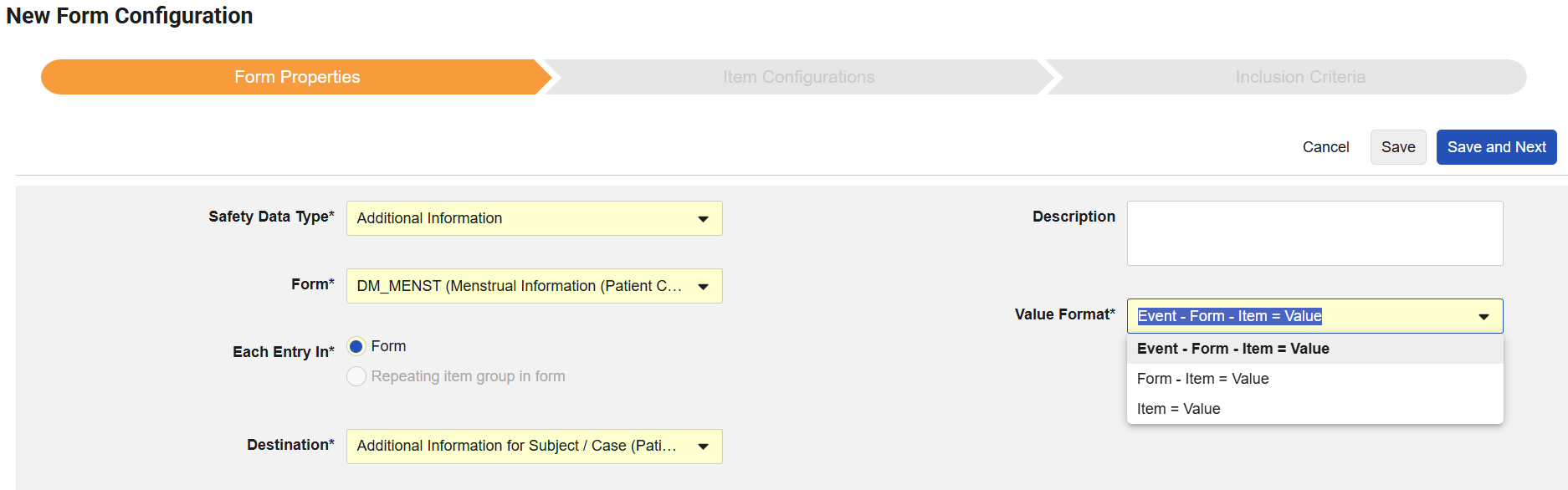
The Value Format allows the specification of how the item data will appear in the additional information transfer. The default selection is ‘Event - Form - Item = Value’ with the alternative options ‘Form - Item = Value’ or ‘Item = Value’, where no further hierarchical details are required.
In the Item Configurations step, all items on the form will be presented for inclusion in the order of appearance on the form. Excluded from this list are certain item types, including Labels, Item-to-Form Link, Local Labs, Imaging, or File Attachment.
For Destination fields on event-level, the Inclusion Criteria are available:
- If the EDC form is also configured as the Safety Case Initiation event, ‘With other event details’ can be selected to only include the data of the EDC form that initiated the case
- If the EDC form is not configured as any Safety Case Initiation event, ‘When linked by site user to event’ can be selected to only include the data if the EDC form is linked to the form that initiated the case
For Destination fields on subject-level, the Inclusion Criteria is ‘Always included’ as this data will be transferred with each case.
The system automatically generates a list of the selected data to be sent to the Veeva Safety Destination field in the following format:
- Every data row will be prefixed with an asterisk for clarity
- Data will be ordered according to its appearance in the schedule, repeat numbers, and in its order on the form
- Only data of non-empty fields will be included in the data listing transferred to Safety
- For non-repeating objects, the Event, Form, and Item label will be shown
- For repeating objects, the label will be followed by the repeat indication
- Codelist item labels as selected by the user
- Non-normalized Unit labels as selected by the user
- Non-standardized Date and Datetime values as entered by the user
- The length of the Destination field on Veeva Safety side will be honoured and the concatenated list truncated at the maximum length-25 characters with an indication of ‘.. (rest omitted)’
Example 1:
- Event “Screening”
- Form “Enrollment”
- Item = “Cohort”
- Value = ‘A’
*Screening - Enrollment - Cohort = A
Example 2:
- Event “Unscheduled Event”
- Repeating EG (sequence is ‘2’)
- Form = “Labs”
- Item = “GFR”
- Value = “32.3”
*Unscheduled Event (#2) - Labs - GFR = 32.3
The new configuration will be supported by the Study Design Specifications (SDS), Studio Validation rules and Studio Difference Report.
Note: Testing requires an integrated environment with Veeva Safety.
Enablement & Configuration
This feature is Available for Use in Studio for studies using the Safety-EDC Connection, once some configuration is performed in both the Safety Vaults and EDC Vaults involved. Only a custom, configured field in Vault Safety can be the target of this type of reference information from EDC.
Learn More
Safety Integrations: Studio Difference Report with Safety Configurations 26R1.3
Use Case
Study designers need to compare configurations between different study versions to ensure consistency or identify discrepancies. To enhance visibility into study design changes, the Studio Difference Report now provides a dedicated reporting area for Safety Integration settings and Safety Form Configurations, supporting both E2BLink and Safety-EDC Connection studies. By automating the comparison of these complex safety parameters, teams can save time on manual reviews and prevent mistakes in safety reporting caused by configuration differences.
Description
When comparing casebook versions in Studio the difference report features a new “Safety Integrations” tab that provides the comparison of Safety Configurations for E2BLink and Safety-EDC Connection studies.
The new Safety Integrations tab will list study-level Safety Settings and the Safety Form Configurations, including Form Properties, Item Configurations and Inclusion Criteria.
When running the comparison of casebook versions, the Safety Integration configurations will be included by default for studies using the Safety-EDC Connection or E2BLink, but can be selected to be excluded from the comparison.
Enablement & Configuration
This feature is Auto-On for studies using the Safety-EDC Connection or E2BLink.
Learn More
- Comparing Casebook Versions in Studio
- Comparing Casebook Versions in EDC Tools
- Configuring Safety-EDC Connection Studies
- Configuring E2B Studies
Safety Integrations: Enforced First Send for Unsubmitted Case-Initiating Events 26R1.3
Use Case
Site users occasionally enter critical Safety Case data but fail to formally submit the case-initiating EDC form for its first submission, causing potential delays in Safety reporting. While the existing alert for unsubmitted Safety Case data often mitigates those issues, this new functionality allows to enforce the first send of a Safety Case from an unsubmitted, but case-initiating event after a defined period of time. This automatic transmission even when a site user has not formally submitted the data, ensures regulatory compliance and minimal delays for Serious Adverse Event reporting.
Description
In Tools > Safety Integrations, the study-specific Alert on Unsubmitted Forms setting is now labeled as to Alerting / Transmission for Unsubmitted Forms, with the following options:
- No: Same as current behavior. Neither an email alert will be sent nor a transfer enforced for unsubmitted case-initiating event
- Yes: Same as current behavior. If the hourly scan detects a case-initiating EDC form (Safety Key Item Value evaluates to true) that has been created more than 1 hour ago but not submitted for the first time, an email alert will be sent to the user who created the form and all email recipients configured under Alert Recipient for this study.
If Yes is selected, Schedule First Send After will become available:
- If no value is selected, no first send of an unsubmitted form will be enforced
- If any value is selected, a transfer of unsubmitted case-initiating EDC forms will be initiated once the hourly scan detects a case initiating form that has been created more than the set duration ago but not submitted for the first time
Note: The forced Safety Case submission only applies to first Safety Case sends and EDC forms that have not previously been submitted.
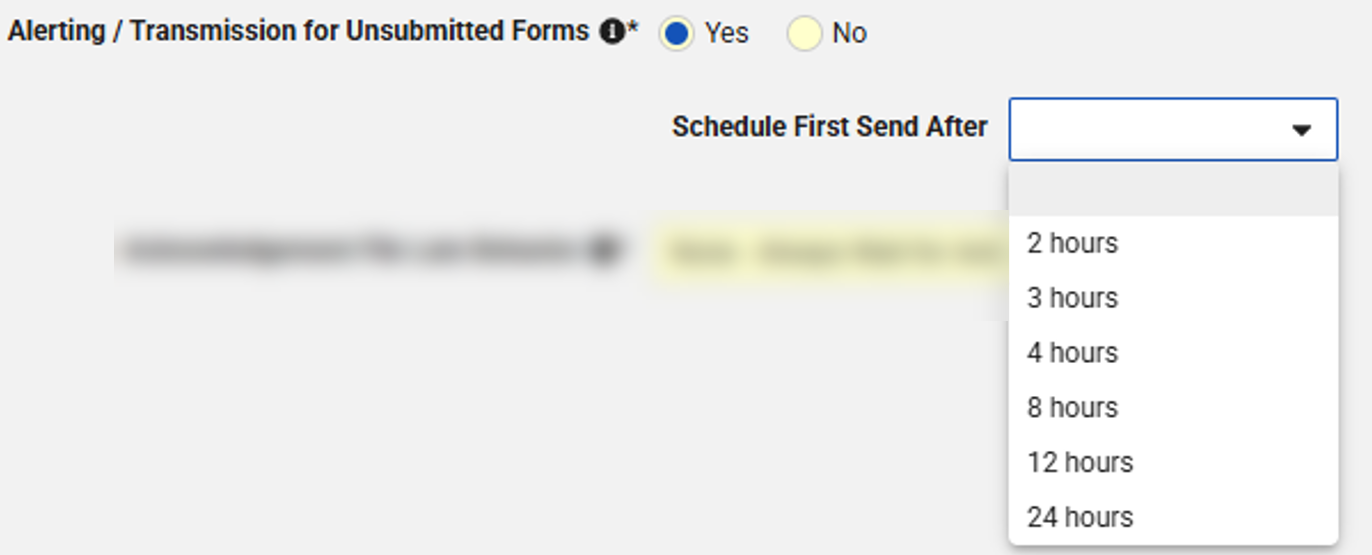
Enablement & Configuration
This feature is Available for Use in Tools > Safety Integrations for studies using the Safety - EDC Connection or E2BLink.
For existing studies, the current Alert on Unsubmitted Forms setting will be maintained with an empty Schedule First Send After option where Yes was selected.
Learn More
Clinical Operations-EDC Connection: Restricted Subject Visit Data Synchronization 26R1.2
Use Case
Restricted data transfer via the Clinical Operations-EDC Connection ensures consistent visibility into unblinded subject visit data in CTMS. By standardizing the creation of Unblinded Subject Visit Data records, CTMS users now gain immediate clarity on the presence of restricted information in an EDC event independent of the presence of unrestricted data in the same visit. This provides a reliable and predictable indicator for unblinded event data.
Description
When an event in EDC contains restricted data, the Clinical Operations-EDC Connection now always creates an Unblinded Subject Visit Data record on the Subject Visit in CTMS, regardless of the presence of unrestricted data.
This new Clinical Operations - EDC Connection functionality does not change EDC behavior. Testing requires an integrated environment with Veeva CTMS Vaults that have restricted data transfer enabled.
Enablement & Configuration
This feature is automatically enabled for studies using the Clinical Operations-EDC Connection.
Clinical Operations-EDC Connection: Additive SDV Transferred to CTMS 26R1.3
Use Case
As the industry moves toward Risk Based Management, Additive SDV in EDC allows for the documentation of review efforts beyond predefined plans. The Clinical Operations-EDC Connection now transfers additionally performed SDV on Event details or Items, ensuring CRAs receive credit for additional work necessitated by site risks like staff attrition. This integration provides essential visibility into the frequency and reasoning behind extra verification efforts within Monitoring Visit Reports.
Description
The Clinical Operations-EDC Connection now supports the transfer of Additive SDV data at the event level to Veeva CTMS. When Additive SDV is performed in EDC, CTMS can now reflect the following Additive SDV information on the Subject Visit record:
- Additive SDV Performed
- Additive SDV Reason (latest reason recorded on any event data)
- Latest Additive SDV Performed Date (latest date of additive SDV on any event data)
Additive SDV will be distinguished for restricted and unrestricted data.
This new Clinical Operations-EDC Connection functionality does not change EDC behavior. Testing requires an integrated environment with Veeva CTMS.
Enablement & Configuration
This feature is Auto-On for studies using the Clinical Operations-EDC Connection.
Learn More
Safety Integrations: Inclusion of EDC Data Based on Multi-Event Date Ranges 26R1.3
Use Case
The Inclusion configuration for Safety Cases allows the inclusion of additional EDC data, like Concomitant Medication or other Adverse Events. Besides including all forms of a subject or site linked forms, also date inclusion rules based on the start and end date of the Safety Case initiating event can be configured. These inclusion rules can now be expanded to not only account for the primary case initiating event, but to identify the minimum start date and maximum end date across all primary and secondary Adverse Events that have been included into the Safety Case. By using this expanded temporal logic for a multi-event case, organizations ensure that related clinical data for Safety reporting is captured throughout the entire duration of the case. This approach eliminates discrepancies where secondary events fall outside the primary event’s timeframe, providing a more comprehensive and compliant safety profile.
Description
In Studio > Safety Integration > Safety Settings, the new ‘Case Start to End Date Behavior’ option will determine which related forms, such as Concomitant Medications or Lab Results, are included in a multi-event Safety Case based on configured date ranges:
-
Use Primary Event Only (set for existing studies): Unchanged behavior; inclusion of additional forms based on start and end date of the primary, Safety Case initiating event
-
Consider All Events of Case (default for new studies): New behavior; inclusion of additional forms based on the earliest start date and latest end date of the primary and all secondary events that are part of a multi-event Safety Case
For events with unknowns in the entered date, the date with a bias towards maximal inclusion will be assumed. For the start date, the earliest possible value for the unknown is assumed, for the end date the latest possible value. Missing dates will be treated as infinites.
Note: The inclusion of additional Adverse Events will always be based on the primary Safety Case initiating event only.
The new configuration will be supported by the Study Design Specifications (SDS), Studio Validation rules and Studio Difference Report.

Enablement & Configuration
This feature is Available for Use in Studio for studies using the Safety - EDC Connection or E2BLink.
For existing studies, ‘Use Primary Event Only’ will be selected to maintain current EDC and Safety Case transfer behavior.
Learn More
Safety Integrations: In Case of Death Information Only for Fatal Events 26R1.3
Use Case
Reporting of ‘In Case of Death’ details is only relevant for Safety Cases where a fatal Adverse Event was reported. Previously, death information was included in all Safety Cases once available, triggering potentially unnecessary follow-up messages for Adverse Events not related to the fatal outcome. By enabling this conditional inclusion, triage overhead for safety teams can be significantly reduced and ensured that follow-up generation and inclusion of ‘In Case of Death’ information is only transferred for those Safety Cases where it is reporting relevant.
Description
In Studio > Safety Integrations > Form Configurations > ‘In Case of Death’ Safety Data Type, a new inclusion setting ‘Include Form Data in Safety Cases’ within the Inclusion Criteria allows the more restricted transfer of death information:
- Only when case has an event with fatal seriousness or fatal outcome:
- The “In Case of Death” EDC data is only included in the Safety Case if at least one containing Adverse Event has ‘Results in Death’ (E.i.3.2a) selected as a seriousness criterion or an outcome of ‘Fatal’ (E.i.7 = 5)
- For the Safety-EDC Connection, while the ‘In Case of Death’ information is only transferred with the relevant Safety Cases, the death information will still be always available in the additional subject information of each case.
- Always included: Maintains existing behavior where death information is sent for all safety cases associated with the subject once available.

For new form configurations, the default will be empty and the configuration can only be saved if one option is selected.
The new configuration will be supported by the Study Design Specifications (SDS), studio publishing validation, and the Studio Difference Report.
Enablement & Configuration
This feature is Available for Use in Studio for studies using the Safety - EDC Connection or E2BLink. For existing studies, “Always included” will be selected to maintain current EDC and Safety Case transfer behavior.
Learn More
EDC API
The following are new features for the EDC API. See our Developer Portal's release notes for more detailed feature information.
EDC API Features 26R1.3
This release includes the following features for EDC developers:
- Changes with Audit 2.0 Enablement
- WHODrug B3/C3 Field Label Updates
- Support for Global IDs for Query and Protocol Deviation Endpoints
Learn More
EDC Migrator
Features in this section are new features for Veeva EDC Migrator.
- Allow the Capture of V&S Errors and Warnings Exceeding 32K Characters
- Repairing Event Groups
- YAML Builder Support for Deleted Objects
Allow the Capture of V&S Errors and Warnings Exceeding 32K Characters 26R1.2
Use Case
During the early stages or first few rounds of a new study migration, migration attempts often encounter numerous validation errors, such as data values exceeding the character limits defined in the study design. Previously, a 32,000-character limit on log files meant that not all errors were captured in a single run. This forced users into a repetitive cycle, fixing a batch of errors and re-running the migration, only to discover a new set of the same error types that had been truncated in the initial report. By expanding log capacity, this feature significantly reduces the number of iterations needed to clean source data, shortening the overall troubleshooting timeline and making the initial Validate & Stage phase much more efficient.
Description
This enhancement improves how the Migrator tool handles error and warning messages during the Validate & Stage process.
Previously, during migration execution, the system validated data against the study design and stored only the first 1,000 activities (errors or warnings) in memory. These were then written to the status object and truncated at a 32,000-character limit, which could result in incomplete reporting.
With this update, the system now manages error and warning activities in sections. When memory limits are reached, activities are written incrementally to file sections and later merged. This approach ensures that all unique errors and warnings are captured without duplication, enabling the generation of complete and accurate log outputs.
Enablement & Configuration
This feature is automatically enabled.
Learn More
Repairing Event Groups 26R1.3
Use Case
The migration process can fail when a subject’s record does not follow a standard schedule. Previously, if a casebook contained only unscheduled events and lacked any scheduled events, the Migrator was unable to process the migration. This update ensures this rare scenario is handled effectively. The Migrator can now create Event Groups during the repair process. This allows users to successfully migrate subjects and match the new study data with the source system.
Description
With this enhancement, the Migrator’s repair process is updated to automatically generate the first Event Group in a schedule when a subject contains only unscheduled events. Once this Event Group is created, the system also generates the individual events within that group, but none of the events’ forms are created. These repaired events are created with an empty event date, an empty change reason, and an event status of Blank. No dynamic objects are created by the repair process.
Enablement & Configuration
This feature is automatically enabled.
Learn More
YAML Builder Support for Deleted Objects 26R1.3
Use Case
When migrating clinical trial data from InForm™ to Veeva EDC, maintaining the correct sequence of forms and item groups is essential for data integrity. Previously, when a form or an item group was soft deleted in the source system, teams had to manually run scripts or insert complex mappings to ensure these placeholders were preserved without migrating the actual deleted data. This feature automates that process, saving time and reducing the risk of human error. It ensures that the migration retains the original sequencing order so that your data remains perfectly aligned, preventing the re-sequencing issues that occur when using standard exclusion methods.
Description
This update changes the existing migration workflow by removing the requirement for manual intervention when handling deleted records (forms, item groups) from InForm-standard or InForm-legacy data sources.
The YAML Builder now programmatically inserts these mappings for every repeating form and item group in the study design. If a record is marked as “N” (not deleted), the data migrates as usual. If a record is marked as “Y” (deleted), the system registers its presence to keep the sequence intact but ensures the actual data values are not transferred. This automation replaces the need for manual workarounds or external alignment scripts.
Deleted Forms
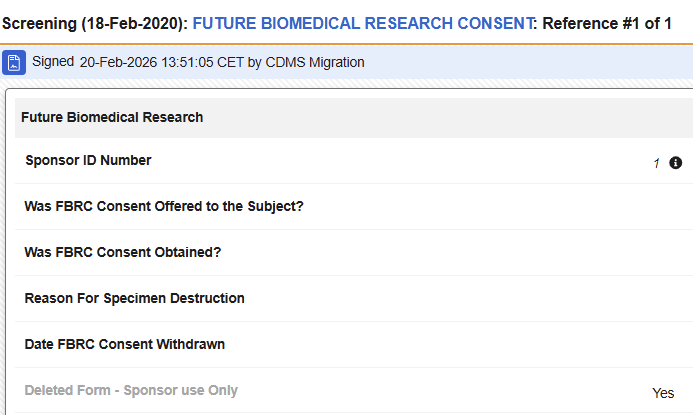
Deleted Items

Enablement & Configuration
This feature is automatically enabled for studies originating in InForm.