New Features in 26R1 Limited Releases
26R1 Planned General Availability: April 10 & 17, 2026
25R3.5 Release Date: March 6, 2026
25R3.4 Release Date: February 20, 2026
25R3.2 Release Date: December 19, 2025
We are pleased to bring you new functionality with each limited release. These release notes are updated with upcoming new features one week before the limited release date.
Enablement Changes: The enablement of each feature is subject to change from release to release. For limited releases in the same general release, we will update this page. Enablement may also change before the general release. Refer to the Release Impact Assessment for the most up to date enablement for a general release.
Clinical Data
Features in this section are changes that apply to all application areas of Veeva EDC and CDB.
File Attachments 25R3.4
Use Case
File attachments are now supported in Data Entry, removing the need for custom solutions or third party file storage software outside of EDC. Attaching clinical data files to eCRFs allows participant source documents such as medical transcripts, progress notes, JPEG pathology slide images, CT scan reports, PDF reports of EKGs, X-rays, radiology, and Medical Device Proprietary Device Data files to be included within the casebook. These attachments can then be viewed, reviewed, and verified alongside the clinical data directly within the EDC application. Individual or bulk downloads provide an easy way to export the files, both during the study and following study completion.
Description
Studio
A new “File Attachment” item type is available in Studio for study designers to use when designing items on forms. File Attachment items can be included in non-repeating forms, repeating forms, and within repeating and non-repeating item groups.
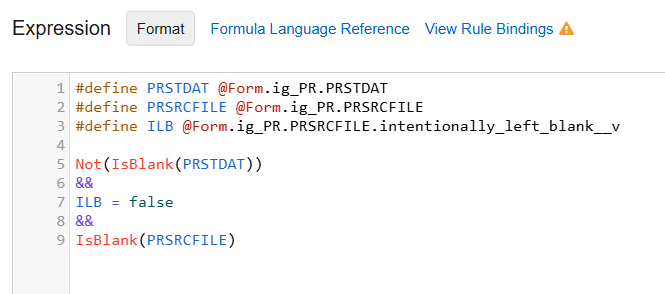
File Attachment items can also be used within rules: required checks, progressive display and in user-defined rules to confirm the file was attached.
Example File Attachment Rule
To preserve system integrity, there are several intentional design limitations. File Attachment item types cannot be used in the following:
- As a target for “Set Derived Value” or “Set Subject Status” rules
- Data Loader configurations
- Medical Assessments
The Study Design Specification (SDS), Diff Reports, and both Blank and Annotated PDFs are updated to include File Attachment items. These item types can also be copied from libraries and other studies to maximize design reuse.
Data Entry
Site users can upload files of up to 4 GB in size to configured File Attachment items from their computer using either a simple file selector or by dragging and dropping the file directly into the form.
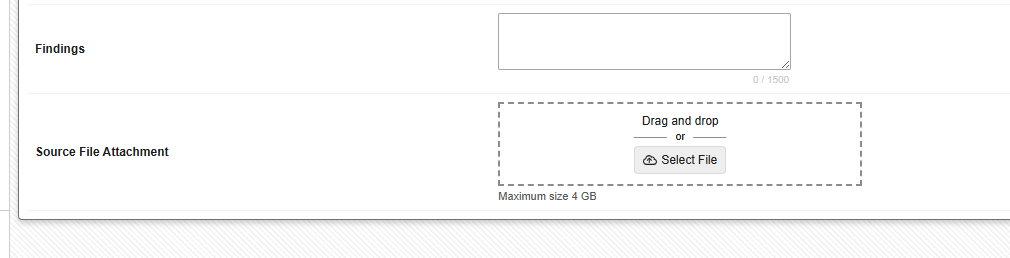
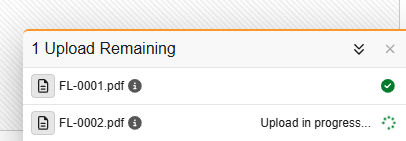
Users are prompted to verify that the file does not contain any protected health information (PHI) or personally identifiable information (PII) before the upload begins. Once the upload starts, a dedicated “Upload Drawer” appears at the bottom right of the screen, allowing users to track progress while continuing to work on other forms. During the upload process, the user can continue working freely within Data Entry.
For a complete list of file types that can be viewed in the File Attachment Viewer, see here .
For security reasons, the system prevents the upload of executable files for Windows, macOS, and Linux. To ensure accurate identification, the system validates the file format based on its MIME type rather than the file extension.
DICOM files are not supported for use with File Attachments, and should be uploaded using Veeva EDC Imaging.
The table below details the restricted file formats and their associated MIME types:
| Format Name | MIME Type(s) |
|---|---|
| Portable Executable (Windows Executable) |
|
| Executable and Linkable Format (Linux Executable) |
|
| Apple Disk Image (macOS Executable) |
|
| Mach-O (Legacy MacOS Executable) |
|
| Dicom files (Medical Imaging) |
|
When uploaded, the system deidentifies the file attachment name, assigning a deidentified file name to ensure no potential PHI/PII is retained via the original file name. Similar to other items, every action related to a file attachment item, including uploads, deletions, and re-adding a file, is captured in the audit trail. When a file is modified after a form has been submitted, the user must enter a reason for change. The file attachment item can also be marked intentionally left blank (ILB) when the source file is not available by the site.
Review
After a file is successfully attached, authorized users, such as monitors or data managers, can view the file using a built-in viewer or they can download it for review. The file is also viewable within the form view in the Coder UI. File Attachment items function like any other item and can be queried, marked as a Protocol Deviation, included in review plans for SDV/DMR, signed, frozen, and locked. These end user actions are also visible in the audit trail.
Within Data Entry, Review, the audit trail, listings, and extracts, the item will show the system-assigned, deidentified name and the file extension. This helps ensure privacy and security with file names and cases where file names may have included PHI/PII. The deidentified file name will also be shown in CDB.
In EDC Tools, study administrators will see a new “File Attachment Extract” job which sends the file attachments in the study to Vault’s File Staging server in bulk where the downloaded attachments can be retrieved. Users receive an email notification when the job completes.
APIs
Site users must attach the files, APIs will not be able to add files to items. The API calls will support retrieval of the file attachment item metadata.
Enablement & Configuration
Automatically available for Studio configuration in Data Model 2 studies.
Learn More
New Stable URLs for EDC Application Tabs 25R3.2
Use Case
We are working on an improved user interface and user experience for Veeva EDC as part of a multi-year effort to make our product more accessible. This release includes more stable URL routing as part of this effort.
Description
Application tabs in Veeva EDC will now be available with a stable URL. See the table below for more information.
| New Base URL | EDC Tab Name |
|---|---|
| #/app/page/data-entry | Data Entry |
| #/app/page/review-studies | Review > My Studies |
| #/app/page/review-study-sites | Review > My Study Sites |
| #/app/page/protocol-deviations | Review > Protocol Deviations |
| #/app/page/assessments | Assessments |
| #/app/page/studio-library | Studio > Library |
| #/app/page/studio-studies | Studio > Studies |
| #/app/page/imaging | Imaging |
| #/app/page/coder | Coder |
| #/app/page/labs | Labs |
| #/app/page/edc-tools | Tools > EDC Tools |
| #/app/page/coder-tools | Tools > Coder Tools |
| #/app/page/system-tools | Tools > System Tools |
| #/app/page/safety-integrations | Tools > Safety Integrations |
| #/app/page/job-manager | Job Manager |
| #/app/page/my-training | My Training |
| #/app/page/clinical-reporting | Clinical Reporting |
| #/app/page/randomization | Randomization |
| #/app/page/data-loader | Data Loader |
| #/app/page/workbench | Workbench (CDB) |
Note that existing pages and bookmarked pages will be redirected to the new application tab pages. However, if there are unexpected URL patterns used, existing bookmarks may appear broken.
Enablement & Configuration
This feature is automatically available.
Data Entry
Features in this section are changes to the Data Entry tab, a working area for investigators and clinical research coordinators to enter study execution data.
Improved Event Groups Marked for Removal 25R3.4
Use Case
Data within Event Groups will now have clearer indications for Site users in cases where rule results for a dynamic Event Group are no longer true. This allows the Sites to better see events and forms within the Event Group where they may need to reset the data. It also prevents Sites from mistakenly adding new instances of repeating Event Groups.
Description
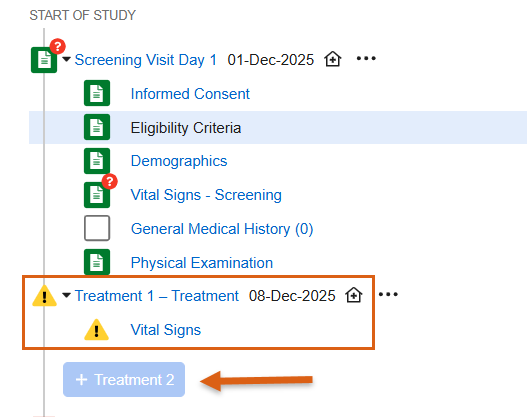
When a rule determines an Event Group that contains data should be removed, the system now prevents new forms and events from being added to it. For repeating Event Groups, the “+New” button will be disabled. If a user attempts to add the next Event Group, they will see a message: “This action cannot be performed because this event group is no longer required based on other data entered.”
When the rule becomes false, if the Event Group or its associated Events or Forms contain no data, the system will continue to remove them automatically as it did before.
Enablement & Configuration
This feature is automatically available.
Two Step Event Reset 25R3.2
Use Case
When resetting events and forms, a two step process now ensures that Sites truly want to reset data before doing so. This process is particularly useful in cases where data is populated from external sources, like IRT systems. Having a two step process provides more control and protection when removing data and reduces the need for external systems to resend the data.
Description
Clear All Form Data
Events containing one or more forms with data will display a new option in the Event Actions menu called Clear All Form Data at Event. The site user must provide a reason for change when selecting this option, and then enter the word “CLEAR” to confirm the action. To help site users better understand this option, we’ve added a new dialog that details the actions that will occur. Additional text in the dialog informs the sites that data from other systems will remain. This step allows sites to reset the form data while protecting the data sent from external systems, like IRT data.
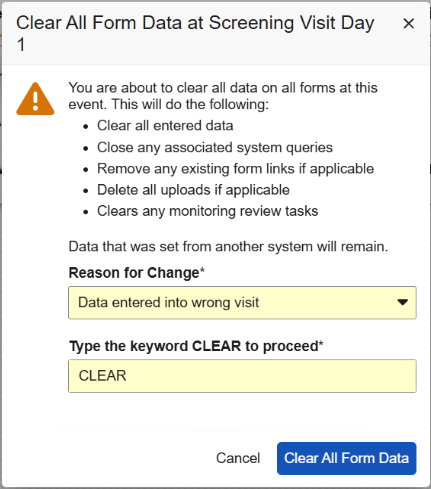
When clearing form data, the event data, visit method, and any external data will remain. If the form contains an item-form link to a form located at a different event, then the link will need to be removed before the data can be cleared. Item-form links between forms within the same event will be removed. Form-form links will always be removed, whether the forms are within the same event or different events.
Any manual queries that are open or answered will also remain. System queries will be closed.
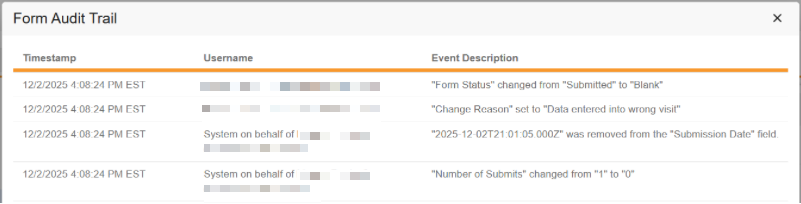
Form and item data that is cleared will be visible in the Audit Trail UI.
Event Reset
After the Clear All Form Data at Event step is completed, the Reset Event option will display when there is external data and no other form data is present within the event. The Reset Event dialog requires the site user to enter a reason for change and type the word “RESET”. Fully resetting an event will do the following:
- Delete all data, including values set from another system
- Delete all form queries and system event queries
- Delete all item and form records
- Clear the event date and visit method, if applicable
If there is no external data, the Reset Event option will display at the same time as the Clear All Form Data at Event option.
Actions taken during the event reset will display in the audit export or PDFs that include the audit.
For unscheduled events, the option to delete the unscheduled event is only possible once the Clear All Form Data at Event step has been completed.
Frozen and Locked Data
Users can’t select the Clear All Form Data at Event or Reset Event actions for Frozen or Locked forms and events. Hovering over the disabled menu options will display an informational message detailing why the site user can’t perform these actions.
Restricted Data
Users can still reset events that contain events and forms that are Marked for Removal if there is no other form data present. Restricted forms will remain and will only be visible to users with restricted data access. The event will still be reset. Unscheduled events containing restricted data will show the event as Marked for Removal by both restricted and non-restricted users.
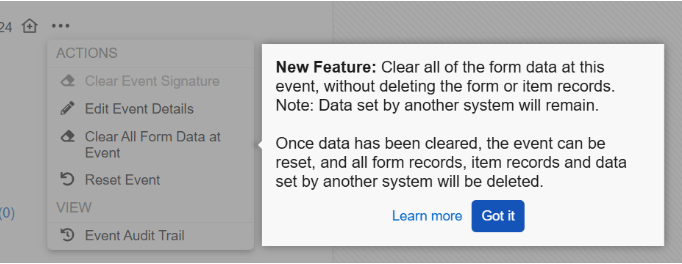
When accessing the event actions menu for the first time following the release, a pop-up displaying help text will call out the new feature to inform site users.
Enablement & Configuration
Automatically available for vaults and studies using Data Model 2.
Updated Form Reset and Form ILB Dialogs 25R3.2
Use Case
We’ve updated specific UI components and information within the Form Reset and Form Intentionally Left Blank (ILB) dialogs to be consistent with other dialogs throughout the application.
Description
With this release, the warning and information icons within the Form Reset and Form Intentionally Left Blank (ILB) dialogs have been enlarged and the yellow and blue background boxes behind the dialog text have been changed to white.
The following changes have been made to the Form Reset dialog:
- “Close any associated system queries.” has been updated to “Delete all system queries and closed manual queries”
- “Type “RESET” to confirm that you want to reset this form” has been updated to “Type the keyword RESET to proceed”
The following changes have been made to the Intentionally Left Blank dialog:
- The button text has been updated from “Submit” to “Mark as Blank”
Enablement & Configuration
This feature is automatically enabled.
Data Review
Features in this section are changes to the Review tab, a working area for clinical research associates and data managers, or to review functionality within the Data Entry tab.
Snapshots UI/UX Consistency and Label Updates 25R3.4
Use Case
This feature updates aspects of the Snapshots UI/UX to provide consistency across the application for Review. Labels of the Ready State selections have also been made more specific to help clarify the type of snapshot being selected.
Description
When creating and revising snapshots, the Save and Get Results and Save buttons are now always enabled. Any on-screen validation errors for required fields, logic, or excess character length will appear in red and display the applicable error message directly under the field once either of the Save buttons is selected. The text of the error message has also been updated to be consistent with similar messages across the application.
Informational text and Ready States labels have been updated in order to clarify the existing functionality where the ready criteria searches for the events/forms in scope.
Under the Forms area, when the Included Forms field is set as All forms in all events within rage, the labels of the ready states are updated to the following:
- All forms in the event are complete
- All queries in the event are answered
- All queries in the event are closed
- The event is SDV complete
- The event is DMR complete
- The event is signed
When Selected forms only is selected, the labels of the ready states are updated to the following:
- The form is complete
- All queries on the form are answered
- All queries on the form are closed
- The form is SDV complete
- The form is DMR complete
- The form is signed
The updated labels for the Ready States checkboxes will be reflected in the Snapshot Report.
Enablement & Configuration
This feature is automatically available.
Protocol Deviation Names in a Report Open the Review Tab 25R3.4
Use Case
Data Managers and CRAs experience quicker navigation from a custom report in the Reporting area directly to a specific Protocol Deviation record in the Review tab. The improved links on the Protocol Deviation records help maintain user workflow as they navigate across tabs in EDC.
Description
Within Reporting, underlining links included with the Protocol Deviation Name will direct you to the specific record in the Review tab. When you are viewing a custom report and click on a Protocol Deviation Name (for example, a link like PDV-0001), the system now automatically takes you to that specific Protocol Deviation record within the Review tab.
Enablement & Configuration
This change applies automatically for new and existing custom reports containing the Protocol Deviation Name column.
Clinical Coding
The following are new features for Veeva Coder, the clinical coding area for Veeva Coder.
Form to Form Link Visibility in Coder 25R3.4
Use Case
Coders require complete clinical context to make accurate coding decisions. At the moment, coder users can’t easily view data from forms linked to the referenced form tied to the Code Request via Form-to-Form Links. This enhancement makes important contextual EDC data from linked Forms accessible directly within the action menu of the specific Code Request, improving efficiency and accuracy by giving Coders all the necessary information in one place.
Description
Form Links in Actions Menu
In List View, a new FORM LINKS subsection is available in the actions menu for a specific Code Request. The standard CDMS Clinical Coder, CDMS Clinical Coder Administrator, and CDMS Clinical Coder Manager roles have been updated to include the “View Form Linking” permission. This allows Coders to view data that has been linked via form-to-form links within EDC.
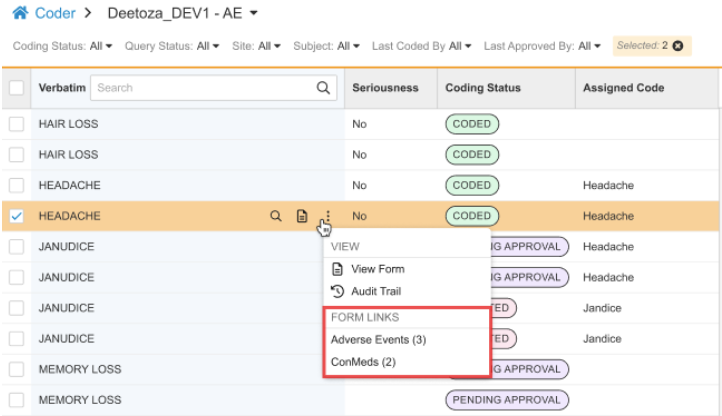
If a Form to Form Link exists, this subsection displays an action for each distinct type of Form to Form Link that has been created. The Form Links section is displayed only if there are existing form links added in Data Entry. The label for each action is the Short Label of the linked Form Definition (such as Adverse Events or ConMeds). When translations are configured for the Form short label, they are displayed. A count in parentheses shows how many Form to Form Links of that type are associated with the current code request. Clicking the Form Link action opens a dialog showing a row for each linked form, with columns consistent with the items entered on the linked form.

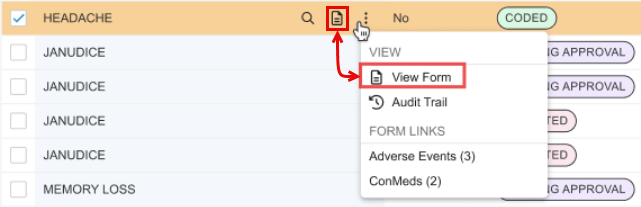
View Form Action
For consistency, the actions menu includes the View Form action for a code request. This duplicates the stand-alone action present in the code request row by clicking the View Form icon ().
Enablement & Configuration
This feature is immediately available. Any custom role must be granted the “View Form Linking” permission in order to use this feature.
Learn More
WHODrug B3/C3 Field Label Updates 25R3.4
Use Case
In March 2026, WHODrug is implementing changes to its data files, which require Veeva to update its interface labels to maintain compatibility. This update ensures that clinical studies remain aligned with the latest global dictionary structures, particularly for the B3 and C3 formats. By adopting these changes, the system prevents a mismatch between the dictionary files provided by WHODrug and the coding environment used by study teams.
Description
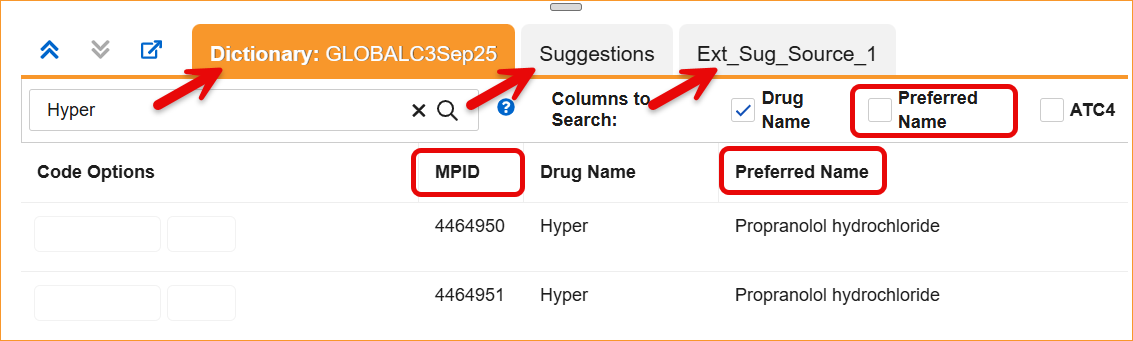
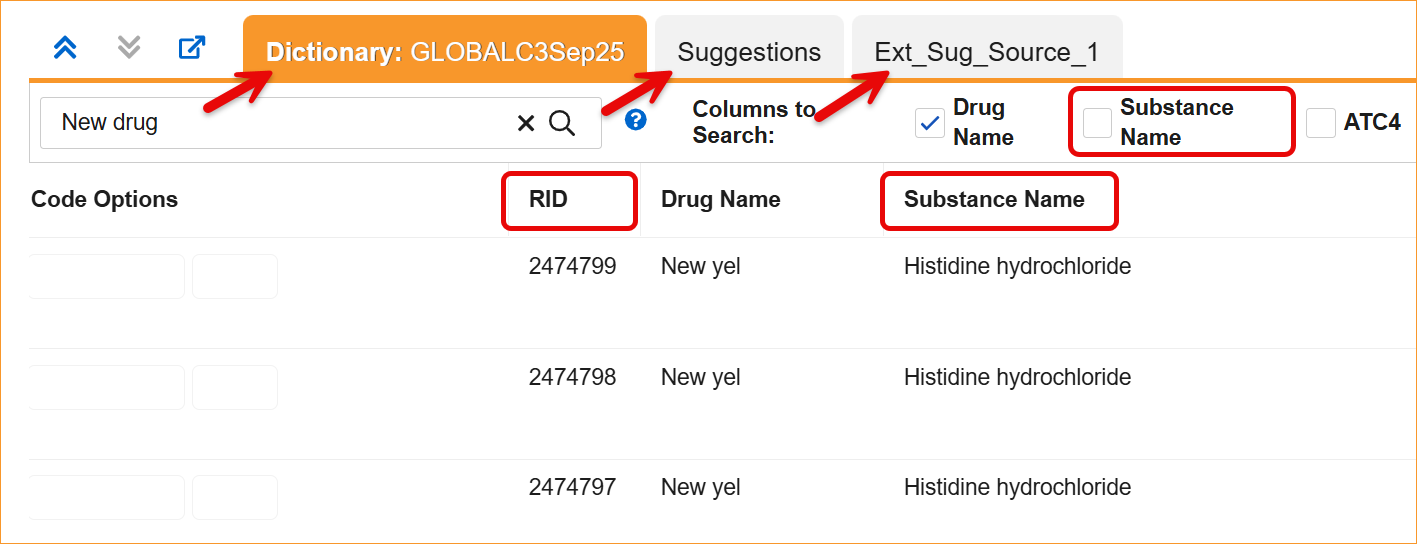
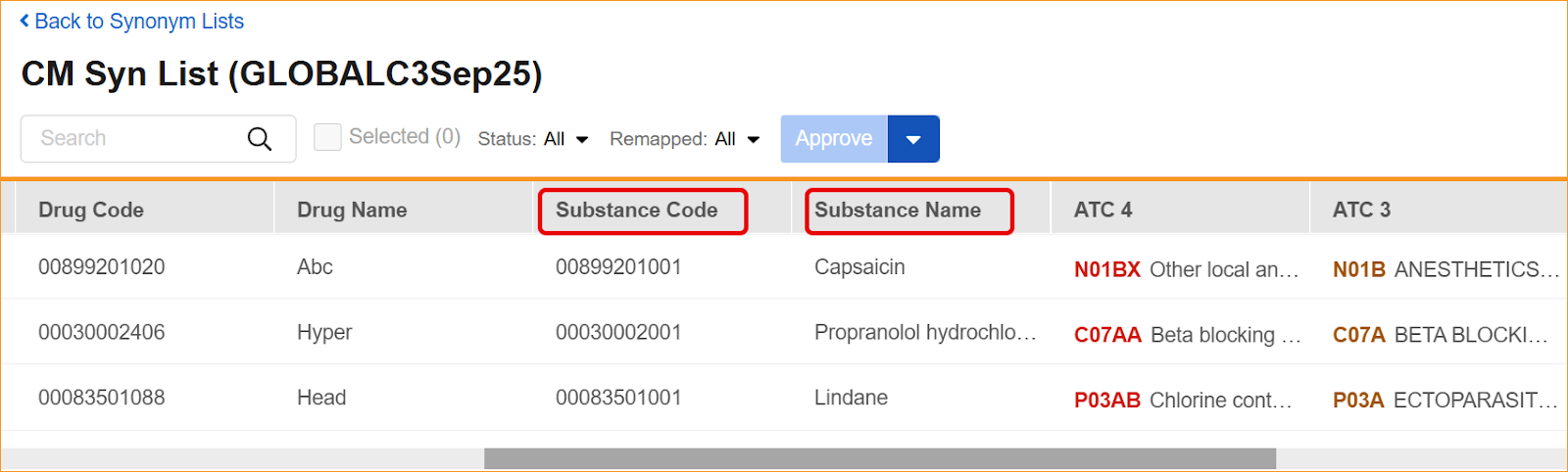
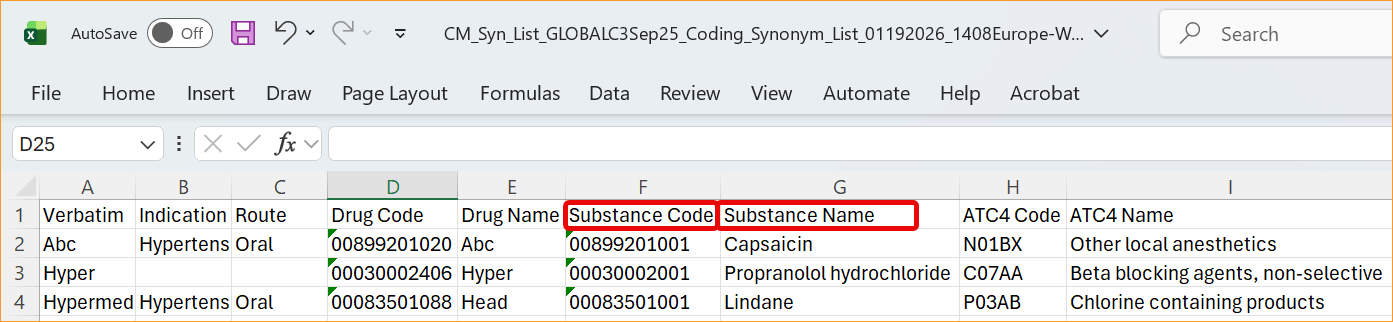
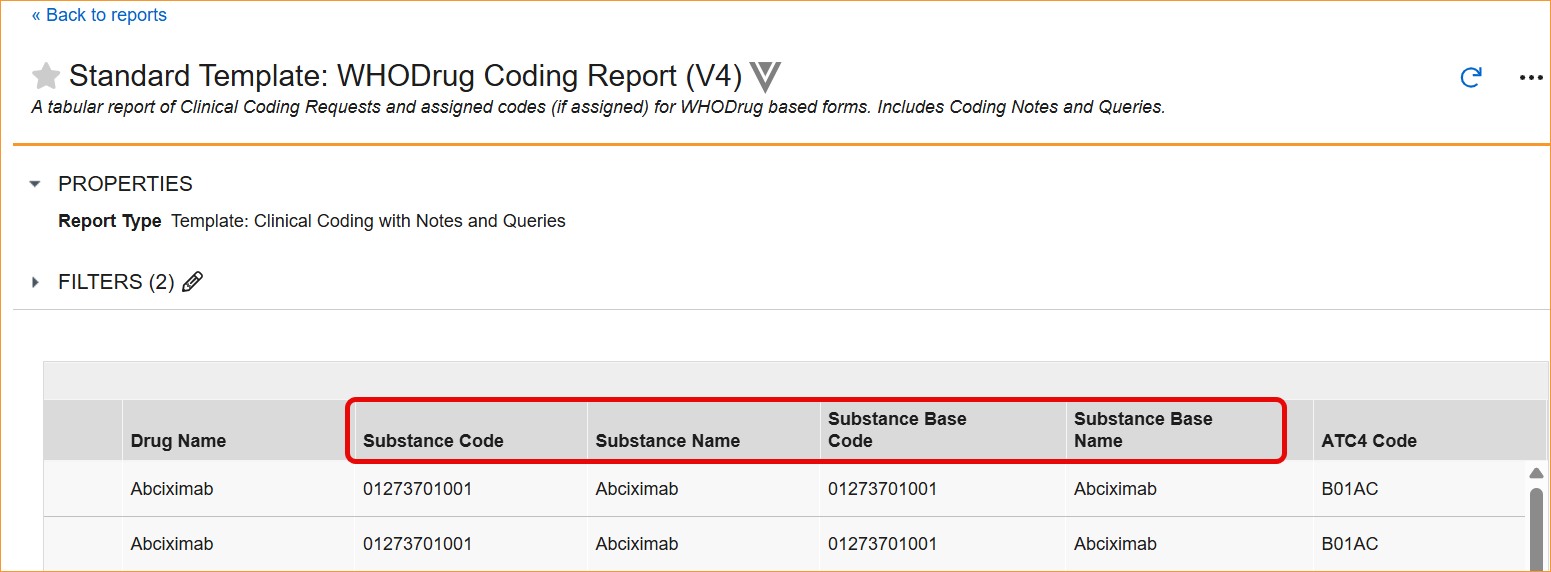
The System now supports the updated WHODrug B3 and C3 through a series of system-wide label and logic updates. The most significant changes involve renaming standard coding fields to align with new dictionary terminology. Specifically, Preferred Name has been updated to Substance Name, Preferred Code to Substance Code, Preferred to Substance, and Generic to Generic Name, For C3 dictionaries, the MPID column is now relabeled as RID.
These updates are reflected in the following areas:
- Coding Panels: Column headers and filters in the Dictionary, Suggestion, and External Suggestion panels now display the updated labels.
- Synonym Lists: Import and export processes, as well as the Synonym List Detail grid, now require and display the updated headers.
- Reports and Extracts: Standard reports, including the WHODrug Coding Report (V4), the Versioning Impact Report, and the Unique Terms Report, have been updated with the new column aliases.
- Study Data Extract (from the 26R1 version): datasets (forms) using WHODrug B3 or C3 dictionaries feature renamed column headers and SAS labels. While the names are changing to focus on Substance instead of Preferred terms (Preferred Code → Substance Code, Preferred Name → Substance Name, Preferred Base Code → Substance Base Code, Preferred Base → Substance Base), the underlying data types and lengths remain exactly the same to ensure technical stability.
Note that while the Coder interface and the Study Data Extracts are updated in the 26R1 release, other areas such as APIs and CDB will be updated in subsequent releases to match this new terminology.
Enablement & Configuration
This feature is automatically available.
Display Freeze & Lock States in Coder for Queries 25R3.2
Use Case
Currently, Coder users did not know if the EDC data associated with a coding request is frozen, which leads to delays when querying frozen data only to find out through a Site query response that the data must be unfrozen. This feature adds clear visual indicators in the form of banners in the Query Panel in Veeva Coder, enabling coders to quickly identify data that requires action from other teams. This improves the Coder workflow and speeds up the process when data needs to be unlocked or unfrozen for querying purposes.
Description
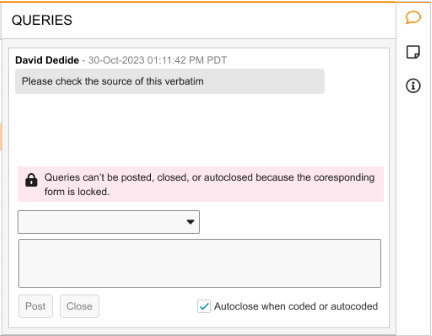
This enhancement displays banners within the Query Panel in Coder to display the Locked or Frozen status of the source EDC data for a given verbatim. The behavior when data is Locked remains the same and queries cannot be posted to locked data. The banners are displayed above the Search Query Templates box or the ‘Submit a Query…’ free-text input field. Depending on the view mode, Coder users can be provided with the following information:
Locked Data
-
List Mode error banner text: “Queries can’t be posted, closed, or autoclosed because the corresponding form is locked.”
-
Grouped Mode error banner text: “The corresponding forms are locked and cannot receive queries.”
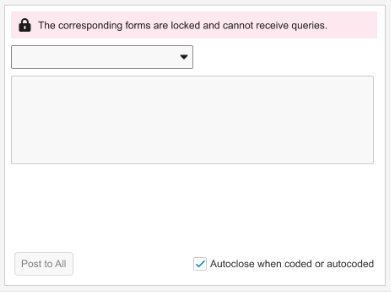 In Grouped Mode view, the banner will display as long as at least one form in the group is locked.
When data is locked, the Search Query Templates box (if present) and the Submit a Query text input field are disabled, preventing query actions. This is a change to the existing design where, instead of an error banner, the information about the form being locked was displayed directly in the ‘Submit a Query…’ text input field, which no longer displays that information.
Frozen Data
-
List Mode informational banner text: “Data is frozen.”
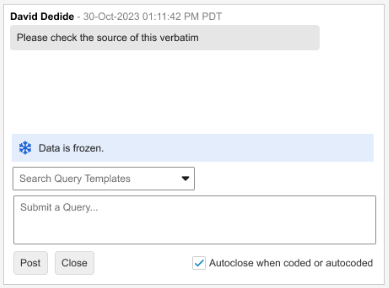
-
Grouped Mode informational banner text: “The corresponding data is frozen.”
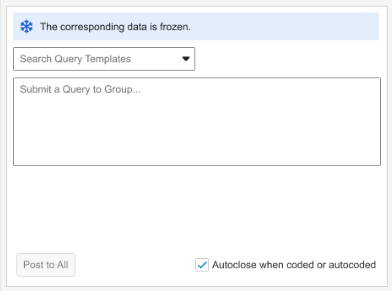 Note that in the Grouped Mode view, the banner will display as long as at least one verbatim in the group of code requests is frozen.
Unlike with locked data, when data is frozen the query input fields remain enabled. Freezing affects the data source but does not prevent the ability to enter a query.
Enablement & Configuration
This feature is automatically available.
Learn More
Improved JDrug Autocoding for Deleted Codes 25R3.4
Use Case
This enhancement is essential for teams conducting clinical studies in Japan that rely on the JDrug dictionary. It solves the problem of “ghost” codes—entries that have been officially deleted from the dictionary but might still be picked up by automated systems. By ensuring that the autocoding process matches only active and valid entries, the solution helps maintain compliance with current Japanese coding standards and eliminates the need for manual review to identify deprecated codes.
Description
During the autocoding process, the system now automatically filters out any JDrug codes that contain a “Maintenance Flag” value of ‘C’. The ‘C’ flag indicates that the code is deleted in the current dictionary version, and the system now treats these entries as ineligible for automatic matches. This ensures that automated coding results are accurate, current, and fully aligned with codes that can be selected manually through the dictionary panel.
Enablement & Configuration
This feature is automatically available.
Improved Tracking of Edited Coder Query Messages in Audit Trail 25R3.2
Use Case
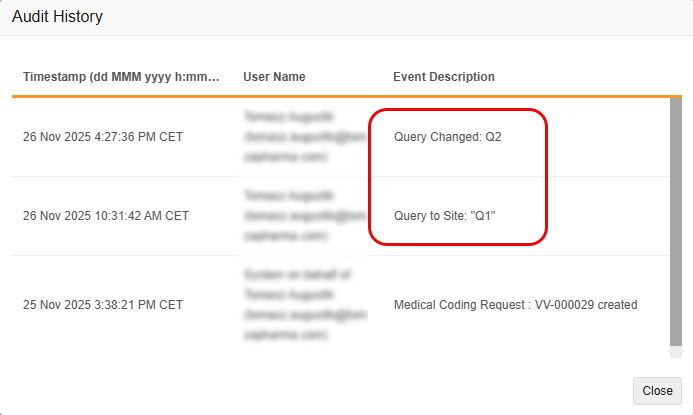
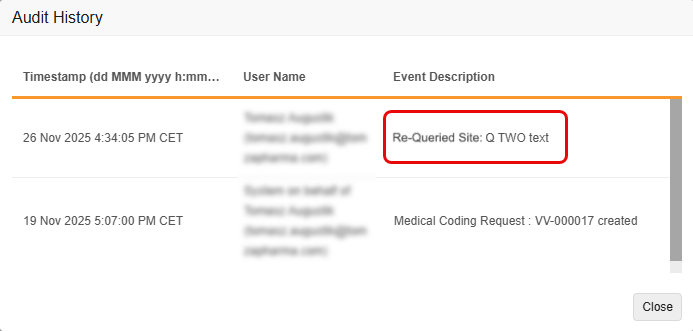
Currently, when a user has access to both the Coder and Review tabs and edits a message associated with a Coder-related query from the Review Tab, the system’s audit trail doesn’t accurately reflect the edit as a separate event in Veeva Coder. This makes it difficult to track the history of changes to the query’s message.
The enhancement ensures that all changes to a Coder Query message are tracked with a clear, separate audit entry, improving audit completion and meeting regulatory compliance and audit needs.
Description
With this feature, the Coder Audit Trail creates a new, separate audit entry whenever the message of a Coder-related query is edited, rather than simply updating the original audit entry with the new message. This change ensures that both the original query message and all subsequent edits are clearly recorded and visible in the Audit Trail. It also improves consistency between the Item Audit Trail in EDC and the Audit History in Coder.
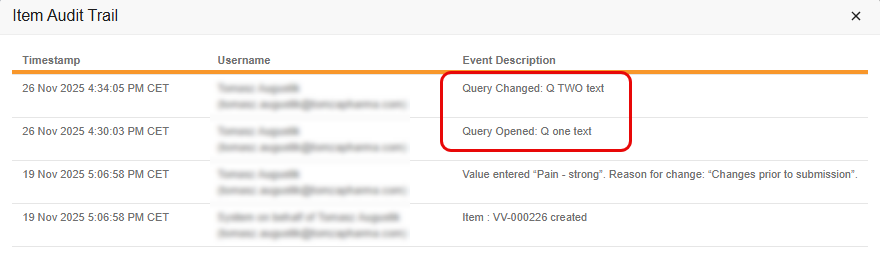
Enablement & Configuration
This feature is automatically available.
Coding Administration
The following are new features for Coder Tools, the administration area for Veeva Coder.
Update Coding System Label to Veeva Coder 25R3.2
Use Case
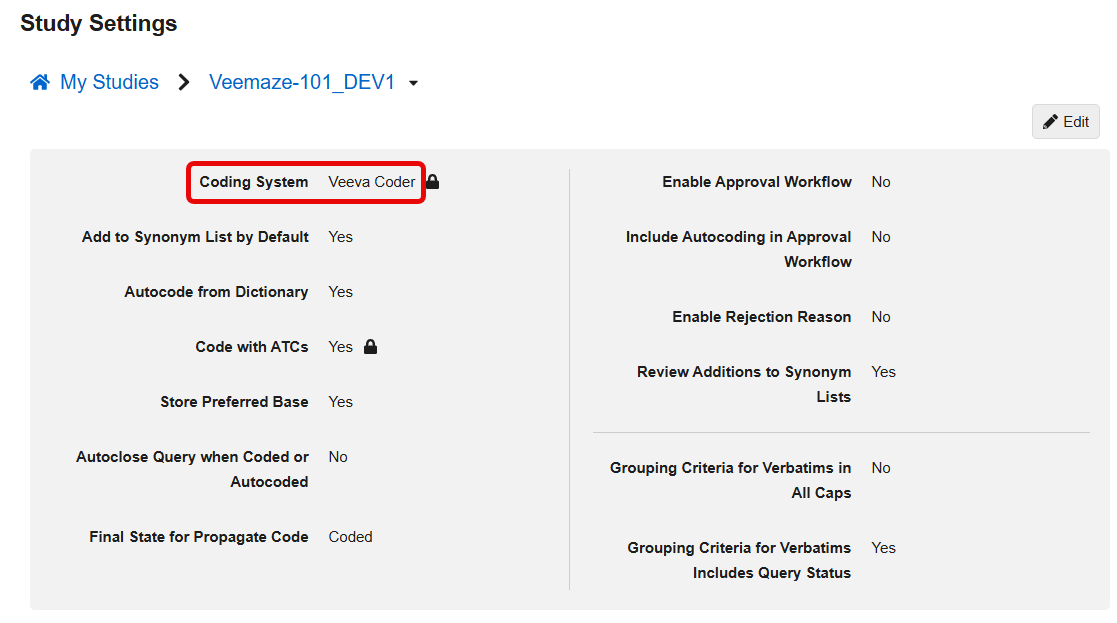
In line with the recent update of Vault application branding from Vault [Application] to Veeva [Application], the product name for the Coding System and all system references now use the updated name, Veeva Coder. This change ensures consistency in product naming across all Veeva applications.
Description
This feature updates the product name displayed for the Coding System in all system references, including Coder Tools > Study Settings. With this release, the label for the Coding System is updated from Vault Coder to Veeva Coder.
Enablement & Configuration
This feature is automatically available.
Imaging
The following are new features for Veeva EDC Imaging, the imaging exam module for Veeva EDC.
Imaging: Asynchronous Individual Exam Download 25R3.4
Use Case
Asynchronous processing improves the experience of downloading imaging exams, enhancing productivity by allowing users to continue with their normal workflows. Site users, CRAs, Data Managers, and Imaging Specialists no longer have to stay logged in while imaging downloads complete. They can continue to work in other areas of the application or close their browser entirely.
Description
Clicking the download link from the Exam Viewer in Data Entry, Review, Assessments, or the Exam List in the Imaging tab, initiates asynchronous processing of the exam download. A brief notification appears to let you know the process has started.
If you attempt to download an exam that you have already started downloading, the system will recognize the active request and prevent a duplicate download. You can download multiple different exams at the same time.
During the download processing, you can resume your normal workflow, navigate to other areas within the application or close the browser window.
When the exam is ready, the system sends an email with a direct link to download the file. The download links are available for 7 days before they are cleared, after which the user would need to simply re-initiate the download.
Enablement & Configuration
This update is automatically available for early adopters using Veeva EDC Imaging.
Learn More
Imaging: Update DICOM De-identification Profile 25R3.2
Use Case
DICOM images often contain a large volume of metadata, including sensitive patient health and identifying information (PHI/PII). This feature ensures that the system’s DICOM de-identification process and profile are current with the latest DICOM standards (specifically, 2025c). The automated de-identification process now covers newly defined tags, ensuring the system’s ability to reduce risk and maintain compliance.
Description
Veeva EDC Imaging’s security profile has been updated to include all tags defined in the DICOM standards up through release 2025c. This ensures the Tag Browser correctly displays all available tags.
The existing de-identification process is updated to include new DICOM tags.
- For each DICOM file, the system will identify new tags flagged for ‘DEID’ (De-identification).
- The original values of these new tags will be replaced with de-identified dummy values.
This update is a background change to the system’s data management and does not include any changes to the existing user experience (UX) or workflow.
The list of the DICOM tags that have been incorporated into the de-identification profile from release 2024c through 2025c:
| Attribute Name | Tag | Dummy Value |
|---|---|---|
| Ethnic Group Code Sequence | (0010,2161) | SQ |
| Ethnic Groups | (0010,2162) | UC |
| Gender Identity Code Sequence | (0010,0044) | SQ |
| Gender Identity Comment | (0010,0045) | UT |
| Gender Identity Sequence | (0010,0041) | SQ |
| Histological Diagnoses Code Sequence | (0008,1304) | SQ |
| Montage Channel Label | (0040,B03F) | LO |
| Montage Name | (0040,B03B) | LT |
| Name to Use | (0010,0012) | LT |
| Name to Use Comment | (0010,0013) | UT |
| Person Names to Use Sequence | (0010,0011) | SQ |
| Primary Diagnosis Code Sequence | (0008,1302) | SQ |
| Principal Diagnosis Code Sequence | (0008,1301) | SQ |
| Pronoun Code Sequence | (0010,0015) | SQ |
| Pronoun Comment | (0010,0016) | UT |
| Secondary Diagnoses Code Sequence | (0008,1303) | SQ |
| Sex Parameters for Clinical Use Category Code Sequence | (0010,0046) | SQ |
| Sex Parameters for Clinical Use Category Comment | (0010,0042) | UT |
| Sex Parameters for Clinical Use Category Reference | (0010,0047) | UR |
| Sex Parameters for Clinical Use Category Sequence | (0010,0043) | SQ |
| Third Person Pronouns Sequence | (0010,0014) | SQ |
Enablement & Configuration
This feature is automatically available.
Learn More
Assessments
The following are new features for the Assessments area of Veeva EDC.
Medical Assessments Grid Updates 25R3.4
Use Case
Previously, searching Medical Assessment records required typing out full protocol numbers, with limited sorting options. This update introduces a more efficient way to manage your workflow by providing advanced filtering and wildcard search capabilities. This is especially helpful for users managing multiple studies.
Description
We have upgraded the Medical Assessments grid to improve the overall interface and data management capabilities.
Key improvements include:
- Improved Filtering: The search functionality now supports partial matches and wildcard searches for filtering protocol numbers.
- Frozen Columns: To maintain context while scrolling, the “Assessment” column is now frozen as the first column.
- Column Sizing: Columns now feature an auto-width setting to better fit the displayed data. Users can also choose to truncate or wrap cell text when manually resizing columns.

Enablement & Configuration
These changes apply automatically available with the release.
Study Design & Configuration
Features in this area apply to Studio, the study design and configuration area for Veeva EDC.
Studio Casebook Version Update 25R3.2
Use Case
New fields seen when creating and editing casebook versions help Study Designers provide better references for amendments. The casebook version name and external ID can now be updated during the development and testing of post-go-live changes.
Description
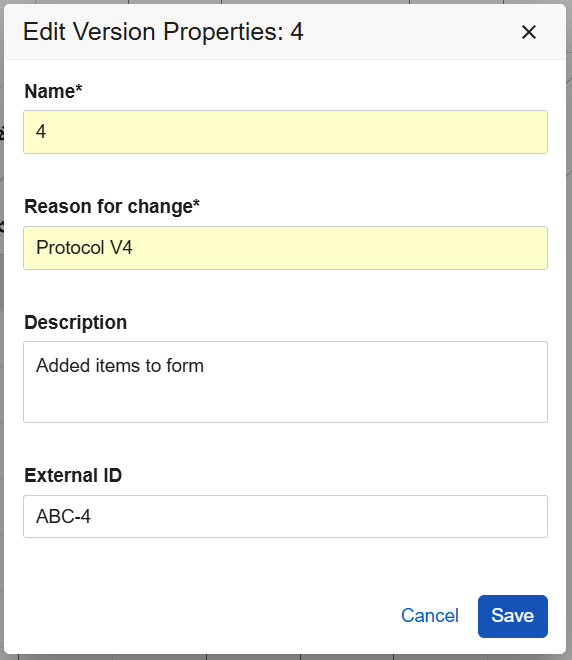
When editing or creating a casebook version, the external IDs can now be set uniquely to each new casebook version. Study Designers can update the casebook definition (version) name, reason for change, description, and external ID for non-published study versions.
New optional fields, Description and External ID, are available in the Create New Version dialog. The fields Reason for change and External ID are now included in the Edit Casebook Version dialog, allowing designers to amend these values while updating the study design. Also, for clarity, the title of the Edit dialog has been updated to Edit Version Properties: [version number].
The field lengths are enforced with on-screen error messages when exceeding the character limits:
- Name (128)
- Reason for change (255)
- Description (256)
- External ID (128)
The properties of previously published versions and versions with a Validating status are viewable from the new View Version Properties Studio menu option. Selecting this opens the View Casebook Version dialog as read-only.
Enablement & Configuration
This feature is automatically available.
Learn More
Studio: Copy Lab & Imaging Forms Across Vaults 25R3.4
Use Case
Copying Lab and Imaging forms across vaults further expands design reuse capabilities and reduces the manual effort required to build forms from scratch within the studies.
Description
When copying Event Groups, Events, or Forms from other studies or libraries across vaults, the Lab Panels, Lab Forms, and Imaging Forms with their related Item Groups, Items, Codelists, and Form Properties are now included as part of the copy. Lab and Imaging Forms will only be available for selection in the Forms Copy dialog when both the source and destination studies have the Lab or Imaging setting enabled.
For Lab forms, the analyte, global codelist, and units must exist in the destination study to copy the form successfully.
For Imaging, the global codelist for modality must exist in the destination study to copy the form successfully.
Enablement & Configuration
This feature is automatically available for studies with Global Labs or Imaging enabled.
Studio: Validate Any Design Changes 25R3.4
Use Case
By expanding ad-hoc validation capabilities in Studio, Study Designers can now confirm that versionless design changes like rules are in a validated state. Previously, validation was primarily tied to the casebook. This update allows designers to complete the validation step even when only versionless updates have been made. This change ensures that designers can verify the accuracy of all design elements before they are deployed from the Development (DEV) environment to Test (TST).
Description
The study validation process has been moved from the casebook definition to the Study Instance. The Validate option in the Studio actions menu is now available for any study design changes, including versionless components like rules, review plans, form links, assessments, and safety configurations. The study status will revert to In Progress and the Validate option will be visible in the Studio actions menu of the Development (DEV) environment after any change is made to the design.
To prevent data conflicts, Studio will lock editing and saving capabilities, including importing translations, while a validation job is running.
Once validation completes, the study status will update to Validated and the Validate option will be disabled. Users will be redirected by the hover over message to navigate to the Jobs area where they can retrieve the output from the current validation.
Enablement & Configuration
This feature is automatically available.
Studio Copy Log: New Summary Tab & Log Messages 25R3.4
Use Case
When copying designs in Studio, the output file now summarizes the copy selections and provides more detail in the log so that designers can better understand the results of the copy action and why certain rules were marked as invalid or skipped.
Description
The output file from the Studio Copy job now includes a dedicated “Summary” tab. The new Summary tab displays the timestamp, source vault, source study, and environment details, as well as which options were selected for the copy. More detailed messages are included in the “Status Message” column. A new “Notes” column of the Log tab expands on the status messages, providing more information in the following specific cases:
- Rule copied - updated to match destination definitions on name
- Rule copied and marked invalid - missing destination study references
- Rule couldn’t copy because one or more references could not be found in the destination
- Rule skipped, could not resolve the identifiers in the rule
Enablement & Configuration
This feature is automatically available.
Form Names & Schedule Driven Defaults Appendix Options in Studio PDFs 25R3.4
Use Case
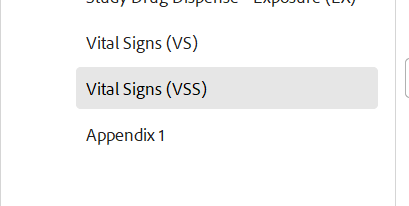
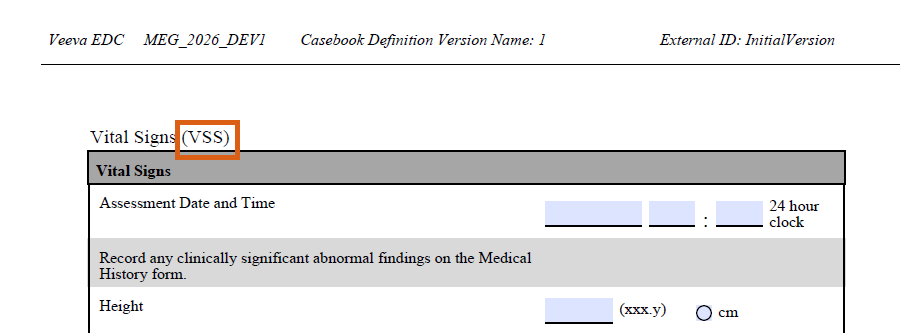
New options provide clarity when generating the Studio PDFs and allow designers to further format the PDFs to their organizational needs. This is particularly useful when using specific default data configurations and when two unique form designs have the same label, for example Vital Signs (VS and VSS).
Description
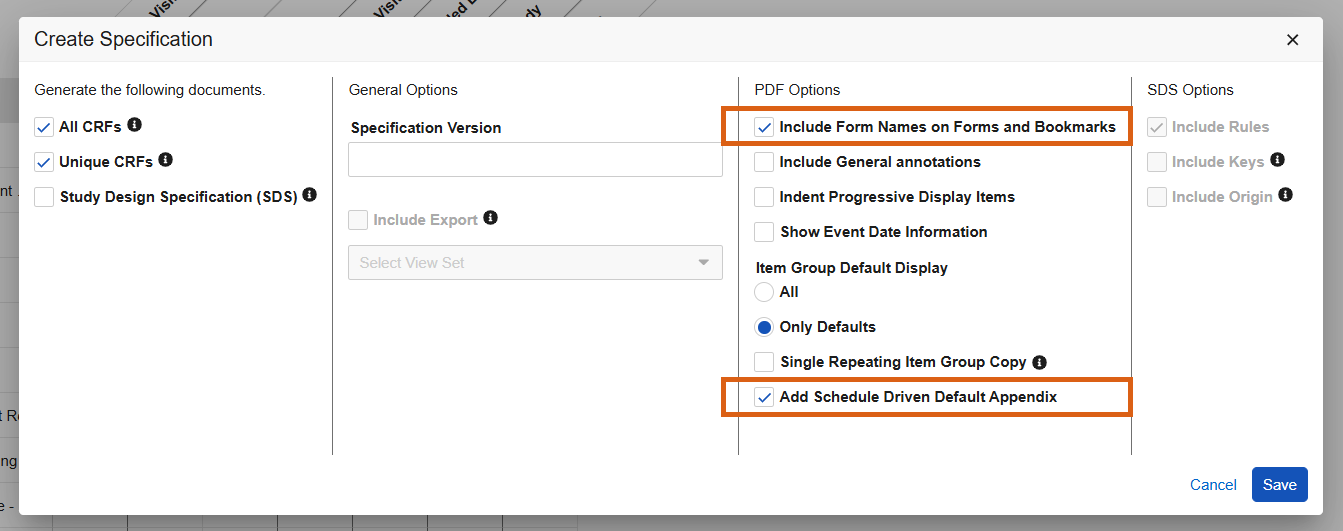
When generating the Studio specification PDFs, new checkboxes will be seen within the Create Specification dialogue:
- Include Form Names on Forms and Bookmarks
- Add Schedule Driven Default Appendix
Form names will appear in parentheses next to the form labels within the PDFs and the Bookmarks.
The Appendix will be included at the end of the PDF when the “Add Schedule Driven Default Appendix” option is checked and schedule driven defaults are used in the form design.
To save time for designers, when selecting “Include General Annotations” the selection for “Add Schedule Driven Default Appendix” will default to checked.
When utilizing the API to automate PDF generation, two new request parameters include_form_names_forms_bookmarks and schedule_driven_default_appendix are included in the start job request. These options can only be set to “true” if you are also generating “All CRFs” or “Unique CRFs”.
Enablement & Configuration
These changes are automatically available in Studio.
Learn More
Subject ID Generation Settings Included with Study Copy 25R3.4
Use Case
This feature updates the existing Study Settings copy functionality in Studio to include the settings for the Subject ID generation.
Description
The system now includes the following Subject ID generation details when initiating a study copy:
- Format: The structure used for the Subject ID.
- Type: The specific generation type selected.
- Range Start & End: The specific numerical boundaries defined for subject numbering.
Enablement & Configuration
This feature is automatically available.
Increase Studio Help Content 25R3.2
Use Case
The Help Content character limit in the properties panel in Studio has been extended to allow for longer descriptions so as to better inform site users during data entry.
Description
The character limit for the Help Content field within the Studio object properties panel has been increased to 1500. This change applies to the Help Content field for Event Groups, Events, Forms, Item Groups, and Items. Users will encounter a warning and be required to reduce their character length before saving when exceeding 1500 characters.
Enablement & Configuration
This feature is automatically enabled.
Rule Emails Should Display in Study Language & Locale 25R3.2
Use Case
Emails resulting from Send Email rules previously appeared in the user language/locale of the site user whose data entry triggered the email. With this release, the data in the emails will appear in the study language and locale. This change helps to align the data and email content in cases where the user’s language/locale differs from the study language/locale.
Description
When Study Language is enforced, the following data points included in the Send Email rule will display in the study language and locale:
- Date & DateTime Items
- Codelist Items
- Visit Method
- Event Date
When Study Language is not enforced, the data points included in the email will display in the user language and locale.
Additional aspects of the email subject and body will display according to the Rule Action, as configured by the study designer.
Enablement & Configuration
This feature is automatically available.
Studio Rules: Enforce Explicit Blank Handling 25R3.4
Use Case
Previously, the “Blank Handling” field in the rule editor was left empty by default, which often led to confusion regarding how the system treated missing data. For numeric fields specifically, the system treats empty as “0” during rule execution. However, study designers often intend for these to be treated as “null”. Removing the blank option ensures rules behave more predictably and reminds study designers to actively change the setting when needed.
Description
The rule editor is updated to ensure that every new rule has an explicit setting for how blank fields are handled. Instead of an empty selection, all new rules will now default to As Null. Additionally, the empty “blank” option is removed from the selection. When configuring a rule, you will now see two clear, distinct choices: As Null or As Zero.
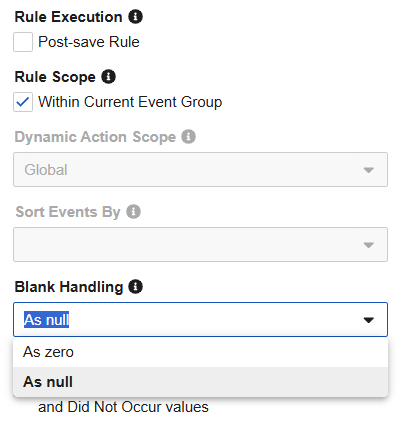
Existing rules will remain unchanged to ensure no disruption to their current logic. If an existing rule currently has a blank value, the blank selection will remain unless the study designer manually selects a new option.
Enablement & Configuration
This feature is automatically available for studies using Expression Engine v2.
Learn More
Enforce Reciprocal for Expression Engine v2 Rules 25R3.2
Use Case
This feature enforces consistent reciprocal behavior for rules within studies using Expression Engine v2. It helps ensure rules with a mix of @Form floating identifiers and fully qualified identifiers adhere to their intended behavior, re-evaluating as expected when the other identifier is submitted.
Description
For studies using Rules Expression V2, new rules and rules being copied into the study will enforce “Yes” for the Reciprocal value and this value will not be editable by Vault Owners in the administration area (Business Admin, Rule Definitions).
Differences in a rule’s Reciprocal setting will be included when comparing studies, even if the studies are on different Expression Engine versions. Rules that have had their Reciprocal field value changed from No to Yes will also be included in the Validation Test Script file.
Enablement & Configuration
This feature is automatically available for studies using Expression Engine v2.
Enforce Valid Derived Item Configurations 25R3.2
Use Case
New Studio restrictions and validations help Study Designers properly configure system edit checks, progressive display, and default data related to Derived items, preventing production issues caused by these improper Studio configurations.
Description
System Edit Checks (Item Properties)
When the Item Type of an item is changed to Derived and saved, EDC now automatically archives any active system edit checks associated with that item (for example, Required, Future Date, and Range checks). This ensures that Required, Future Date, and Range checks are not auto-generated in Data Entry for items which cannot be revised by site users. For previously added edit checks on the derived item, a new dialog informs the designer which system edit check settings will be archived.

Progressive Display
The system now prevents the use of derived items in Progressive Display rules when the visibility is set only to Include in Extracts. When revising a derived item and the Display Visibility property only specifies Include in Extracts, and Progressive Display rules are included, Studio will automatically archive the Progressive Display rules, displaying a new Impacted Objects dialog. The Progressive Display section will then be hidden from the item or item group’s Properties panel.
For existing, invalid, configurations (on either an item group or item), a warning icon and notification appears within the drag and drop editor. A warning banner with the Clear Progressive Display button is displayed within the Properties panel, allowing users to correct the configuration and archive the rules.
Warnings will also be included when running the Casebook Validation if the study contains invalid Progressive Display configurations with derived items.
Default Data
Derived items will no longer appear as available columns to configure Default Data. Items that are configured as Default Data cannot be changed to be a Derived item type.
Study designers can now clear entire columns configured for Default Data using a new eraser icon next to the item columns. If Derived items were previously included within Default Data, the column will now appear with a warning icon and orange highlighting. A red banner at the top of the grid will notify users that they are required to delete the column in order to save changes to the Default Data configurations.
Warnings will also be included when running the Casebook Validation if the study contains invalid Default Data configurations with derived items.
Enablement & Configuration
This feature is automatically available.
Display Item's Previous Submit Value in Email Messages 25R3.2
Use Case
Study Designers can now configure the previous value of an item to be included within the Message of Send Email rules. Seeing the previous and current value within the email body can be particularly useful for sending emails related to Adverse Event (AE) and other forms.
Description
When configuring User Defined Rules in Studio, the .previous_submit_value__v item attribute is now available as a token for including in email messages. Study Designers can add the token within the Message section in the Actions area for Send Email rules and can use this token to provide the item’s previous data value within the body of the email.
Example: ${Custom.@Form.igAE.AESER.previous_submit_value__v}
Enablement & Configuration
This feature is automatically available.
Learn More
Studio: Core Data Definition Validations 25R3.4
Use Case
Study builds typically require an adherence to organizational standards and metadata repositories. Customers who have created a Core Data Definition JSON file from their organizational standards, can now validate the study design definitions in Studio against it. Study Designers and Librarians can upload and manage a JSON formatted “Core Data Definition” (CDD) file to verify the study design against source standards directly within Studio. This helps study teams to reduce validation efforts with risk-based testing while ensuring study compliance.
Description
A new action, “Manage Core Data Definition (JSON)”, available in the Studio Actions menu, allows study designers to upload, remove and re-add a Core Data Definition file in .json format. Both the “Create Casebook Design Export (JSON)” and the new “Manage Core Data Definition (JSON)” actions are grouped together under the Casebook Version area of the menu.
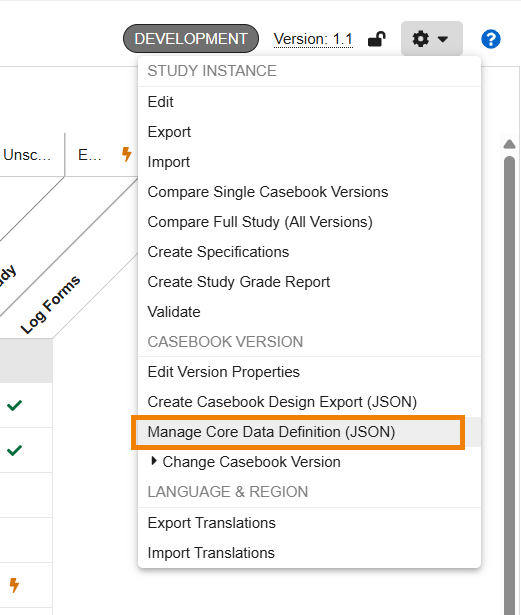
When selecting “Validate” and a Core Data Definition file is present, two new Yes/No options are seen in the Validate Study dialog:
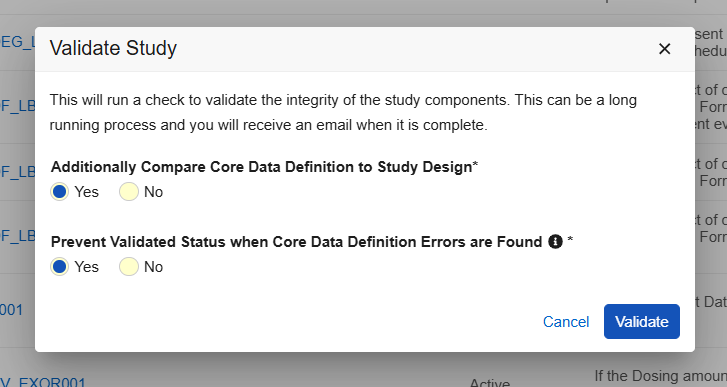
Selecting “Additionally Compare Core Data Definition to Study Design” validates the study design against the Core Data Definitions file and provides a separate .csv file, together in a zip file with the Studio validation file. An email notification is sent with a link to the validation output.
Selecting “Prevent Validated Status when Core Data Definition errors are Found” will prevent the study from having a validated status and can prevent a successful deployment when errors are found. Within the Deploy Study Design dialog there is a new option “Ignore Any Core Data Definition Findings”. Selecting this option will ignore the data definition validation and will allow a successful deployment despite any design errors found from the Core Data Definition.
Enablement & Configuration
This feature is automatically available in Studio.
Study Administration
Features in this section apply to System Tools or EDC Tools, a study-level administration area for Veeva EDC.
Person__sys for Just-in-Time VeevaID Registration & Enhanced User Management 25R3.4
Use Case
This feature introduces a more efficient way to onboard site staff by utilizing a Just-in-Time VeevaID registration model. Previously, user accounts were created immediately, often leading to a high volume of accounts for individuals who might never log in. In 26R1, full user account creation is delayed until VeevaID registration is complete. This provides sponsors with significantly more visibility and allows administrators to track invitation statuses.
Description
With this update, the standard person_sys object is used to manage site user details and study access as a Pending user until the user officially registers.
A new VeevaID Registration column in the Users grid displays real-time statuses including Invited, Registered, Expired, or Revoked.
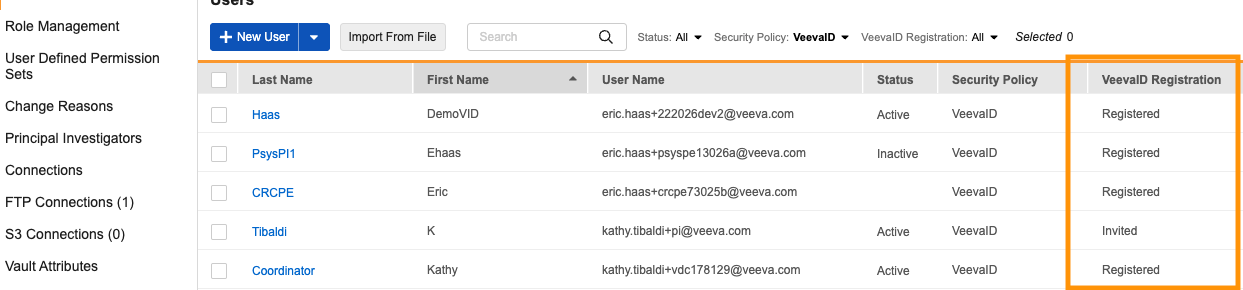
When adding new site users, the system now supports the Activation Date, holding the invitation until the specified date before sending it to the user.
The VeevaID registration email has been updated to include the Vault Name and links to sign in after registration. For customers that use CDMS Training, this initial registration email will replace the one previously sent from the Training Vault. Site users will receive the second email detailing study and role access once they complete their VeevaID registration.
The user VeevaID invitation history is now displayed on the User page in System Tools.
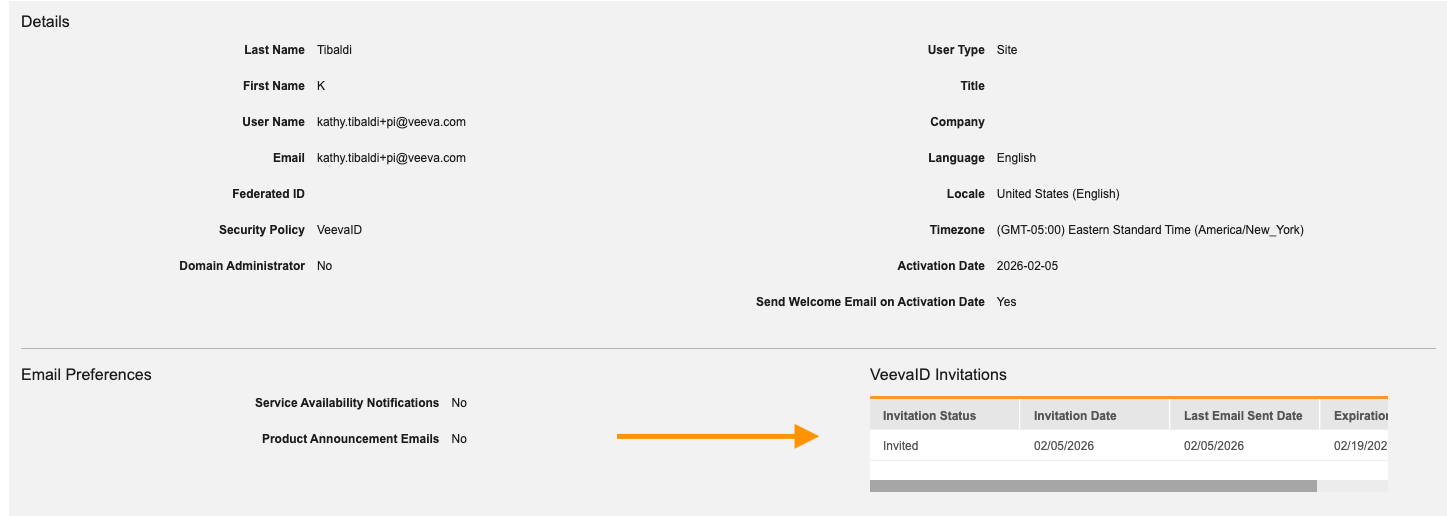
Email reminders are now sent every 72 hours to site users who have not yet completed their VeevaID registration. Reminders continue to be sent at this cadence until registration has been completed, an administrator has revoked the invitation, or 14 days have elapsed since the initial send date and the invitation expires. New invitations can be triggered at any point until registration is complete.
A new VeevaID Registration Report is available to help administrators analyze registration progress across one or multiple studies.
Person_sys records will be created for users with the Sponsor type. However, the user creation and management process will not change.
We have also updated the Retrieve Users API. With this release, this endpoint will now:
- Return
person__sysrecords when there isn’t yet auser__sys(i.e., Pending site users that have been invited but have yet to register for VeevaID) - When returning
person__sysbecause there is nouser__sys, apply the following:user_idwill be an empty stringuser_namewill be the same asuser_email
- No longer return Vault Owner records
Enablement & Configuration
This feature will be enabled in phases across customer vaults. Customers will be notified prior to enablement. Contact your services consultant to discuss early participation. This feature and the Centralized Principal Investigator Management feature are linked and will be released simultaneously as part of a single release.
Learn More
Event-Based Review Plans 25R3.4
Use Case
Previously, review requirements for a form were applied to every instance of the form across the entire study schedule. This behavior required study designers to create different versions of the same form in order to implement different review requirements for different events. With this feature, study designers can set specific review requirements for forms based on the event in which they occur, simplifying the process of implementing risk-based review plans.
Description
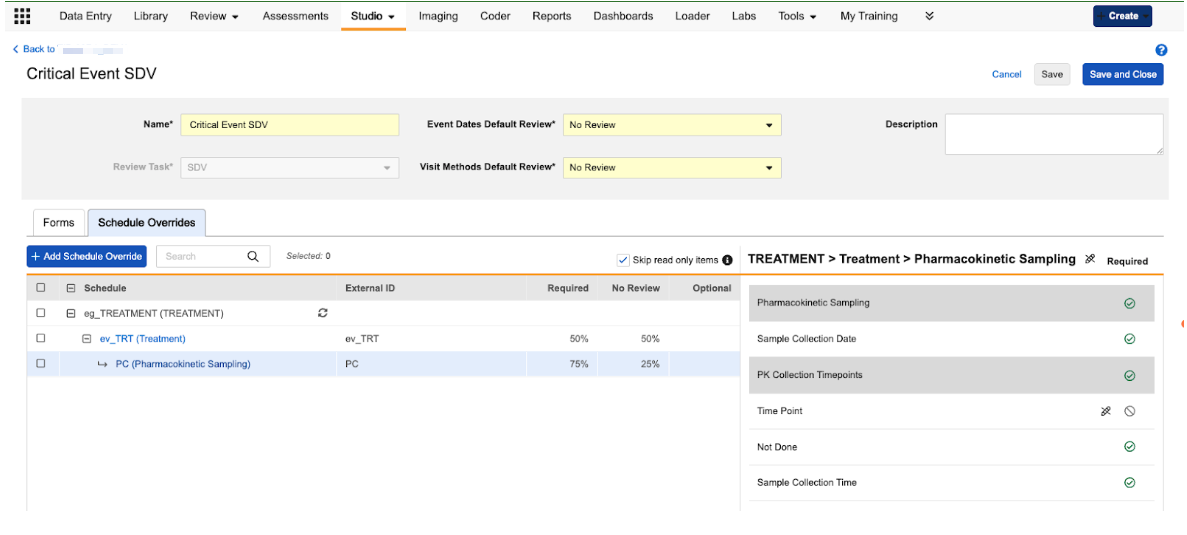
We’ve introduced a new Schedule Overrides tab within the Review Plan configuration area of Studio. This tab allows users to define unique review rules for specific visits (events) or specific forms within those visits.
When users navigate to the Schedule Overrides tab, they can select specific events and forms from their study schedule to create an override. Once an override is added, users can do the following:
- Set Event-Level Requirements: Configure specific review requirements for the Event Date and Visit Method for a single event.
- Set Form-Level Requirements: Define unique review requirements for items on a form that only apply when that form is completed during a specific visit.
- Manage Overrides in Bulk: Use the Set As tool to update multiple overrides at once, or use the Copy Configuration option to apply a specific configuration from one event/form instance to others across the schedule.
Additional Updates
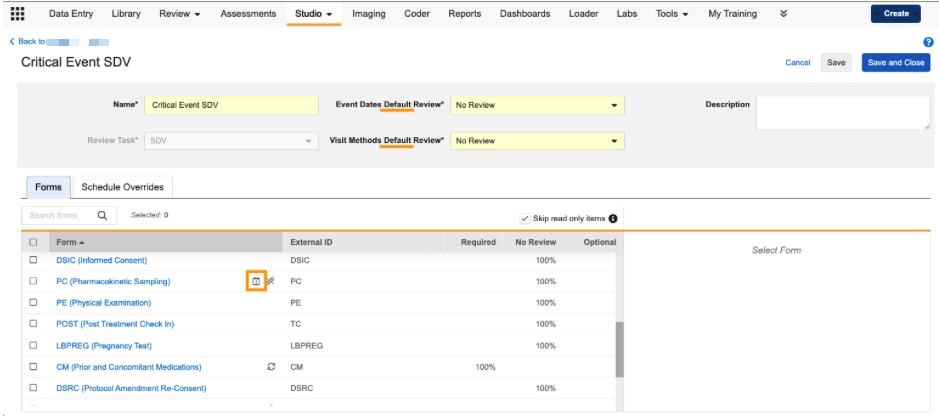
- The Review Plan header for the Event Date and Visit Method review fields are now labeled as default values.
-
An icon will appear in the form grid to indicate that a form in the Review Plan has a Schedule Override.
- The Study Design Specification (SDS) job has been updated to include the following schedule override details:
- The Event Date Review and Item Required columns have been updated to Event Dates Default Review and Item Review Requirement
- We’ve added new columns for Visit Methods Default Review, Event Group Label, Event Group Name, Event Label, Event Name, Event Date Review Requirement, Visit Method Review Requirement, Form Label, and Item Group Label.
- The Form Name column now appears after the Visit Method Required column.
- The Diff report has been updated to account for schedule overrides.
Enablement & Configuration
This feature is automatically available.
Learn More
Test Data Verification Job 25R3.4
Use Case
When making updates to an unpublished study version, a design definition may be removed that is still associated with test data, which can cause errors when trying to generate the Study Data Extracts (SDE) or PDFs. The new Test Data Verification job allows you to identify exactly which subjects are affected by these “breaking changes” by pinpointing the specific data that is no longer supported by the study design. Individual data or subject(s) can be reset, removed, or moved to a separate site where they are removed, preserving the rest of the valid test data and saving time during the testing process.
Description
Users with the Manage Jobs permission can now run a new Test Data Verification job from EDC Tools > Job History to identify invalid data due to study design changes that break the previous design. The new job reviews the study for data that has become invalid, specifically looking for missing definitions — such as events, forms, or item groups that were removed — and changes to data types that would cause system errors.
Users receive an email when the job completes with a link to download the job output. The resulting CSV file provides details and casebook locations to easily locate the invalid data. The output file categorizes issues into two primary categories:
- Definition Removed: This occurs when a study designer removes a definition in an unpublished version (such as a Form or Event) that already had test data associated with it in the environment.
- Definition Changed: This appears when an existing item’s data type, length, or precision has been modified in a way such that the system can no longer process the previously entered values. Changing a field from a Number to a Date, for example.
Enablement & Configuration
This feature is automatically available for DEV and TST environments.
Learn More
Centralized Principal Investigator Management 25R3.4
Use Case
Managing Principal Investigators (PIs) is now more flexible, allowing sponsors to track investigator details independently of their system user accounts. This update allows for the collection of more PI information (as the primary contact for the site) and provides sponsors with a dedicated tool for managing PI records rather than just creating them.
Description
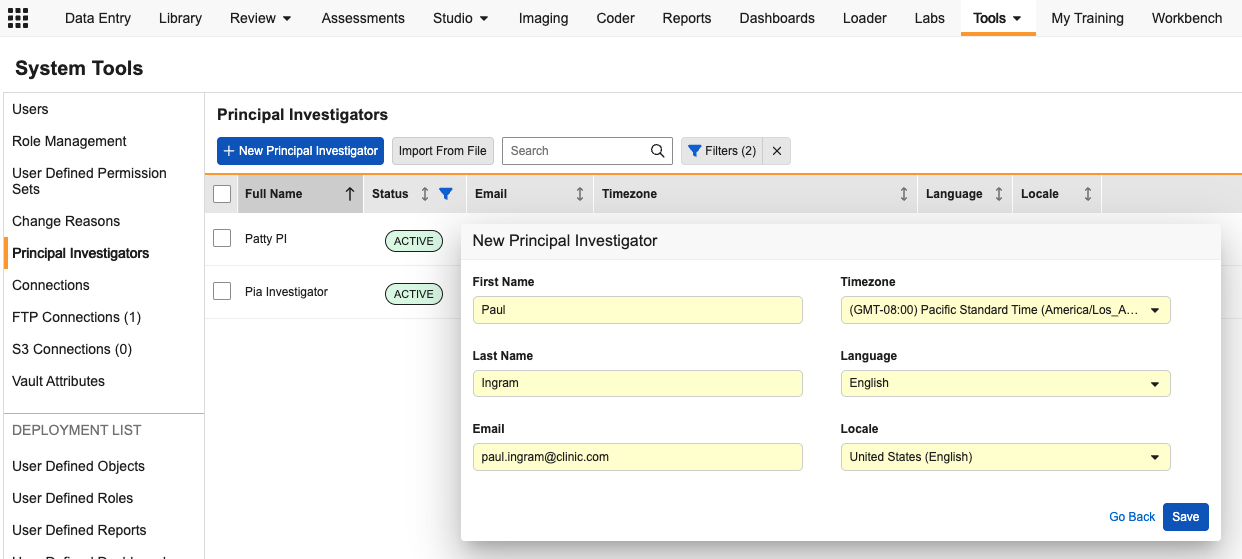
This feature uses the standard Person__sys object to support PI Management, providing a more robust way to capture investigator data. A new Principal Investigators tab in System Tools allows administrators to view and search all PIs in a single grid.
The Principal Investigator tab provides:
- A comprehensive overview of all active investigator records, including Full Name, Status, Email Address, Time Zone, Language, and Locale.
- The ability to edit contact details, activate/inactivate records, or merge duplicate investigators into a single active record.
- The option to create new PI records individually or via bulk import. PI records can also continue to be created via site creation in EDC Tools, with fields for the additional record details added to that screen.
- Access limited to User Administrators and custom roles with the following permissions: System Tools tab, View Users, Edit Users, and All Sites study-level access.
PI information in this tab is used for display in Data Entry and Review tabs and included in the Study File Format (SFF) extract, Study Data Extract (SDE), CDB, and Safety Cases.
Once enabled in your vault, existing PI records will appear in the new tab. In cases where an email address has not previously been collected, the system will display “dev.null@veeva.com” for the user email address. Time zone, language, and locale will be populated with the corresponding vault settings. These values can be updated through the Principal Investigator tab individually or in bulk via import.
Impact to Custom Reports
Once enabled, custom reports that currently use the Principal Investigator field on the Study Site (site_v) object should be updated to instead reference the Primary Contact field, as the Principal Investigator field will be deprecated.
Enablement & Configuration
This feature will be enabled in phases across customer vaults. Customers will be notified prior to enablement. Contact your services consultant to discuss early participation. This feature and the Person__sys for Just-in-Time VeevaID Registration & Enhanced User Management feature are linked and will be released simultaneously as part of a single release.
Learn More
FTP Delivery Updates 25R3.4
Use Case
This feature offers a new option that allows a new way for Veeva to distinguish outbound connections to Vault from external FTP connections when delivering CDB exports.
Description
The updated FTP UI in System Tools and EDC Tools includes a new subtype for the CDB Delivery Method of Veeva Vault, which enables delivery of exports to Vaults. Customers should select this type when creating new connections or modifying existing CDB FTP connections where they want exports delivered to the Vault File Staging area.
Enablement & Configuration
This feature is automatically available.
Subject Progress Listing: Updated Logic for Complete & Clean Statuses 25R3.4
Use Case
Previously, if a subject didn’t have a specific review plan assigned or didn’t have data ready for review, the system would default certain progress columns to No. This action would then trigger a misleading value of No in the overall Clean column, even if the subject had no pending work. With this feature, Veeva has refined the logic within the Subject Progress Listing to ensure that the Clean status reporting more accurately reflects the actual state of data review.
Description
We’ve refined the logic used to calculate subject progress to ensure that users’ listings and extracts are more precise. Rather than defaulting to No when no review plan is assigned or no data is required, the relevant fields will now remain blank.
The Clean column logic has been updated to recognize these blank values. A subject is now considered Clean if the Entry Complete, Locked, Signed, and All Queries Closed columns are all Yes and the Subject SDV Complete and Subject DMR Complete are either Yes or blank.
Enablement & Configuration
This feature is automatically available.
User Management Support for Unmapped Training Requirements 25R3.4
Use Case
This feature introduces a critical safeguard to prevent administrators from unintentionally granting study access to users assigned to roles that lack mapped training requirements, helping customers avoid the risks associated with regulatory audits or manual training status updates.
Description
This update introduces three major improvements to training compliance: the ability to set a default training status for unmapped studies, enhanced warnings when training isn’t mapped to a role, and a new tool to simplify the recalculation of training statuses across your vault.
Default Training Status for Unmapped Studies
Administrators can now define the specific training status that the system will automatically apply when a user is assigned to a study that has no training requirements defined. This ensures that access is not granted by default simply because a mapping is missing.
In System Tools, Administrators can navigate to the Action (…) menu for the Vault Training Connection, select Edit Learning System, and view or update as needed. The default setting is Trained to match current functionality.
Enhanced User Management Warnings
When assigning a role to a user, the system now performs a real-time validation to check for training requirements. If no requirements are found, a prominent warning dialog is presented, requiring the administrator to acknowledge the risk before proceeding.
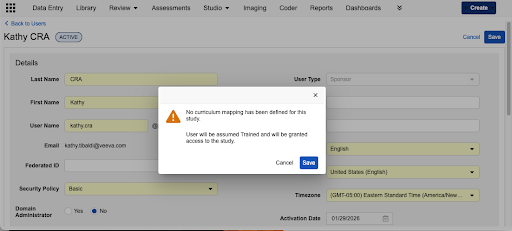
The possible warnings include:
- No Mapping for the Study: If a study has no curricula defined, the system warns the administrator and applies the new default status.
- Unmapped Role in a Mapped Study: If a study has training requirements but the specific role being assigned does not, a warning appears stating that no curriculum has been assigned to that role, and the user will be assumed Trained and granted access to the study.
- All Studies Access: When granting a user access to All Studies within a vault, a warning will display if none of the studies have training mapped for that role (even if the LMS is not enabled), and the user will be assigned the default training status.
These warnings are also displayed during the user import process if mappings are missing for studies or roles.
Recalculate Training Status Tool
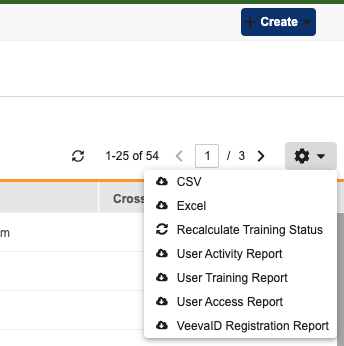
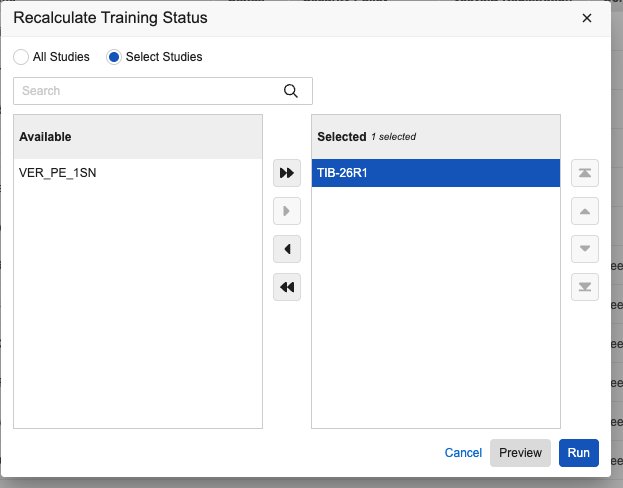
A new Recalculate Training Status action is available in System Tools. This action allows enabled users to refresh training data for selected (or all active) users in selected studies. This is helpful if training requirements change or the default setting is updated. The new action includes a Preview Mode that generates a CSV report, allowing you to see which users might lose access based on current training completions before you run the actual job.
This feature cannot be tested in pre-release, as Vault Training Connections are not supported.
Enablement & Configuration
This feature is automatically enabled in all vaults after the release and will apply to all studies with Enable Learning System set to Yes in EDC Tools. The default training status will be set to Trained to match current functionality.
This feature is not testable in pre-release environments.
Learn More
Study Deployments: Move "Include System Data" Option 25R3.4
Use Case
Previously, during deployment the option to include system data was prominently displayed in the main study deployment dialog, which made it easy for a user to accidentally include these settings during a routine study update. This update adds a layer of protection to ensure system data is only deployed when specifically intended.
Description
To improve the deployment process and minimize unintended vault deployments, the Study Deployment dialog now hides system-level settings by default. A new Advanced section has been added to the bottom of the dialog window. This section remains collapsed when the dialog opens, keeping the focus on standard deployment tasks such as creating the detailed PDF or deleting study data.
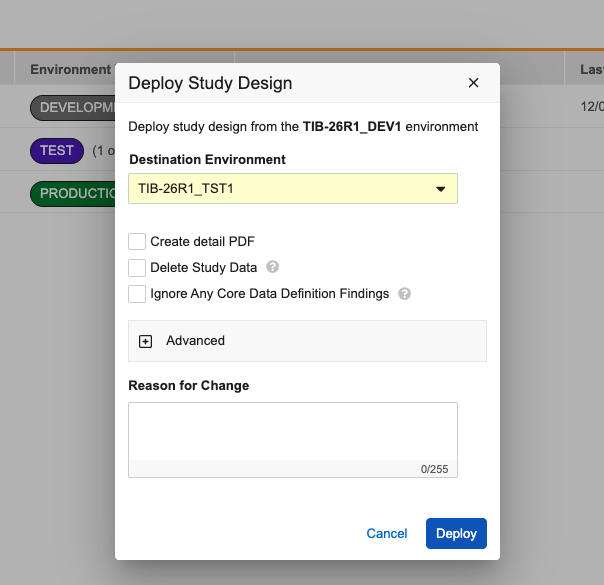
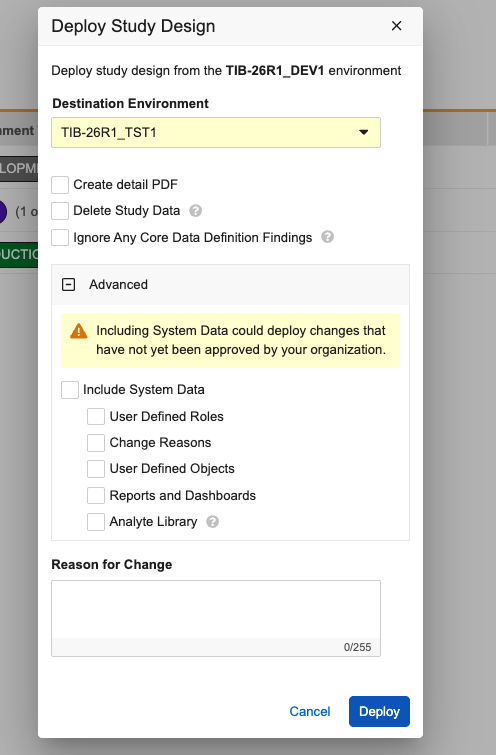
To include vault-level changes in the deployment, click to expand the Advanced section. Inside, you will find a warning message reminding you that including this data could deploy changes not yet approved by your organization. Within this section, you can then choose to include:
- User Defined Roles and Objects
- Change Reasons
- Reports and Dashboards
- Analyte Library
Enablement & Configuration
This feature is automatically available.
Learn More
Event & Form Progress Listings: Updated Column Order 25R3.4
Use Case
We’ve updated the layout of our Event and Form Progress listings to improve consistency and readability. These changes ensure that related sequence information is grouped together, making it easier for data managers and monitors to track the chronological order of events and forms within their respective groups.
Description
This update applies to the following:
- CSV Extracts: The generated CSV files for both Event and Form Progress listings.
- Report Templates: The standard report templates used for these listings.
To maintain compatibility with existing data downstream, these column order changes will not be applied to the Versioned Extracts (Event Progress Versioned Extract and Form Progress Versioned Extract).
Enablement & Configuration
This feature is automatically available.
Support Higher-Volume Rule Jobs 25R3.4
Use Case
Previously, when study administrators needed to run more than 100 rules in a Rule Job, they needed to run multiple jobs. Now, more rules can be included in a single job. Higher-volume rule jobs increase efficiency by allowing the study administrator to run fewer separate jobs.
Description
With this release, up to 300 rules can be selected to run in a single Run Rules job.
Enablement & Configuration
This feature is automatically available.
Learn More
Redesign Rule Job Output File 25R3.2 25R3.4
Use Case
The output files of the Rule Job (EDC Tools) have been redesigned to provide more comprehensive details about rule execution results and improved usability. This change helps Study Designers and Lead Data Managers gain a more complete understanding of the expected behavior when running rules.
Description
This feature introduces a new, single Excel file for the Run Rules job results output, replacing the current zipped CSV file set.
The new Excel file contains five distinct tabs:
- Summary Tab: Provides a high-level overview of the job, including the Job ID, Vault and Study name, number of rules selected, and number of subjects included.
- Subjects Tab: Lists every subject included in the job and provides a high-level count of the total changes that resulted for each subject, such as Forms Created and Removed, Queries Opened and Closed, Subject Statuses Changed, and Derived Values Updated.
- Rule Summary Tab: Lists every rule included in the job and provides a high-level count of the total number of subjects impacted by the rule, as well as the total number of each specific action taken by that rule (e.g., number of Forms Created and Removed, Derived Items Changed, or Subject Statuses Changed).
- Rule Details Tab: Lists every single rule execution that occurred in the job and the action that resulted in the casebook for each. Each execution includes the specific location in the casebook where the action took place. The Action Details column now provides additional information about specific outcomes when necessary, including scenarios where the expected action did not occur because the target is locked, frozen, or does not exist. Action labels have been updated for accuracy and clarity.
- Errors Tab: Lists details about any errors encountered during the job, including the Rule Name and Subject on which the rule failed. To improve readability and streamline error management, technical failure details and extensive code references have been removed and replaced with the specific Error ID.
Results of Run Rules jobs run in Preview mode now contain the same level of detail as the results from live jobs.
When Study Language is enforced, contents of the Run Rules job files are now displayed in the study language.
Enablement & Configuration
This feature is automatically available.
Learn More
Enablement Change: Deployment UI & Processing Improvements 25R3.4
Description
In the 25R3 release, the feature “Deployment UI and Processing Improvements” was enabled as a Phased Release and required Veeva Support. This feature is now made available more broadly to benefit all customers.
This feature is now updated to Auto-on for all vaults to allow the backend processing of deployments to occur in a series of smaller packages as part of the overall deployment processing. See the 25R3 release notes for further details.
Enablement & Configuration
This feature is automatically available with the release.
This feature is not testable in pre-release environments.
Job History Includes SDS & Studio Validations 25R3.4
Use Case
The Study Design Specifications and Studio Validation job results are now centrally located and more formally tracked along with other study jobs. This helps provide a central location for the design documentation and validations, in cases where designers may have deleted or misplaced their email notification.
Description
The Validation and Study Design Specification (SDS) jobs are now included as part of the EDC Study Job framework. The job output files and logs are automatically stored and associated with their specific Job ID in Job History (EDC Tools). Within Job History, the hover over on the information icon will display the selections chosen when generating the files.
When running the Validation job to include the Core Data Definitions, the output will include a ZIP file containing both the Studio Validation and the Core Data Definition Validation.
The user that initiated the job will still receive the same confirmation email that contains the direct link to download the output file.
Enablement & Configuration
This change applies automatically available with the release.
Removed Legacy CDB Workbench Export Job from EDC 25R3.4
Description
This release removes the legacy CDB Export job option (and any remaining scheduled instances of it) from within EDC Tools. The 24R2 release introduced the use of incremental data ingestion from EDC to CDB, which eliminated the need for this export.
Enablement & Configuration
This update applies automatically at the time of release.
Labs
Features in this section are new features for the Labs module of Veeva EDC.
Modifier Support for Lower/Upper Age Values in Normal Ranges 25R3.4
Use Case
Clinical study teams often need to define lab normal ranges based on highly specific age groups. Previously, age range boundaries were generally interpreted in the system as inclusive. This feature allows teams to explicitly define whether age boundaries are inclusive or exclusive using mathematical operators. This capability is critical for maintaining source data accuracy, such as distinguishing a range for subjects “under 12 years old” (<12) versus “12 years and younger” (≤12).
Description
This update introduces Lower Age Modifier and Upper Age Modifier fields to the lab reference range records. These fields allow for the selection of specific operators to qualify age values:
- Lower Age Modifiers: Greater than or equal to (≥) or greater than (>).
- Upper Age Modifiers: Less than or equal to (≤) or less than (<).
These modifiers are now visible in the Lab Locations & Normal Ranges grid, with new columns placed before the corresponding age values.
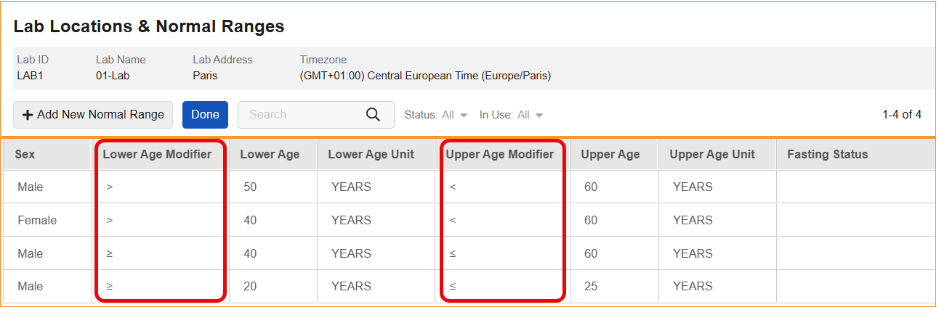
To maintain data integrity, the system now enforces additional validation rules. When an age value is defined, a modifier is required; conversely, when a modifier is selected, a corresponding age value must be entered. If either condition is not met, an error message will display.
Furthermore, the system identifies overlapping ranges by evaluating both the numerical age and the modifier. For example, a range defined as ≥12 years is recognized as non-overlapping with a range defined as <12 years. If a logical conflict occurs — such as setting a Lower Age of >12 and an Upper Age of <12 — the system will prevent the user from saving the record.
Additionally, the Standard Template: Lab Reference Ranges report has been modified to support these updates and can now display Lower Age Modifier and Upper Age Modifier columns.
The following columns have been added to the SDE in the SYS_LABRANGES dataset to support these changes:
- LABLOWERAGEMODIFIER
- LABUPPERAGEMODIFIER
Enablement & Configuration
This feature is automatically available.
Learn More
Remove Automatic Addition of Trailing Zeroes to Lower & Upper Normal Range Values 25R3.2
Use Case
Currently, when a user enters Lower or Upper Normal Range values, the system automatically adds trailing zeroes based on the Analyte’s precision setting before saving the record. This behavior can cause problems because the saved data does not exactly match what the user entered. More critically, if an Analyte’s precision is updated later, running an Update Outdated Normals Job can add more trailing zeroes, potentially breaking downstream processes like SDV, DMR, and Signatures.
Description
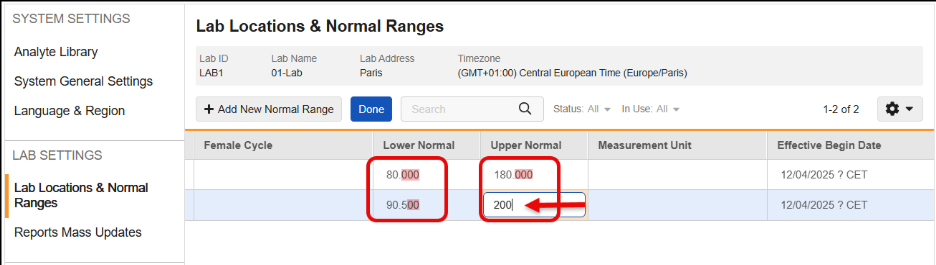
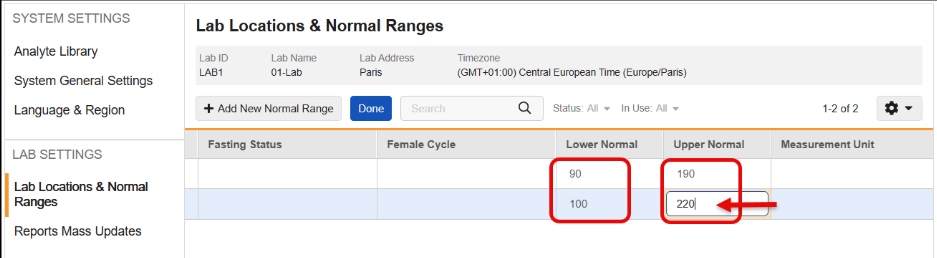
This feature changes how Lower Normal and Upper Normal range values are stored in the system to ensure that saved data matches the user’s input without added trailing zeroes.
With this release, the automatic addition of trailing zeroes has been removed, so that the Lower Normal and Upper Normal range values are saved exactly as the user inputs them. This functionality maintains data integrity and prevents downstream validation breaks caused by changes in Analyte precision.
Previous behavior:
Updated behavior:
This feature also prevents the user from saving analytes that are not a Number or Unit data type and includes updated error messages for those instances.
Enablement & Configuration
This feature is automatically enabled in GR. Contact Veeva Support for LR enablement.
Randomization
Features in this section are new features for the Randomization module of Veeva EDC.
Disable EDC Randomization for New Studies 25R3.4
Use Case
This change ensures that customers utilize the current Veeva Randomization offering or a third-party vendor for all upcoming trials.
Description
With this release, the legacy EDC Randomization settings will no longer be available when creating new studies. While existing studies utilizing EDC Randomization will continue to function without disruption, the following changes will impact newly created studies:
- Studio Settings: The “Enable Veeva Randomization” option will no longer appear in the Studio Study Settings for new studies.
- New Study Creation: The “Import Randomization Configuration” option has been removed from the New Study interface. Additionally, if a user copies an existing study that has EDC Randomization enabled, the new copy will automatically have the setting disabled.
- Reports and Rules: Randomization references will no longer appear in the Study Design Specification (SDS), Difference Reports, libraries, or rules for new studies.
Enablement & Configuration
This change is immediately available in new studies. Existing studies currently using EDC Randomization are not impacted.
EDC Clinical Reporting
The following are new features for the Veeva EDC Clinical Reporting application.
SFF Enhancements for Clinical Reporting Studies 25R3.4
Use Case
Improvements to SFF increase the value of this format for downstream systems.
Description
This release contains the following SFF improvements:
- The SFF extract now includes a Source column showing the name of the source of the data
- Query files have new columns for Origin information and Quick Queries
- The SYS_Links CSV file now includes Item-to-Form linking information
- The full SFF package is now available at noon local vault time
Enablement & Configuration
These features are automatically updated with the release.
This feature is not testable in pre-release environments.
Learn More
Support JDrug Coding Dictionary in Clinical Reporting 25R3.4
Use Case
For studies with Veeva Coder that use the JDrug coding dictionary, the availability of JDrug in Clinical Reporting supports exports that include Japanese coded terms for drug forms such as Concomitant Medications.
Description
JDrug Coding Dictionary values are now available in SFF and Raw exports. Updates to Raw exports include new columns for DictionaryType and UserCodedBy, for all forms with MedDRA, WHODrug, and JDrug dictionaries configured. JDrug dictionary values will apply to forms configured in Veeva EDC with the JDrug coding dictionary.
Enablement & Configuration
This feature is automatically available.
This feature is not available for testing in pre-release environments.
Listing Data Grid Improvements in Clinical Reporting 25R3.4
Use Case
Improvements to screen size utilization in a listing enhances the experience for users–either those using smaller screens, or wanting to focus their view of data better by moving the cell details panel to a new window while still viewing the listing rows, making reviewing data easier.
Description
This release improved listing screens to use the available space more efficiently. Opening the cell details panel will automatically maximize the grid. You can pop-out the detail panel to a new window to allow full visibility to the listing data. Users can also use a new dialog to show and hide columns, so you no longer need to select columns one at a time to hide or show individual columns.
Additional enhancements include:
- The Expand Grid button has been updated to Maximize or Minimize the grid, utilizing more screen space for the data grid.
- Selecting cell decorations for Query or Protocol Deviation will open to that section in the cell details panel.
- Contextual Filtering: A new grid-level option allows users to filter results instantly by a specific cell value. Simply hover over any cell to reveal the filter shortcut.
Enablement & Configuration
These changes apply automatically at the time of release.
This feature is not available for testing in pre-release environments.
Incremental Import Updates for Clinical Reporting Lab Labels 25R3.4
Use Case
Using incremental import when labels are changed in the Labs module ensures minor changes don’t require a full reprocess of the study data.
Description
Label changes made to lab codelist or unit items will now be added to the incremental imports from EDC. This only applies to studies using the Global version of Labs.
Enablement & Configuration
This feature is automatically available at the release.
This feature is not available for testing in pre-release environments.
Add Job ID to Manifest and Export Log 25R3.5
Use Case
Having a unique identifier for Workbench and Clinical Reporting export jobs supports more efficient troubleshooting and traceability.
Description
This release adds the Job ID to the export manifest.json file and the export job log for both Workbench and Clinical Reporting export jobs.
Enablement & Configuration
This feature is automatically available at the release.
Learn More
Clinical Reporting User Session Management 25R3.4
Use Case
Aligning user sessions removes confusion when the user gets logged out while actively working in Clinical Reporting.
Description
Clinical Reporting user sessions will now keep the vault session alive, and align with the vault settings, ensuring access in EDC and Clinical Reporting is consistent and according to the vault’s settings.
Enablement & Configuration
This feature is automatically available with the release.
This feature is not available for testing in pre-release environments.
Clinical DataBase (CDB)
The following are new features for the Veeva CDB application.
Availability: Clinical DataBase (CDB) is only available to CDB license holders. Contact your Veeva Services representative for details.
Listing Access 25R3.4
Use Case
This feature enables users to focus exclusively on their relevant data by restricting their listing access to specific categories, ensuring a more efficient review process.
Description
Configuration users can now manage listing permissions and categories globally via CDB Configurations. This inheritance-aware grid allows them to define which granular actions (View, Set Review Status, Create, Modify, etc) a Study Role can perform, based on the Category.
The new Listing Access page is available to users with the Configure CDB permission.
It is not possible to provide listing access rights to a role that does not have the permission for that action. For example, a role can’t have access rights to modify a listing if the role does not have the Modify Listing permission.
Enablement & Configuration
This feature is automatically available for use, but a user with the Configure CDB permission must add Listing Categories and set access restrictions for those categories.
Review Listing Item Value Change Detection 25R3.4
Use Case
Data managers can now quickly assess the impact of data changes without conducting a full re-review, significantly accelerating the review cycle.
Once a review status is set, CDB automatically identifies and outlines the exact cells where values have changed. Users can instantly view the previous data value by hovering over the highlighted cell.
By knowing precisely what changed, data managers can quickly determine whether to dismiss the change, create a targeted query, or update the review status.
Description
When data changes in a listing after a Review Status has been set, CDB now provides granular visibility into those modifications. Instead of just flagging the entire row, the system specifically outlines the exact cells that have been updated.
- Visual Highlighting: Changed cells are automatically outlined for immediate identification.
- Historical Context: Hover over any highlighted cell to instantly view the previous value.
- Streamlined Resolution: Dismissing the “Data Change” indicator at the row level will clear all cell highlights simultaneously.
- Simplified Status Updates: Transition directly between review statuses (such as from Reviewed to Pending) without the intermediate step of resetting to Unreviewed.
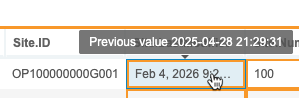
Enablement & Configuration
This update is automatically enabled at the release.
Import Error & Warning Code Aggregation 25R3.4
Use Case
Grouping the warning and error codes simplifies the log and allows Data Managers to quickly identify issues related to third party data imports.
Description
The Issues log on the Import page now provides a separate Issues Summary tab that aggregates the unique error and warning codes identified during package processing.
Enablement & Configuration
This feature is automatically available with the release.
Learn More
Manifest Builder Updates 25R3.2 25R3.4
Use Case
Enhanced features in the Manifest Builder ensure better data quality and provide a better experience for users building a manifest file (.json) to import third-party and OpenEDC data.
Description
The Manifest Builder has been updated with the following features:
- Required field validations in the Manifest Builder for the following data types:
- Text (length is required)
- Float (length and precision are required)
- Date, Date Time, and Time (format is required)
- Codelist (codelist is required)
- Configuration validations will display in the Manifest Builder:
- Text length must be between 1-3000 characters
- Integer minimum must be greater than or equal to -9,223,372,036,854,775,808
- Integer maximum must be less than or equal to 9,223,372,036,854,775,807
- Float length must be between 1-24 digits
- Float precision must be between 0-7 digits
- Float minimum must be greater than or equal to -999,999,999,999,999,999,999,999
- Float maximum must be less than or equal to 999,999,999,999,999,999,999,999
- The ability to upload codelists:
- New codelists or adding items to existing codelists
- Import template CSV available
- The text default is now set to 500
- Adding a new item to the manifest Item Mapping will no longer display the row in error on creation
- When data type is changed, any entered properties will be cleared
Enablement & Configuration
These features are available automatically at the time of the release.
Learn More
New Third-Party Data Type Validations 25R3.2 25R3.4
Use Case
Validations on data type ensure that the data adheres to the values described by the manifest, resulting in higher quality data and error detection during import.
Description
The system now provides new validations on numeric and text data types configured in the manifest, as well as support for MySQL BigINT numbers (i.e., numbers with greater than nine (9) digits).
Validations for the text Item Definition will ensure that the configured length is greater than zero (0) and less than or equal to 3000. New warnings D-039 for greater than 3000 and D-040 for length less than one (1) will display and set the values in the manifest if they do not conform to the minimum and maximum length for a text field.
Numbers defined as Float in the manifest will have new validations with warnings D-041 to D-046 to ensure that the Item Definition length is at least one (1) and does not exceed 24 digits. The configured minimum and maximum values cannot be less than -999,999,999,999,999,999,999,999 and cannot be greater than 999,999,999,999,999,999,999,999.
Numbers defined as Integer in the manifest will have new validations with warnings D-049 to D-052 to ensure that the configured minimum and maximum values fall within the supported range. The configured minimum and maximum values cannot be less than -9,223,372,036,854,775,808 and cannot be greater than 9,223,372,036,854,775,807.
Enablement & Configuration
This feature is automatically available at the time of the release.
Learn More
Import Audit Updates 25R3.4
Use Case
New columns and filters in the Import Audit Trail provide more information about imported data packages and allow users to focus the list when viewing multiple audit records.
Description
Third Party Data package audits include two new columns: Audit Date, which is the date the audit record was created, and Type, which denotes if the package is Reference Data or Third Party Source Data.
New filters also allow users to display records related to Uploaded Date, Uploaded By (User), Imported Date, or Status.
Enablement & Configuration
This feature is automatically available with the release.
Learn More
Unblinding Rules Deployment 25R3.4
Use Case
To provide better control over unblinding rules for third party data, users can now deploy rules to production from the CDB Workbench application.
Description
Deployment of unblinding rules ensures that only approved updates are added to the production environment. This includes an audit of the deployment history, capturing who, what, and when the rule was deployed.
With this feature, once a study is enabled for deployment, unblinding rules in production cannot be edited. All edits must occur in a TST environment. A new Approval Log (downloadable) will provide information about when a rule was last modified in the TST environment.
Enablement & Configuration
This feature is automatically available for TST studies enabled for deployment.
This feature is not available for testing in pre-release environments.
Learn More
Third Party Data Import Notification When Pending Approval 25R3.2
Use Case
Users will now receive a notification when the package they uploaded is pending approval and requires action within CDB Workbench.
Description
The user who uploads a third party data package will now receive a notification if the package is pending approval and requires action (approval). This occurs regardless of whether it is the first package from this source or a change to the previously approved package manifest.
This feature applies to both Veeva EDC and OpenEDC studies.
Enablement & Configuration
This feature is automatically available at the time of the release.
Learn More
Additional Clean Patient Tracker Columns 25R3.2
Use Case
Additional columns allow for better review of subjects in a study and understanding of where in the schedule of events the subject is, especially when using repeating event groups.
Description
The Clean Patient Tracker now includes columns for Substudy and Latest Event Group to provide more context and filter options when viewing the tracker.
Enablement & Configuration
This feature is automatically enabled at the release.
Filter Menu Redesign for Listings 25R3.2 25R3.4
Use Case
Filter improvements allow more efficient review of listings, views, checks, protocol deviations, queries, and observations.
Description
Filters will have the following similar actions across data types:
- The operator selector has been changed to a drop-down menu
- Clear returns the filter to its default state
- OK will close the filter menu and update the listing based on the selected options
- Cancel will close the filter menu without taking any action
- OK and Cancel will always be visible, even if the list of options requires a scroll bar to see all filter options
- Pressing <kbd>Enter</kbd> within an input field will also apply filter changes and close filter menu
Updates have been made depending on the data type of the column:
- Text fields (when list of values is known, e.g. a codelist) will display each item in a checkbox list. By default the items will be unchecked, with the option to Select All options, or select from the options to filter the list to only those selected–with further options to select “Contains”, “Is exact match” or “Does not match” that display a text box to enter free text
- Text when the list of values is unknown, for example the AETERM column, which is free text entry into EDC, the “Contains” option is selected by default–with further options to select “Does not contain”, “Starts with”, “Ends with”, “Is empty”, “Is not empty”, “In”, “Not in”, “Is exact match”, and “Does not match”
- Text Comparison options are displayed when “Is exact match” or “Does not match” is selected
- Numeric options include “Is equal to”, “Is not equal to”, “Is empty”, “Is not empty”, “Is greater than”, “Is greater than or equal to”, “Is less than”, “Is less than or equal to”, “In”, “Not in”, and “Is between”–for “In” and “Not in” operators, a user can enter a comma separated list of values
- Number Comparison options are displayed when “Is equal to”, “Is not equal to”, “Is greater than”, “Is greater than or equal to”, “Is less than”, or “Is less than or equal to” is selected
- Unit Of Measure (UOM) options remain the same–when filtering the value, a Unit of Measure drop down is displayed allowing filtering of data collected using different units
- UOM Comparison options are displayed when “Is equal to”, “Is not equal to”, “Is greater than”, “Is greater than or equal to”, “Is less than”, or “Is less than or equal to” is selected–input fields are replaced with a drop-down when the user clicks the Compare button
- Boolean values provide checkboxes to filter the list by True, False, Blank, and Select All
- Date, Time, & DateTime values display “Is after”, “Is before”, “Is empty”, “Is not empty”, and “Is between”
- Time, Date & DateTime Comparison options are displayed when “Is after” or “Is before” is selected–input fields are replaced with a drop-down when the user selects the Compare button
Filters in Workbench Review Listings allow for filtering based on Review Status, Query Status, and Observation Status. Updates to these filters include:
- All filter values will be deselected by default
- When unselecting All, all values are unchecked for that category
Enablement & Configuration
These updates is automatically enabled at the release.
CDB Grid Improvements 25R3.2
Use Case
Improvements to screen size utilization in a listing enhances the experience for users–either those using smaller screens, or wanting to focus their view of data better by moving the cell details panel to a new window while still viewing the listing rows, making reviewing data easier.
Description
This release improved listing screens to use the available space more efficiently. Users can now pop out the cell details panel, which will automatically maximize the grid. Users can also use a new dialog to show and hide columns, so you no longer need to select columns one at a time to hide or show individual columns.
Enablement & Configuration
This changes apply automatically at the time of release.
Support JDrug Coding Dictionary in CDB 25R3.2
Use Case
For studies with Veeva Coder that use the JDrug coding dictionary, the availability of JDrug in CDB supports more robust listings that include Japanese coded terms for drug forms such as Concomitant Medications.
Description
JDrug Coding Dictionary values are now available in CQL, SFF, and Raw exports. Updates to Raw exports include new columns for DictionaryType and UserCodedBy, for all forms with MedDRA, WHODrug, and JDrug dictionaries configured. New JDrug dictionary values will apply to forms configured in Veeva EDC with the JDrug coding dictionary.
Enablement & Configuration
This feature is automatically available.
Learn More
My Observations Assignments Filter in Review Listings 25R3.2
Use Case
Being able to filter a Review Listing to show only assigned Observations enables users to easily find and action the Observations assigned to them.
Description
Review listing filters have a new option, Observation Assignment, which filters to display only Observations assigned to the current user.
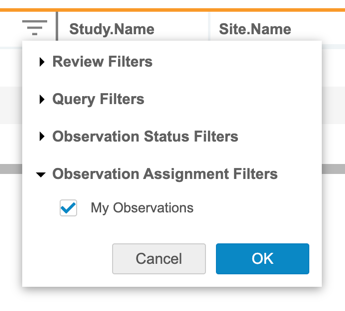
Enablement & Configuration
This feature is automatically available upon the release.
Update Review Listing Timing Thresholds 25R3.2
Use Case
Updates to the refresh timing allow for longer running listings to refresh on a limited basis.
Description
Review listing timing thresholds have been updated so that listings that run for longer than 30 seconds, up to 5 minutes, will be refreshed on a daily basis after 50 consecutive runs of greater than 30 seconds. CDB will automatically disable any listings that run over five minutes.
Enablement & Configuration
This feature is automatically enabled at the release.
Filter Menu Redesign for Clinical Reporting Listings 25R3.2 25R3.4
Use Case
Filter improvements allow more efficient review of listings, views, checks, protocol deviations, queries, and observations.
Description
Filters will have the following similar actions across data types:
- The operator selector has been changed to a drop-down menu
- Clear returns the filter to its default state
- OK will close the filter menu and update the listing based on the selected options
- Cancel will close the filter menu without taking any action
- OK and Cancel will always be visible, even if the list of options requires a scroll bar to see all filter options
- Pressing <kbd>Enter</kbd> within an input field will also apply filter changes and close filter menu
Updates have been made depending on the data type of the column:
- Text fields (when list of values is known, e.g. a codelist) will display each item in a checkbox list. By default the items will be unchecked, with the option to Select All options, or select from the options to filter the list to only those selected–with further options to select “Contains”, “Is exact match” or “Does not match” that display a text box to enter free text
- Text when the list of values is unknown, for example the AETERM column, which is free text entry into EDC, the “Contains” option is selected by default–with further options to select “Does not contain”, “Starts with”, “Ends with”, “Is empty”, “Is not empty”, “In”, “Not in”, “Is exact match”, and “Does not match”
- Text Comparison options are displayed when “Is exact match” or “Does not match” is selected
- Numeric options include “Is equal to”, “Is not equal to”, “Is empty”, “Is not empty”, “Is greater than”, “Is greater than or equal to”, “Is less than”, “Is less than or equal to”, “In”, “Not in”, and “Is between”–for “In” and “Not in” operators, a user can enter a comma separated list of values
- Number Comparison options are displayed when “Is equal to”, “Is not equal to”, “Is greater than”, “Is greater than or equal to”, “Is less than”, or “Is less than or equal to” is selected
- Unit Of Measure (UOM) options remain the same–when filtering the value, a Unit of Measure drop down is displayed allowing filtering of data collected using different units
- UOM Comparison options are displayed when “Is equal to”, “Is not equal to”, “Is greater than”, “Is greater than or equal to”, “Is less than”, or “Is less than or equal to” is selected–input fields are replaced with a drop-down when the user clicks the Compare button
- Boolean values provide checkboxes to filter the list by True, False, Blank, and Select All
- Date, Time, & DateTime values display “Is after”, “Is before”, “Is empty”, “Is not empty”, and “Is between”
- Time, Date & DateTime Comparison options are displayed when “Is after” or “Is before” is selected–input fields are replaced with a drop-down when the user selects the Compare button
Filters in Workbench Review Listings allow for filtering based on Review Status, Query Status, and Observation Status. Updates to these filters include:
- All filter values will be deselected by default
- When unselecting All, all values are unchecked for that category
Enablement & Configuration
These updates is automatically enabled at the release.
This feature is not testable in pre-release environments.
Listing Data Grid Improvements 25R3.4
Use Case
Improvements to screen size utilization in a listing enhances the experience for users–either those using smaller screens, or wanting to focus their view of data better by moving the cell details panel to a new window while still viewing the listing rows, making reviewing data easier.
Description
This release improved listing screens to use the available space more efficiently. Opening the cell details panel will automatically maximize the grid. You can pop-out the detail panel to a new window to allow full visibility to the listing data. Users can also use a new dialog to show and hide columns, so you no longer need to select columns one at a time to hide or show individual columns.
Additional enhancements include:
- The Expand Grid button has been updated to Maximize or Minimize the grid, utilizing more screen space for the data grid.
- Selecting cell decorations for Query, Observation, or Protocol Deviation will open to that section in the cell details panel.
- Contextual Filtering: A new grid-level option allows users to filter results instantly by a specific cell value. Simply hover over any cell to reveal the filter shortcut.
Enablement & Configuration
These changes apply automatically at the time of release.
Study File Format API Enhancements 25R3.4
Use Case
Improvements to SFF increase the value of this format for downstream systems.
Description
This release contains the following SFF improvements:
- The SFF extract now includes a Source column showing the name of the source of the data, either EDC or the third party data source name
- Query files have new columns for Origin information and Quick Queries
- The Labels file now includes third party data (CDB Workbench only)
- We removed the option in EDC Tools for OpenEDC studies to turn on SFF (CDB Workbench only)
- The SYS_Links CSV file now includes Item-to-Form linking information
- The full SFF package is now available at noon local vault time
- We’ve included additional protocol deviation information for third party data
Enablement & Configuration
These updates apply to all SFF API packages automatically after the release.
Learn More
Incremental Import Updates for Clinical Reporting Lab Labels 25R3.4
Use Case
Using incremental import when labels are changed in the Labs module ensures minor changes don’t require a full reprocess of the study data.
Description
Label changes made to lab codelist or unit items will now be added to the incremental imports from EDC. This only applies to studies using the Global version of Labs.
Enablement & Configuration
This feature is automatically available at the release.
This feature is not available for testing in pre-release environments.
Add Job ID to Manifest and Export Log 25R3.5
Use Case
Having a unique identifier for Workbench and Clinical Reporting export jobs supports more efficient troubleshooting and traceability.
Description
This release adds the Job ID to the export manifest.json file and the export job log for both Workbench and Clinical Reporting export jobs.
Enablement & Configuration
This feature is automatically available at the release.
Learn More
Data Type Based Third Party Data Masking 25R3.4
Use Case
Data type masking ensures that listings with blinded columns and unblinding rules maintain the data type when ingesting the data into a downstream system.
Description
With this release, a new option in CDB Workbench Configurations will allow data type masking to be applied to all studies in the vault. Data type masking will be applied for Integer, Decimal, Date, Time, and Date Time data types.
The following values will be used to show the value is blinded based on the data type of the column:
- Integer columns will display -2147483648 in the UI and in exports
- Decimal columns will display -9999.9999 in the UI and in exports (In this release, review listings will display -10000)
- Date columns will display Jan 1, 1583 in the UI and 1583-01-01 in exports
- Time columns will display 00:00:00 in the UI and in exports
- Date Time columns will display Jan 1, 1583 12:00AM in the UI and 1583-01-01 00:00:00 in exports
The SAS file format for datetime items will be updated to DATETIME19.
Enablement & Configuration
This feature is automatically available with the release.
Reprocess Third Party Data on Subject Not Found Warning 25R3.4
Use Case
The automatic reprocessing in production studies provides a way to reconcile data that enters the system at different times, and it ensures that data from third party providers matches the casebook records to avoid data reconciliation between sources.
Description
In production environments, the automatic reprocessing of third party data is based on warnings. The D-032 warning will now also trigger reprocessing. The message for the warning has been updated to: “Subject Name Not Found. Site determination failed for subject name: [subject name]”.
Enablement & Configuration
This feature is automatically available with the release.
CDB User Session Management 25R3.4
Use Case
Aligning user sessions removes confusion when the user gets logged out while actively working in CDB Workbench.
Description
CDB user sessions will now keep the vault session alive, and align with the vault settings, ensuring access in EDC and CDB is consistent and according to the vault’s settings.
Enablement & Configuration
This feature is automatically available with the release.
Role Management & Security
Features in this section are enhancements to the System Tools > Role Management and System Tools > Users areas, as well as changes to standard Study Roles, security, and access control in Veeva Clinical Data.
New Query Teams 25R3.2
Use Case
Three new specialized Query Teams offer more granular control over the assignment and management of queries.
Description
With this release, Veeva EDC introduces three new Query Teams: Medical Monitoring, Medical Review, and Pharmacovigilance. These new teams are now available as selectable options within the Team dropdown menu when administrators create or rename custom roles. Additionally, these teams can be selected in the “Query Team for System Queries” dropdown located in the Study Settings within Studio. No standard roles have been added to these new teams.
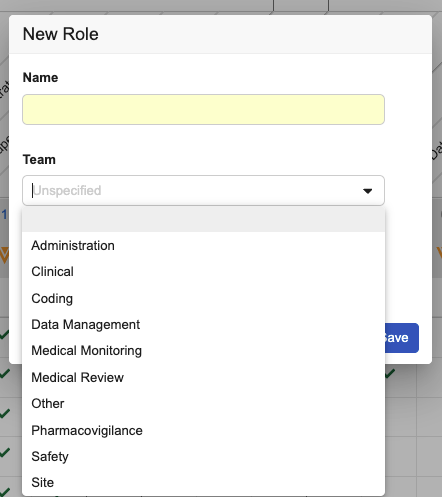
Enablement & Configuration
This feature is automatically available.
Learn More
"Manage Safety Configuration" Permission Moved to "Study Design" Section 25R3.4
Use Case
To better align the Manage Safety Configuration permission with the configuration work being done in Studio, we moved this permission in the Role Management tab.
Description
In System Tools > Role Management, the Manage Safety Configuration permission moved from the Study Administration section to the Study Design section. This change only refers to the display of the permission in the Role Management UI. The move has no impact on the actual permission, nor on any standard or custom role.
Enablement & Configuration
This update applies automatically at the time of release.
Connections & Integrations
Features in this section are new connections or integrations with Veeva Clinical Data or enhancements to existing ones.
Clinical Operations-EDC Connection: Partial SDV and DMR Reflects as In Progress in CTMS 25R3.4
Use Case
For studies connected via the Clinical Operations-EDC Connection, the SDV and DMR statuses are transferred from Veeva EDC to Veeva CTMS. To more accurately reflect and account for the current SDV and DMR Subject Visit status, the system will indicate In Progress in addition to Not Started and Completed if SDV or DMR has been partially performed. This additional information is available in newly configurable fields in CTMS. The handling of unrestricted and restricted data remains unchanged.
Description
- Not Started: No data points requiring SDV or DMR are currently SDV’d or DMR’d for a visit, including Event Date, Visit Method, and all Items
- In Progress: At least one (1) data point, but not all data points requiring SDV or DMR are currently SDV’d or DMR’d for a visit, including Event Date, Visit Method, and all* Items *
- Completed: All data points requiring SDV or DMR are currently SDV’d or DMR’d for a visit, including Event Date, Visit Method, and all Items
The SDV or DMR status updates automatically whenever an event or form is reset or the SDV or DMR plan is changed. Additive and optional SDV or DMR are not included in the status calculation.
Enablement & Configuration
This feature is automatically enabled for studies using the Clinical Operations - EDC Connection. Testing this functionality requires an integrated environment with Veeva CTMS. It cannot be tested within EDC alone. The new status will be backfilled on all connected events and automatically transferred to CTMS during the release weekend. Therefore, new statuses configured in CTMS may not appear immediately following the release.
Clinical Operations - EDC Connection: Protocol Deviation Management for Connected Studies in CTMS Only 25R3.2
Use Case
This feature improves alignment between Veeva EDC and Veeva CTMS. Since the Clinical Operations-EDC Connection is one-directional, changes made to a Protocol Deviation (PD) in EDC can inadvertently overwrite data managed in CTMS. By restricting editing capabilities in EDC for connected studies, this enhancement establishes CTMS as the primary management tool for Protocol Deviations.
Description
For studies connected to Veeva CTMS, this update changes how users interact with Protocol Deviations in EDC. Once a PD is created in EDC, the ability to edit the deviation fields within EDC is disabled.
When viewing a CTMS-managed Protocol Deviation, the following applies:
- The Edit button is disabled. Hovering over the button displays a tooltip explaining that the record is managed in CTMS.
- Users can view the full details of the Protocol Deviation and its audit trail.
Users can manually inactivate a PD in EDC with a new option labeled Inactivate Protocol Deviation in the Action menu. This option is useful if the deviation has already been marked as inactive in CTMS.
Selecting Inactivate Protocol Deviation triggers a confirmation dialog where the user must provide a Reason for Change. If the deviation was not already inactive in CTMS, the connection will update the status based on the change made in EDC.
Enablement & Configuration
This feature is automatically available for EDC studies connected to Veeva CTMS.
Learn More
Clinical Operations-EDC Connection: EDC Study Country Name Preserved for Connected Studies 25R3.4
Use Case
EDC Study Country names can diverge from CTMS Study Country names. Previously, when the Study Country was transferred from Veeva CTMS to Veeva EDC via the Clinical Operations-EDC Connection, the EDC Study Country name was overwritten by the CTMS Study Country name (e.g., “British Indian Ocean Territory” vs. “British Indian Ocean Territory (the)”). Overwriting can cause problems with rules programming or other integrations.
Description
If a new Study Country is created via the Clinical Operations - EDC Connection, the countries are mapped between CTMS and EDC based on the country code. In EDC, the new Study Country name will match the EDC country name.
If a Study Country is updated via the Connection, in EDC the current Study Country name will remain unchanged. If the current name is the CTMS Study Country name, it will remain as such. If the current name is the EDC Study Country name, it will remain as such.
In the rare case that a Study Country is updated via the Connection to point to a different country, based on the country code mapping, the Study Country name in EDC will match the newly mapped EDC Country name.
Study Country names in CTMS may now differ from those in EDC. In EDC, Study Country names may also differ across Study Countries created before 26R1 and those created after.
Enablement & Configuration
This feature is automatically enabled for studies using the Clinical Operations - EDC Connection. Testing this functionality requires an integrated environment with Veeva CTMS. It cannot be tested within EDC alone.
Learn More
Clinical Operations-EDC Connection: Aggregated User Exception Messages by Study Countries and Study Sites for Identical Issues 25R3.2
Use Case
If User Exception Messages (UEMs) for the Clinical Operations - EDC Connection are required due to an issue with data synchronization at the Study or Study Country level, several UEMs for each affected Study Country or Study Site might be created with the same error message. For example, if a study is locked, but the Clinical Operations - EDC Connection is not yet disconnected, any change that requires synching between Veeva CTMS and Veeva EDC would result in the creation of a UEM for every Study Country and every Study Site, as the lock would prevent their data synchronization. To reduce the number of UEMs, only one message, which lists all Study Countries and one message, which lists all Study Sites that are affected by the same error, are now being created.
Description
If the same Clinical Operations - EDC Connection issue affects more than one Study Country or Study Site, only one UEM is created for Study Countries (listing all affected Study Countries), and one UEM for Study Sites (listing all affected Study Sites), both showing the error message that affects all listed Study Countries or Study Sites.
Study Countries and Study Sites will be listed in the Item Data section of the UEM, respectively. This applies to error messages that read “Study is locked” and “Matching Study Country record cannot be found”.
Enablement & Configuration
This feature is automatically enabled for studies using the Clinical Operations - EDC Connection. This functionality can’t be tested exclusively in EDC but requires integrated testing with Veeva CTMS.
Learn More
Safety-EDC Connection: Connection Configuration Available for Every EDC Vault 25R3.2
Use Case
To configure the Safety-EDC Connection to connect one or multiple Veeva EDC Vaults to a Veeva Safety Vault no longer requires contacting Veeva Support.
Description
The configuration of the Safety-EDC Connection can now be done by Vault Owner and Safety Administrators without involvement of Veeva Support.
Enablement & Configuration
This change applies automatically.
Safety-EDC Connection: New Study Drug Management and Identification from Item Value 25R3.4
Use Case
Clinical trials often require complex study drug administration regimens, including participant- or visit-specific drug application chosen by the Investigator, country-specific study drug administration or various sub-study requirements. Previously, defining the “Study Drug Name” was limited to a static configuration for each Safety Configuration for a study drug. The requirement to therefore build one study drug EDC form per study drug made more complex study designs difficult to support.
For Safety - EDC Connection studies, we now introduce a dynamic approach, allowing the site to select the administered study drug on the EDC form during data entry. This significantly streamlines the EDC form build process for complex studies involving several study drugs, while it ensures data still flows correctly to safety systems regardless of which drug was administered.
For this, a new Study Drug dialog has been introduced to the Safety Integrations configuration area in Studio and a more flexible mapping of the “Study Drug Name” Safety Field to an EDC Item value will be configurable. This new functionality allows a more solid and flexible management of the Study Drug records for Safety - EDC Connection studies.
Description
New Study Drug Configuration
For studies using the Safety-EDC Connection, a new Study Drugs tab is available under Studio > Safety Integration.

From here, study designers can create new Study Drug records, including the Name (unique by study), the Blinding indication, and the Excluded When Classified Not Administered configuration for the study drug.

For managing Study Drug records, the same permissions as for the configuration of the Studio > Safety Integration > Safety Settings apply.
Safety Data Type: Study Drug
When configuring a Study Drug Safety Data Type, the Study Drug Defined From option still allows for a Specific drug from study design, which replaces the static Study Drug Name. However, the free text field for the study drug name is now replaced with a selection menu for the configured Study Drug records. A new Study Drug record can also be created directly from the drop down menu for immediate selection.
Alternatively, Item values in data entry can now be configured to allow the identification of the administered study drug during data entry.
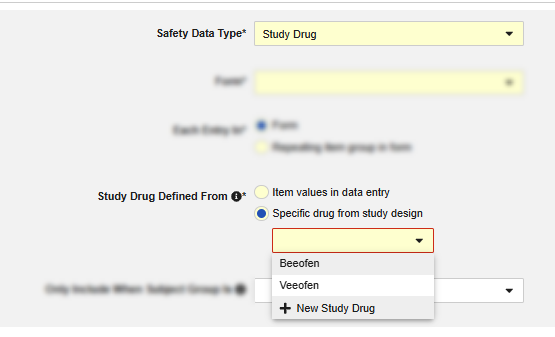
If Item values in data entry has been selected, a new Study Drug Name option will be available for mapping in the Item Configuration step. If the mapped item is of type codelist, the Studio validation requires all codes of the codelist to correspond to a name of a Study Drug record in the study.
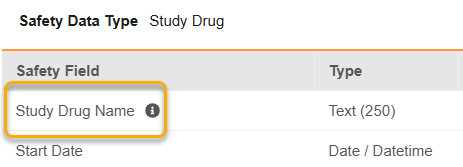
Safety Data Type: Safety Case Initiation Event
For these Safety Fields in the Item Configuration step of the Safety Case Initiation Event Safety Data Type, the following applies:
| Safety Field | JSON Name | E2B Analogous Location |
|---|---|---|
| Action Taken with Study Product | AE_PRODUCT_ACTION_TAKEN | G.k.8 |
| Did Reaction / Event Recur when Study Drug Resumed | AE_PRODUCT_ACTION_RECUR | G.k.9.i.4 |
| Dechallenge Answer | AE_PRODUCT_ACTION_DECHALLENGE | N/A (new standard field for Safety-EDC Connection from 26R1) |
| Method of Assessment to Study Drug | AE_PRODUCT_ASSESS_METHOD | G.k.9.i.2.r.2 |
| Result of Assessment to Study Drug | AE_PRODUCT_ASSESS_RESULT | G.k.9.i.2.r.3 |
| Source of Assessment to Study Drug | AE_PRODUCT_ASSESS_SOURCE | G.k.9.i.2.r.1 |
- The Study Drug column drop down will now show additionally the EDC Form name followed by the Study Drug as configured on the Study Drug Safety Data Types (previously only Study Drug name).
-
For each Study Drug Safety Data Type with the “Study Drug Defined From” option set to “Item values in data entry”, the Study Drug column drop down will show the configured EDC Form name with “set in data entry”. This indicates that the Study Drug will be selected by the site during data entry.
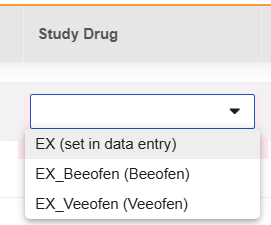
-
If a dynamic Study Drug (“set in data entry”) is chosen in the Study Drug column, a new column “Study Drug Item” will require the selection of the “Study Drug Name” item from the same item group as the “Configured Item” for the respective Safety Field. Only items of type Text or Codelist are allowed.

- Can now be mapped to a repeating or non-repeating item group independent of the “Each Entry In” selection.
All changes are reflected in the SDS, including the Set in data entry in the Study Drug Name column, the new column Study Drug Item, and a new tab for the configured Study Drug records.
Copying EDC Forms will support the new functionality. Due to the study-specificity of study drugs, Study Drug records are not available for copying between studies.
What Happens in Existing Studies During Feature Release
During feature release, a new Study Drug record will be created for every existing study drug on each Study Drug Safety Data Type. The study drug record will be created with the following values:
- Name: Free text “Study Drug Name” as configured on the respective Study Drug Safety Data Type > Form Properties
- Blinded: As configured on the respective Study Drug Safety Data Type > Form Properties
- Exclude When Classified Not Administered: As configured on the respective Study Drug Safety Data Type > Inclusion Criteria.
Thereafter, the new study drug record will be related to the respective Study Drug Safety Data Type. The conversion has no impact on the current Safety Case creation or follow-up transfer functionality.
While the Study Drug Name must be unique by study for newly created Study Drug records, duplicates might be created during this release-related conversion.
Enablement & Configuration
This feature is automatically enabled for studies using the Veeva Safety-EDC Connection.
Note for Existing Safety - EDC Connection Studies: During feature release, a new study drug record will be created for every existing study drug on each Study Drug Safety Data Type. Thereafter, the new study drug record will be related to the respective Study Drug Safety Data Type. The conversion has no impact on the current EDC behavior, Safety Case creation or Follow-up transfer functionality. For more details, refer to the Feature Description.
Safety Integrations: Follow-Up Scan Job Independent of Scheduling User 25R3.4
Use Case
The Safety Follow-Up Scan job is an essential part of the safety data transmission. We have now removed the dependence of its execution on the scheduling user.
Description
The Follow-Up Scan job is now independent of the scheduling user and its permissions. Before 26R1, the scheduling user had to have access to the study with the right permissions. Now, the scheduled Follow-Up Scan job will be executed independent of the study access and permissions of the scheduling user once created.
While Vault will still record job schedule history, it will be no longer available from the study-specific EDC Tools > Job Schedule UI. This is in preparation for a future feature.
Enablement & Configuration
This feature is automatically enabled for studies using the Safety - EDC Connection or E2BLink.
Safety-EDC Connection: New Standard Safety Fields and Adjusted Configuration Restrictions 25R3.4
Use Case
The Safety-EDC Connection allows the transfer of not only E2B conformant, but additional safety-relevant EDC data. We have further expanded the spectrum of Standard Safety Fields that can be transferred from EDC to Veeva Safety in accordance with the Veeva Safety standard data model.
Description
The sections below describe the changes by Safety Data Type.
This release reordered several Safety Fields on the Safety Case Initiation Event, Concomitant Medication and Study Drug form type to present most commonly used fields at the top. The change in the order of appearance is only related to a better study build experience and has no impact on any EDC functionality.
Safety Case Initiation Event
The following new fields are available for the Safety Case Initiation Event form type to support the transfer of (unexpected) pregnancy cases.
Veeva recommends that the general pregnancy questions (Cesarean Type, Fetal Infant Status) reside next to the existing pregnancy information items in the study build.
Veeva also recommends that all child-related questions reside in a repeating item group to account for multiples.
- Cesarean Type
- Fetal Infant Status
- Child Name or Initials
- Child First Name
- Child Last Name
- Child Date of Birth
- Child Age
- Child Age Unit
- Child Sex
- Child Weight (kg)
- Child Height (cm)
- Child GP Medical Record Number
- Child Hospital Record Number
- Child Gestation At Birth Number
- Child Gestation At Birth Unit
- Child Fetal Outcome
- Child Fetal Infant Status
- Child Birth Outcome
- Child Head Circumference
- Child APGAR Score (1 minute)
- Child APGAR Score (5 minutes)
- Child APGAR Score (10 minutes)
The following new fields are available for the Safety Case Initiation Event to support the transfer of study drug and concomitant medication information:
- Dechallenge Answer
- Concomitant Medication Action Taken
- Concomitant Medication Recurrence Answer
- Concomitant Dechallenge Answer
- Concomitant Medication Assessment Method
- Concomitant Medication Assessment Result
- Concomitant Medication Assessment Source
Of these, Child Age Unit, Child Gestation At Birth Unit, Concomitant Medication Assessment Method, Concomitant Medication Assessment Source allow static values.
Dechallenge Answer has to be answered for each study drug and all Concomitant Medication related fields must be paired via an item-to-form link.
The following Safety Fields on the Safety Case Initiation Event Safety Data Type are now only available where the “Each Entry In” is set to “Form”:
Pregnancy Case, Pregnancy Occurrences, Number Given Birth, Pregnant at Study Drug Exposure, Last Menstrual Date (Pregnancy Case), Pregnancy Conception Date, Pregnancy Due Date, Date of Pregnancy Outcome, Pregnancy Outcome, Delivery Method
The following fields now allow static values:
Pregnancy Case, Pregnant at Study Drug Exposure, Healthcare Professional Confirmed, Parent Route (Code), Batch / Lot Number, Frequency Value, Route (Code), Site of Dispense, Indication Reported, Indication Reported (Coding LLT)
Concomitant Medication
The following fields are available for the Concomitant Medication form type:
- Indication Reported
- Indication Reported (Coding LLT)
Study Drug
The following fields are available for the Study Drug form type:
- Indication Reported
- Indication Reported (Coding LLT)
In Case of Death
The following new fields are available for the In Case of Death Form.
These fields will allow a more site-friendly study design where cause can be entered by the site user without having to select a type, if the types are pre-configured and presented separately on the form.
- Cause of Death - Classified as Reported
- Cause of Death - Classified as Reported (Coding LLT)
- Cause of Death - Classified as Autopsy
- Cause of Death - Classified as Autopsy (Coding LLT)
Enablement & Configuration
This feature is automatically enabled for studies using the Safety - EDC Connection. For existing Connections and Studies, an administrator must re-run the Scan Vault Safety job under System Tools > Connections > Safety to show the available Veeva Safety options for any translated values of the newly introduced Safety Fields.
Safety Integrations: Reporter Details with New Source, Email & Phone 25R3.4
Use Case
The Reporter information will now be sourced from the person__sys object. This change is part of the EDC-wide replacement of the person__v with the person__sys object as data source to better integrate with all other Vault applications.
This new source object also allows for the Safety-EDC Connection to now transfer Email and Phone number for the case reporter with a Safety Case.
Description
The Reporter information, configured in Studio > Safety Integration > Safety Settings, will now be sourced from the person__sys object for both the Safety-EDC Connection and E2BLink case creation. This will not result in any changes to the current data or functionality.
For the Safety-EDC Connection sourcing the Reporter information from the person__sys object allows it to now also transfer the Email and Phone number of the Reporter. In Studio > Safety Integration > Safety Settings, if Full Site Information is selected for Reporter for the inclusion of reporter information into the Safety Case, now also the reporter’s Email and Phone Number will be transferred, if configured for the Reporter user.
Enablement & Configuration
Reporter information sourced from the person__sys object is automatically enabled for studies using the Safety - EDC Connection or E2BLink.
Where configured, transfer of the Reporter Email and Phone number is automatically enabled for new Safety Cases in studies using the Safety - EDC Connection. Existing Safety Cases will not receive any Follow-Up messages nor changes to the Reporter Information in a follow-up message, as it is immutable after the first send.
This feature is not available for testing in pre-release environments.
EDC API
The following are new features for the EDC API. See our Developer Portal's release notes for more detailed feature information.
EDC API Features 25R3.4
This release includes the following features for EDC developers:
- New User Information Data Source for Retrieve Users and Upload Users
- Retrieve Study Design Definitions Endpoints
- Casebook Design Export (CDE) Updates
- Modify Study Design Definition Endpoints
- Core Data Definition (CDD) File Management Endpoints
- Start Jobs with Data Definition Validation and Design Specifications Export
CDB API
The following are new features for the CDB API. See our Developer Portal's release notes for more detailed feature information.
CDB API Features 25R3.4
This release includes the following features for CDB developers:
- CDB Retrieve Queries API
- Study File Format API Enhancements
EDC Migrator
Features in this section are new features for Veeva EDC Migrator.
Migrator & YAML Builder Updates 25R3.4
Use Case
We have implemented several enhancements to increase efficiency within the migration process. Previously, users had to wait for the Medical Coding step to finish even when it wasn’t required for a study. Now, you can bypass it to save time. Setting up lab forms used to require individual mapping for each analyte across different studies; now the system automatically identifies the correct data columns using the lab header file. We also support unknown lab times, removing the need for a specific time and allowing for more realistic data ingestion.When lab normals were overridden during migration, the change reason was previously missing from the EDC Audit Trail but is now included. Finally, we removed the need for extra configuration steps for lab codelists by treating them as standard items.
Description
This release introduces the following updates:
- A new Skip Med Coding checkbox has been added to the Execute All Steps dialog, allowing users to bypass the coding step and mark it as Skipped in the Migration report.
- We now display lab normal override reasons directly within the EDC Audit Trail.
- The YAML Builder now treats lab results as traditional codelist items, removing the need for
labCodelistValuemapping when column names match. - We utilize the “labheader.yaml” file to automatically identify source data columns for lab result analyte values across different studies.
- We now utilize a DateTime TimeNotRequired template to automatically replace unknown lab times with a “UN” value to meet backend requirements.
Enablement & Configuration
This feature is automatically enabled, however, for it to work during migration, the study option Enable Sign with Open Queries must be enabled in the migrating study.
This feature is not testable in pre-release environments.
Migrator Support for Signing Casebooks with Open Queries 25R3.4
Use Case
Currently, during the migration process, if a casebook contains an open query, the Migrator prevents it from being electronically signed. This happens even if the Enable Sign with Open Queries setting in EDC is enabled for the study. This feature eliminates this behavior, ensuring that migrated studies retain the correct signature status as defined in the source data when the study is configured to allow signing with open queries.
Description
This enhancement allows the Migrator to apply an electronic signature to a casebook, or form, even if it contains an open query, provided the corresponding EDC setting is enabled in the target study.
During the migration, the Migrator checks if the Enable Sign with Open Queries setting is enabled for the study in EDC Tools > Study Options:
- If the option is disabled, the Migrator’s existing behavior holds, and signatures are not applied to casebooks with open queries.
- If the option is enabled, the Migrator proceeds to apply the signature as indicated in the migration input data, without preventing it due to the presence of an open query.
Enablement & Configuration
This feature is automatically enabled, however, for it to work during migration, the study option Enable Sign with Open Queries must be enabled in the migrating study.
This feature is not available for testing in pre-release environments.
Enable CDB Incremental Setting for Migrators 25R3.2
Use Case
Previously, high-speed integration options for EDC-CDB were restricted in migration environments. This update resolves that limitation by allowing administrators to turn incremental data flows on or off for CDB integrations directly within migration study settings.
Description
This feature enhances the visibility and control of data integration settings for migration studies. Administrators can now view and edit the Enable CDB Incremental setting in study settings for any environment designated as a Migration type.
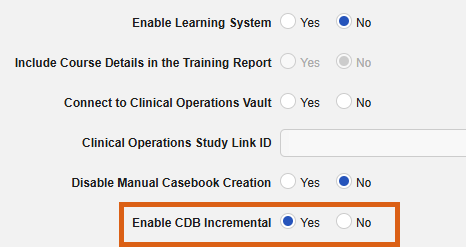
To streamline oversight, the setting’s status also appears in a CDB Incremental column in the study environment grid, allowing users to see at a glance which migration studies are configured for incremental data syncing.
Enablement & Configuration
The Enable CDB Incremental setting is only available and editable when the CDB Incremental feature is configured. This feature is available to Migrators upon release.
This feature is not testable in pre-release environments.
Safety Integrations: Suppress Safety Case Data Transfers during EDC Changeovers 25R3.2
Use Case
When migrating studies from legacy EDC systems into Veeva EDC, Safety Cases initiated by the legacy EDC already exist in the Safety system. Loading the safety-relevant data from the legacy EDC during the migration into Veeva EDC would initiate a first Safety Case transfer from Veeva EDC and either create duplicate cases in the Safety system or clutter it with additional Inbox items that have to be linked to existing cases.
This new feature allows the migration of safety data into Veeva EDC or perform release procedures without generating unnecessary transfers of Safety Case messages to the Safety system. This reduces significant load on the Safety Case processing during any EDC migration or release procedures while the regular follow-up process will be automatically reinstated once any changeover procedures are completed.
For the Safety-EDC Connection, this new capability will additionally allow the suppression of the creation of Safety Case follow-up messages, if desired, for example, during the release procedures.
Description
This feature introduces logic to support the migration of EDC data and involves:
- Initiating, which would initiate a duplicate initial Safety Case transfer or also to suppress unnecessary follow-up messages resulting from updates to EDC, for example during release management.
Before starting the EDC migration procedures a final full safety scan has to be run in the legacy EDC system to ensure that all follow-up messages, which are composed due to EDC data changes, are transferred to the Safety system. During the migration, EDC safety data, relevant safety case metadata, and a migration indicator is uploaded to Veeva EDC by the Vault Owner. As part of the final migration procedures, a full ad-hoc Follow-Up Scan job will be executed in Veeva EDC. For studies using the Safety - EDC Connection, the cases in the migrated study are now automatically linked to the existing Veeva Safety case without the creation of any unnecessary Inbox items in Veeva Safety. The additional subject information will, however, be updated in Veeva Safety for review on demand by the Safety team. For studies using the E2BLink, the cases will create an E2B.XML, which is not transferred to the AS2 gateway, but mimics a successful transmission.
Safety Cases are now registered with the Safety system. Follow-Up Scan jobs will execute as scheduled and create follow-up messages if there are changes to any Safety Case data.
For the Safety-EDC Connection, this new capability can also be used to suppress Safety Case data transfer if desired. For this, a full ad-hoc Follow-Up Scan has to be performed, the indication of being a halted case for transfer has to be set by the Vault Owner for all affected Safety Cases in Veeva EDC. After the changeover procedures have been finished, another full ad-hoc Follow-Up Scan must be performed. While this full scan will not result in follow-up messages to Veeva Safety, it will automatically reinstate the regular Follow-Up Scan job for actual Safety Case updates initiated by the site.
Enablement & Configuration
This change applies automatically.
This feature is not testable in pre-release environments.
Migrator: Reconcile Listings Enhancements 25R3.5
Use Case
Previously, the Reconcile Listings step (responsible for creating casebook summaries) occurred at the very end of the migration workflow. A 26R1 EDC enhancement involving lock/freeze consistency required the detection of locked casebooks. Since this information was not provided until a later step in the migration workflow, loads failed. Moving the Reconcile Listings step earlier in the workflow ensures the relevant information is provided to EDC in time. Moving this step earlier also allows it to be included in the Execute All workflow.
Description
This update optimizes the Migrator workflow by reordering steps and integrating the Reconcile Listings process into the automated Execute All workflow.
Key changes include:
- Workflow Reordering: The Reconcile Listings step has been moved to Step 7, occurring immediately after Post-Run and before Dynamic Rules.
- Automation: Reconcile Listings is now a standard part of the Execute All workflow, meaning users no longer need to manually start this job to see updated Subjects in the Review tab.
- Smart Delay: To ensure background operations conclude successfully, the system now includes a configurable waiting period between the completion of the Post-Run step and the start of the Reconcile Listings step. The delay only applies to the Execute All workflow; if the step is run manually outside of this workflow, there is no delay. The default delay time is five (5) minutes, though administrators can adjust this in Admin > Business Admin. During the delay, the step displays as In Progress.
Enablement & Configuration
These features are automatically enabled as part of the Migrator workflow.